



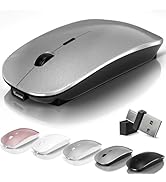
Bluetooth Wireless Mouse - Bluetooth 5.2/3.0 +2.4GHz USB-A + 2.4GHz USB-C [Type-C]

How to use the Bluetooth mouse:
1. Charge for 2 hours before first use,the red light is on when charging,the red light is automatically extinguished when fully charged,pairing open the Bluetooth mouse (switch to "BT"position),press the black circle(bluetooth pairing key)"Bluetooth connection button"More than 3 seconds.
2. Turn on the computer Bluetooth or toward the Bluetooth signal in the bottom right corner of the computer screen. Right click to select "add device", then the Bluetooth will enter the search state. (Note: Bluetooth normally has a Bluetooth logo in the lower right corner of the computer, if it normally starts.)
3. Wait for the computer to search interface into the Bluetooth device, the Bluetooth computer can search a mouse shape icon or "Bluetooth Mouse"(BT5.2 and BT3.0 switched freely)that is the Bluetooth mouse, and then click next to start the match, the pairing is successful mouse begin work.
[Note!]
v If your device does not have Bluetooth, you need to install the Bluetooth adapter first.
v If you do not use the mouse for a long time, turn off the "ON / OFF" switch.
v In order to save battery life, please do not charge the mouse when there is electricity.
v Rarely occurs on the mouse connection problem, if the connection is not on the deletion of the current Bluetooth driver, and download the correct Bluetooth
How to use the 2.4G wireless mouse:
Charge for 2 hours before first use,the red light is on when charging, the red light is automatically extinguished and show blue light when fully charged,Press The Mode Toggle Button On The Bottom of The Mouse pairing open the 2.4G mouse (switch to "2.4G"position), Take out the usb and Type-C 2-in-1 receiver from the slot at the bottom of the wirless mouse, then select one end and insert it into the corresponding device's port. Type-C or USB receiver Plug-and-play

Precise Optical Tracking
- Accurate Tracking
- Upgrade High-performance Optical Chips
- More Advanced Bluetooth Technology and Dual-port 2-in-1 Receiver 2.4GHz USB-A and USB-C
- BT5.2 and BT3.0 switched freely
- 2.4GHz USB-A & USB Type-C receiver Plug-and-play

Type-C Charging Port
USB charging cable included in package

Upgrade DPI Button
- 1?Short Press 1s to Switch Between 3 Grade DIP Optical Tracking Mode (800DPI?1200DPI?1600DPI).
- 2?Long Press 3s to Turn ON/OFF Random Jiggler Mode (Keep Computer/Laptop Awake).

Applicable for a variey of devices
Broad Device Compatibility:Normdecos bluetooth wireless mouse for MacBook pro compatible with most system including PC,Notebook,Pad,laptop,Mac OS;Support Win7 Win8 Win10 Linux OS X or Android tablet.
NOTE : If you have two devices, one with Bluetooth 3.0 and the other with Bluetooth 5.2, the wireless mouse only supports connecting to one device and CAN NOT connect to both 3.0 and 5.2simultaneously.

Streamline Ergonomic Design

ABS Shell & Frosted Panel

ABS+Rubber Roller

Slim and Portable

Package Included:
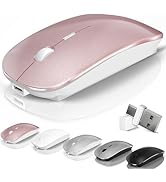
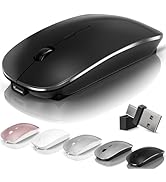
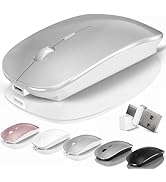
- 1 x Dual Mode Bluetooth Wireless Rechargeable Optical Mice (BT5.2+BT3.0+2.4GHz USB-A receiver+2.4GHz USB Type-C receiver).
- 1 x 2.4G USB-A & USB Type-C Receiver.(2.4G USB-A and USB Type-C receiver hidden in the bottom slot of the mouse)
- 1 x USB Charging Cable.(Do not use a high power charger or a fast charger to charge)
- 1 x User Manual.
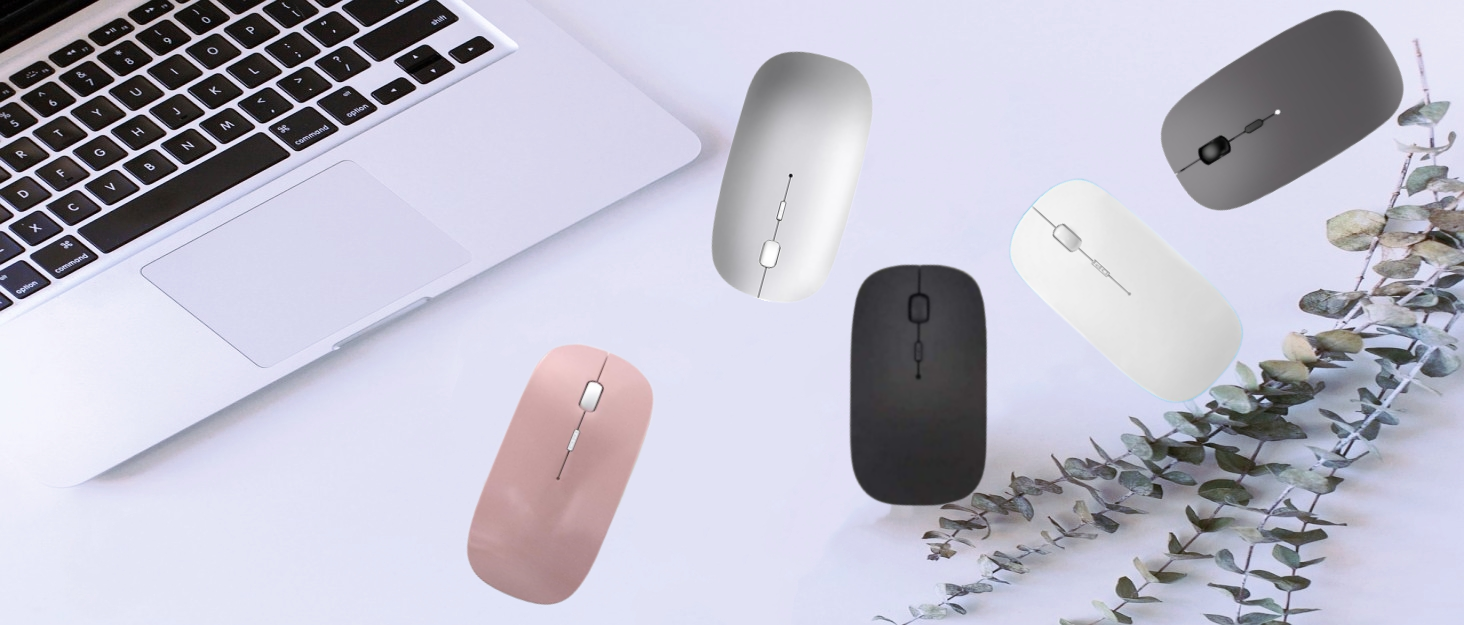
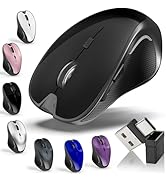
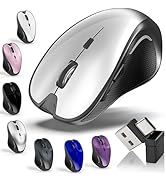
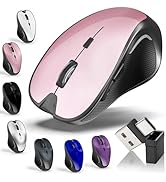
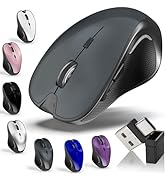
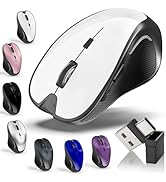
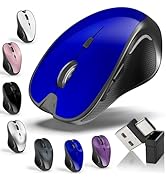
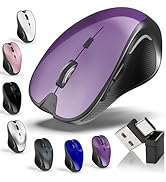
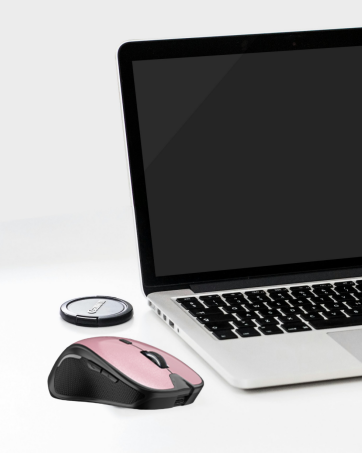
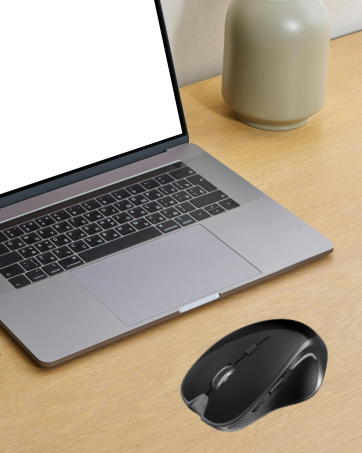
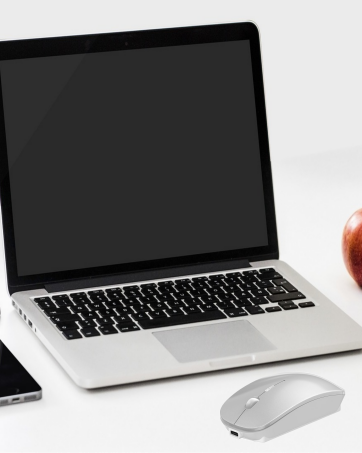
 Wireless bluetooth mouse (Black) |  Wireless bluetooth mouse (Rose Gold) |  Wireless bluetooth mouse (Silvery) |  Wireless bluetooth mouse (Gray) |  Wireless bluetooth mouse (White) |  Wireless bluetooth mouse (Blue) | |
|---|---|---|---|---|---|---|
| Customer Reviews | — | — | — | — | — | — |
| Price | — | — | — | — | — | — |
| Bluetooth | ? | ? | ? | ? | ? | ? |
| 2.4GHz USB-A | ? | ? | ? | ? | ? | ? |
| 2.4GHz USB-Type C | ? | ? | ? | ? | ? | ? |
| Built-in Rechargeable | ? | ? | ? | ? | ? | ? |
| Dimensions | 4.33*2.8*1.38 | 4.33*2.8*1.38 | 4.33*2.8*1.38 | 4.33*2.8*1.38 | 4.33*2.8*1.38 | 4.33*2.8*1.38 |
| Color | Black | Rose Gold | Silvery | Gray | White | Blue |
Kovess
A brand that focuses on innovation and reliability
More professional, more efficient, and more valuable





Bluetooth Wireless Mouse - Bluetooth 5.2/3.0 +2.4GHz USB-A + 2.4GHz USB-C [Type-C]
How to use the Bluetooth mouse:
1. Charge for 2 hours before first use,the red light is on when charging,the red light is automatically extinguished when fully charged,pairing open the Bluetooth mouse (switch to "BT"position),press the black circle(bluetooth pairing key)"Bluetooth connection button"More than 3 seconds.
2. Turn on the computer Bluetooth or toward the Bluetooth signal in the bottom right corner of the computer screen. Right click to select "add device", then the Bluetooth will enter the search state. (Note: Bluetooth normally has a Bluetooth logo in the lower right corner of the computer, if it normally starts.)
3. Wait for the computer to search interface into the Bluetooth device, the Bluetooth computer can search a mouse shape icon or "Bluetooth Mouse"(BT5.2 and BT3.0 switched freely)that is the Bluetooth mouse, and then click next to start the match, the pairing is successful mouse begin work.
[Note!]
v If your device does not have Bluetooth, you need to install the Bluetooth adapter first.
v If you do not use the mouse for a long time, turn off the "ON / OFF" switch.
v In order to save battery life, please do not charge the mouse when there is electricity.
v Rarely occurs on the mouse connection problem, if the connection is not on the deletion of the current Bluetooth driver, and download the correct Bluetooth
How to use the 2.4G wireless mouse:
Charge for 2 hours before first use,the red light is on when charging, the red light is automatically extinguished and show blue light when fully charged,Press The Mode Toggle Button On The Bottom of The Mouse pairing open the 2.4G mouse (switch to "2.4G"position), Take out the usb and Type-C 2-in-1 receiver from the slot at the bottom of the wirless mouse, then select one end and insert it into the corresponding device's port. Type-C or USB receiver Plug-and-play
Precise Optical Tracking
- Accurate Tracking
- Upgrade High-performance Optical Chips
- More Advanced Bluetooth Technology and Dual-port 2-in-1 Receiver 2.4GHz USB-A and USB-C
- BT5.2 and BT3.0 switched freely
- 2.4GHz USB-A & USB Type-C receiver Plug-and-play
Type-C Charging Port
USB charging cable included in package
Upgrade DPI Button
- 1?Short Press 1s to Switch Between 3 Grade DIP Optical Tracking Mode (800DPI?1200DPI?1600DPI).
- 2?Long Press 3s to Turn ON/OFF Random Jiggler Mode (Keep Computer/Laptop Awake).
Applicable for a variey of devices
Broad Device Compatibility:Normdecos bluetooth wireless mouse for MacBook pro compatible with most system including PC,Notebook,Pad,laptop,Mac OS;Support Win7 Win8 Win10 Linux OS X or Android tablet.
NOTE : If you have two devices, one with Bluetooth 3.0 and the other with Bluetooth 5.2, the wireless mouse only supports connecting to one device and CAN NOT connect to both 3.0 and 5.2simultaneously.
Streamline Ergonomic Design
ABS Shell & Frosted Panel
ABS+Rubber Roller
Slim and Portable
Package Included:
- 1 x Dual Mode Bluetooth Wireless Rechargeable Optical Mice (BT5.2+BT3.0+2.4GHz USB-A receiver+2.4GHz USB Type-C receiver).
- 1 x 2.4G USB-A & USB Type-C Receiver.(2.4G USB-A and USB Type-C receiver hidden in the bottom slot of the mouse)
- 1 x USB Charging Cable.(Do not use a high power charger or a fast charger to charge)
- 1 x User Manual.
Wireless bluetooth mouse (Black) | Wireless bluetooth mouse (Rose Gold) | Wireless bluetooth mouse (Silvery) | Wireless bluetooth mouse (Gray) | Wireless bluetooth mouse (White) | Wireless bluetooth mouse (Blue) | |
|---|---|---|---|---|---|---|
| Customer Reviews | — | — | — | — | — | — |
| Price | — | — | — | — | — | — |
| Bluetooth | ? | ? | ? | ? | ? | ? |
| 2.4GHz USB-A | ? | ? | ? | ? | ? | ? |
| 2.4GHz USB-Type C | ? | ? | ? | ? | ? | ? |
| Built-in Rechargeable | ? | ? | ? | ? | ? | ? |
| Dimensions | 4.33*2.8*1.38 | 4.33*2.8*1.38 | 4.33*2.8*1.38 | 4.33*2.8*1.38 | 4.33*2.8*1.38 | 4.33*2.8*1.38 |
| Color | Black | Rose Gold | Silvery | Gray | White | Blue |
Kovess
A brand that focuses on innovation and reliability
More professional, more efficient, and more valuable
Kovess : A brand that focuses on innovation and reliability!
We have always been committed to customer-centered,adhere to the combination of innovation and actual needs,provide high-quality products, and gain more and more customer recognition.
Choose what you need





