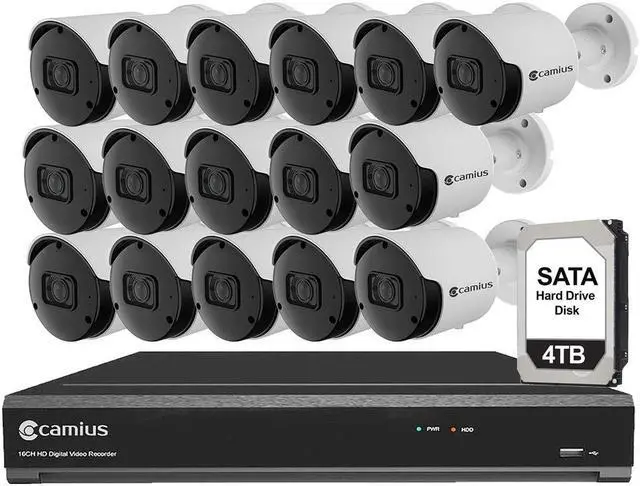
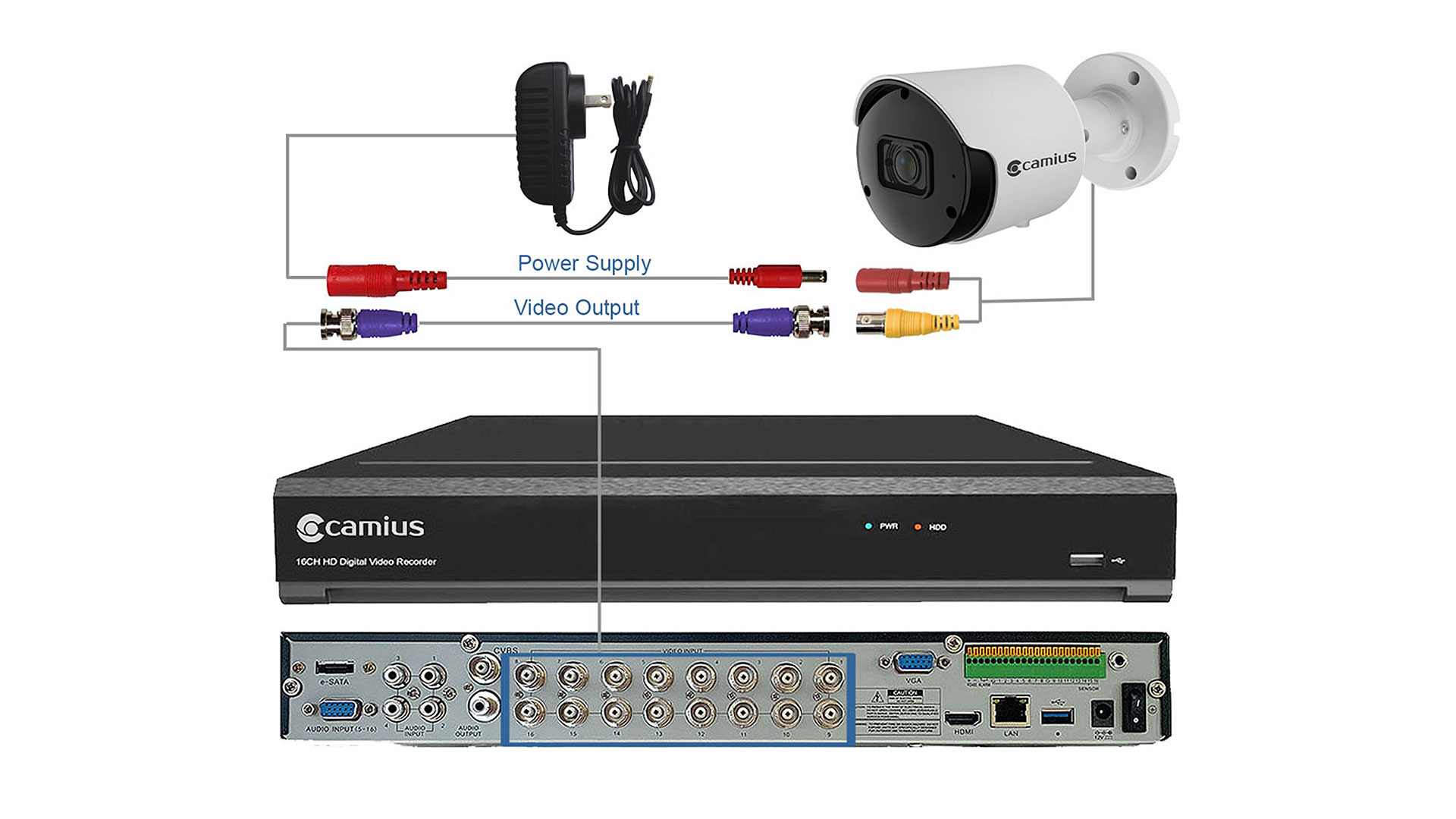
The Camius TRIVAULT4K2168R paired with 16 FB4KPRO analog cameras delivers 8-megapixel (3840x2160) recording across 16 coaxial BNC channels. Each camera uses a 2.8mm F1.0 wide-aperture lens to achieve a 110° horizontal field of view, capturing wide coverage of entryways, parking areas, and open yards without blind spots at the edges. When darkness falls, DVR-controlled white spotlights activate on detected motion, producing full-color night footage out to 66 feet and IR imaging to 100 feet.
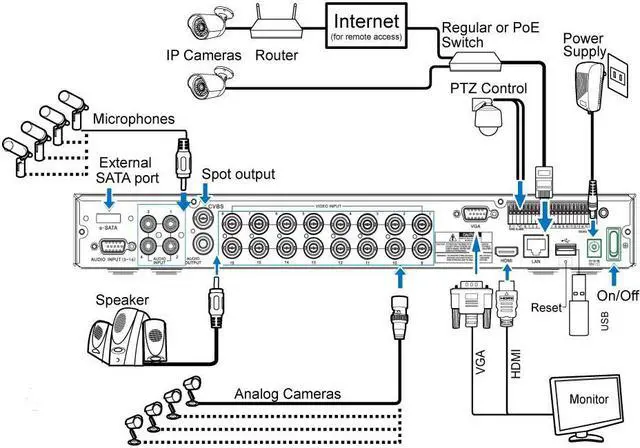
The hybrid DVR operates in XVR mode, meaning you can add up to 8 Camius PoE IP cameras at any time without replacing hardware, bringing total camera count to 24. Internal storage starts at 4TB and expands to 28TB with a second SATA drive, or 42TB total via the eSATA port. H.265 compression keeps file sizes compact without sacrificing resolution.
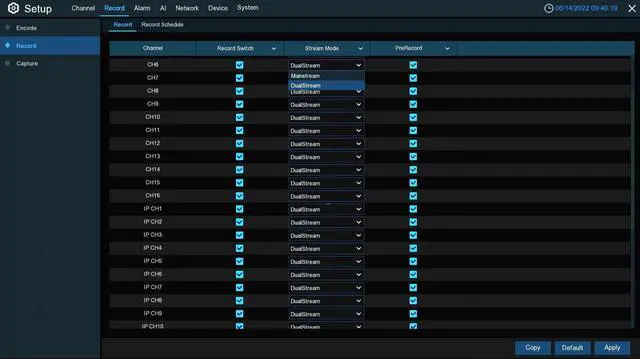
AI detection runs Human and Vehicle classification, Perimeter Intrusion, Line Crossing, and Video Tampering on up to 8 channels at once, filtering nuisance alerts before they reach your phone. Recording schedules are set per-channel: continuous, motion-triggered, scheduled. Footage searches by date, time, event, or Smart Search motion region.
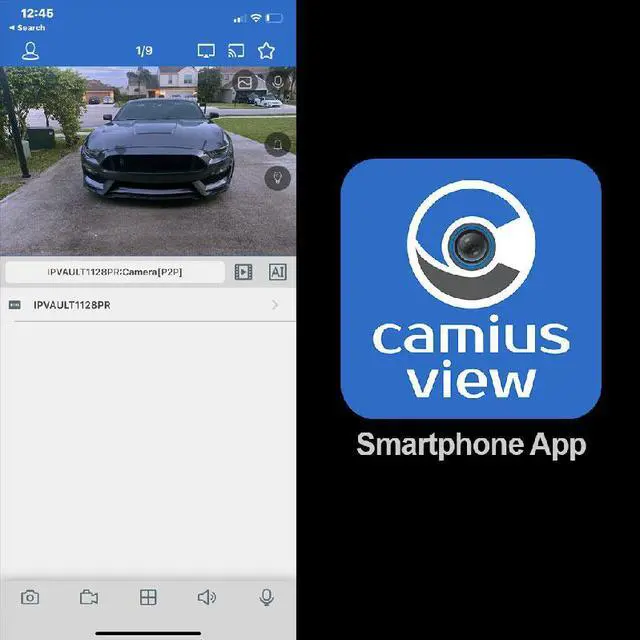
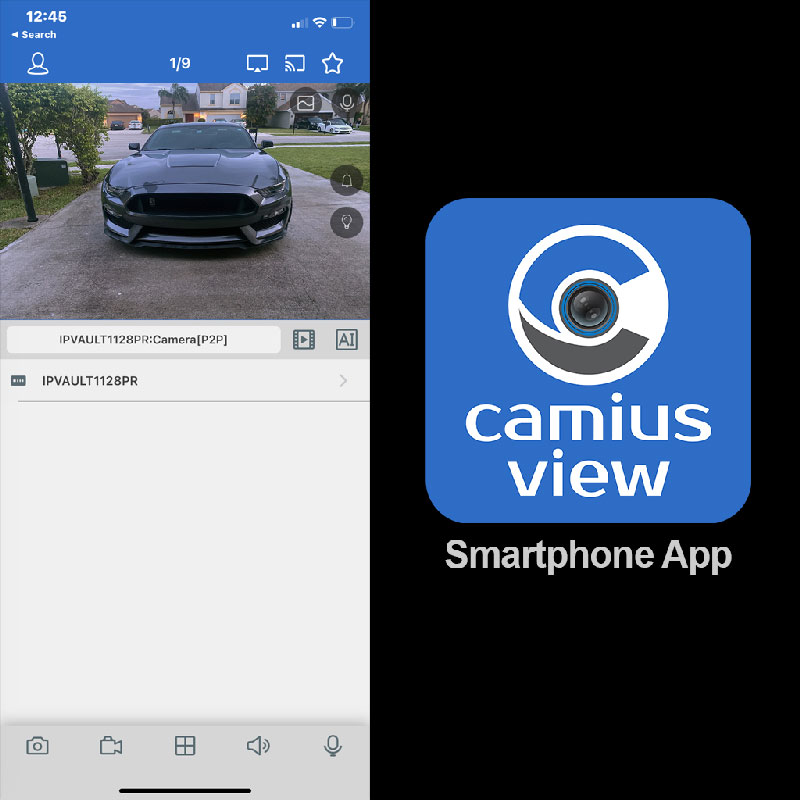
Remote access requires no monthly fee. Camius View (iOS and Android) delivers live streams, playback, and push notifications globally. The free Camius VMS software for Windows and Mac handles multiple cameras across multiple locations on a single screen. Local web browser access is also supported.
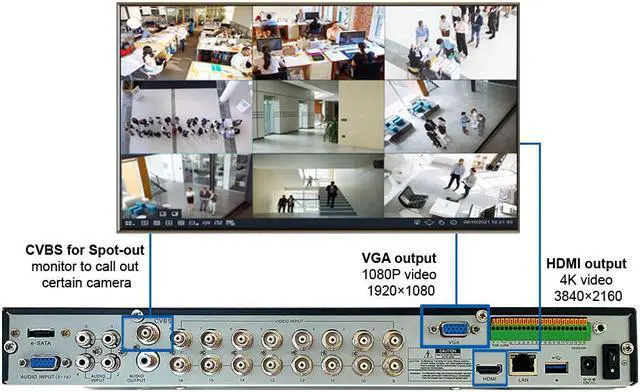
Video outputs include one 4K HDMI, one 1080P VGA, and one CVBS spot monitor output. Each FB4KPRO camera features a built-in microphone for audio recording via coaxial cable (Camius proprietary audio-video coaxial cable required, sold separately). All 16 cameras are IP66 weatherproof and rated for operation from -22°F to 131°F.
Package includes: TRIVAULT4K2168R DVR with 4TB HDD, 16 x FB4KPRO 4K analog cameras, DVR power adapter, HDMI cable, network cable, audio cable, USB mouse, and installation guide. Camera cables and power supplies are sold separately.
Configuring the FB4KPRO Camera Lights
The FB4KPRO has two built-in light types: warm white spotlights (66ft range) for full-color night vision, and IR LEDs (100ft range) for passive infrared imaging. The spotlights are controlled by the TRIVAULT4K2168R DVR. Four settings must all be enabled for Smart Illumination to work.
Step 1: Set Day and Night mode to EXT via UTC
Connect the DVR to a monitor via HDMI and go to Live View. Select the camera channel, open the quick menu, and click the PTZ icon. Under Mode, select UTC, then press the center circle button to enter UTC mode. Use the arrow buttons to navigate to DAY&NIGHT, press the center button, then change MODE to EXT using the left or right arrows. Move down to SAVE-EXIT and press the center button to save. camius
Step 2: Enable Smart Illumination
Go to Setup, then Alarm, then Deterrence. Select the camera channel and tick the Smart Illumination switch. Click Apply. Via browser, go to Remote Setting, then Alarm, then Deterrence. camius
Step 3: Enable Human and Vehicle Detection
Go to Setup, then AI, then Detection Setup. Open Human and Vehicle Detection and turn the Switch on for the camera channel. Click Apply. Only one AI detection mode (Human and Vehicle, Perimeter Intrusion, or Line Crossing) can be active per camera at a time. If the switch is greyed out, another AI mode is already enabled on that channel and must be disabled first. camius
Step 4: Enable the AI Detection Schedule
Stay in the AI menu and open Schedule. Enable the schedule for Human and Vehicle Detection and click Apply. Inside the Schedule screen, confirm the Mode radio button is set to Human and Vehicle Detection. Only one red-mode detection function can be scheduled per camera at a time. camius
When all four steps are complete, the white spotlights activate at night only when a human or vehicle is confirmed by the DVR's AI, producing full-color 4K footage at the moment of detection. IR remains active as a passive fallback when the spotlights are off.
Note: Smart Illumination requires the TRIVAULT4K2168R DVR. The UTC command travels over the coaxial cable; a loose BNC connector, worn cable, or failing 12V power supply can prevent EXT mode from saving. If the camera reverts to COLOR after saving, check the cable and power supply before adjusting settings again.