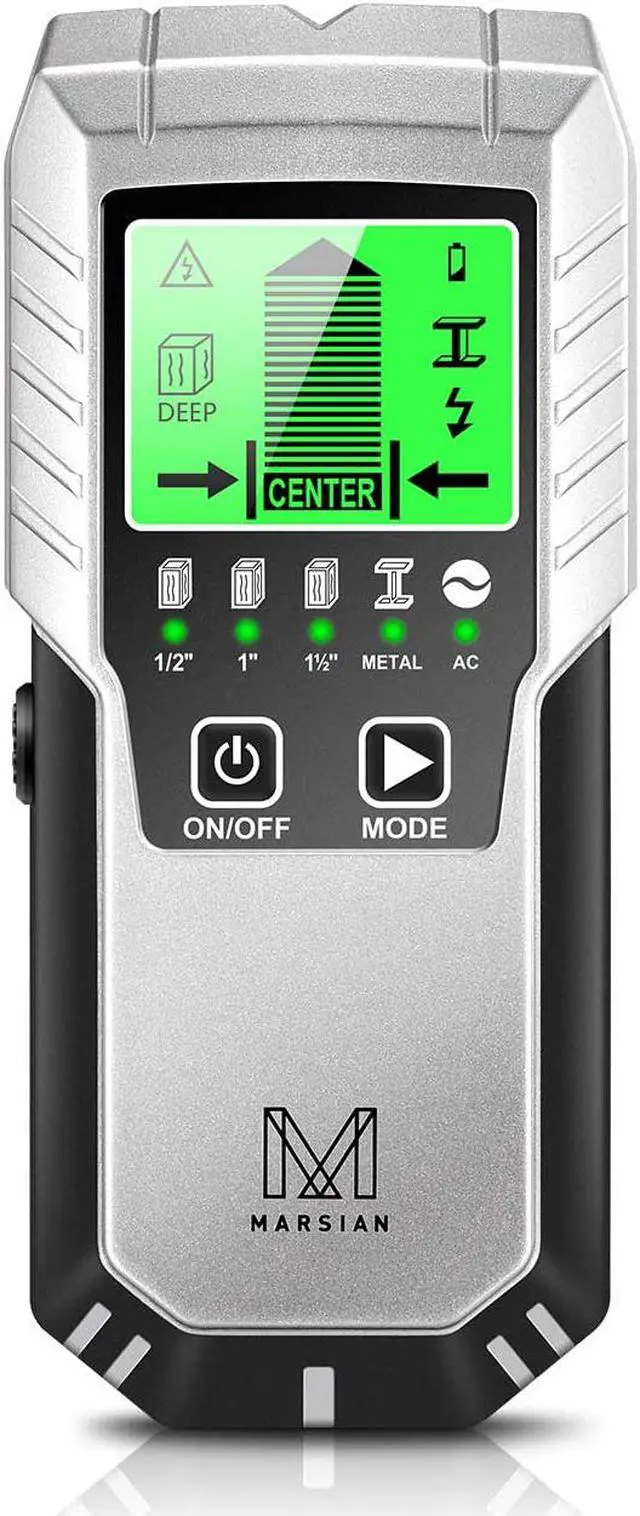
Meet the New Generation of M MARSIAN TH570 Stud Finder!
M MARSIAN TH570 STUD FINDER WALL SCANNER--The best choice for Christmas tool gifts!
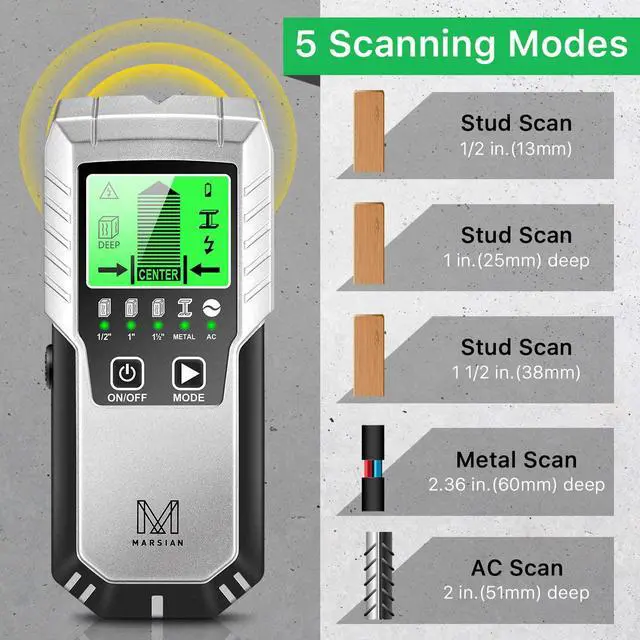
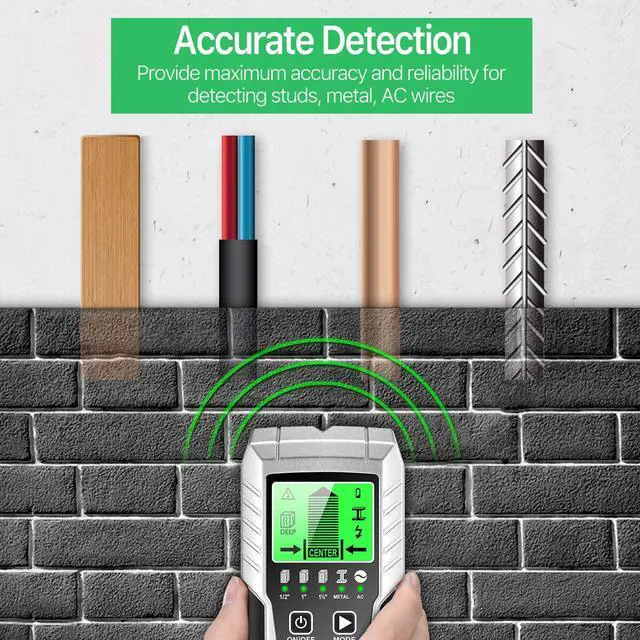
The M MARSIAN stud detector wall scanner has 5 scanning modes, which can quickly locate the metal, studs, joists, pipes, and live AC wires behind the wall. Help you to easily complete the home decoration.
This wall detector can work on popcorn ceilings, plaster walls, textured surfaces, drywall. Sensing depth and accuracy can vary due to moisture, content of materials, wall texture, and paint.
Stud Detection
The stud finder has 3 stud scan modes. The stud mode can scan studs behind the wall from 0.5 in. (13mm) to 1 in. (25 mm) deep. This wall scanner also provides a deeper wall scanning mode for deep studs up to 1.5in. (38mm). Both wood and metal studs can be found in deep mode.
AC Wires Detection
Scan up to 2 in. (51mm) deep. For safety, in all modes such as wood stud finder, this wall scanner always detects and indicates the live AC wires. When live AV voltage is detected, the AC warning indicator will illuminate and protect your safety.
Metal Detection
Scan up to 2.36 in. (60mm) deep. The STUD mode relies on density changes to detect, it cannot be detected whether a wood or a metal is measured. Therefore, after using the Stud mode to find the subject, you may adjust to the Metal Mode to verify again to check whether wood or metal is detected.
How to start
Step 1- Calibrate Before Scanning
Selecting the mode, press and hold the scan button (on the left side of the tool) to calibrate. Wait for the reducing bars disappeared and beep to confirm that the calibration is complete.
Step 2- Move It to Scan the Wall
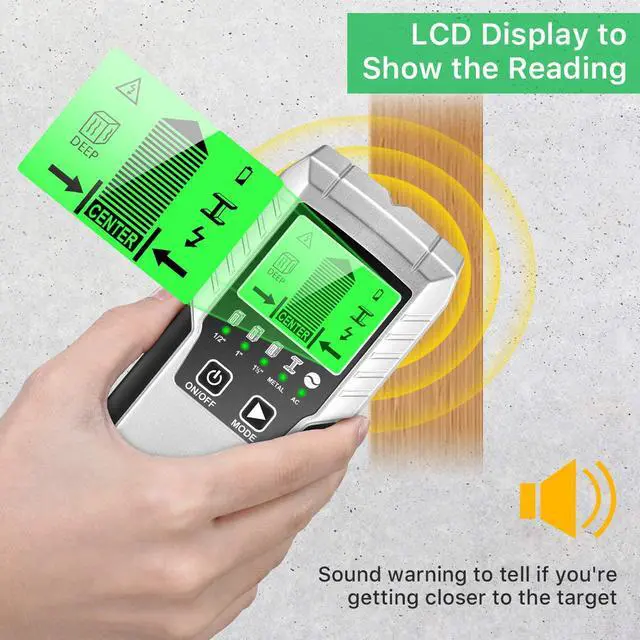
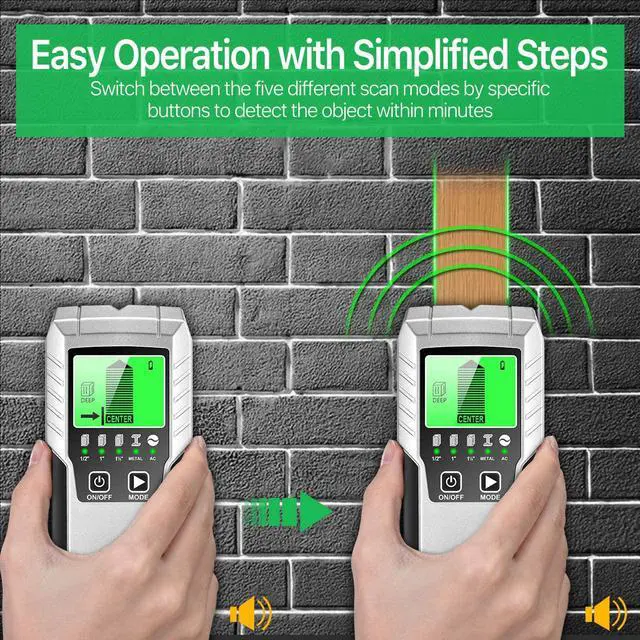
Press the button and slowly slide the scanner across the wall. The progressing bar on the screen changes as the beep signal guides you to the location of the stud.
*If you shake, tilt or accidentally lift the scanner, you will need to recalibrate the device.
Step 3- Find out the Location of the Target
If the signal bar is full and the beep is loud, pointed arrow on the top of the bar shows you the center of the object. You can mark out the object according to the center and width shown on the screen.



 All Categories