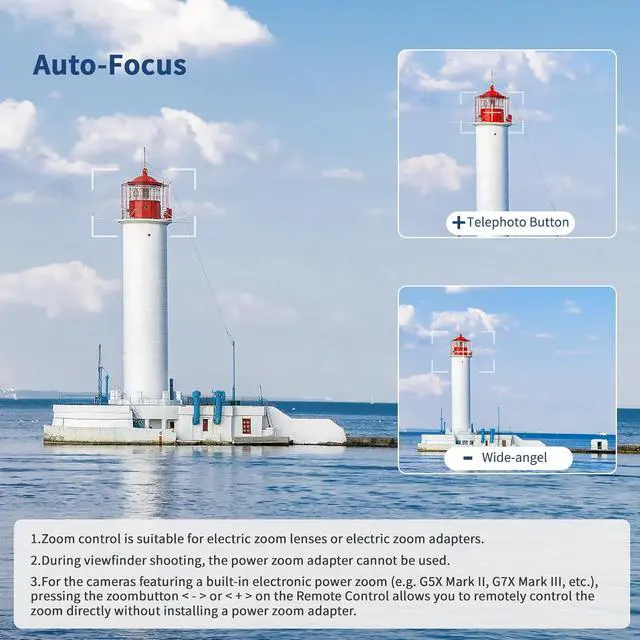
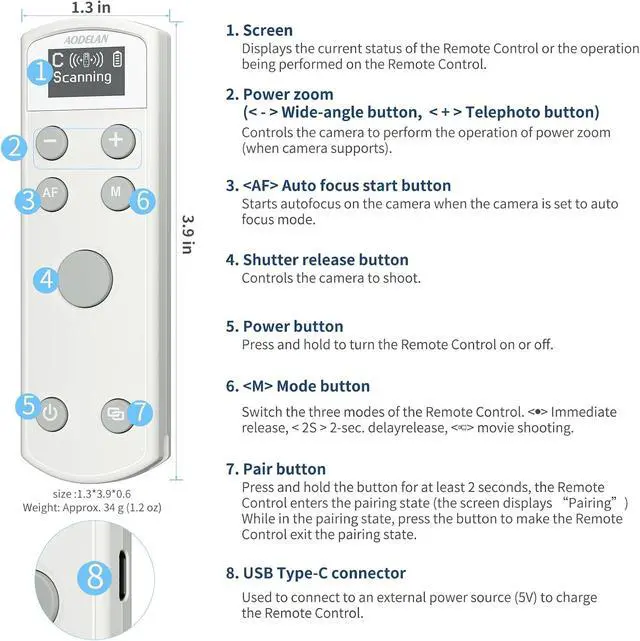
Focus and ZoomPress the AF key to activate autofocus, the feature of zooming only works when using with the Canon PZ-E1 Power Zoom Adapter (NOT INCLUDE), and movement of the EF-S 18-135mm f/ 3.5 - 5.6 IS USM lens. For the cameras featuring a built-in electronic power zoom (e. g. G5X Mark II, G7X Mark III, etc. ), pressing the zoom button or on the Remote Control allows you to remotely control the zoom directly.
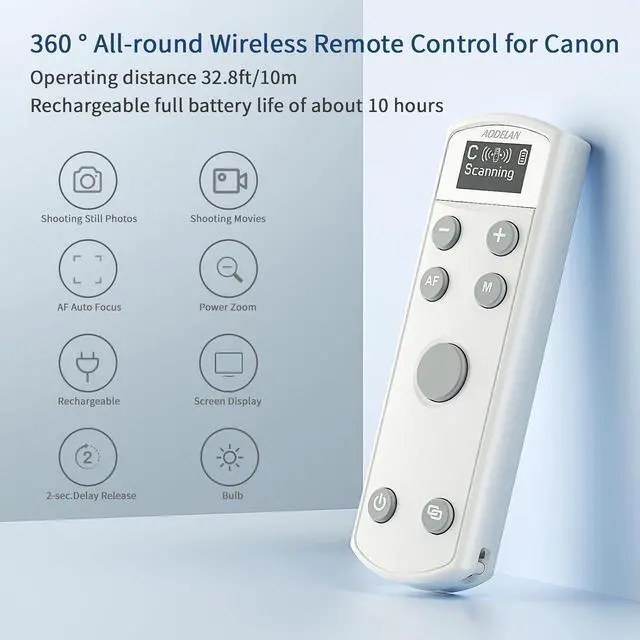
OLED Display Screen: The newly added OLED display screen visualizes your operations, making the current status clear at a glance and providing clearer and more specific display function settings.
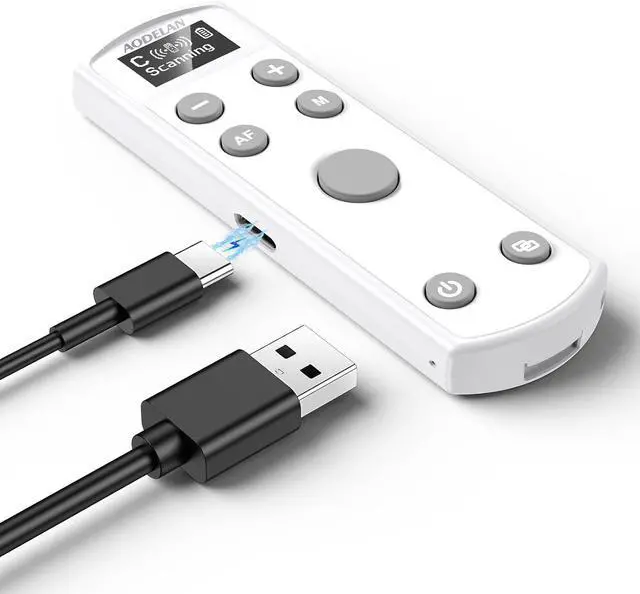
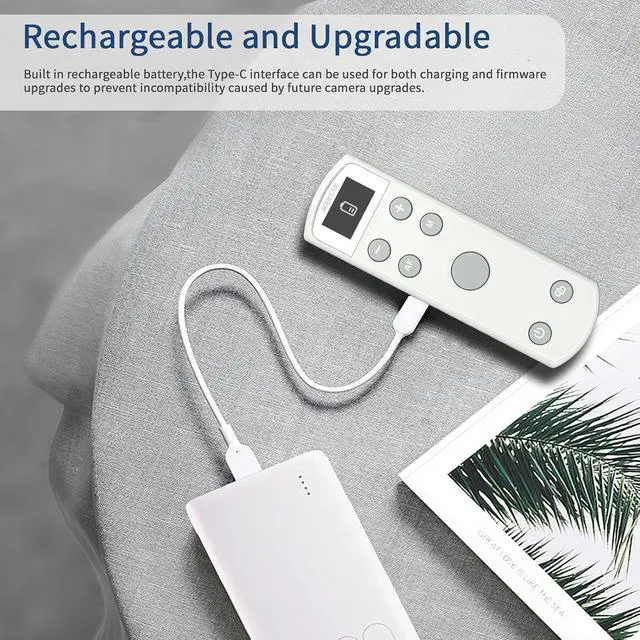
Upgrade Type-C interface: The included Type-C cable can directly charge the remote control, with a full battery life of about 10 hours, and the power can be saved by pressing the shutdown button. It can also be used for firmware upgrades to prevent future camera upgrades from causing incompatibility.
Shooting a still photo
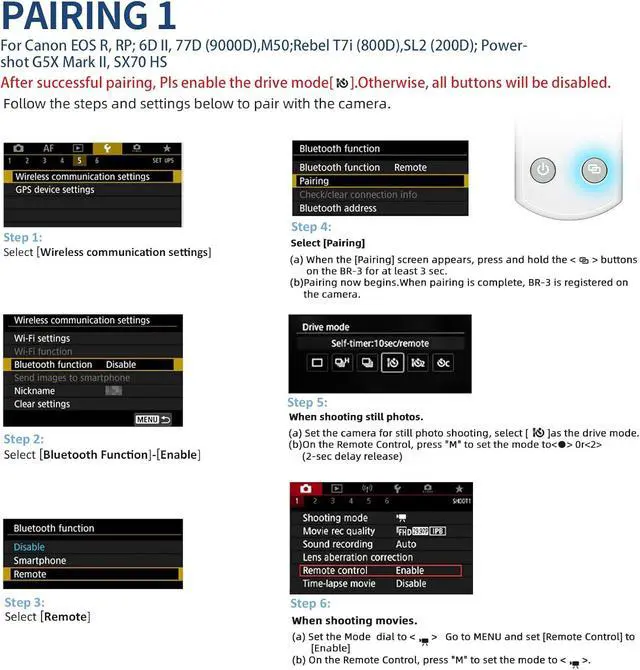
1. Set the camera for still photo shooting and set the drive mode of the camera to remote control.
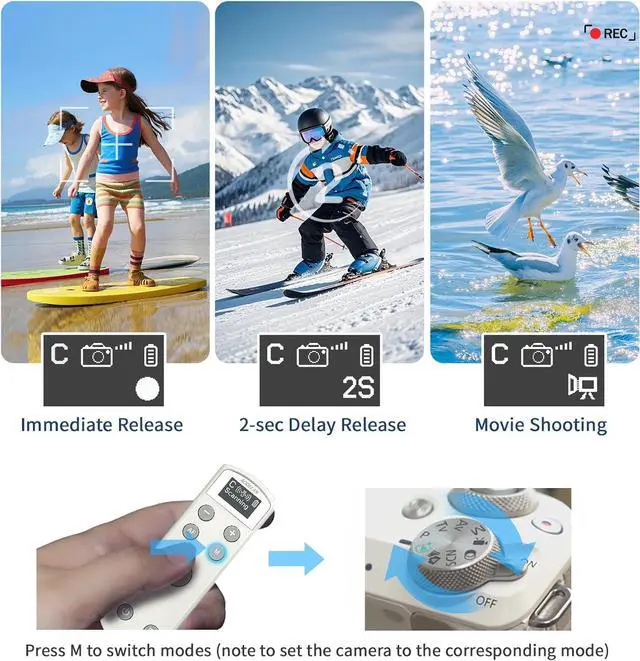
2. Set the mode of the Remote Control to < > (immediate release) or < 2S > (2-sec. delay release) by pressing the < M > mode button on the Remote Control.
3. Press the shutter release button on the Remote Control, the camera automatically focuses (AF). (The camera needs to be set to AF (auto focus) mode. )
4. When the focus is achieved, the camera takes a picture immediately (mode setting on the Remote Control is < > ) or in 2 seconds delay (mode setting on the Remote Control is < 2S > ).
Shooting a movie
1. Set camera to movie shooting mode < video > and set [Remote Control] to [Enable] from the menu screen of the camera.
2. Set the mode of the Remote Control to < video > (movie shooting) by pressing the < M > mode button on the Remote Control.
3. Press the shutter release button on the Remote Control, movie shooting starts.
4. Press the button again, movie shooting stops.
[Notes]
1. When the camera is set to AF (auto focus) mode, it can also be focused by pressing the < AF > button on the Remote Control.
2. Depending on the camera, the setup method for remote control shooting may differ. Refer to the instruction manual for your camera.