Meet Your Seller
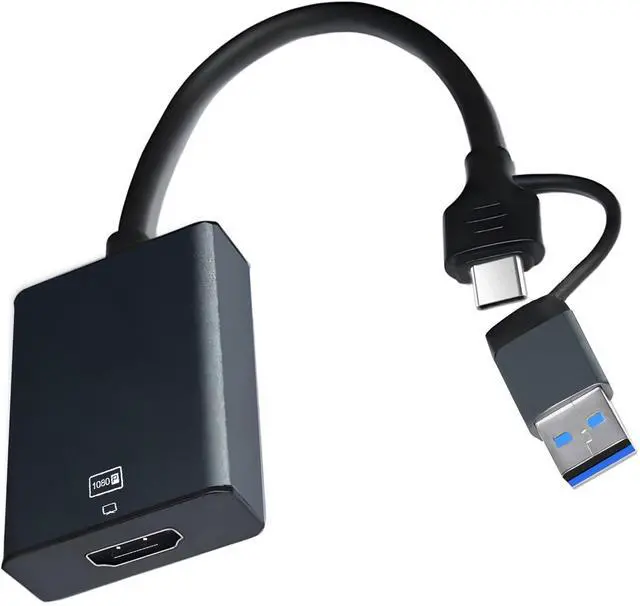
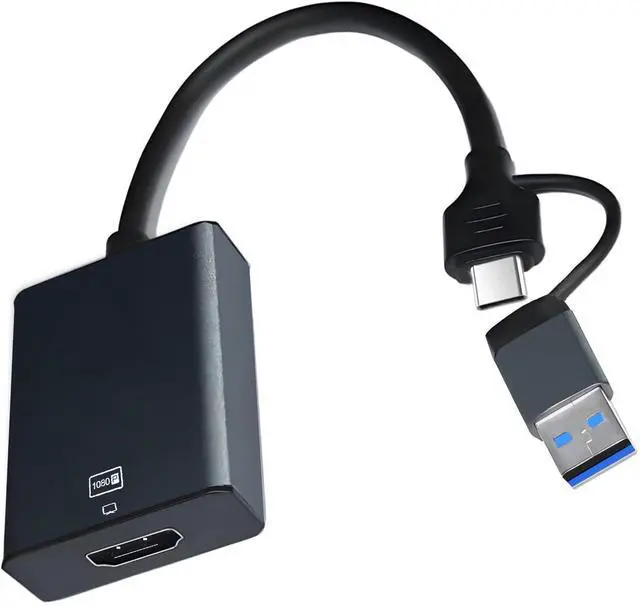
USB to HDMI Adapter for Monitor,HDMI USB 3.0 Converter Splitter for Laptop Desktop PC TV Compatible with MacOS Windows 7/8/10/11
- Item #: 9SIVSY8KXF8065
- Mfr. Part #: 071036944562
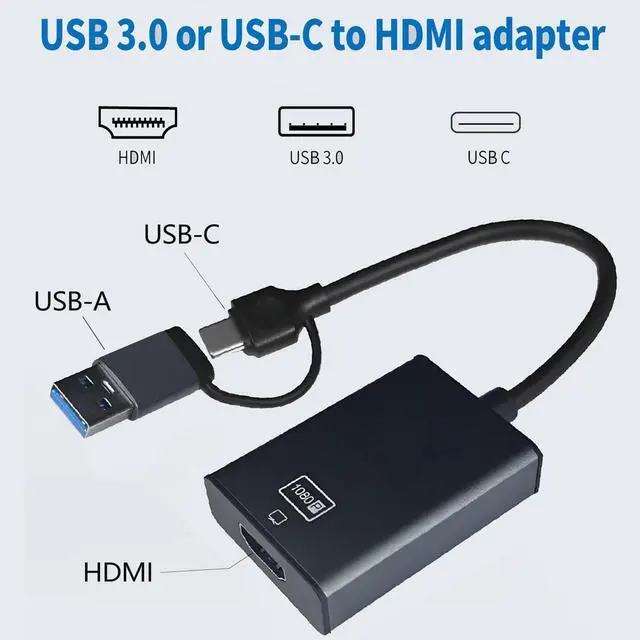
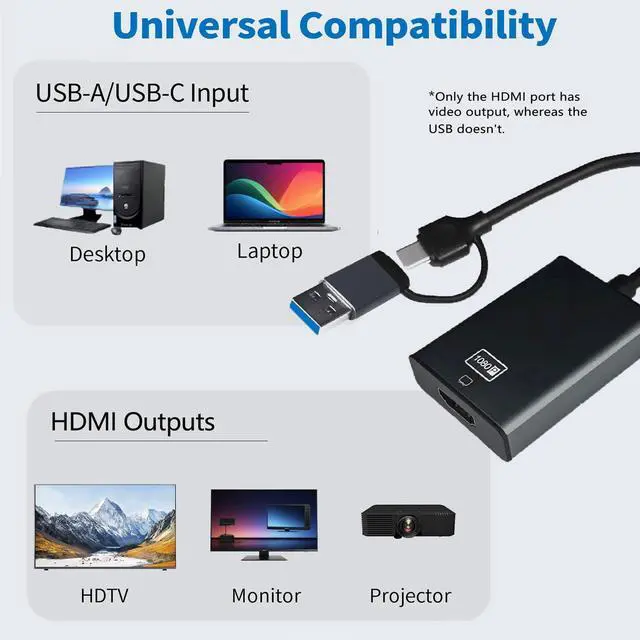
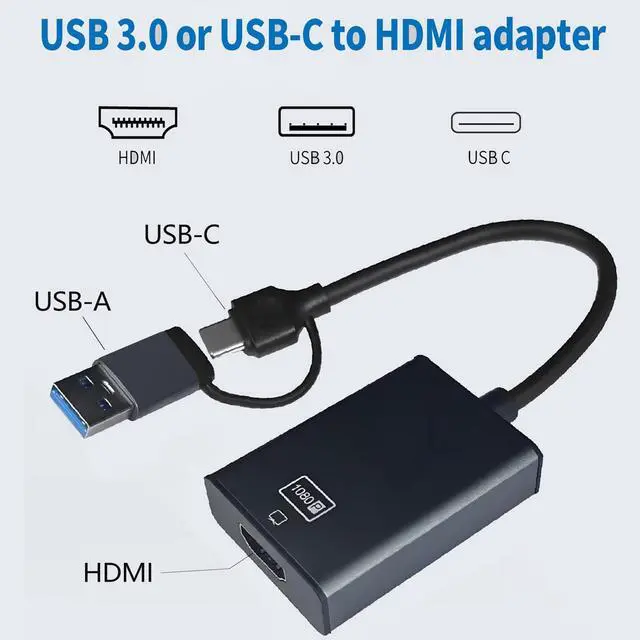
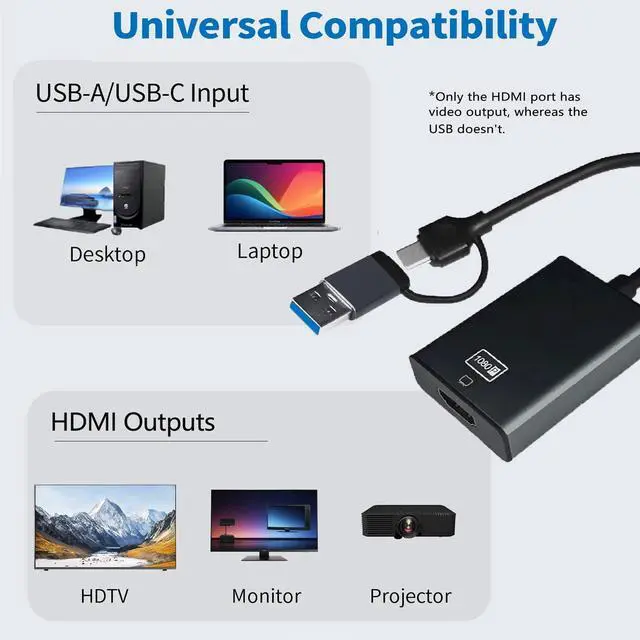
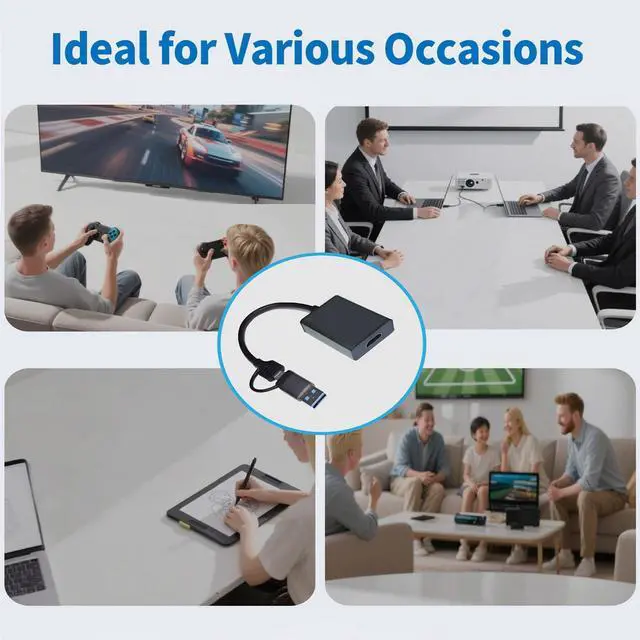
- USB 3.0 to HDMI Adapter: This converter breaks device limitations by converting USB to HDMI, enabling effortless image or video output for easy connection to HDMI monitors/projectors/TV
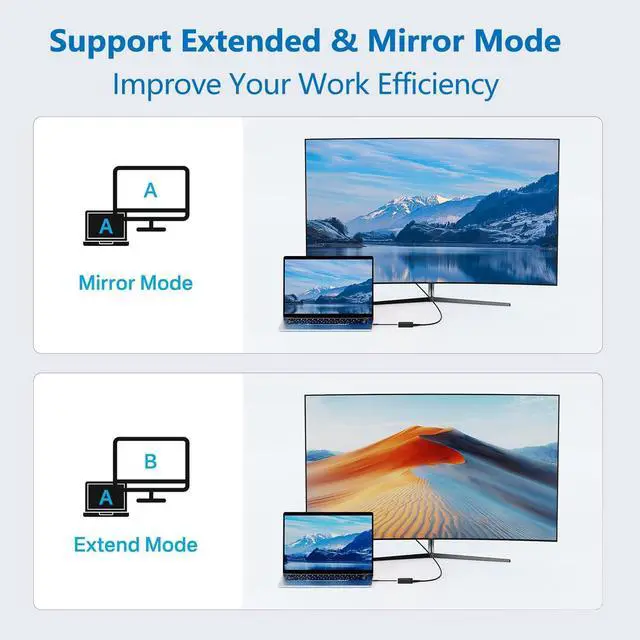
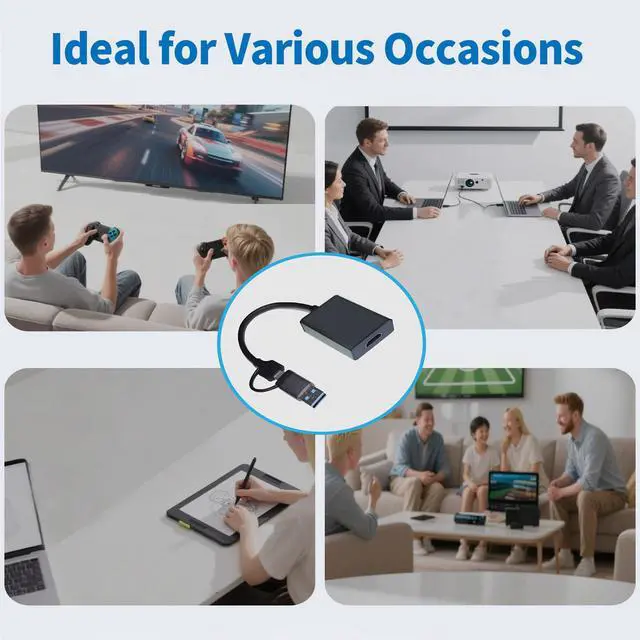
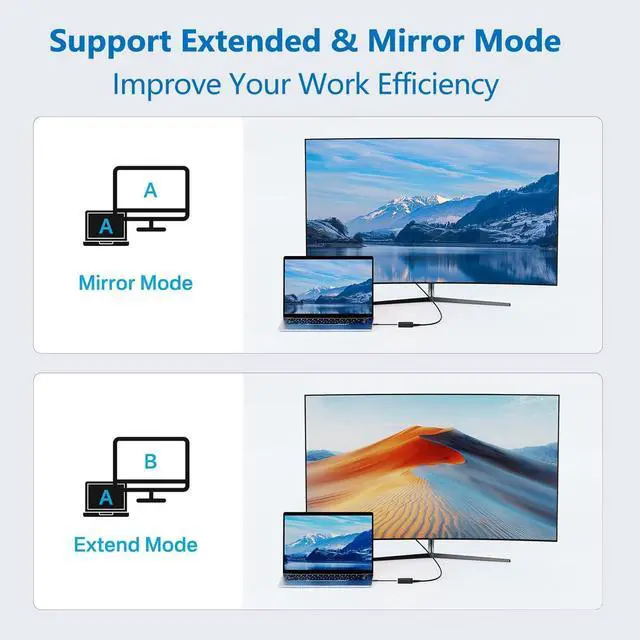
- Multi-screen Display and HD Resolution: Not only does it support dual-screen synchronized display, but it also extends your computer desktop via an external monitor. This USB HDMI converter supports up to 1080P@60Hz resolution, meeting the demands of office multitasking, multimedia entertainment, and conference needs
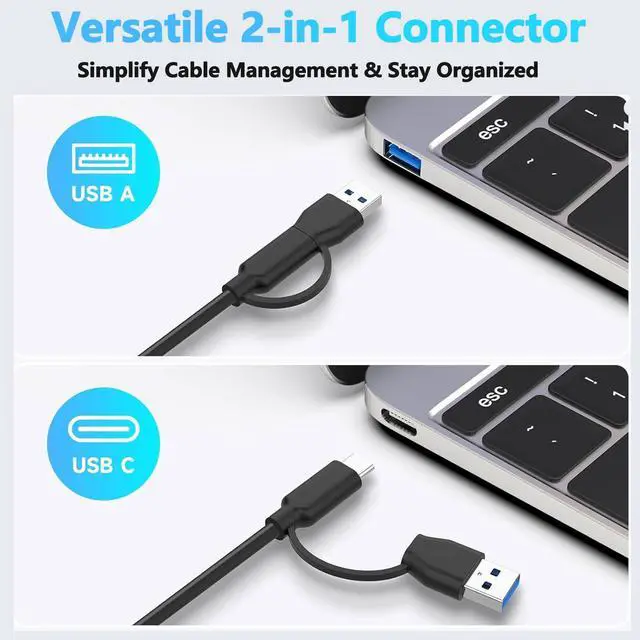
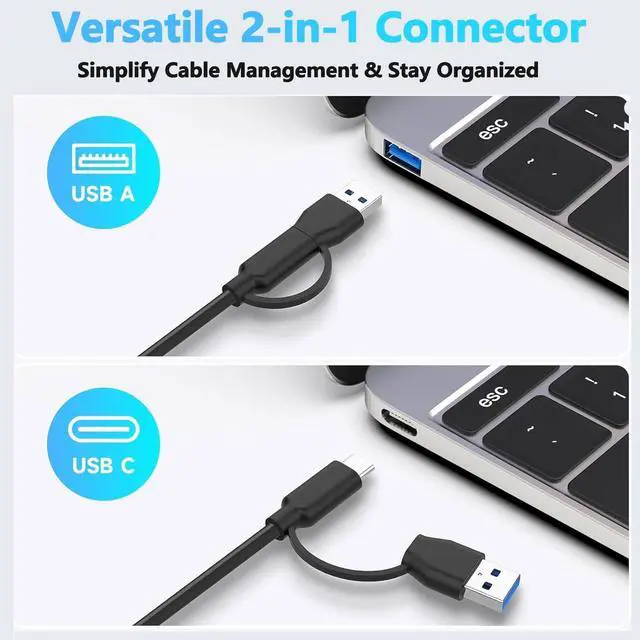
- 2-in-1 USB Connector: Featuring a dual-port cable design, it seamlessly adapts to both USB-A and USB-C ports, delivering unparalleled compatibility for desktop PC, laptop, and other device
- Wide Compatibility: This USB to HDMI adapter offers exceptional compatibility. It supports Mac OS and fully supports Windows XP/7/8/8.1/10/11 operating systems. Additionally, the adapter comes with built-in drivers, allowing it to be automatically recognized by your computer upon insertion. Simply click t
Product Description
The USB to HDMI adapter enables you to output HDMI signals through your computer's USB port. By installing the built-in driver, this adapter connects laptop or desktop PC to HDMI display devices.
Specifications
- Input: 2-IN-1 USB Type-C /USB-A Male
- Output: HDMI Female
- Audio Support: Yes
Features
1.Supports 1920×1080@60Hz (1080P) resolution display
2.Supports multi-screen mirroring display and multi-screen extended display
3. Supported operating systems: Windows XP/7/8/10/11, Mac OS
Instructions for Use
Windows System Installation:
1). Insert the adapter into the computer and wait for the computer to recognize the driver.
2). Click This Computer > Disk: USBDISPLAY > Click to install WinUSBDisplay_Windows_V4.1.8.15 Win USB Display -installation complete. Restart your computer.
To enable Extended Mode or Split Screen Mode, click the Window icon > Settings > Display to configure the settings.
Mac System Installation:
Insert the adapter into the Mac PC and wait for the computer to recognize the "USBDISPLAY" driver and install it.
Privacy & Security-Screen Recording-Add USB Display, then return to the Settings page - Displays to configure either split-screen mode or extended mode.
Important Notes:
Ensure the video signal is transmitted from the computer's USB port to the display device's HDMI port, not the reverse.
Warranty & Returns
Warranty, Returns, And Additional Information
Warranty
- Please contact the Seller directly for warranty information. Warranty information may also be found on the Manufacturer's website.
- CONTACT
Return Policies
- Return for refund within: 30 days
- Return for replacement within: 60 days
- This item is covered by Mintra Store Return Policy
Manufacturer Contact Info
- For a directory of all our manufacturers, please click below.
- Manufacturers Directory