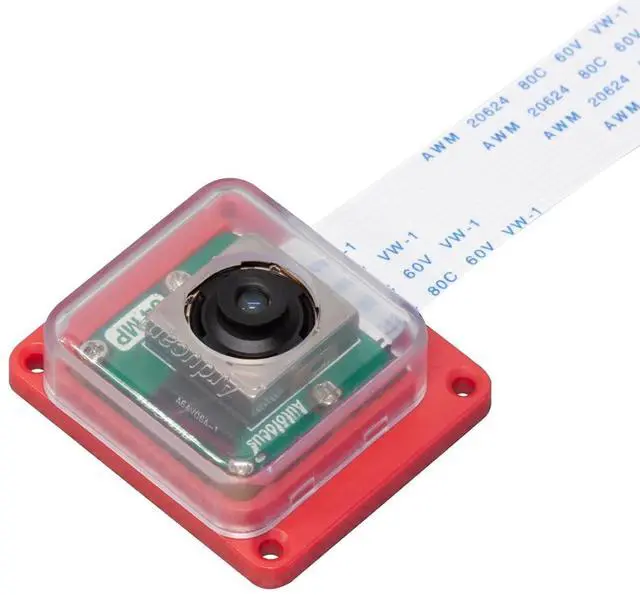
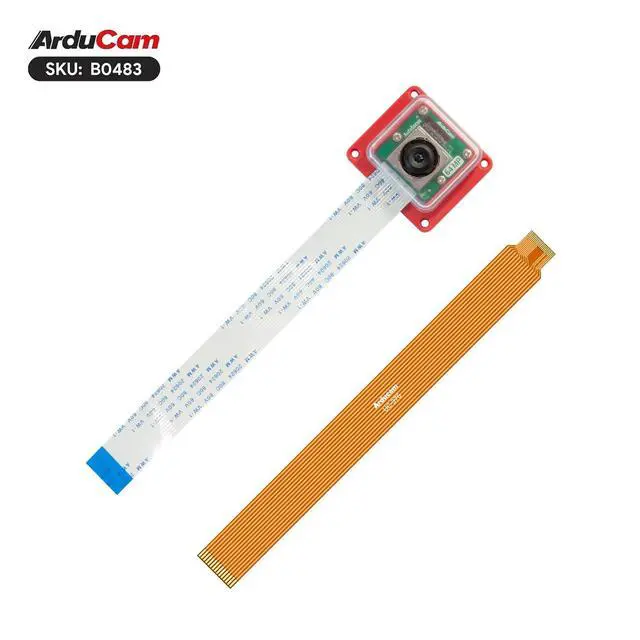
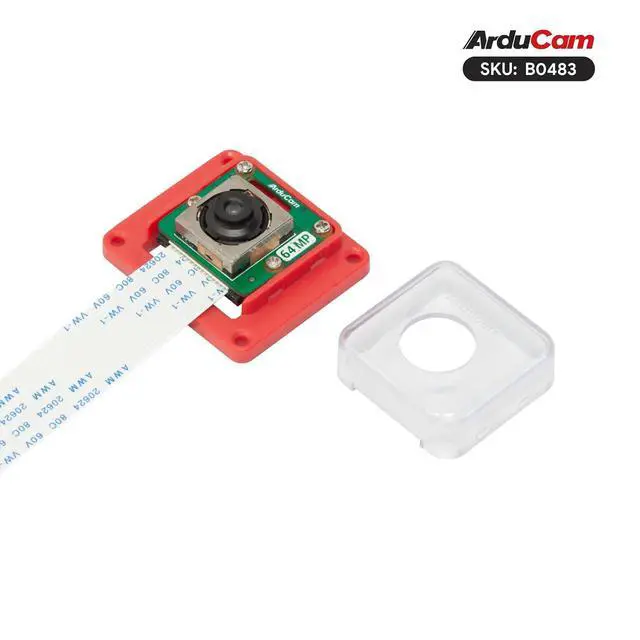
Product description Quick Start Guide Step 1. Open and edit the config file sudo nano /boot/firmware/config. txt Step 2. Add dtoverlay to enable the OwlSight camera
Note: Arducam OV64A40 camera supports adjusting the image speed (link-freq parameter under config. txt).
There are currently two speeds: 360000000 and 456000000. Option 1. If you want to choose link-freq 360000000, you need to add the sentence below under [all] in the config file: dtoverlay=ov64a40, link-frequency=360000000 camera_auto_detect=0 The cam1 port is enabled on Pi 5 by default. If you want to enable the camera on the cam0 port of Pi5, please replace the dtoverlay with dtoverlay=ov64a40, cam0, link-frequency=360000000 Option 2. If you want to choose link-freq 456000000, please replace the 360000000 with 456000000 in the first option. Step 3. Reboot to take effect Please reboot your Pi when you finish the installation. sudo reboot Step4. Use libcamera to access Arducam 64MP Camera Preview 5 seconds.
libcamera-still -t 5000 Note: 1. Please confirm your Raspberry Pi Bookworm OS is 6.1. 73 and later version. You can check your kernel version by: uname -v | grep -oP '\d+\. \d+\. \d+' 2. Please make sure you have only one dtoverlay sentence enabled in your config file, either 360000000 or 456000000. If both dtoverlay sentences are enabled in your config file, there will be a conflict. In addition, When link-frequency=456000000 is settled, the camera extension solution may have data transfer issues. Only a single cam



 All Categories