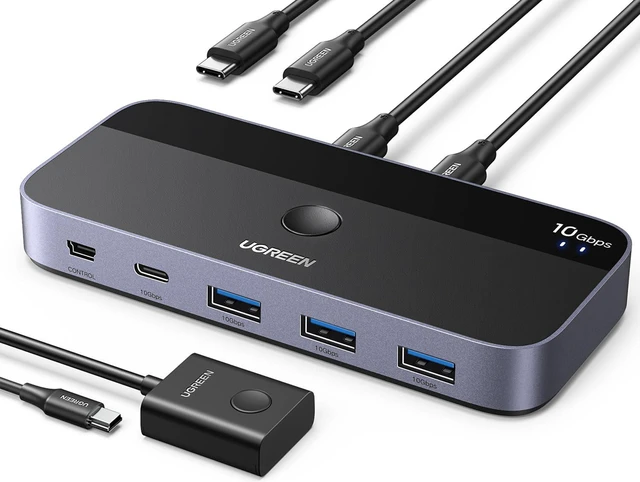
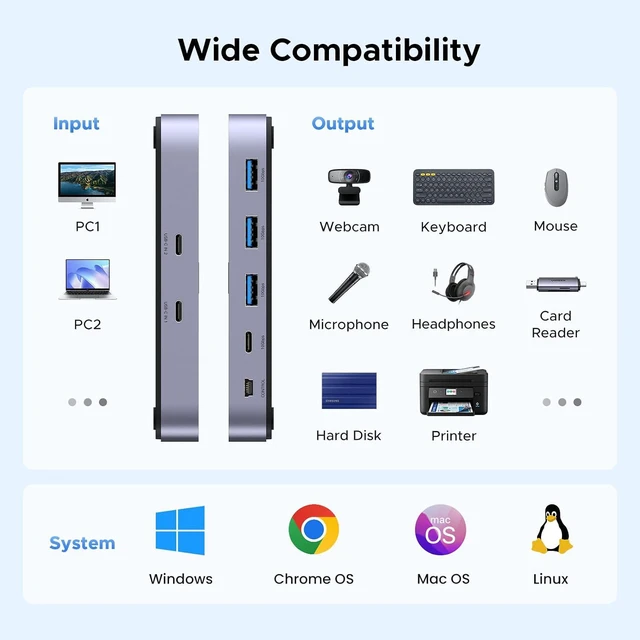
Product description Stronger Power Supply Overload Protection 2 Switching Methods Close to Mouse Size Compatible Devices What's in The Box Connect USB A Laptop Attention About USB A Laptop Only need to use a USB-A to C data cable (best within 1.2 ft/ 0.8 m) to connect this switch and computer.
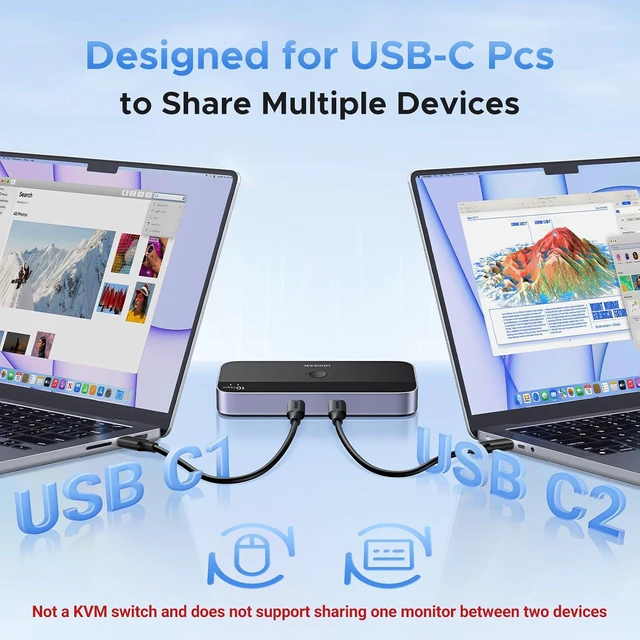
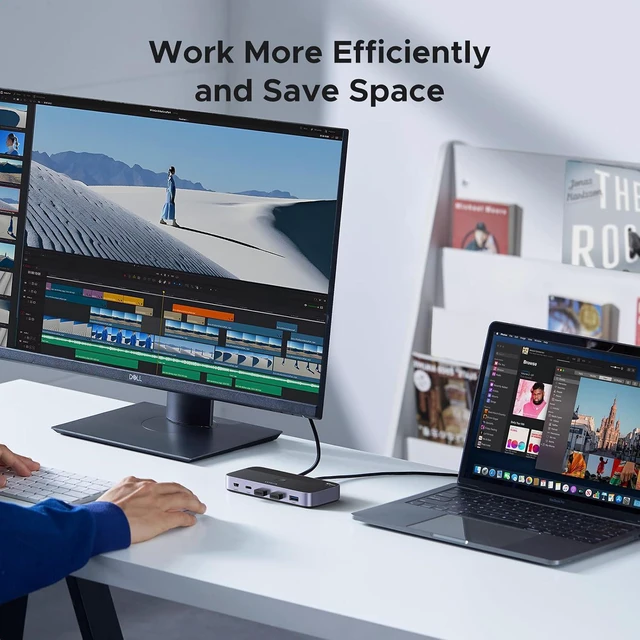
Input Tip: This is a USB C switch not a KVM switch and doesn't support a monitor; the USB-C input does not support video and there is no HDMI input. This device is designed for data transmission and does not support video transmission.
Output Tip: The USB port at the output is only used for data transfer and does not support power supply for a laptop/USB devices or video transmission. Not suggested to connect wireless devices to USB 3.0 switch due to 2.4G hz co-channel interference (industry problem). If your wireless network is affected, please set your router frequency from 2.4GH z to 5GHz.
About Data Cable Length: Using a cable longer than 0.8M may cause a drop in transmission speed.
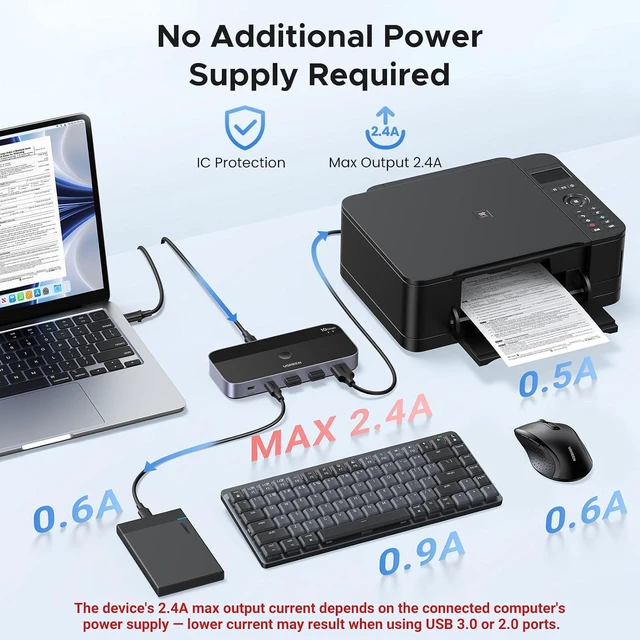
About Power Supply: When connected to a USB-C laptop port, this device can output a Max 2.4A, enough power to run four 3.5" HDD/SSD or two 2.5" 1TB HDD/SSD at once. When connected to a USB-A laptop port, please note that due to the limitation of the USB-A port output current, the switch only can output 5V2A.
Other: Connect to USB-C IN1 and USB-C IN2 simultaneously, PC 1 will be given priority to share USB devices.
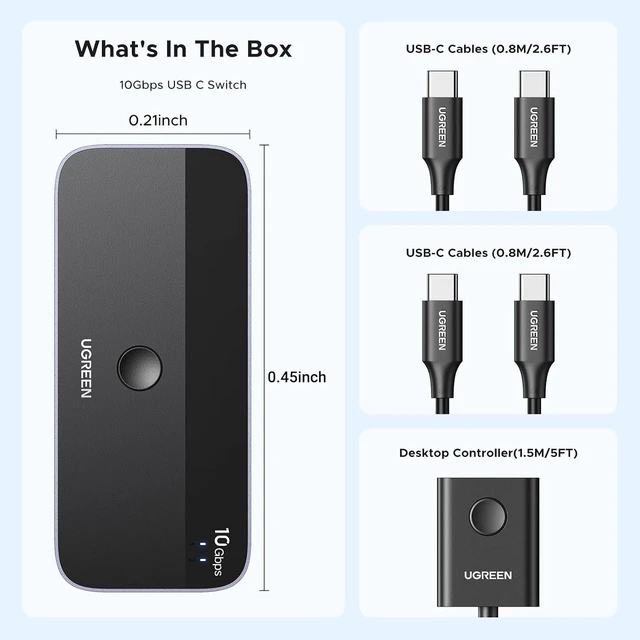
Package Content: USB 3.2 Switch * 1 ( 4.8 x 2.1 x 0.7 Inches); USB C to C Cable * 2 ( 2.6FT / 0.8M ); Remote Control *1 (5FT/ 1.5M )
About Mac: For Mac OS 13.3 and above, please allow usb devices to work by doing this setting: Use the mac's own touchpad to choose Apple menu > System Settings > Privacy & Security >Click the pop-up menu next to Allow accessories to connect > Choose "Always".
About PC is sleeping: If the USB device is disconnected after the PC is awakened from sleep mode, it may be caused by the energy saving mode. Please turn off energy saving and try again. [Windows]
1. Control Panel > System and Security > Power Options > Select the "Change Plan Setting" option next to your current power plan > Select "Change advanced power settings"> "Power Options"> "Expand the USB Settings section and double-click USB selective suspend setting. "> Select "disable".
2. Device Manager > Universal Serial Bus controllers > right-click all hubs that have been detected > select "Properties"> Power Management > deselect "Allow the computer to turn off this device to save power. " [Mac] Please follow the below steps to disable the Mac into auto-sleep to see if the issue can be solved: System Performace > Battery > Disable "Prevent computer from sleeping automatically when the display is off", and disable "Enable Power Nap while plugged into a power adapter".