ATTENTION:
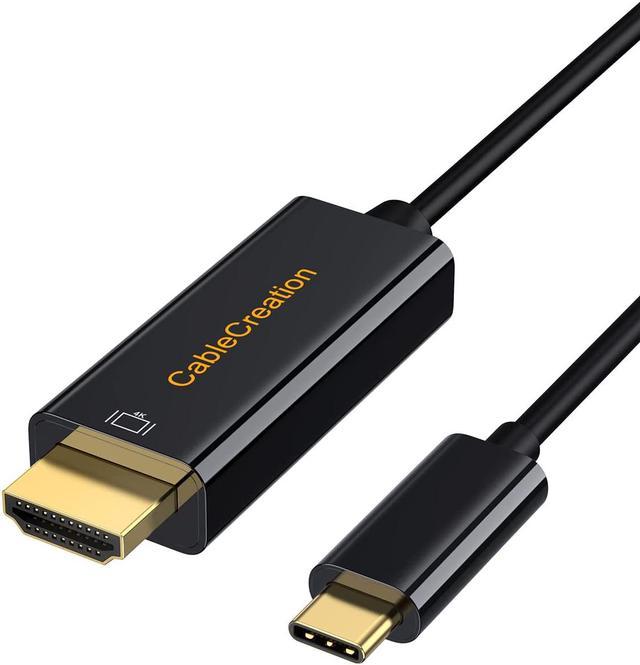
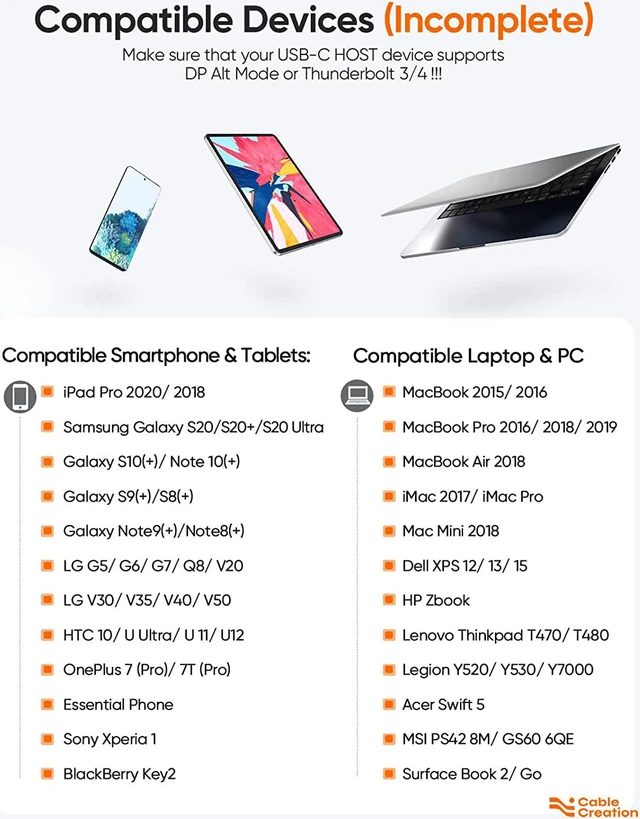
Compatibility: The USB-C to HDMI cable only works with USB-C laptop/ cellphone/ tablet that supports DP Alt Mode (video output over Type-C port) or Thunderbolt 3/4.
NOT Bi-directional: Only transfer signal from USB C laptop to HDMI monitor. Can NOT connect PC to PC or PC to cellphone!!!
Charging is NOT Supported!!!
iPhone is NOT Compatible!!!
For Samsung Cellphone:
Samsung Dex is NOT supported;
It is NOT compatible with Galaxy A series phone such as Galaxy A11/ A31/ A70 and etc.
If your USB-C host supports DP Alt Mode but the cable doesnt work, we suggest you:
Please make sure that you have chosen the correct input source. For example, your TV has three HDMI ports 1, 2, 3, when you connected HDMI 1, you should choose HDMI 1 as your TVs input source with your TVs remote control.
Update the BIOS and graphic card driver from your laptops official website, then restart your laptop to try again.
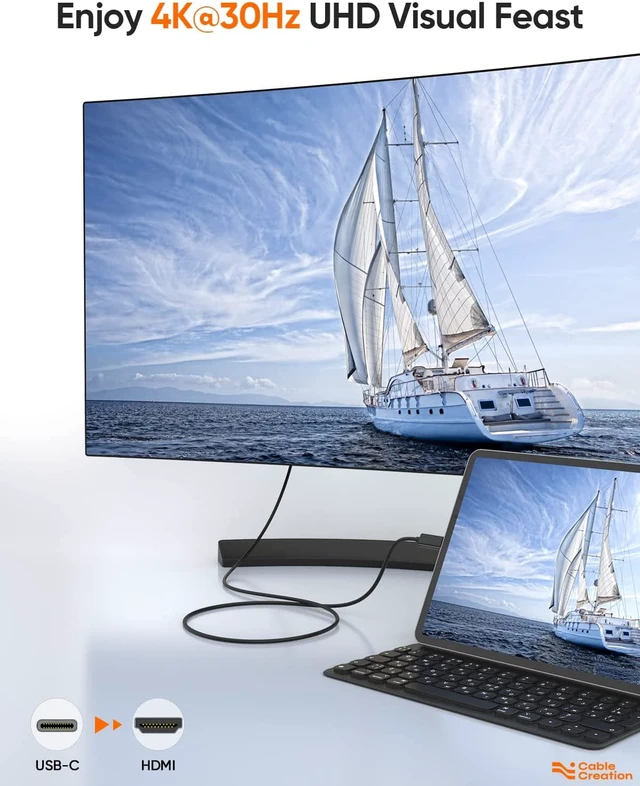
Set the laptops resolution as 1080P or lower.
If you use docking station to convert, please directly connect your USB-C host to HDM equipped display without using the dock.
If it disconnects frequently, please:
Keep the cable connected stable and tighten. Dont move the cable, laptop and monitor during using.
Take off your cellphone case.
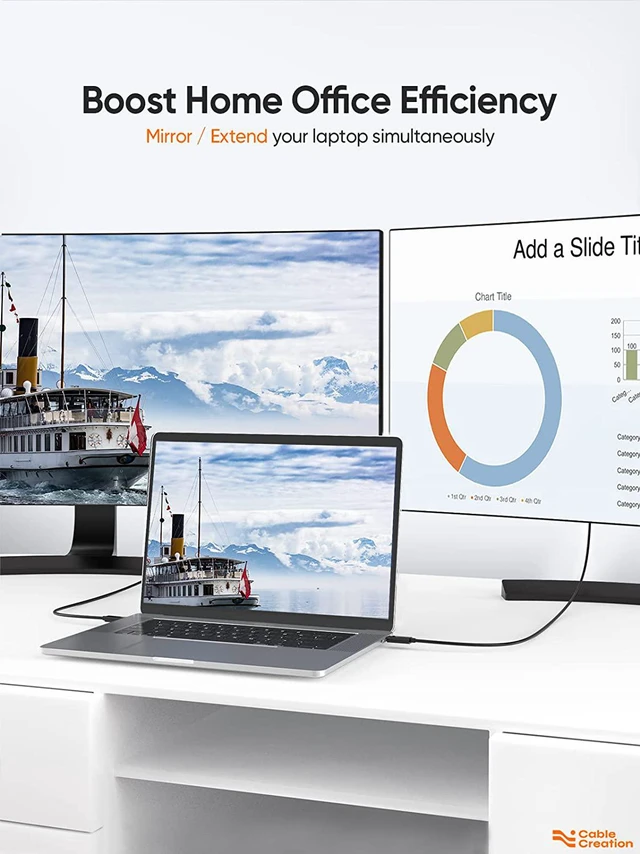
-- Mirror and Extend Mode Settings:
For MacOS, Top left corner Apple icon-->System Preferences-->Displays-->Mirror or Extend Displays;
For Windows 10, press Windows key + P combination command-->choose Duplicate or Extend.
For Windows system laptop, if the external monitor could not work, please update the BIOS and graphic card driver from laptop official website.
-- Stereo Settings:
For MacOS, Please go to Apple icon-->System Preferences-->Sound-->Output, choose your TV as the sound output.
For Windows 10, please click right bottom of your sound icon-->choose your TV as the sound output.
For Sony TV, if you are running MacOS, you probably need to go to Launchpad-->Other-->Audio MIDI Setup-->HDMI-->Output-->Please choose 2 ch 16-bit integer.