Computer Switch for 2 Computers KVM for MAC Monitor Switch for 2 Computers Display Port KVM Switches 4K KVM Switch USB 3.0 KVM Switch 2 Computers KVM Switch USB 3.0 KMV Switches Computer Monitor Switch
Installation Step:
1. Turn off all devices and unplug all cables;
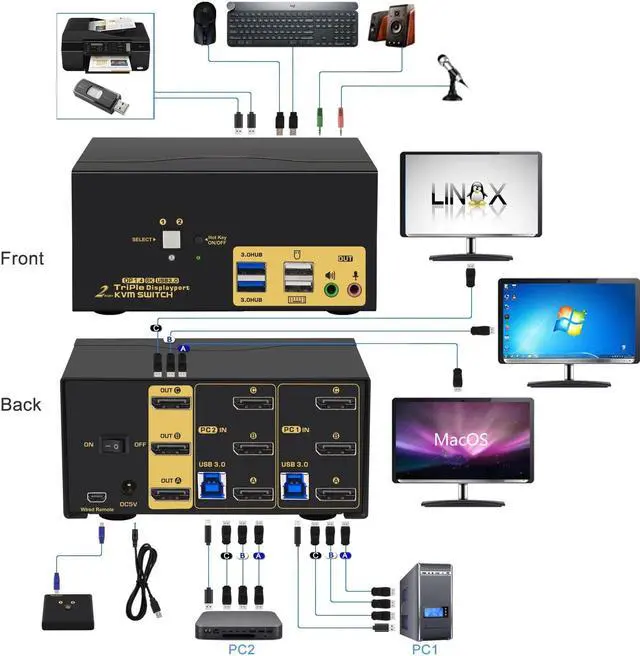
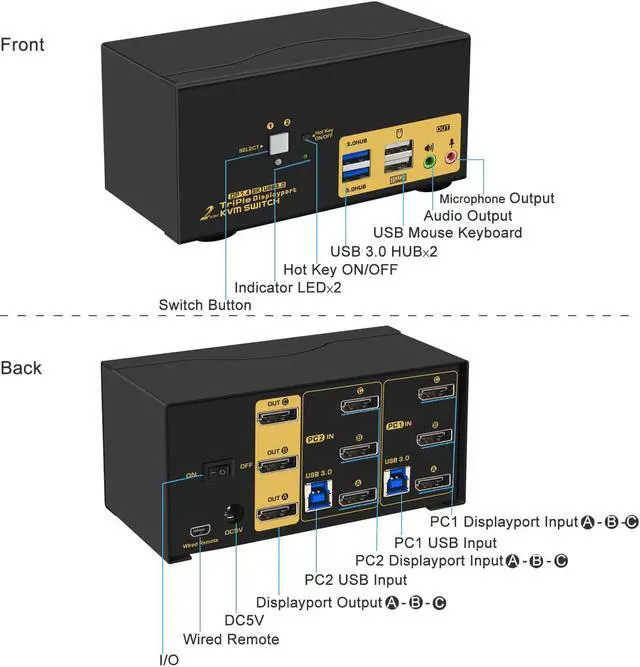
2. Plug USB 3.0 cables (transfer USB signal and audio signal), Displayport cables into your computers and KVM switch;
3. Plug mouse into mouse slot of KVM switch, plug keyboard into keyboard slot of KVM switch (for gaming or mechanical keyboard, please plug them into USB 3.0 HUB on the front panel if they did not work well on rear USB ports);
4. Plug Displayport cables into the KVM switch and your Monitors;
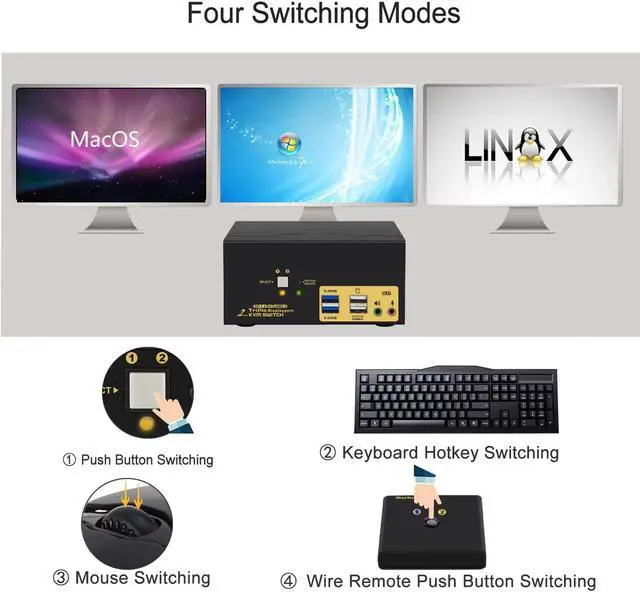
5. Plug your speaker or microphone or wired remote push button switch into the KVM switch if needed;
6. Plug the DC5V 2A power adapter into the KVM switch and AC socket, turn on the KVM switch;
7. Turn on your computers;
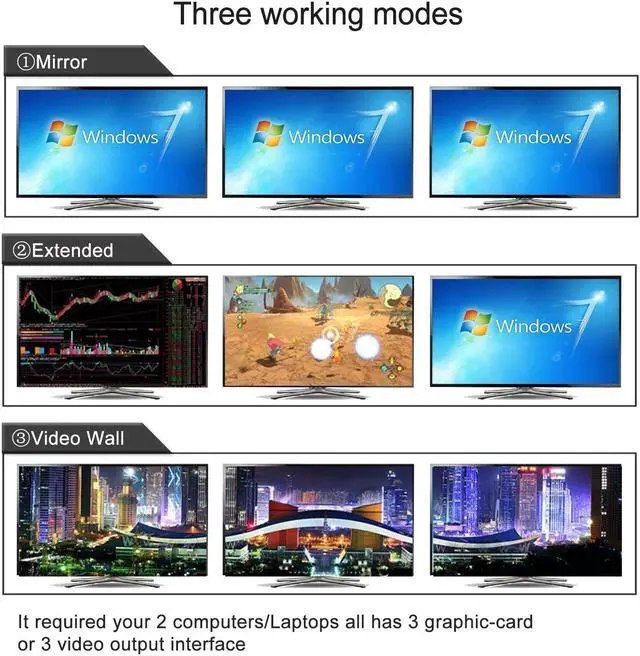
8. Set computer display modes as extended display/duplicated display.
Package:
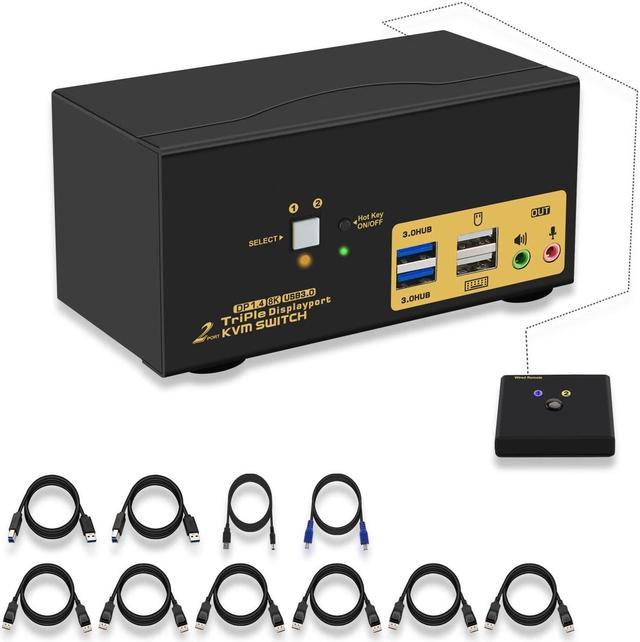
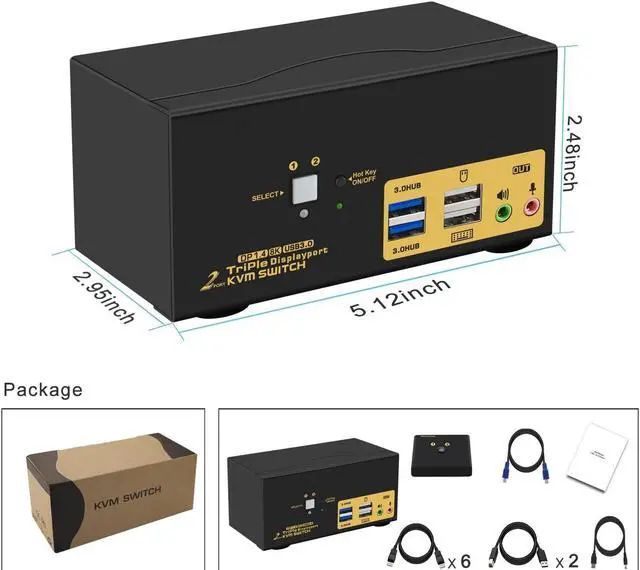
1 x 2 port displayport KVM switch
6 x displayport cables
2 x USB 3.0 cables
1 x DC 5V 2A Power adapter
1 x English manual
1 x wire remote push button switch