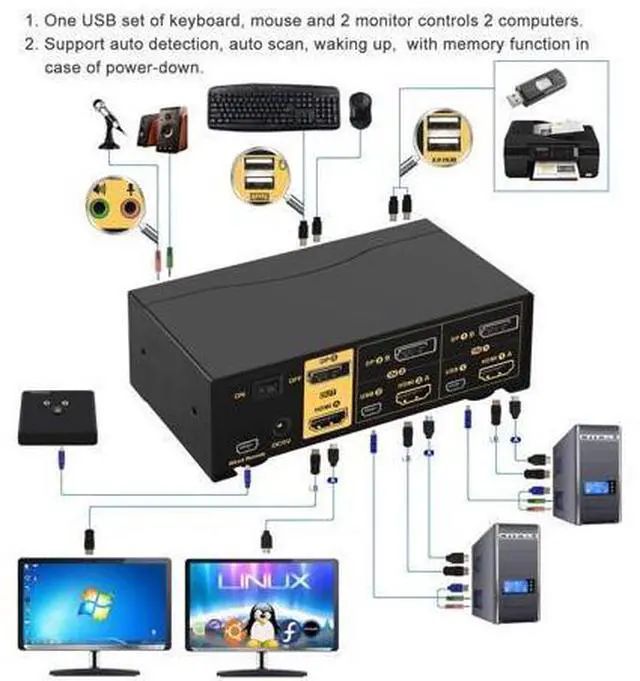
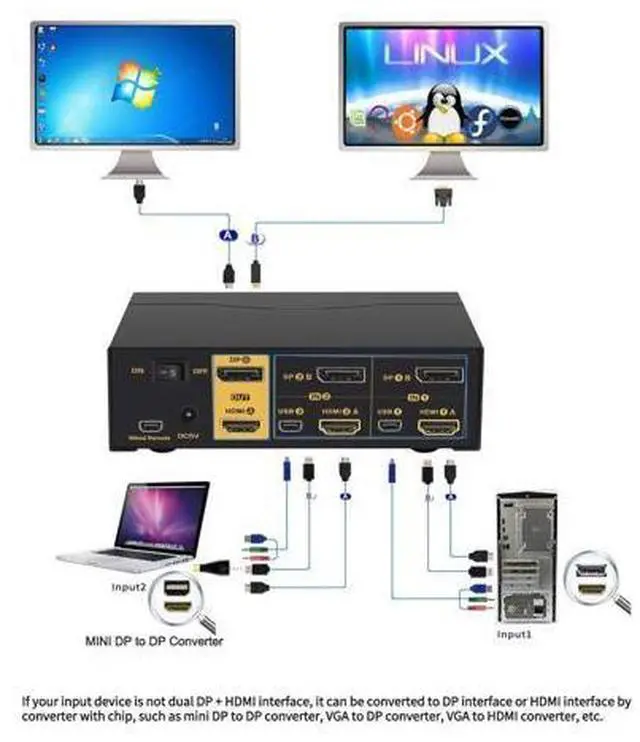
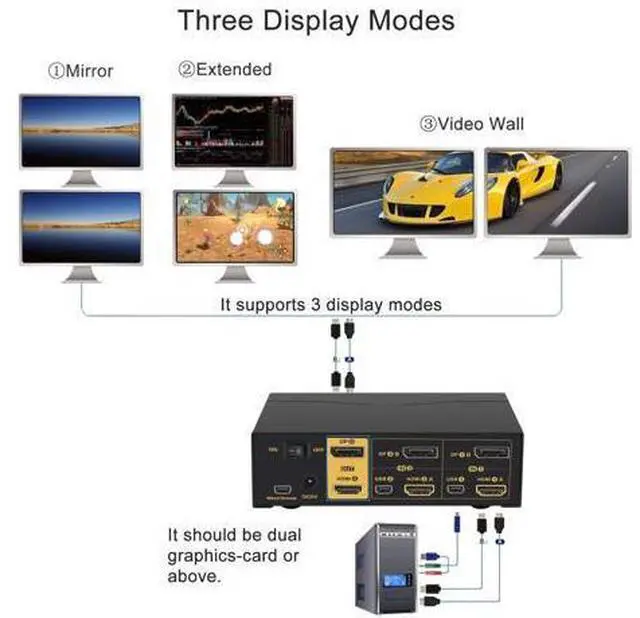
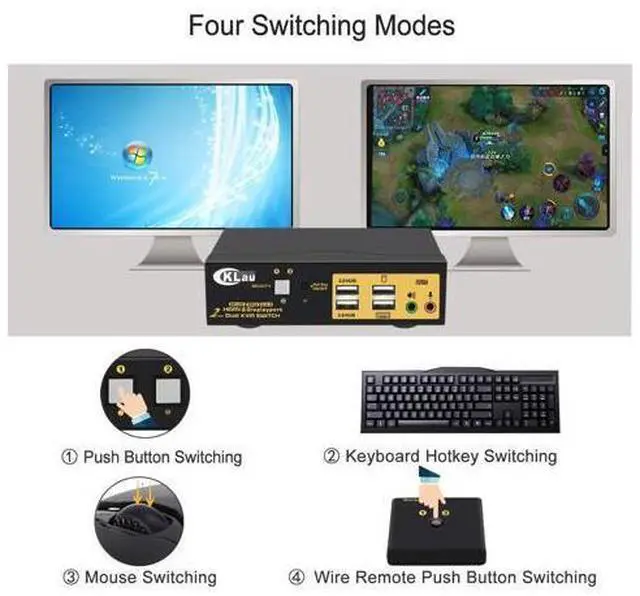
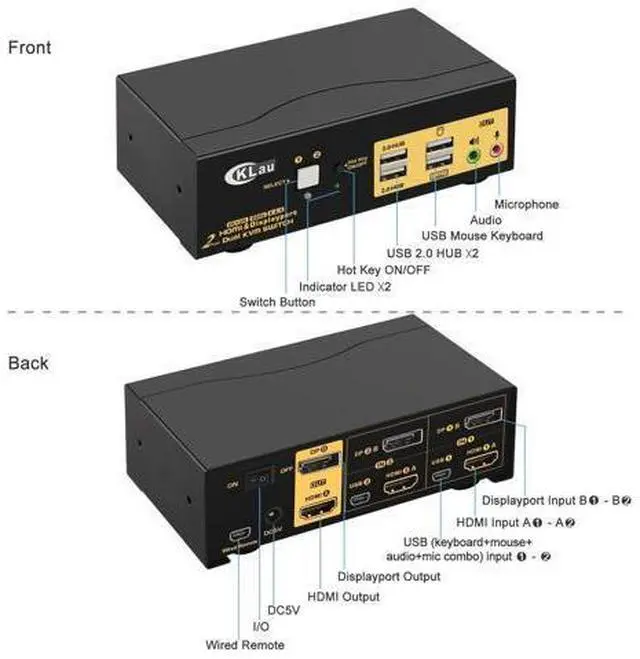
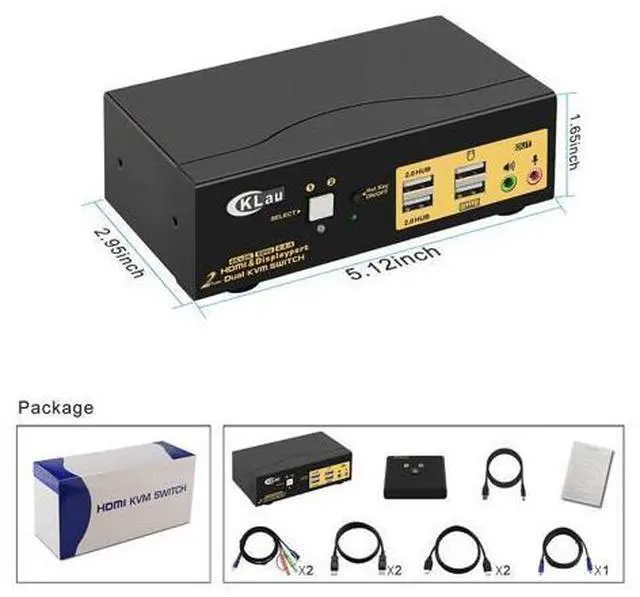
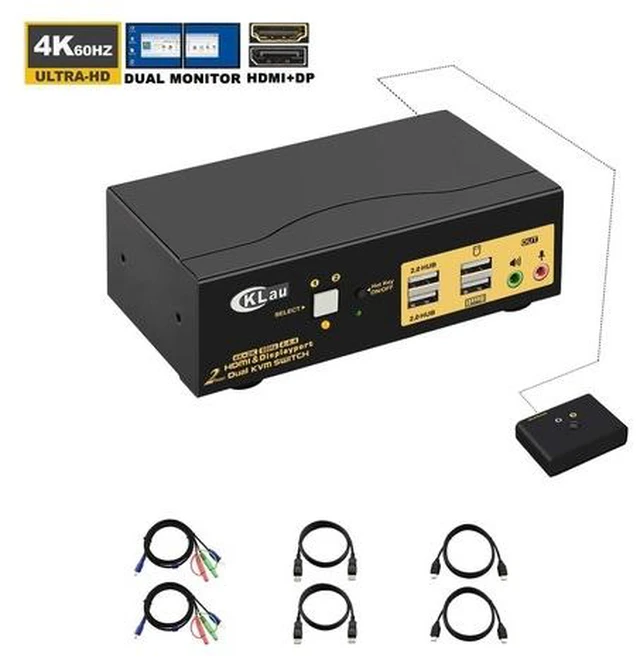
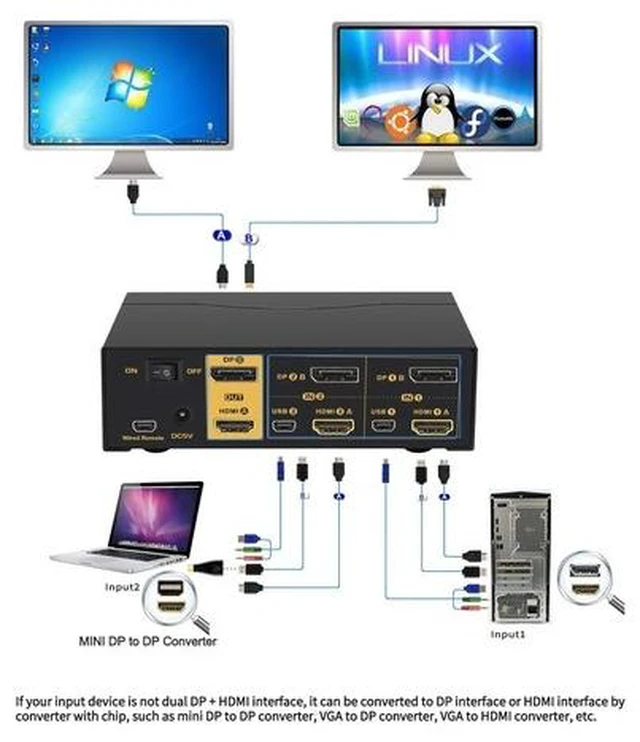
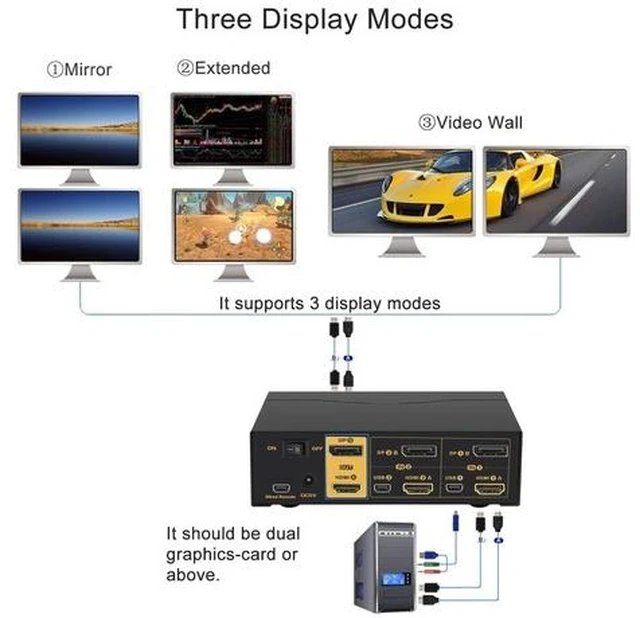
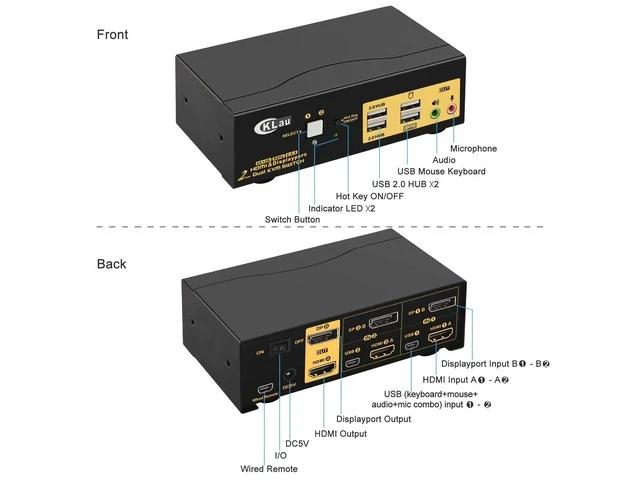
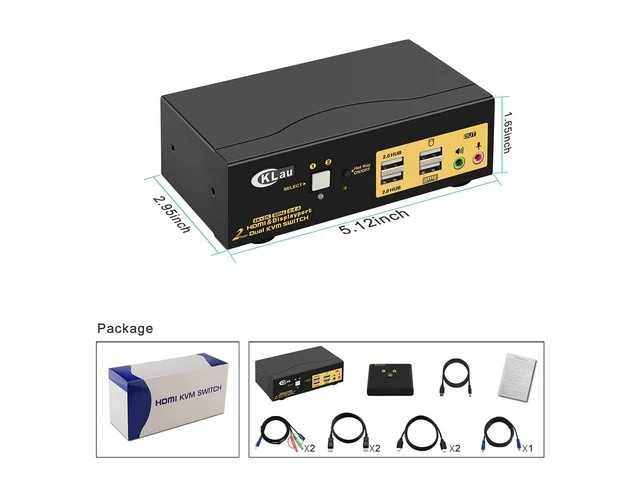
How to Get Dual Monitor Display (Must Read before Order!!! ) Each computer / laptop needs 2 video connections to correspondent HDMI A and DP B port on the KVM switch using the standard HDMI 2.0 cables and DP cables included. Reliable adapters are needed but not included for DVI, VGA, USB Type C video outputs. Please be aware of the adapters needed for your setup before order. VGA to HDMI or HDMI to VGA adapter must be seperately powered. Resolution output is subject to adapter if any. Avoid using adapters on both monitor and computer side for a same video flow.
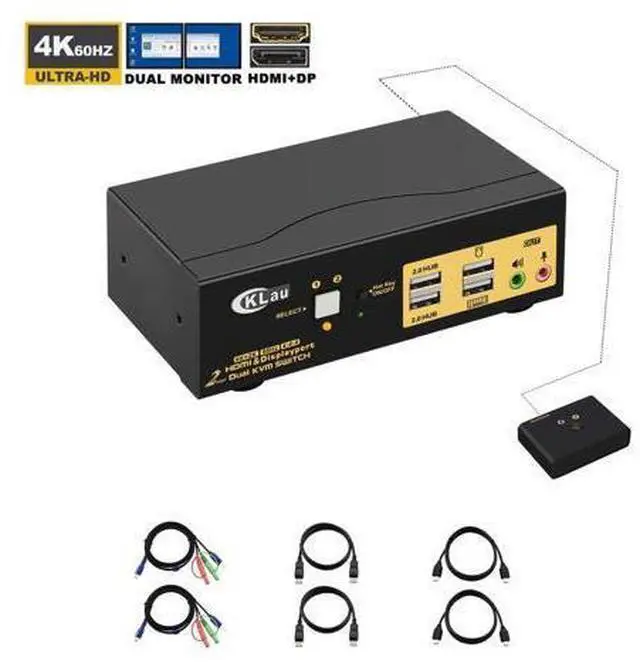
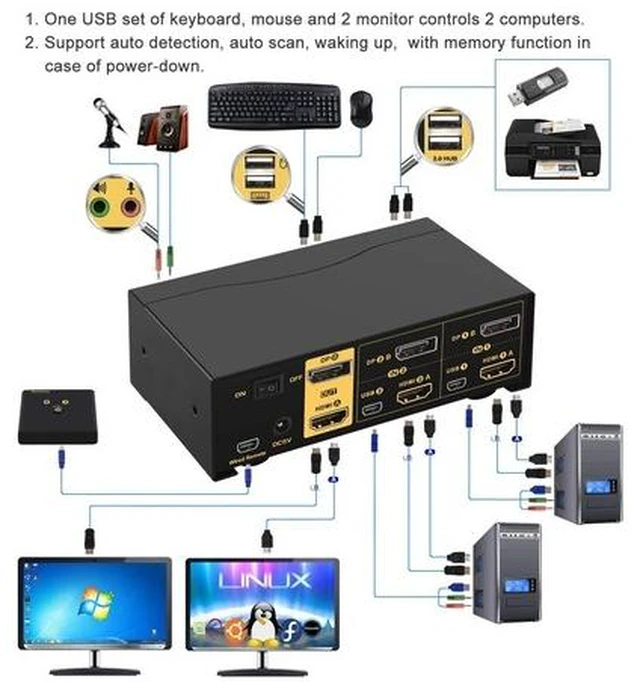
For eg. if there is an adapter on computer for connecting HDMI A port, and then another adapter for connecting HDMI Out A to monitor, it may cause display issue. 4K@60Hz 2 Port HDMI + Displayport Dual monitor KVM Switch with Audio, USB 2.0 Hub One set of USB keyboard, mouse and 2 monitors controls 2 HDMI+displayport computers/laptops. With audio and mic output. Save space for you and bring a lot of convenience to your work. Installation Step; 1. Turn off all devices and unplug all the cables; 2.
Plug KVM cables, displayport cables, HDMI cables into KVM switch and your computers/laptops; 3. Plug mouse and keyboard into KVM switch; 4. Plug displayport cable, HDMI cable into KVM switch and monitors; 5. Plug speaker or microphone into KVM switch if needed; 6. Plug AC socket into KVM switch and AC socket; 7. Turn on KVM switch; 8. Boot computers/laptops.
Warm Tips: It is DP 1.2 60Hz version for displayport port, it doesn't



 All Categories