


 All Categories
Built for How Business Buys.
All Categories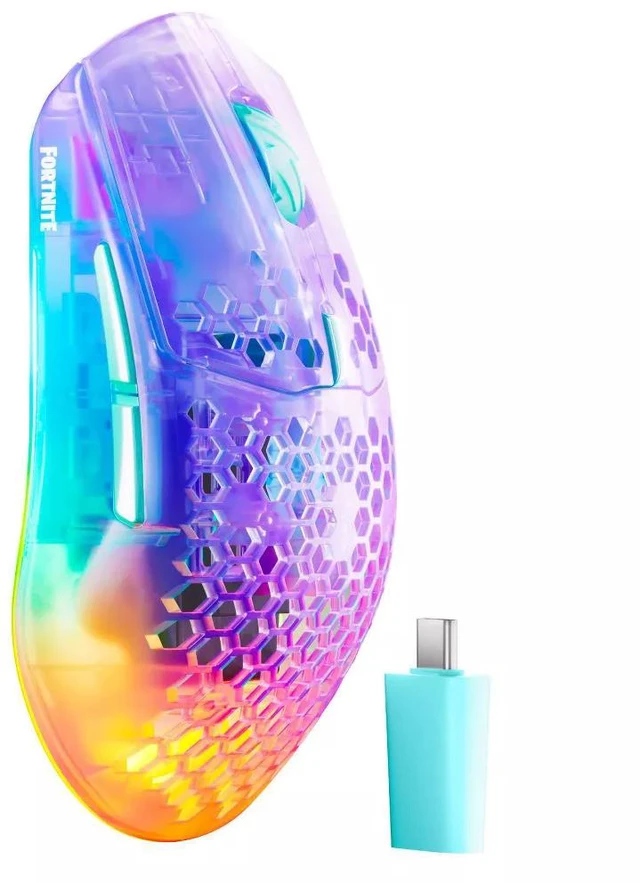



Gaming Products / Mice
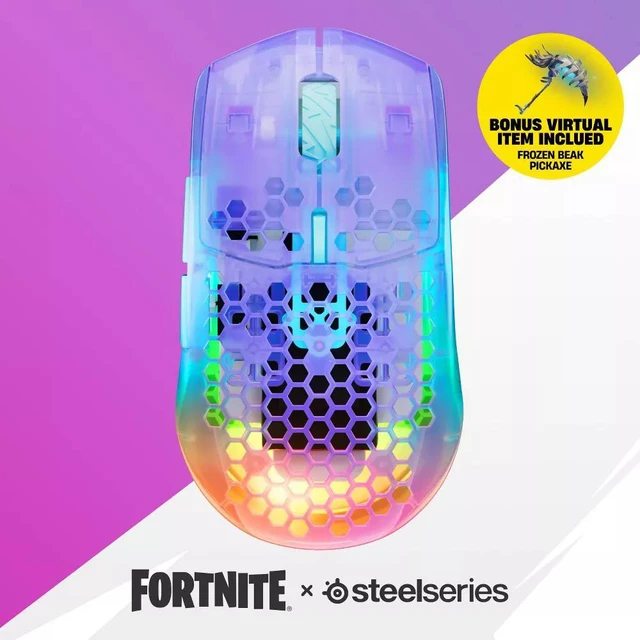
Bring Fortnite to the real world and harness 4K speed with this Storm-inspired version of the Aerox 3 Wireless Gen 2.

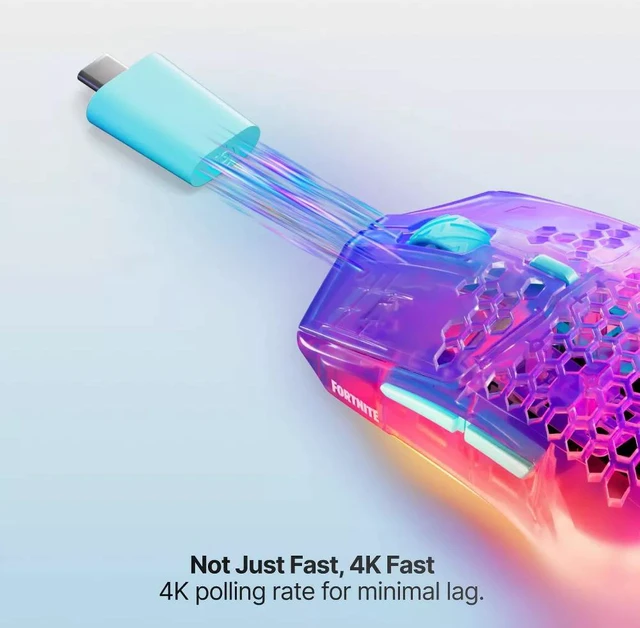
The Aerox 3 Wireless Gen 2 Fortnite Edition unleashes 4K polling performance in a licensed Fortnite design, bringing a vivid multi-color finish, lightning-embossed scroll wheel and honeycomb pattern inspired by the Storm to your battlestation.


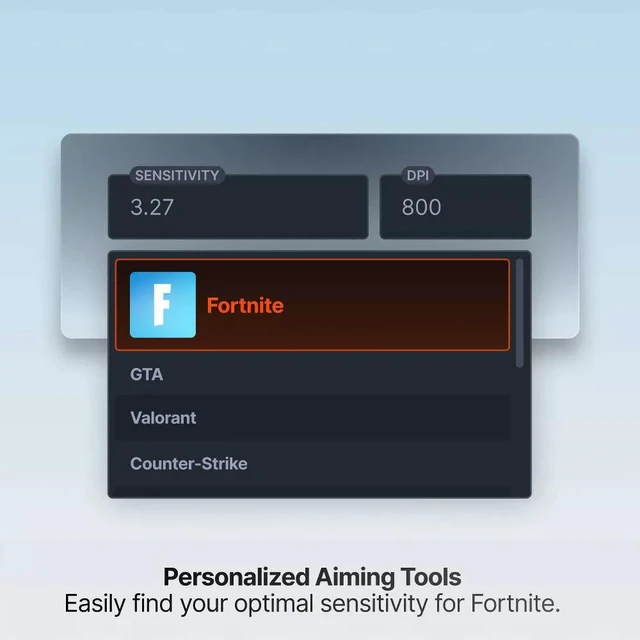
Lock in the precise sensitivity settings for your play style and find your perfect aim with Sensitivity Tools tuned for Aerox. No guesswork, just precision.

Every game is different. Using our Sensitivity Converter, you can easily translate your optimized sensitivity settings across games, Fortnite included. That means your aim will feel consistent whether you're boarding the Battle Bus or loading into your other battle royale favorites.
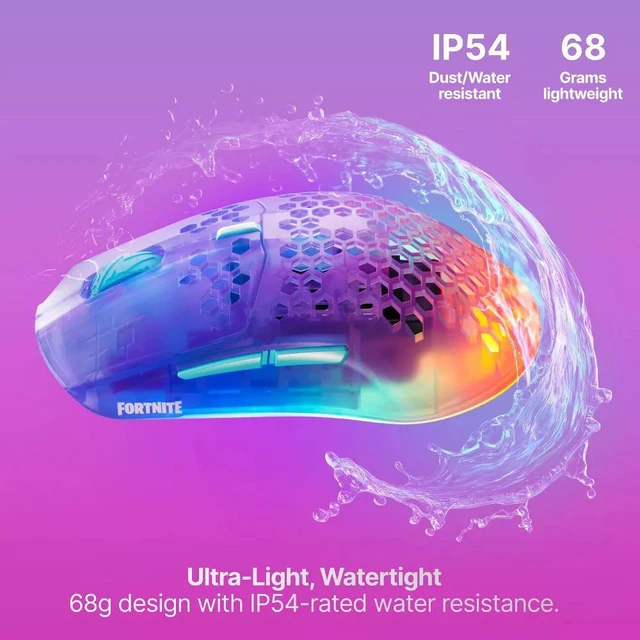
Unlike other mice with honeycomb shells, the IP54-rated Aerox 3 Wireless Gen 2 is protected against spills, sweat and dust. And at 68g, it's a breeze to flick fast and build faster.


The Aerox 3 Wireless Gen 2 is a powerful companion in your chase for Victory Royale, packing an accurate TrueMove 26K DPI sensor and a durable frame that's well suited for all sorts of hand sizes and grip types.

Complement your Aerox 3 Wireless Gen 2 with more Fortnite x SteelSeries gear, including Arctis GameBuds™, Arctis Nova headsets, QcK mousepads, SteelSeries PBT keycaps and KontrolFreek® No-Slip Thumb Grips and Thumbsticks.
What grip style is the Aerox 3 Wireless Gen 2 best for?
The Aerox 3 Wireless Gen 2 mouse features a symmetrical design, with side buttons on the left, and favors gamers who use a claw or fingertip grip. While a palm grip is also possible, we encourage those gamers to also explore the Aerox 5 Wireless as another option.
Does the Aerox 3 Wireless Gen 2 have onboard memory and what settings can be saved?
Yes, the SteelSeries Aerox 3 Wireless Gen 2 does have onboard memory to save 5 sensitivity levels (X & Y DPI) with liftoff distance, polling rate, Scroll Jump Protection, Bluetooth Smoothing, Wireless Stability Enhancement, power saving, and illumination brightness. These settings can all be adjusting inside the SteelSeries GG/Engine software.
What is the difference between a 1k polling rate and a 4k polling rate?
A 1K polling rate means your mouse reports its position to your PC 1,000 times per second, while a 4K polling rate increases that to 4,000 times per second. The higher polling rate reduces input delay and provides smoother, more responsive cursor movement—especially noticeable in fast-paced, competitive games. In short, 4K delivers faster communication between your mouse and PC for sharper, more precise performance.
What are 100% Virgin Grade PTFE Feet?
These are glide skates that are made from 100% pure PTFE (Polytetrafluoroethylenet) material without any additives or color. It has one of the very lowest coefficients of friction. This ensures your mouse will fly across your mousepad.
Can I play while charging?
Yes - the Aerox 3 Wireless Gen 2 comes with an included Super Mesh detachable Type-C to Type-A cable for fast charging the mouse. This cable also allows for playing while charging.
What are default DPI levels and indication colors?
The onboard preset default settings are 400 DPI – Magenta, 800 DPI – Cyan, 1600 DPI – Green, 2400 DPI – Yellow, 3200 DPI – Red. The RGB lighting will briefly change to the indicated color to show which setting is selected.
How do I connect my mouse to additional Bluetooth host device?
Enable Bluetooth pairing on the compatible host (Bluetooth 4.0 or above), then hold the DPI button on your mouse while switching it to Bluetooth mode. While the mouse LED blinks blue it should appear as available to connect on your host device.
How do I re-pair my mouse to the wireless dongle?
Plug-in the dongle to your PC, switch the mouse to 2.4G mode, then go to the Engine section inside of GG. Next, hover over the Aerox 3 Wireless Gen 2 product tile, click the orange gear icon on the right side and select “Pair Device”.