• $49.99
  • Free 30-day Returns
  • Ships from China.

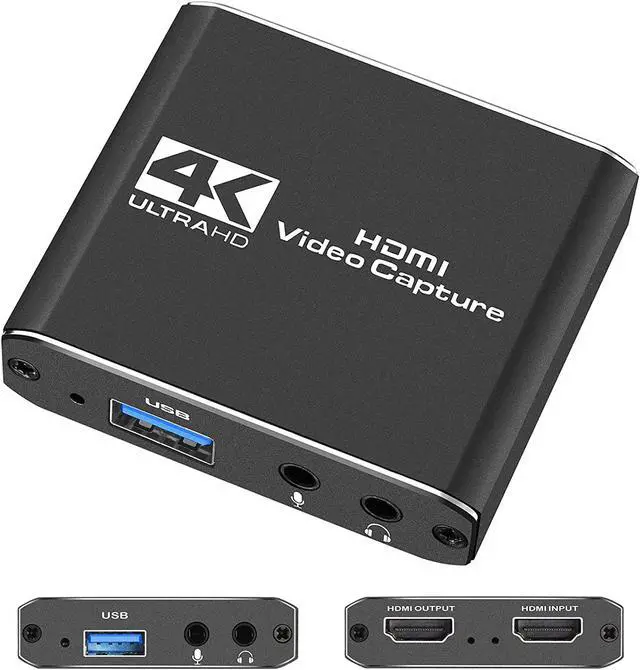
    Capture Card, HDMI Audio Video Capture Card, 1080P 60FPS Video Recorder Capture Device Converter with Mic Input & Audio Output and 4K HD Loop-Out Work with Nintendo Switch/PS4/DSLR/OBS

    • Item #: 9SIV36AKE34086
    • Mfr. Part #: FL-USBNBS208
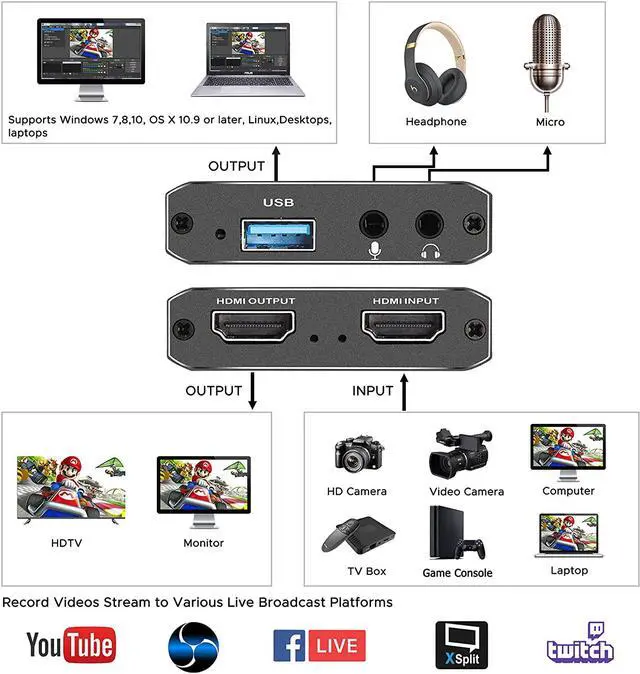
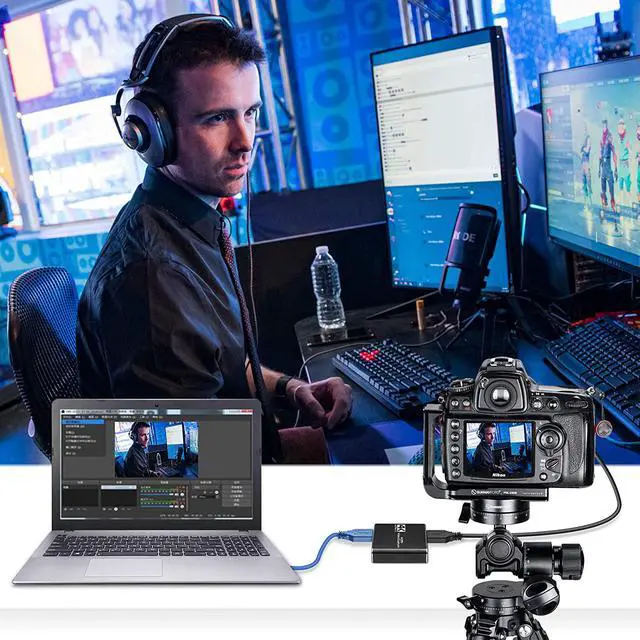
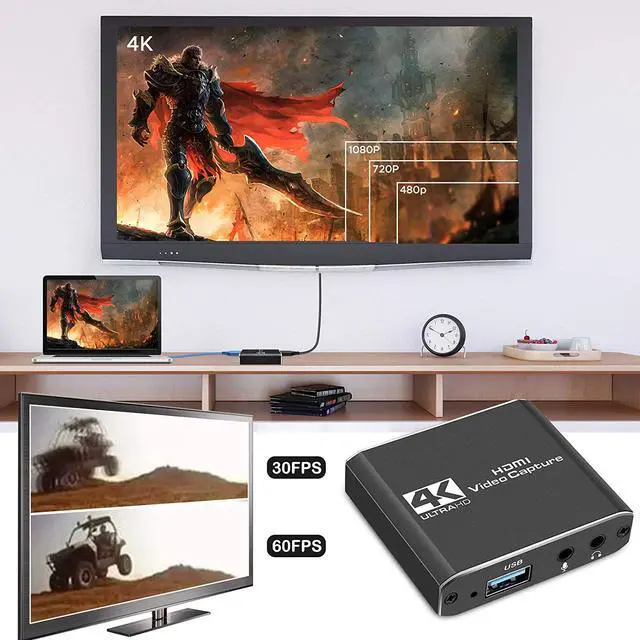
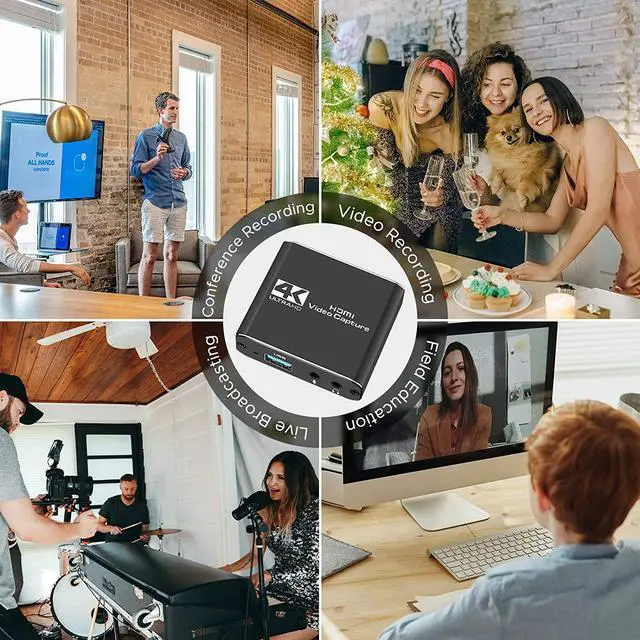
    • 4K HDMI Game Capture Card : Game video capture card is designed with high-end smart chip, stylish and compact by decent Aluminum Alloy shell. Supports up to 4K@60fps HDMI input, plug and play let the device work instantly with stream media like OBS/Xsplit. Ideal for live streaming, gaming broadcast, video recording, conference rooms, etc.
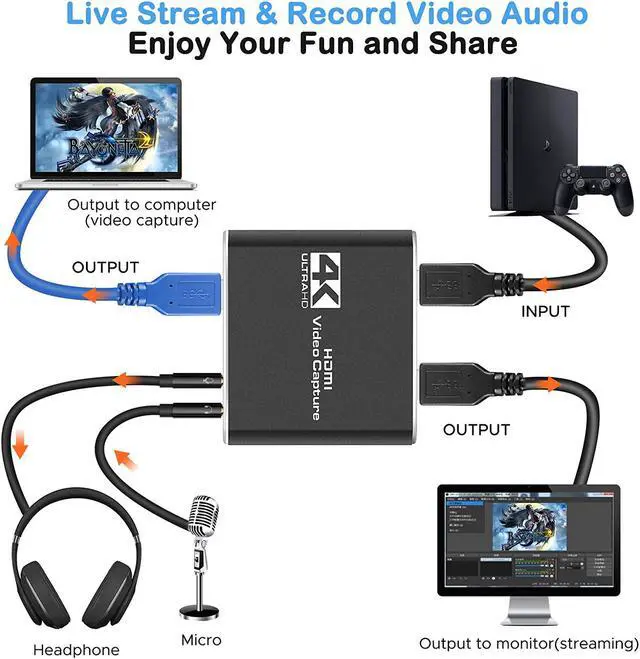
    • HD 1080P 60fps Signal Loop Out : This HDMI capture card for gameplay streaming has maximum HDMI output resolution up to 4K@30fps, and streams 1080p@60fps video signal through USB 2.0 port. It outputs a clean and clear excellent image quality without frame lag. You can enjoy recording specific moments in video game adventures.
    • 3.5mm Mic Jack and Audio Input/Output Port : You can connect the audio video capture device with your earphone with 3.5mm audio out port; you can also connect the video capture device with 3.5mm Microphone so that you can stream your voice and record your voice by the ports easily.
    +
    +
    Overview
    Specs
    Reviews
    High Performance Chip

    Super Performance Chip makes video conferencing, game live broadcasting, etc. clearer and smoother. No delay, no blue screen


    Ult-HD 1080P Clear Image

    Full HD 1080P video capture, 60Fps video recording and live broadcast.

    High-intensity reproduction of video delicate colors, clear, vivid picture quality


    Wide Compatibility for Muti APP/devices

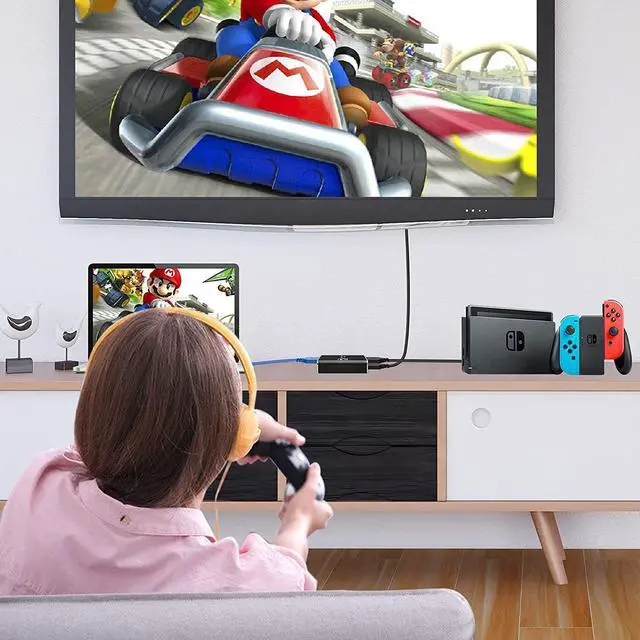
    Works well with most mainstream game consoles, Camera, DSLR; OBS Studio, QuickTime Broadcaster (OS X), etc.


    Select the Capture Card 1-1

    In the red arrow column, select "USB Video" and the current audio and video capture. As shown in Figure 1-1


    Select the Capture Card 2-1

    B. Custom Resolution: The Resolution/FPS Type column is set to custom. As shown by the white arrow in Figure 2-1.

    C. Set Resolution: Select the appropriate resolution at the up and down arrows on the far right of this column. As shown by the yellow arrow in Figure 2-1.

    D. Set FPS : Select the appropriate frame rate at the up and down arrows on the far right of this column. As shown by the red arrow in Figure 2-1.


    Drag the drop-down bar on the far right to set the desktop audio and MIC mixing. 3-1

    A. Select the "Output Desktop Audio" item at the up and down arrows on the far right of the "Audio Output Mode" column.As shown by the red arrow in Figure 3-1.

    B. Mark the "v" in the red box. As shown below:

    C. Select the MIC input of the collector at the up and down arrows on the far right of the "Audio Device" column. As shown by the yellow arrow in Figure 3-1.

    The OBS is set up and it can be used normally.

    Warranty & Returns

    Warranty, Returns, And Additional Information

    Warranty

    • Please contact the Seller directly for warranty information. Warranty information may also be found on the Manufacturer's website.
    • CONTACT

    Return Policies

    Manufacturer Contact Info

    LOADING...