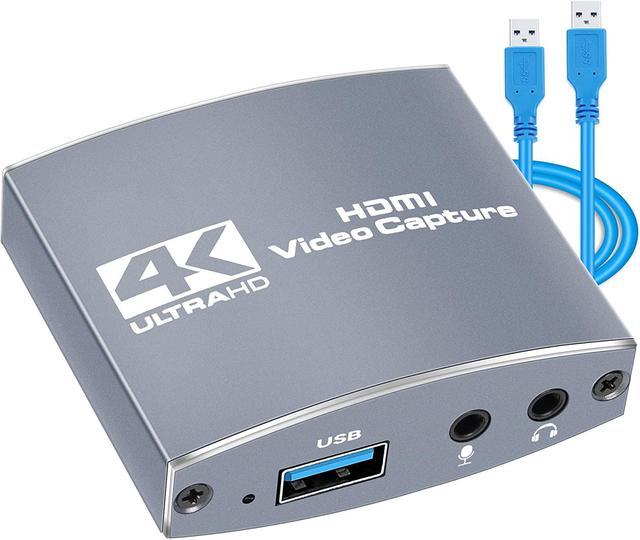
4K Audio Video Capture Card
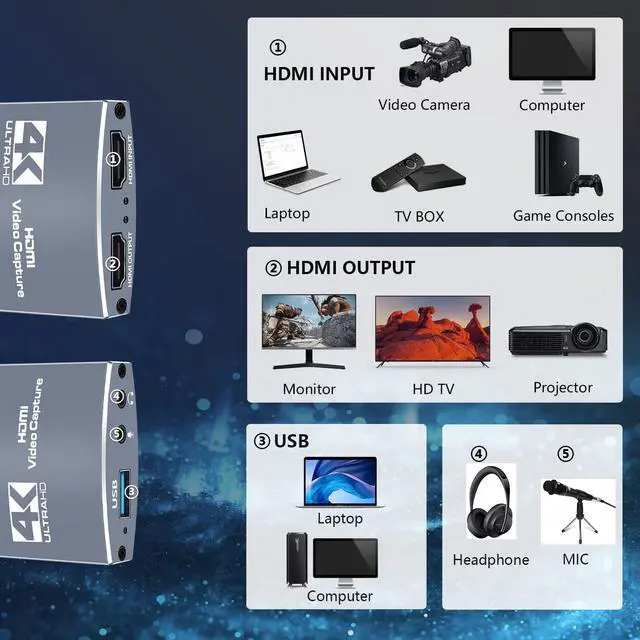
UBS 2.0 input :
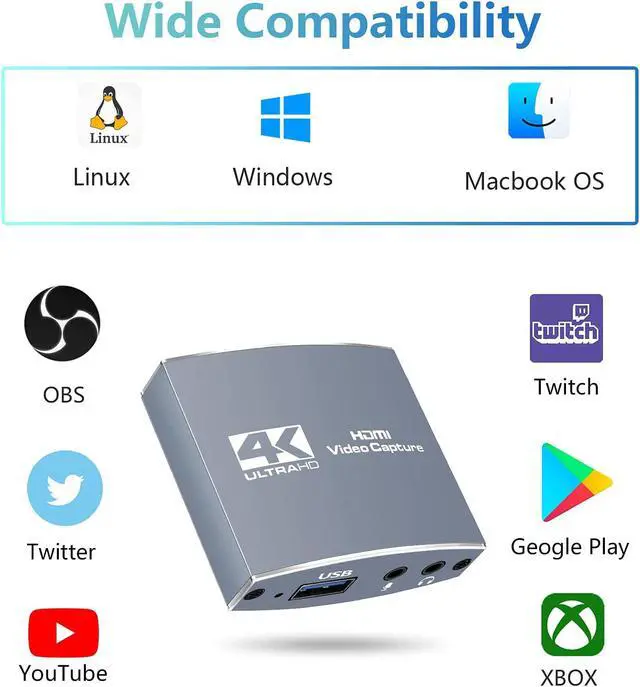
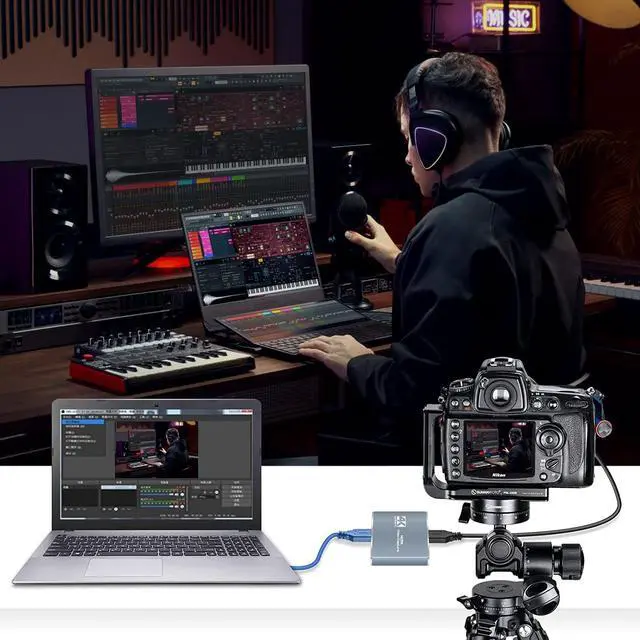
Supports windows 7,8,10, for Mac OS X 10.9 or later, Linux, Linux OS ( when your device is type c port, we also provide USB 3.0 to Type C Cable ), Desktops and laptops. Recording Videos, streaming to Various Live Board cast Platforms!
It must be connected to the computer's USB 3.0 or type-c (USB C ) interface use.
Universal HDMI Design:
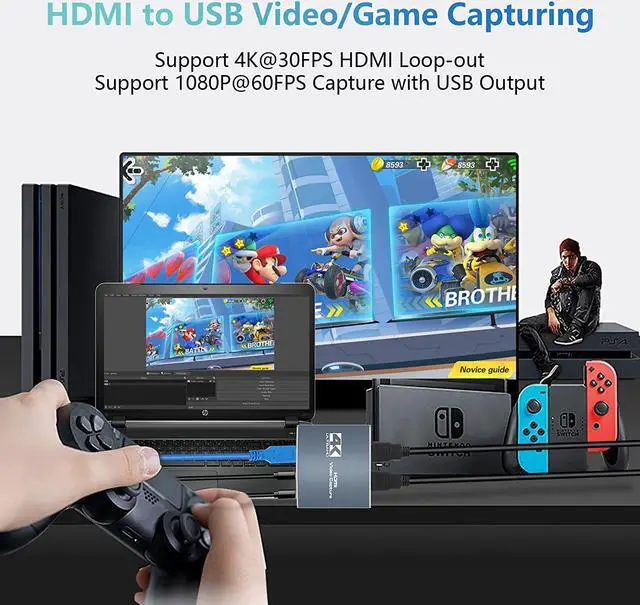
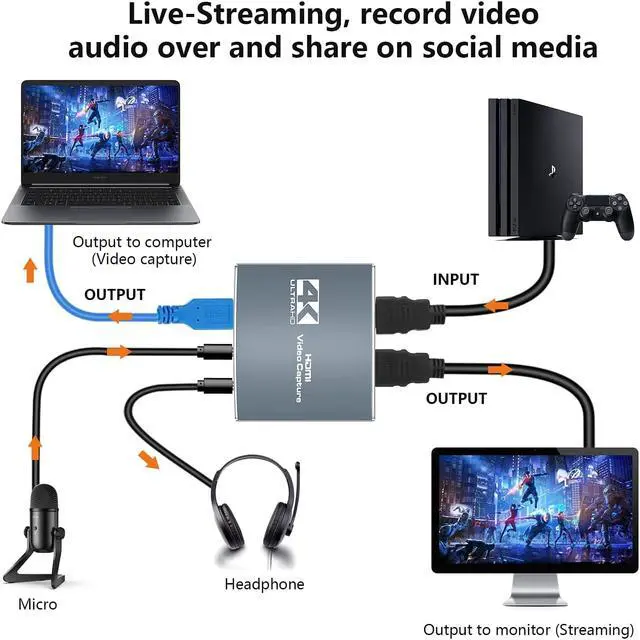
HDMI Input : Our item's HDMI can work for Switch, PS3 ,PS4, Wii U, Xbox 360, Xbox One game consoles, laptop, DVD player, Media player, TV box , Blu-ray Player, DVD Player, TV-Box, Digital Camera, Video Camera that have HDMI input port;
HDMI Output : Our item 's HDMI can work for all TV, Monitor, Projector, LCD and other displays that equipped with HDMI output port;
Notes: Built-in a HDMI OUTPUT port, it is convenient for you to check the video or game on TV set at the same time;
Screen Share for Meeting
The video capture card is a fast and economical way to share content in conference rooms and online meetings. Just simply connect a laptop or tablet via HDMI port to start sharing.
Record Your Live Voice
Equipped with 3.5mm microphone and audio ports to connect the game capture card with your game headphone, interact with other players and add external commentary when playing a game
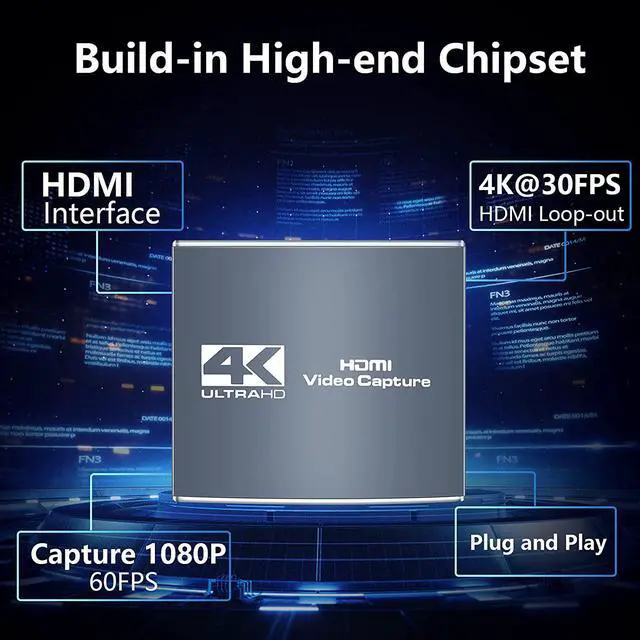
4K@30FPS HDMI Loop-out
This game capture card support 4K@30FPS HDMI input/output. There is no latency when you use the loop-out function, which brings you a smooth and no lag experience when you make a game live streaming.
Full HD 1080P@60FPS Capturing
This video capture card supports max resolution 1080P@60fps for USB 2.0 output, which ensure provide you with a high-quality and trouble-free experience. It is an ideal device for you to keep the good monents in your life.
OBS Notes:
Please note that the OBS Studio software needs to be restarted after audio settings are completed, otherwise it will cause no sound output.
Please connect the audio video capture card to the signal source, video loop-out, audio input, audio output and computer correctly. Please install OBS live broadcast software on your computer. If the OBS version is too low, the capture card may not work normally.
Figure 1-1: Identify the Capture Card
1. Open OBS to click "+" source to add video source.
2.Double-click the added video source in the red box above to enter the setting page.
3.In the red arrow column, select "USB Video" in the device column. As shown in Figure 1-1
Figure 2-1: Set the resolution and the FPS
1. Custom Resolution: First set Resolution/FPS Type to custom mode. As shown by the white arrow in Figure 2-1.
2. Set Resolution: Select the appropriate resolution at the up and down arrows on the far right of this column. As shown by the yellow arrow in Figure 2-1.
3. Set FPS: Select the appropriate frame rate at the up and down arrows on the far right of this column. As shown by the red arrow in Figure 2-1.
Figure 3-1: Set the audio and micro
1. Select the "Output Desktop Audio" item at the up and down arrows on the far right of the "Audio Output Mode" column. As shown by the red arrow in Figure 3-1.
2. Mark the "v" in the red box. As shown in Figure 3-1.
3. A. Select the MIC input of the collector at the up and down arrows on the far right of the "Audio Device" column. As shown in Figure 3-1.
The OBS is set up and it can be used. normally.



 All Categories