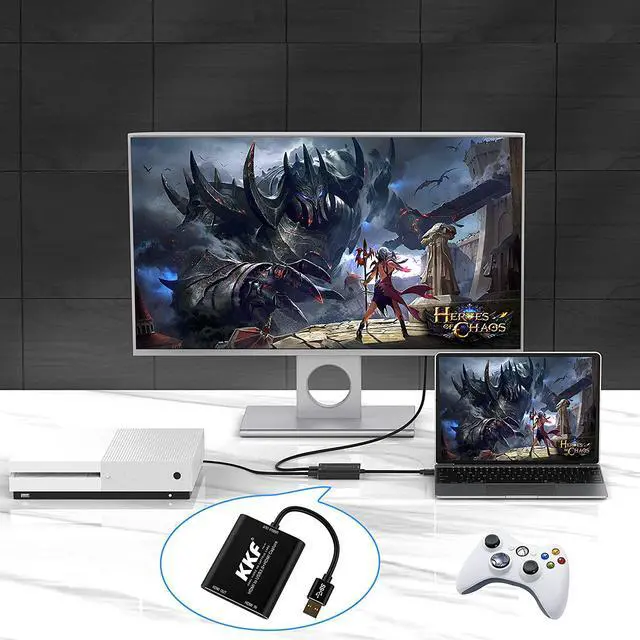
Why we need a capture card?
A capture card is an indispensable tool for recording game footage on your console.But why exactly is that?
While PC users can record gameplay directly on their machines using a plethora of different software like XSplit or Fraps, it's not as easy for console owners.
When you own a PlayStation 4, Xbox One, Switch or almost any other gaming console and want to record video.
A good capture card allows you to record and store footage externally, and you can move it effortlessly to your PC.
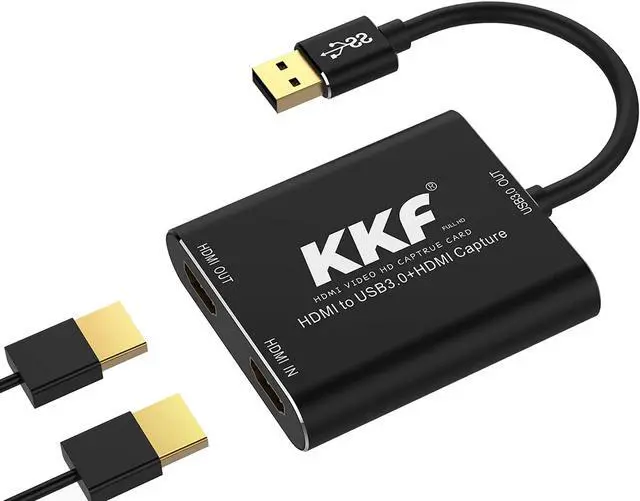
KKF Capture Card Features:
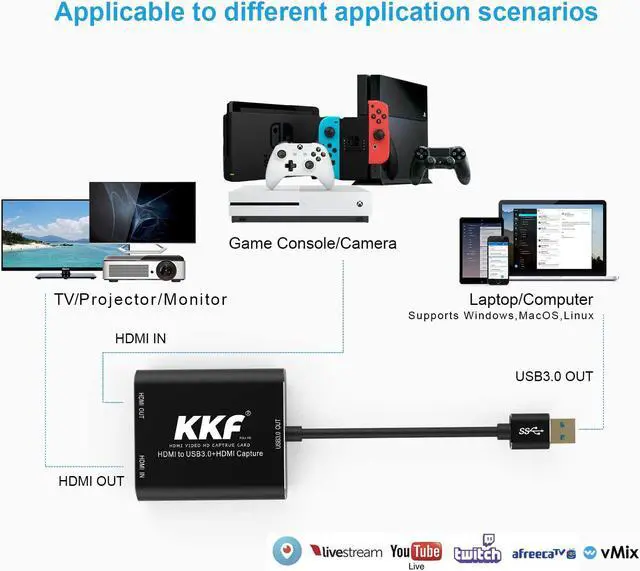
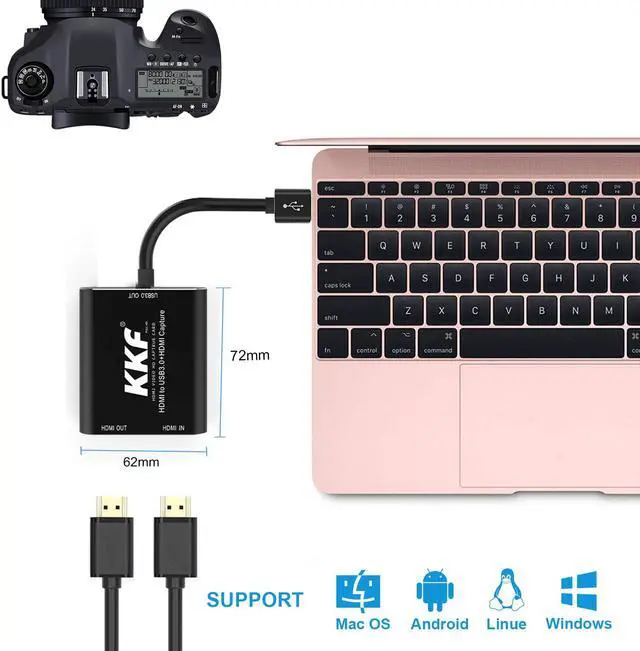
Works with most third-party software and Operating Systems including:Windows, Mac OSX, Linux.
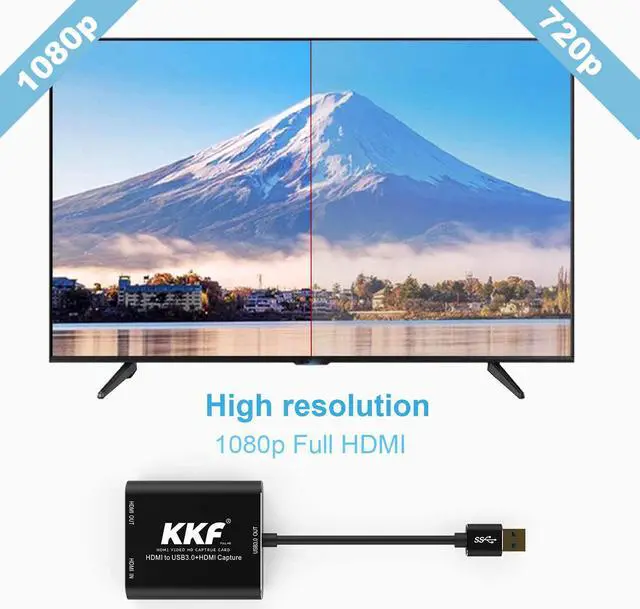
Supports up to 1920x1080 at 60fps (1080p) and up/down conversion of video without CPU interaction.
Converts HDMI to standard PC webcam data. Converts video and audio from HDMI to USB Video Class (UVC) and USB Audio Class (UAC) data.
The sleek, design requires no external power and eliminates visual clutter.
Customize for your application with a plug-and-play solutionno driver downloads.
What can a KKF capture card do?
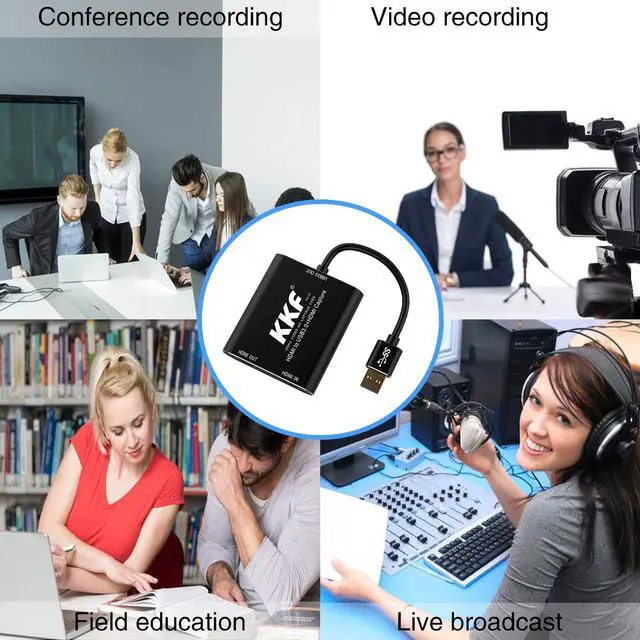
Instead of storing and then transferring to your computer via SD card when you are shooting, you can store directly to your computer via the capture card, saving a lot of steps and time.
When you are in a meeting, you can project your work directly onto the big screen through the KKF capture card and store this meeting directly at the same time.
Nowadays there are more and more people who broadcast live, and they can also save their daily live content through the KKF capture card, which is very convenient and fast.
Many people have great moments when they play games. With this capture card, we can record every wonderful moment you have and record the joy.
FAQ
Q: What should I pay attention to when I use it for the first time?
A: Mac OS system can be used with its own QuickTime; Windows, Android and Linux systems need to install OBS or other general Capture software before they can be used;
B: Try to use a high configuration with CPU i5 or higher and GPU, and USB3.0 Capture will have a better effect; please save the OBS file, set the sound and video before use, and then use it;
Q:What port do I have to use to get better video quality?
A:You need to use USB3.0 port to capture video, which can transfer data without compression and get better video quality than USB2.0 port capture effect.
Q: Why is the captured audio intermittent?
A: After inserting the capture card, you need to set FHD Capture as the default device in the "Sound" setting. Then open the property settings of FHD Capture, and in the Advanced column, select 48000Hz.
Q: What if the video and audio are not in sync?
A: The reason why the video and audio are not synchronized may be related to your computer hardware and network. In order to synchronize audio and video, you need to set the video delay.
Right-click "Video Capture Device", select "Filter", click "+" and select "Video Delay (Asynchronous)", then enter 470MS in the new pop-up window (or adjust the value according to your actual situation until the audio and video are synchronized)



 All Categories