WiFi 6E
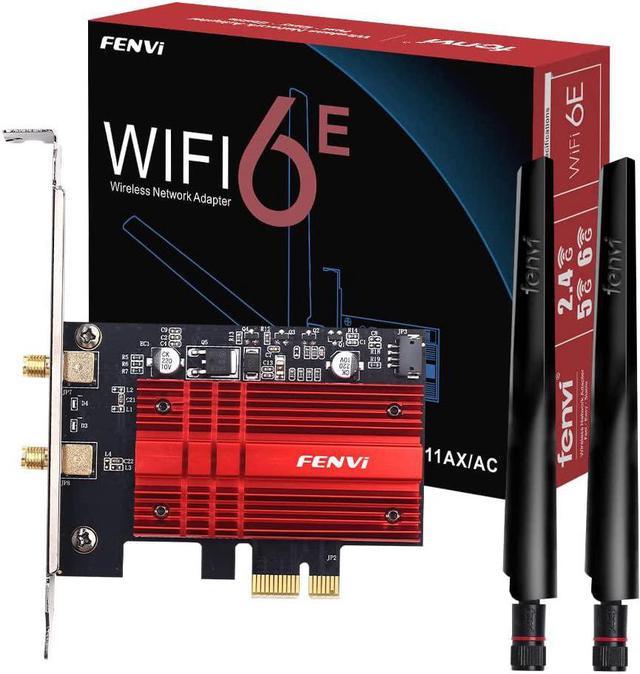
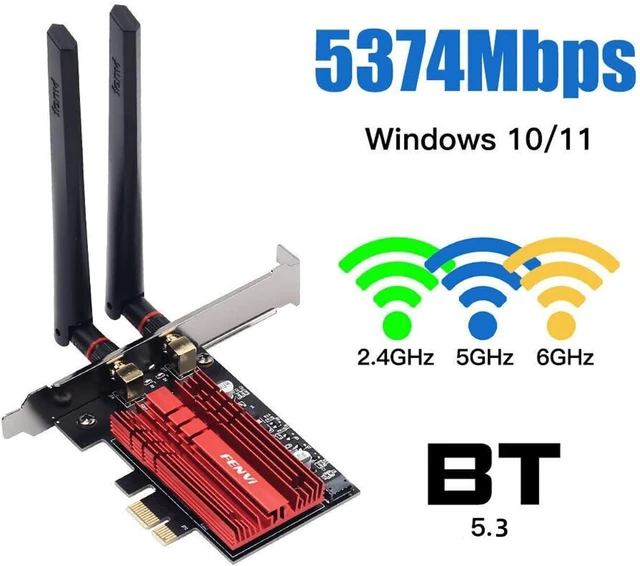
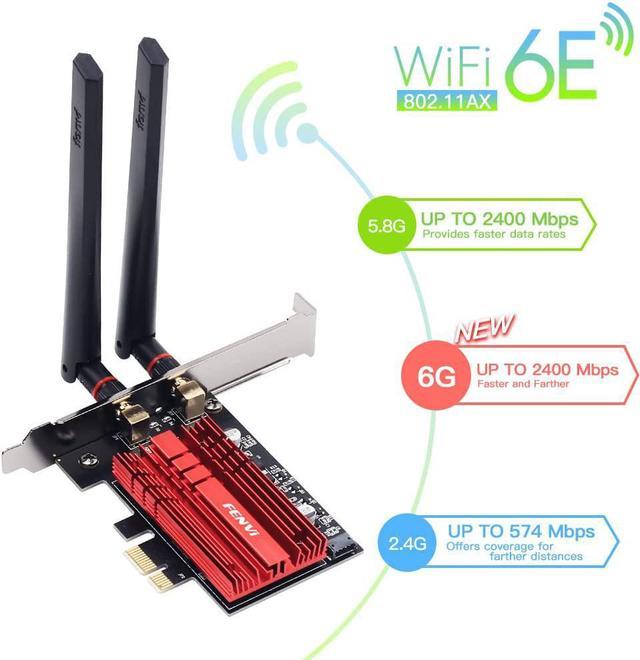
Tri-Band Ultra-Fast: FV-AXE3000 With Intel WiFi 6E AX210 chipset, the PCIe wireless card can upgrade your PC to Wi Fi 6E. Tri-band ( 2.4GH z/5GHz/6GHz) with total speed up to 5400Mbps, Provides interference-free channels for ultra-low latency gaming, 4K/8K streaming and large file transfers. (6GHz: 2400Mbps
+ 5GHz: 2400Mbps + 2.4GH z: 574Mbps )
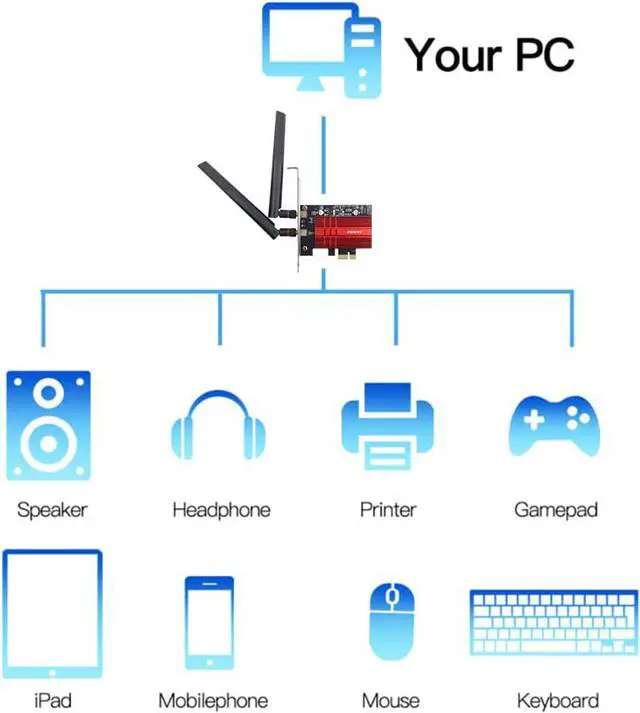
Bluetooth 5.3 for Stable Multi-Device Connection: Built-in Blue-tooth 5.3 enables simultaneous connection of multiple wireless peripherals including headsets, keyboards, mice and game controllers, it has larger capacity, higher speed, extremely low latency and stronger battery life. Delivering faster transmission, wider coverage and stronger anti-interference performance
Advanced WIFI 6E Tech & WPA3 Security: Features OFDMA and MU-MIMO technologies to improve network efficiency and reduce latency. Adopts WPA3 advanced encryption to safeguard your network data security, ideal for home, office and gaming use. Ensure a greater range of Wi-Fi connection and stability for gaming, 4K Streaming, HD Video Transfer, Beamforming, Long-Range Coverage
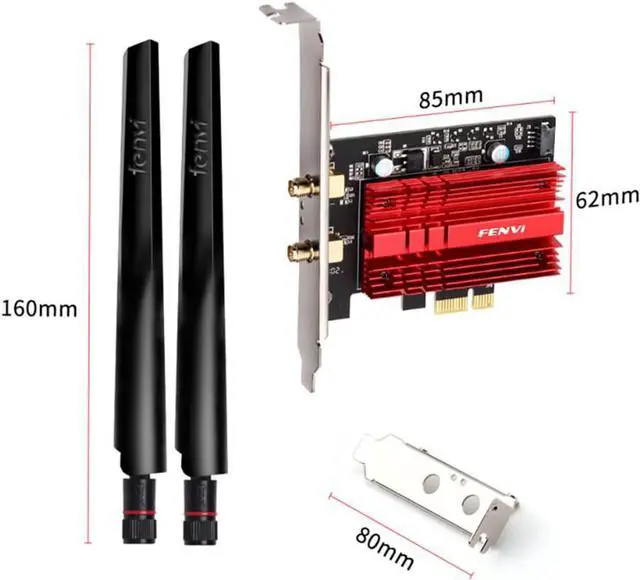
Dual High-Gain Antennas for Extended Coverage: Equipped with two external antennas to enhance signal strength and expand wireless coverage, ensuring stable and smooth connection even in large spaces or multi-wall environments. Wi-Fi 6E expands the WiFi band from 80 MHz to 160 MHz, greatly increase network coverage for a smoother online experience further away
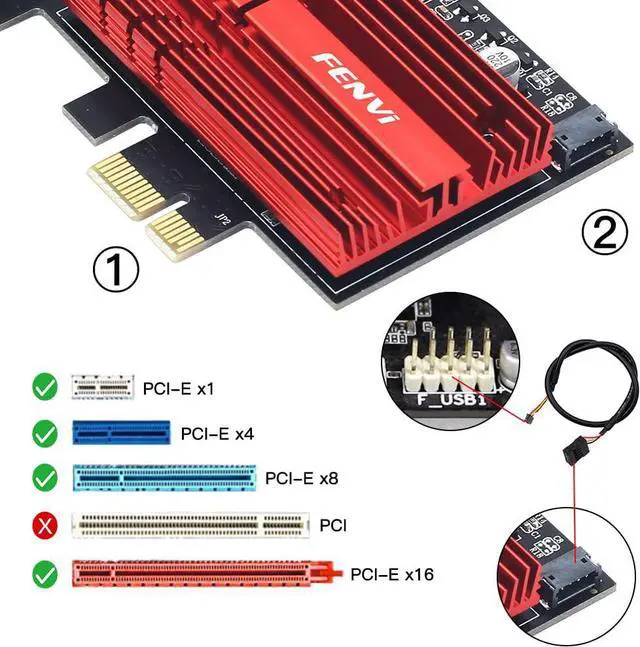
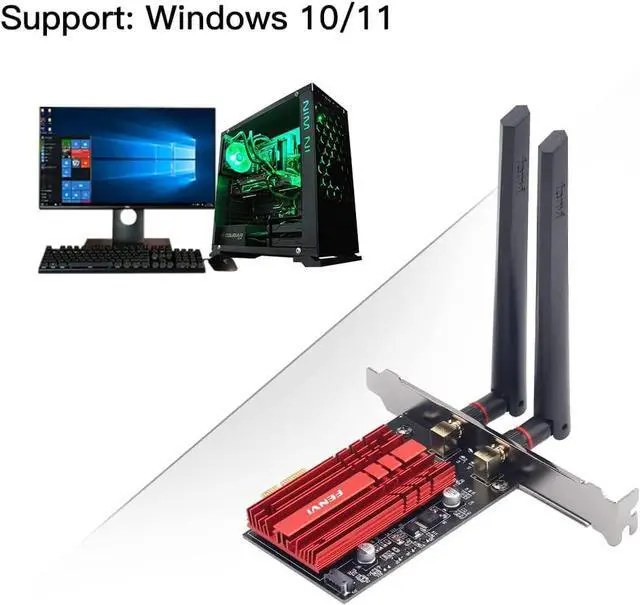
Universal PCIe Compatibility & Easy Installation: Fits Desktop PC standard PCIe x1/x4/x8/x16 slots, compatible with Intel and AMD desktop motherboards. Includes both full-height and low-profile brackets for standard and small-form-factor PCs, supports Windows 11/10 64-Bit systems
Easy Installation & Troubleshooting Guide:
1.
Download driver: FENVI website (search FV-AXE3000) or Intel official site (search AX210)
2. Extract and run installer, Restart computer
3. Verify in
Device Manager: Settings - Device Manager - Network Adapters, Should show " Intel WiFi 6E AX210 160 MHz"
4. Device Manager - Power Management - UNCHECK " Allow computer to turn off this device" (This fixes 90% of connection issues! )



 All Categories