FAQS Q1: Why Does the Headset's Mic Not Connect or Work?
A:
1. On your computer, right-click the Speakers icon at the bottom right, then click Open Sound settings. Select and make sure that [A19] is set as input device (Microphone).
2. Adjust the microphone position to be 0.79 - 0.98 inches (2- 2.5 cm) away from your mouth. If the microphone boom is too far or too close to your mouth, it may cause issues with sound pickup.
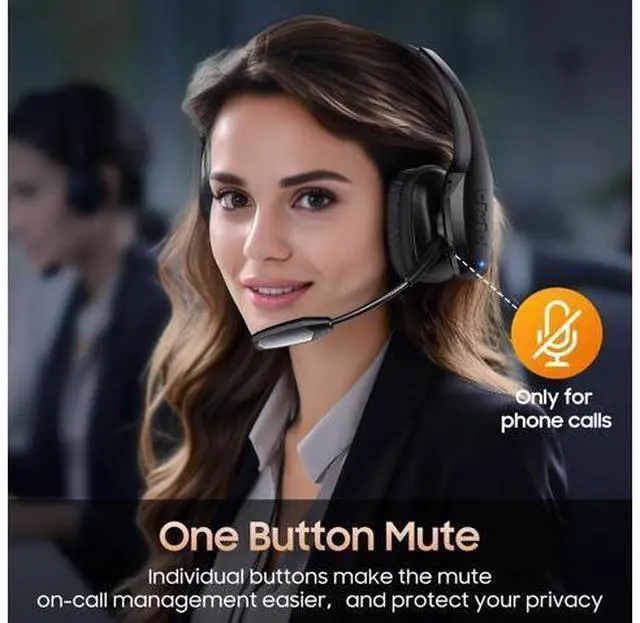
3. The microphone may have been accidentally muted, which prevents it from picking up your voice, please turn off the mute button.
Q2: What to Do If I Can't Turm On the Headset or Fail to Connect to Devices?
A:
1. Headset is out of power, please charge the headset.
2. Try to reset the headset. 3. Ask us for technical support.
3. The headset can't connect to a device while it is charging. The headsct has a built-in charging protection feature to prevent the battery from overheating and to ensure safety.
Q3: Why Can't the Headset be Charged?
A:
1. Fully charged. 2. The headset must be tumed off while charging. The charging protection system will be triggered and charging will stop.
Q4: How Can I Connect the Headset to My Laptop/Computer?
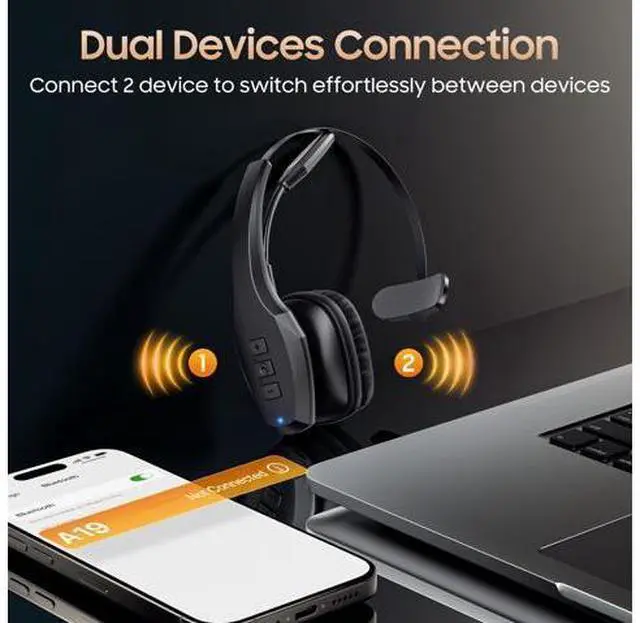
A: On your PC, select Start > Settings > Bluetooth & other devices >Add Bluetooth or other device> Bluetooth > Click on the [A19] of your device. If your computer asks for a Bluetooth driver, contact your computer manufacturer.
Q5: Why Does the Headset Turm Off Automatically?
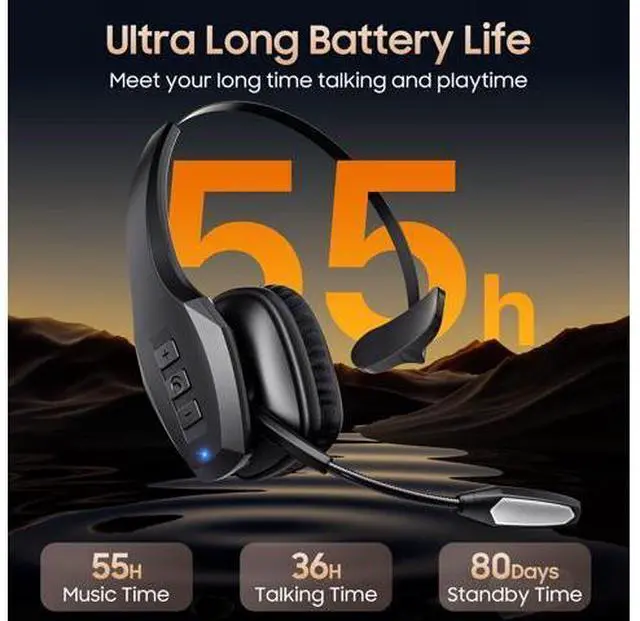
A: If there is no connection for more than 5 minutes or the battery voltage is lower than 3.3V, the headset will automatically shut down. Please restart or charge the headset. Previous page Next page
FAQS Q1: Why Does the Headset's Mic Not Connect or Work?
A:
1. On your computer, right-click the Speakers icon at the bottom right, then click Open Sound settings. Select and make sure that [A19] is set as input device (Microphone).
2. Adjust the microphone position to be 0.79 - 0.98 inches (2- 2.5 cm) away from your mouth. If the microphone boom is too far or too close to your mouth, it may cause issues with sound pickup.
3. The microphone may have been accidentally muted, which prevents it from picking up your voice, please turn off the mute button.
Q2: What to Do If I Can't Turm On the Headset or Fail to Connect to Devices?
A:
1. Headset is out of power, please charge the headset.
2. Try to reset the headset. 3. Ask us for technical support.
3. The headset can't connect to a device while it is charging. The headsct has a built-in charging protection feature to prevent the battery from overheating and to ensure safety.
Q3: Why Can't the Headset be Charged?
A:
1. Fully charged. 2. The headset must be tumed off while charging. The charging protection system will be triggered and charging will stop.
Q4: How Can I Connect the Headset to My Laptop/Computer?
A: On your PC, select Start > Settings > Bluetooth & other devices >Add Bluetooth or other device> Bluetooth > Click on the [A19] of your device. If your computer asks for a Bluetooth driver, contact your computer manufacturer.
Q5: Why Does the Headset Turm Off Automatically?
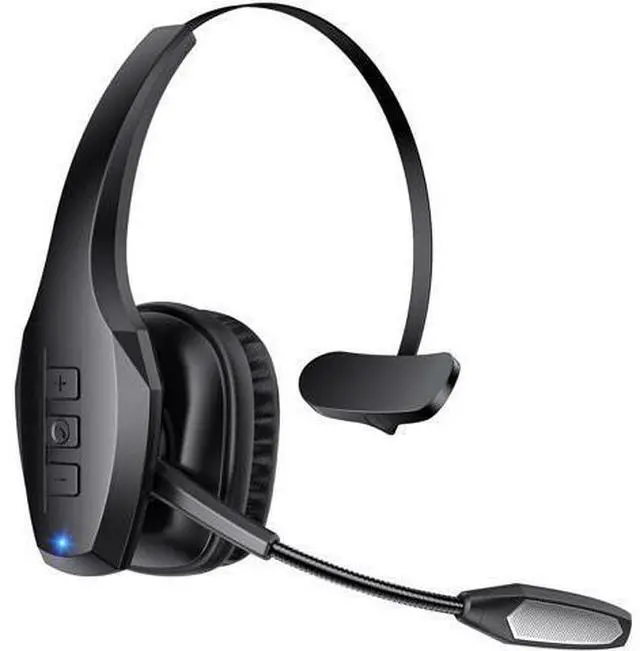
A: If there is no connection for more than 5 minutes or the battery voltage is lower than 3.3V, the headset will automatically shut down. Please restart or charge the headset. Bluetooth Headset, Trucker Bluetooth Headset, Wireless Headset with Mic for Work, Wireless Headset with Mic, Bluetooth Headset with Microphone, Bluetooth Headset with Mic, Trucker Headset, Bluetooth Headset with Dual Noise Cancelling Microphone & Mute Button, 55Hrs Playtime PC Headset for Cell Phones, Computer, Truck Driver Product information Brand Necode Color Black Ear Placement On Ear Form Factor On Ear Impedance 32 Ohms Noise Control Active Noise Cancellation Headphones Jack No Jack Model Name A19 Connectivity Technology Wireless Wireless Communication Technology Bluetooth Included Components Bluetooth Headset with Microphone x 1, USB-C Cable x 1, User Manual Age Range (Description) Adult Material Plastic Specific Uses...



 All Categories