Meet Your Seller
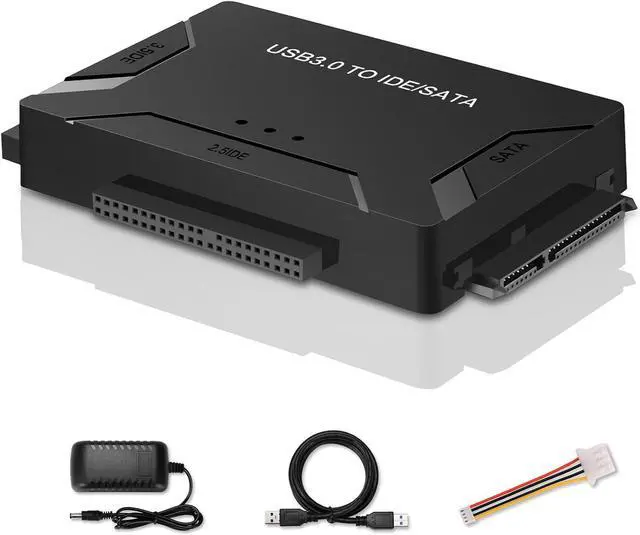
USB 3.0 to SATA IDE Adapter, Hard Drive Reader External Ultra Recovery Converter Compatible with 2.5" 3.5" HDD, SSD,5.25-inch DVD/CD-ROM Optical Drive Data Transfer with Power Supply
- Item #: 9SIVSPVM1H8710
- Mfr. Part #: A9Y1-1008-1
- About this item
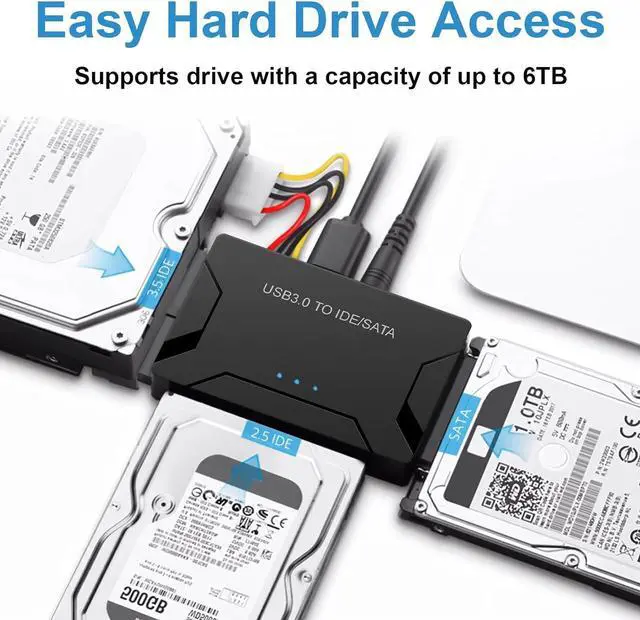
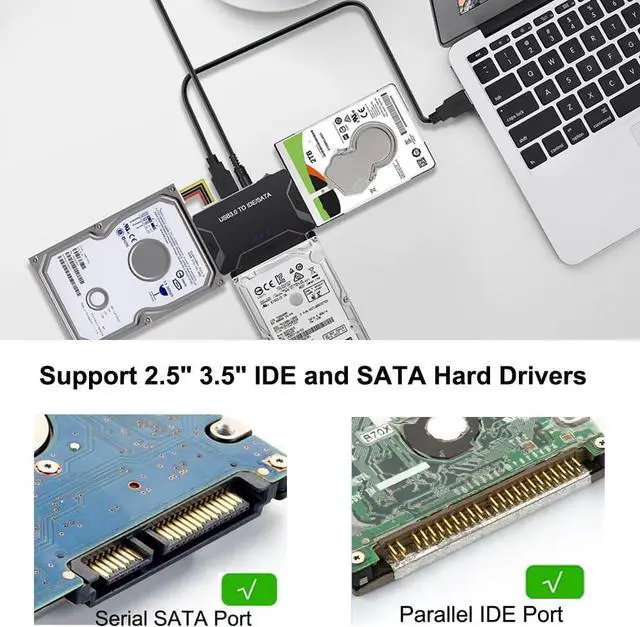
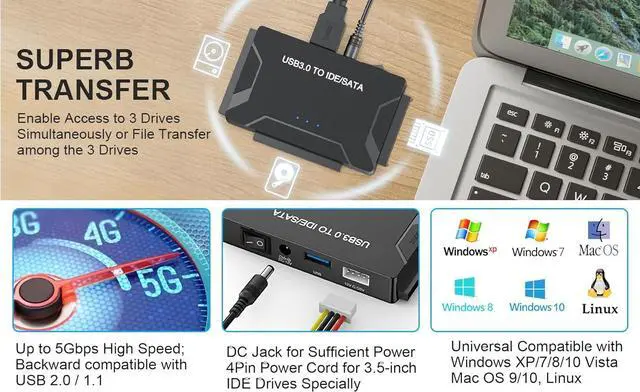
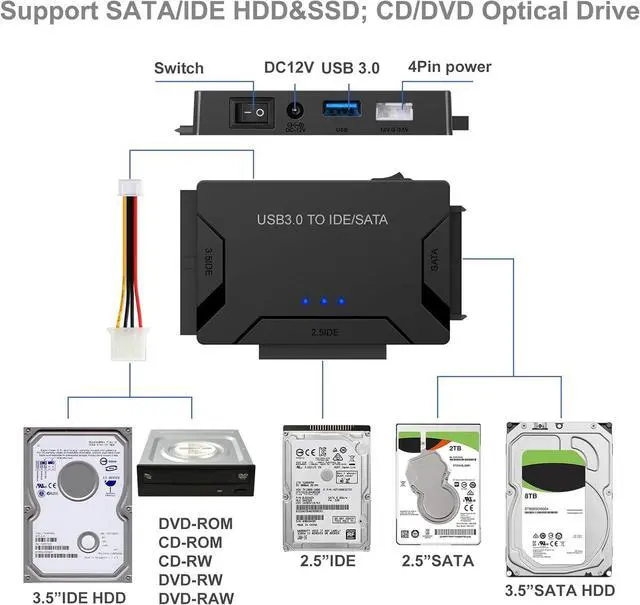
- QUICKLY ACCESS TO SATA IDE SSD&HDD: Hard drive adapter supports SATA/IDE 2.5"/3.5" SSD/HDD, 5.25 external CD DVD optical drive; This Adapter allows us to retrieve the data and move it to a functioning hard drive. with dual-head IDE Connector (40pin and 44pin) plus one SATA II Connector
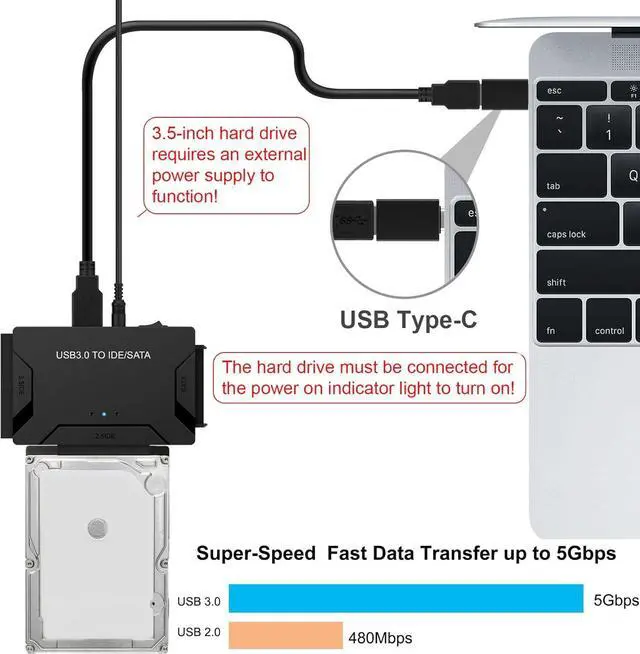
- SUPERSPEED UP TO 5Gbps with USAP: IDE hard drive reader supports a data transfer rate of up to 5 Gbps and supports UASP. which is 70% Faster than traditional USB 3.0 and 40% reduction in required processor resources, Backward compatible with USB 2.0 / 1.1
- HUGE 6TB CAPACITY SUPPORT: Designed to be lightweight and compact. hard drive recovery converter supports a hard drive capacity of Up to 6TB capacity, Tips: Some IDE hard drive is old, In order for you to use a "single" 3.5" IDE hard drive, you will need to set the jumper to "slave" before turn on the disk
- ADDITIONAL FUCTIONS & EASY TO USE: USB 3.0 to IDE SATA adapter included 12V2A AC power supply, for powering up the 5V/12V IDE devices usage, ensures SATA HDD can be connected well. The 4-pin power cable is designed for a 3.5 IDE drive; the LED light shows power and activity status
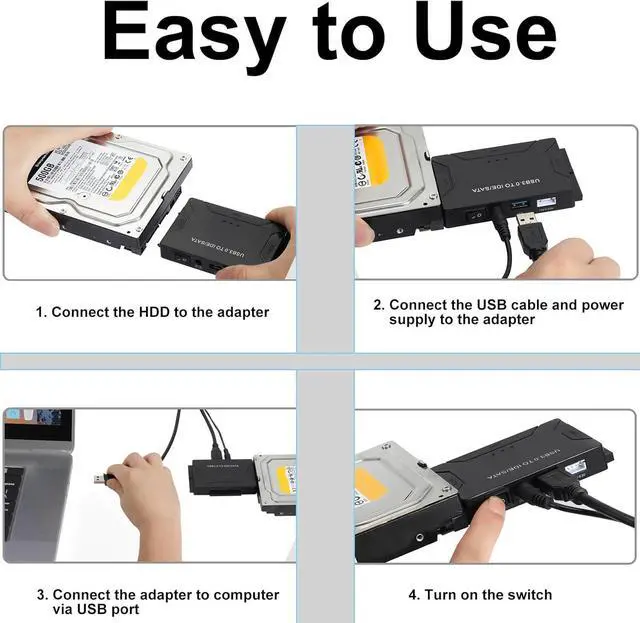
- SIMPLE RECOGNIZED: With plug-and-play functionality, hard drive to usb adapter eliminates the need for additional drivers or complex setup procedures, Warm Tip: Windows can only recognize (and assign a drive letter to) drives that are formatted in a compatible way. If this is a new drive, you need to format
- COVERTER WITH BROAD COMPATIBILITY: You c
1. Ensure that the hard drive is properly connected to your computer. Check the cables and connections to make sure they are secure. If it's an external hard drive, try using a different USB port or cable.
2. Power Supply: Make sure that the hard drive is receiving power.
3. Disk Management: Open Disk Management in Windows to see if the drive is detected but not properly initialized or assigned a drive letter.
4. Device Manager: Look for the hard drive under "Disk drives" or "Other devices." If it's listed with a yellow exclamation mark, there may be a driver issue.
5. Driver Issues: Update or reinstall the drivers for the hard drive.
6. BIOS/UEFI Settings: If the hard drive is internal, check your computer's BIOS/UEFI settings to see if the drive is recognized there.
7. Hardware Failure: The hard drive may have failed.
8. Compatibility: Sometimes, certain hard drives may not be compatible with a particular system.
Warranty & Returns
Warranty, Returns, And Additional Information
Warranty
- Please contact the Seller directly for warranty information. Warranty information may also be found on the Manufacturer's website.
- CONTACT
Return Policies
- Return for refund within: 30 days
- Return for replacement within: 60 days
- This item is covered by NexusPoint Return Policy
Manufacturer Contact Info
- For a directory of all our manufacturers, please click below.
- Manufacturers Directory