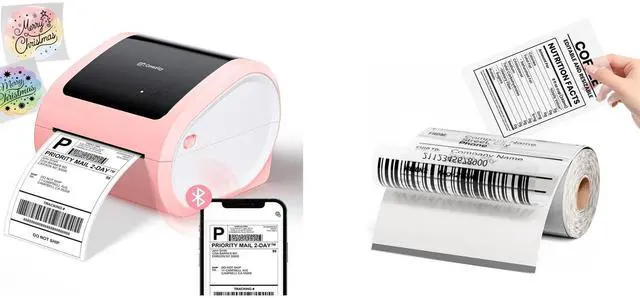
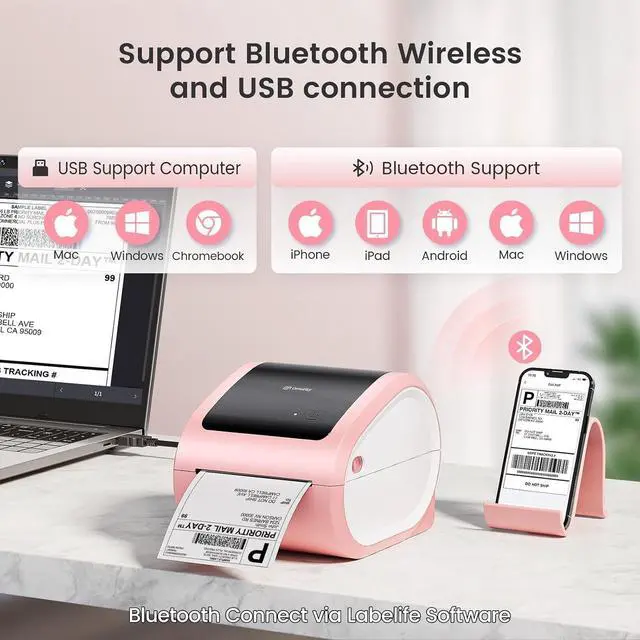
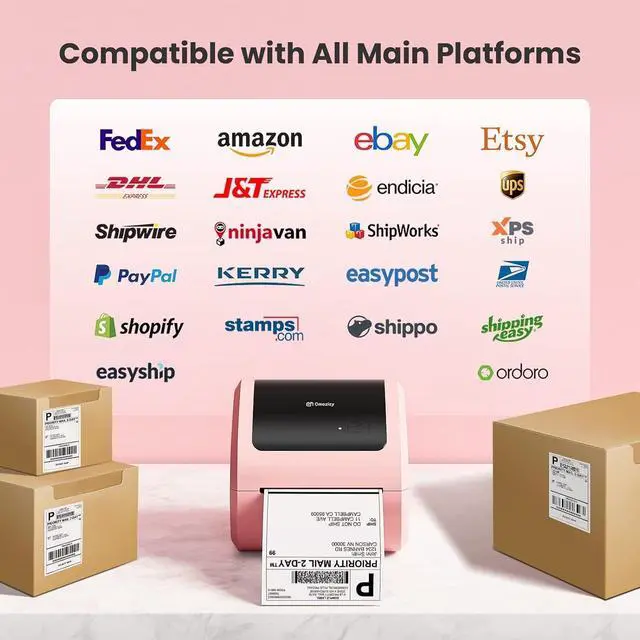
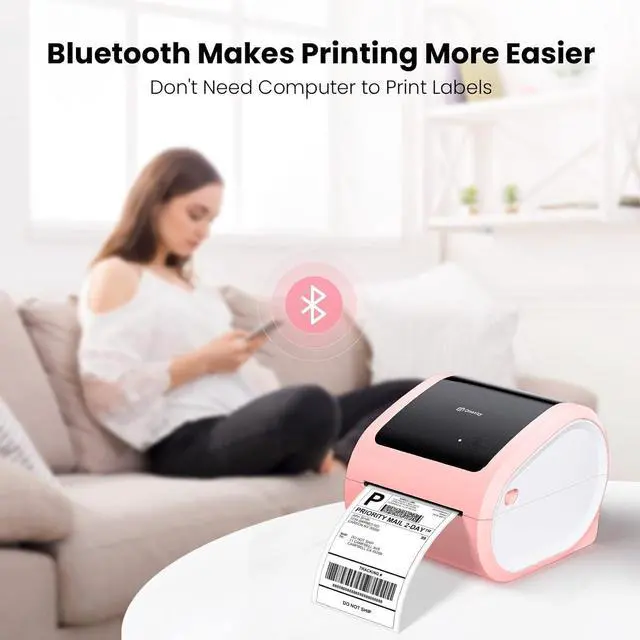
Product description Omezizy D520-BT Label Printer Strong Helper for Your Business Support both Bluetooth and USB connection, use our APP to print with Bluetooth to make run a business only with a smartphone or tablet possible. Now, Windows & Mac also support printing via Bluetooth. Print wirelessly saves more space. Compatible with Windows, Mac, Chrome OS and Linux, Android and iOS systems, and compatible with all major platforms like Esty, eBay, USPS, Shopify, etc Green money saver - doesn't need ink and works with labels you got from shippers, save your money.
Included label edit software, you can batch edit your labels or customize your own labels. Windows & Mac also Support Printing via
Bluetooth - Steps: 1. Open the software homepage. 2. Click on "Please install the driver connect the printer", and select "Add printer". 3. Click the "wireless connection" button and wait for your computer to search the printer. If there shows the printer, click it and connect. 4. If the machine displays "connected", congratulations, the Bluetooth connection is successful, and you can use the printer's Bluetooth function with your computer. If the connection fails, please restart the printer and repeat the previous steps.
Friendly reminder: 1. Bluetooth now supports Mac/Win. The computer needs to have Bluetooth function to connect. Please also pay attention when using. 2. If a computer is connected to USB, it cannot be connected via Bluetooth on the same one computer. But, printers can support two different device connections, with one device connected via USB and the other different devices can connect via Bluetooth. Easy to Use Bluetooth Label Printer 5mins was up and printing labels direct from mobile. No more complicated steps, get it and print! No Need Label Holder The shipping label printer supports roll paper loaded inside, saves money on label holders, no more mess with the labels anymore! Clear Printing Quality With 203DPI and Japanese print head, every detail of the labels printed by this Bluetooth label printer could be scanned and read efficiently and effectively
Questions Answered Quickly Q: How to start printing with Chrome OS? 1. Connect the printer and computer with USB and turn on the printer. 2. Enter Labelife in the Chrome Web Store and add the extension to your Google Chrome. 3. Open the Labelife extension. Click "Add" to discover your printer. And "Setting Printer" to complete the print settings. 4. Open the file in Google Chrome and "Ctrl + P" to wake up the print interface, select the printer you just included and start Print.
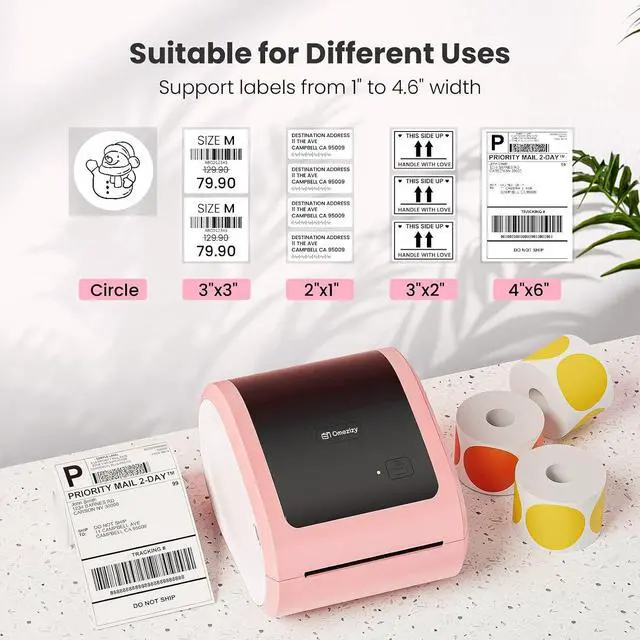
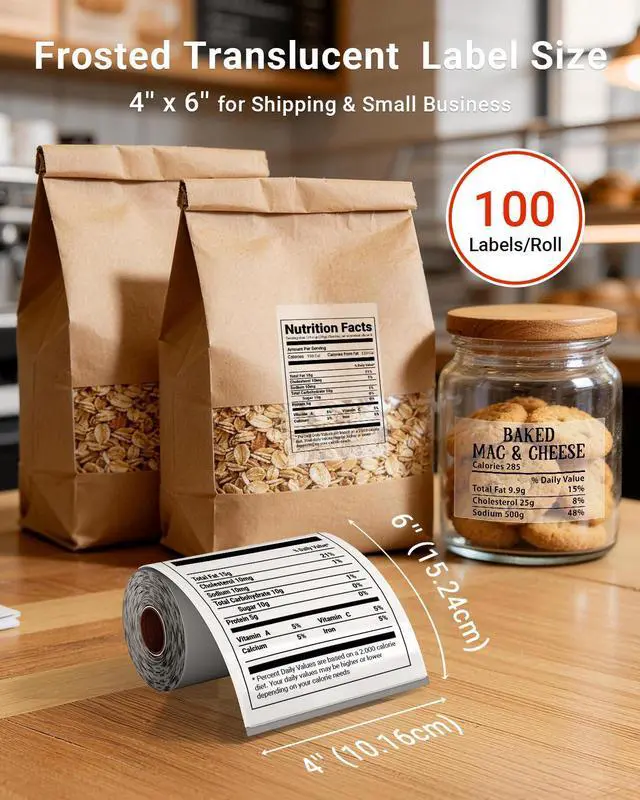
Q: Why the shipping label can't be completely printed? Only half? If you were printing your labels on a traditional printer before, please change your label size from 8.5" x 11" to 4"x 6" on the website that generates your labels. Most platforms including eBay, Shopify, and others support both sizes but are set to 8.5" x 11" size by default. D550 Pro Label Printer Label Holder 4"× 6" Labels Roll 2500pcs 4"× 6" Labels Fold 4000pcs 4"× 6" Labels Roll 250pcs 4x6 Transparent Labels Add to Cart Buying Options Add to Cart Add to Cart Buying Options Add to Cart Customer Reviews 4.3 out of 5 stars 74 5.0 out of 5 stars 2 4.8 out of 5 stars 524 4.8 out of 5 stars 524 4.8 out of 5 stars 524 4.8 out of 5 stars 524 Price $ 89.99 $89. 99 no data $ 49.99 $49. 99 $ 54.99 $54. 99 $ 14.39 $14. 39 $ 17.99 $17. 99 Color Grey Transparent White White White Transparent Feature Ethernet & Bluetooth & USB Transparent &Steady Using as Shipping Labels Using as Shipping Labels Using as Shipping Labels Small Businesses & Home Use