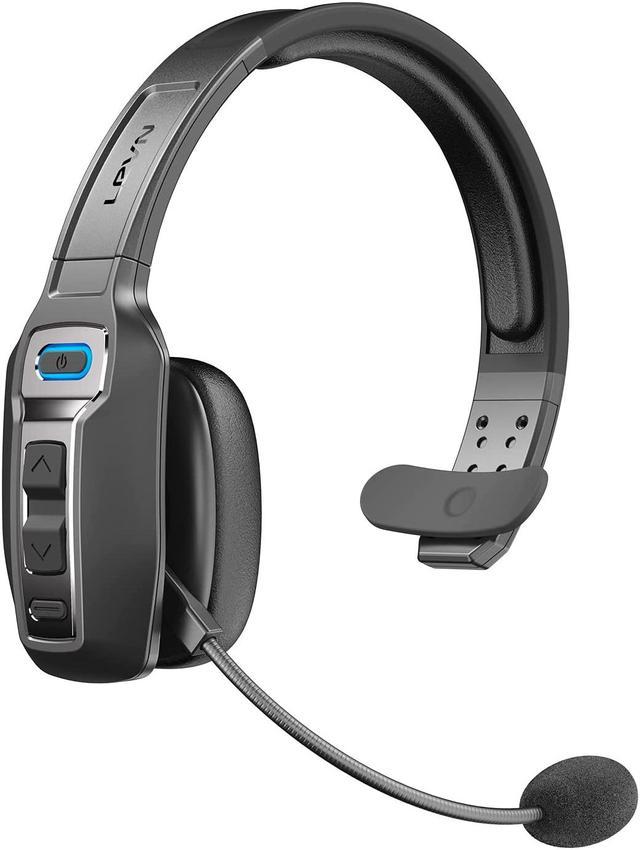
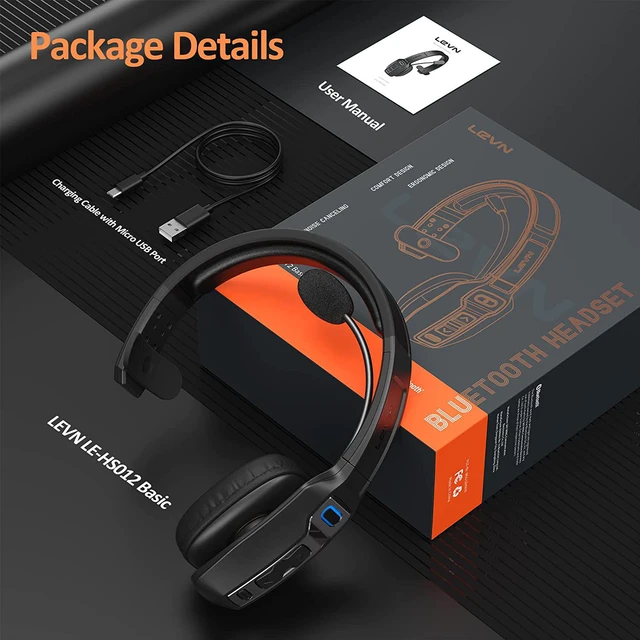
LEVN Bluetooth Headset with Microphone
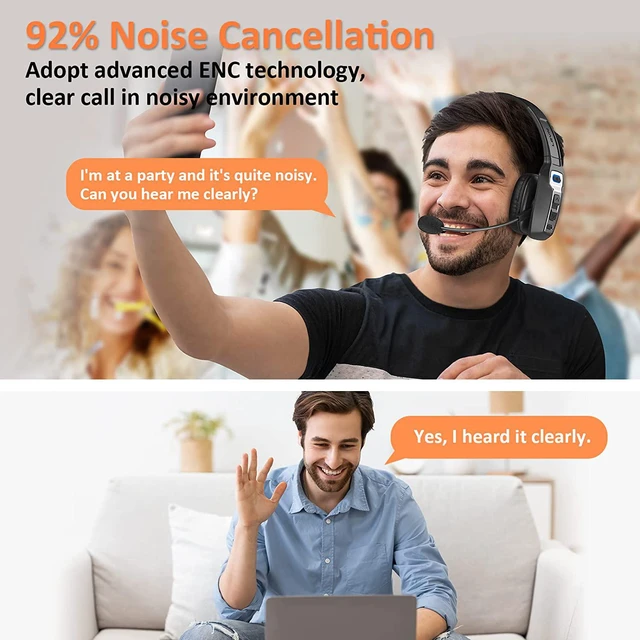
Adopt AI Noise Cancelling technology, eliminating up to 92% unwanted disruptive noise, ultra-clear sound for your hands-free calls
Bluetooth version: Bluetooth 5.2
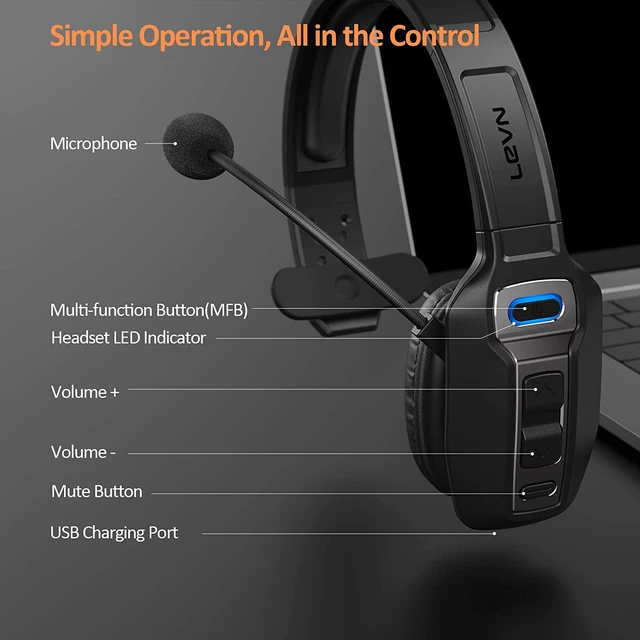
Mute button: one-click switch
Working Time: About 60 hours (70% volume)
Talking Time: About 35 hours (70% volume)
Charging time: 2 hours
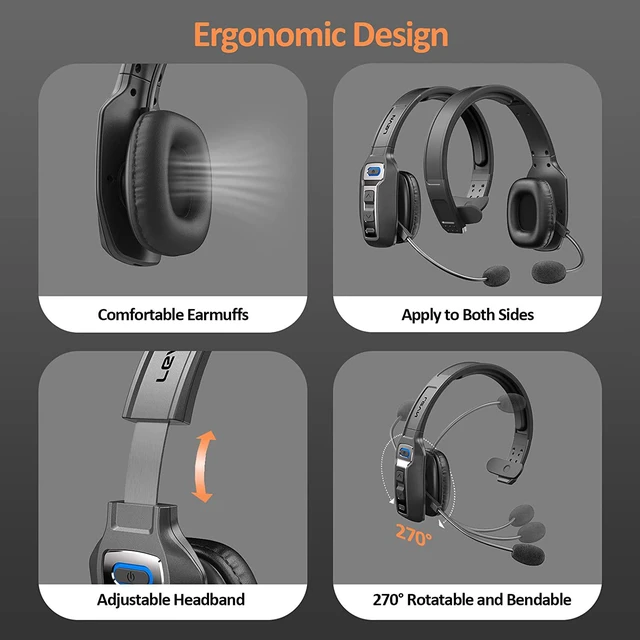
Ear wearing: left and right ears
LEVN stands proudly behind every product offered
As one of the leaders of Bluetooth Headset products, LEVN works passionately on the innovation of design and technology to create products with simplicity and usability all over the world.
How to pair LEVN LE-HS012 Basic to a computer?
Pair LEVN LE-HS012 Basic to a computer via Bluetooth
On your device, press and hold the MFB button of LE-HS012 Basic for 5 seconds to enter pairing mode, makes it discoverable by the computer. Check that the indicator flashes blue and red alternately. You will hear the voice guidance say, "Pairing".
On your PC, select Start > Settings > Bluetooth & other devices > Add Bluetooth or other device > Bluetooth > Click on the model number [LE-HS012 Basic] of your device. A window will pop up indicating the Bluetooth connection is complete. If your computer asks for a Bluetooth driver, contact your computer manufacturer. Check the sound settings to make sure sound is played via the correct output and input.
The microphone and the speaker of the headset may be disabled or not set as the default device on your computer.
Go to Settings > Devices > Bluetooth & other devices
Under Audio, make sure that the text below LE-HS012 Basic says Connected voice, music. This means the headset were paired and connected successfully. In the same window, under Related settings, click Sound settings to set the sound output (speaker) and input (Microphone).
Select [LE-HS012 Basic] as your output device (speaker)
Select [LE-HS012 Basic] as your input device (Microphone)
Make sure that [LE-HS012 Basic] has been selected as both the output and input device. Then close Settings.
How to connect the headset and use the mute button in the software on the PC?
Take Microsoft Teams software as an example to make a voice call or video
More Settings > Device Settings > Audio Settings > Speaker and Microphone Settings.
Select [LE-HS012 Basic] as your output device (speaker); select [LE-HS012 Basic] as your input device (microphone)
Make sure that [LE-HS012 Basic] is selected as the output and input device. Both the mute button and the volume up and down buttons can be controlled uniformly through the headset. When you hear the "mute on", it will enter the mute mode.
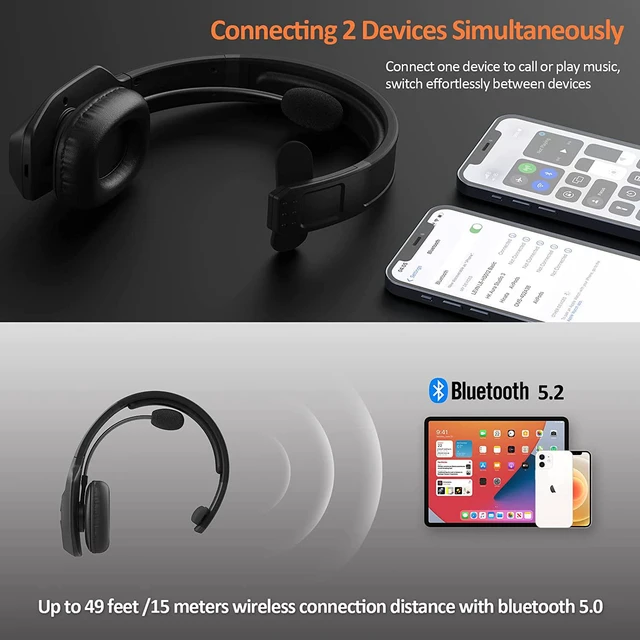
Connect 2 Devices and Switch Effortlessly
LEVN Bluetooth wireless headset supports simultaneous connection of two Bluetooth devices. Therefore, when a call comes in, you can quickly and accurately switch to your calling device through the MFB button, and answer the call smoothly. (You cannot listen to music or answer calls on two devices at the same time, you need to switch the connected device). The bluetooth headset wireless connection distance is up to 49 feet/15 meters (unobstructed, open space)
Easy Hands-free Talking
LEVN headphones with microphone take away the hassle of wires. Through Bluetooth 5.2 wireless connection, MFB one-click to answer easy hands-free calls, so that you can talk with peace of mind when you have no time to operate the device.
One-click Mute Button
The mute button at the bottom is easy to find, just press it once to mute and press it again to continue the call. Ideal for call center calls, and a sudden phone call during a face-to-face conversation or meeting.(Only applies to calls)
Widely compatible with Bluetooth V5.2
The Bluetooth 5.2 headset has a wide range of compatibility, supports connection to devices such as smartphones, tablets and laptops, and works perfectly with Zoom, WebEx, Skype, Microsoft Teams, FaceTime and other conferencing software.