
Built for How Business Buys.



Powerful KVM Dock

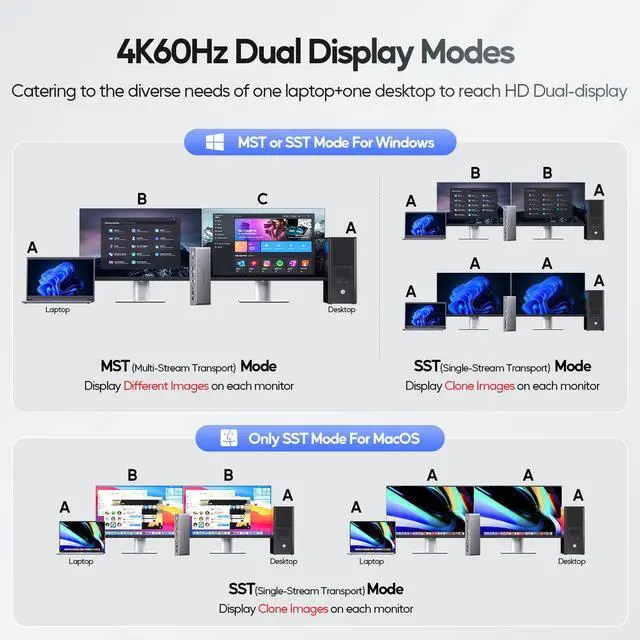
Mirror/ Extend Mode

MST Mode on Win

SST Mode on Win

ONLY SST Mode on MacOS


PD 100W

Charging & Data Transfer

4K@60Hz HD Output

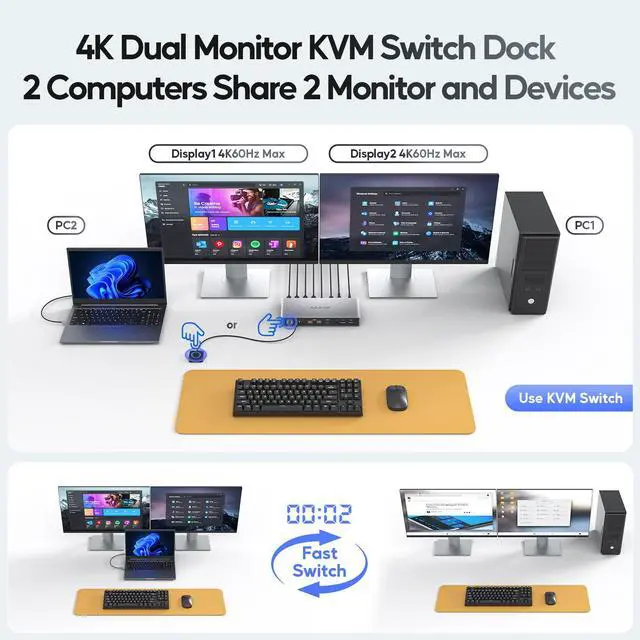
Share Essential Ports

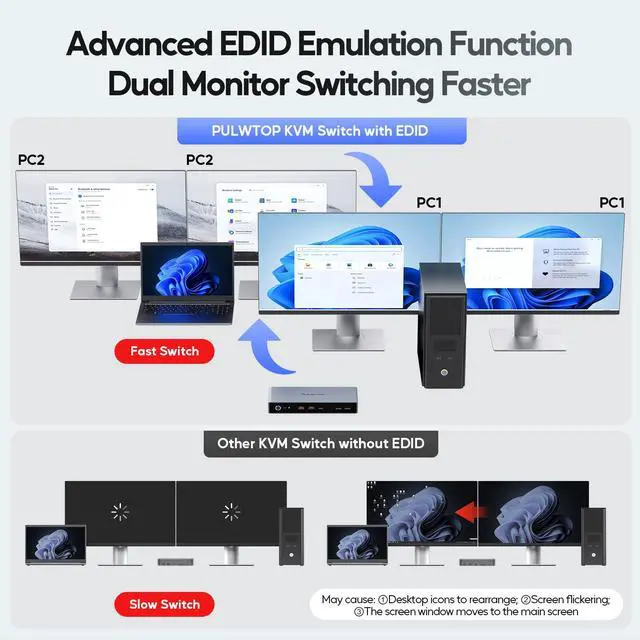
2-way EDID Switch

Wide Compatibility

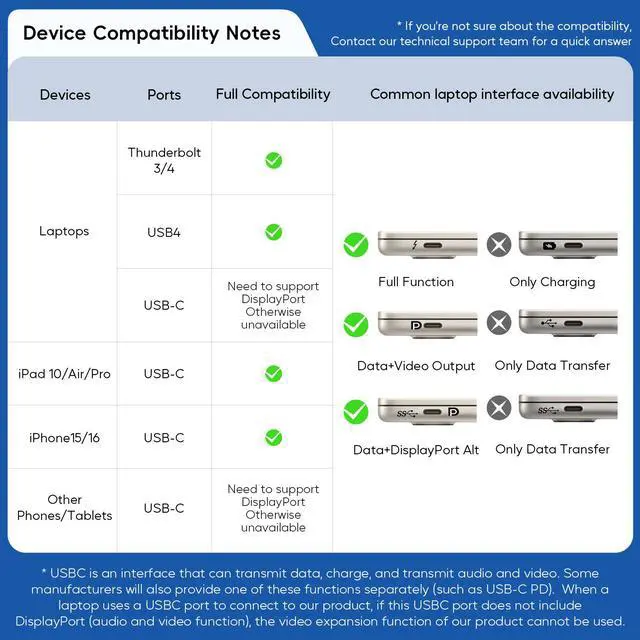
PC2 Compatibility Notes
| Product Name | KVM Switch Docking Station (Model: BD215F) |
|---|---|
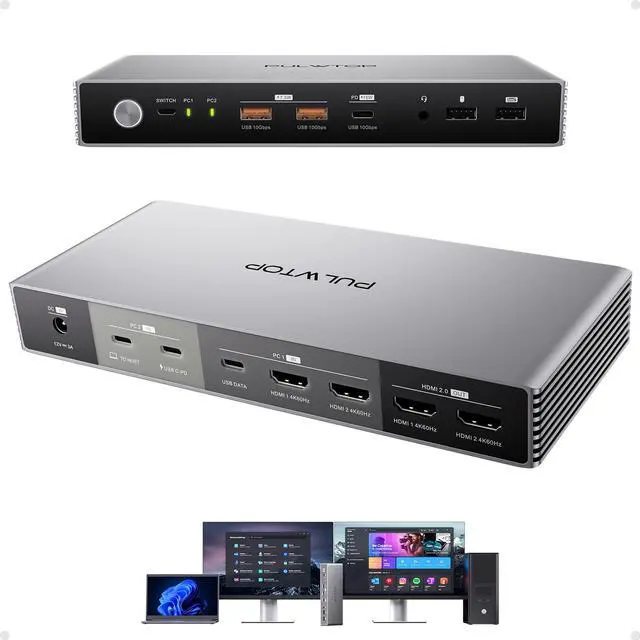
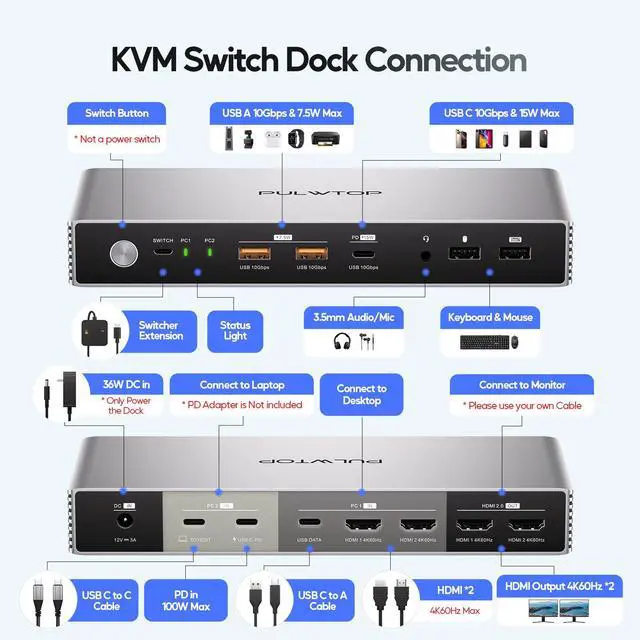
| Input | 1 x USB-C input port + USB-C PD-in for laptop, 2 x HDMI + USB-C data input port for desktop computer to 2 monitors, 1 x 36W DC in port for Dock |
| Output | 2 x HDMI output ports; 1 x USB-C 3.2 10Gbps with PD charging up to 15W, 2 x USB A 3.2 10Gbps with BC charging up to 7.5W, 2 x USB-A 2.0 for mouse and keyboard, 1x 3.5mm audio/mic jack, 1x switch expansion port |
| PC2 Compatible Devices | Compatible with most Thunderbolt 4/3, USB4, and full-featured USB-C Windows / ChromeOS laptops (support Power Delivery, Data Transfer and Display Alt Mode). |
| Materials | Aluminum Alloy Case; Inner: Electronic Component |
| Weight | 630g |
| Dimension | 202 x 88 x 28mm |
| *NOTES | Supports 4K@60Hz(3840×2160) , 1080@60Hz(1920×1080) resolution (NOT support 2560×1440@60Hz). *Windows: Supports SST(ABB/AAA) or MST(ABC) Extend/Mirror mode; *Mac OS: ONLY Supports (SST: ABB/AAA) Extend/Mirror mode |
| *NOTES | Thought the KVM dock supports up to 4K@60Hz (3840×2160) resolution, BUT if your monitor is 2K, there is ONLY 1080P resolution can be selected on this KVM dock |
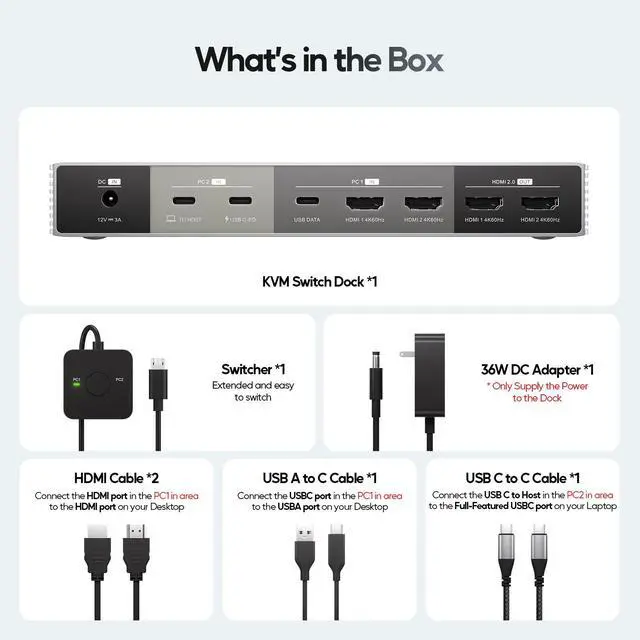
| PC1 Input Connection: | 1) Use the included 2 HDMI cables to connect the 2 HDMI ports on the "PC1 IN" of KVM dock and the other end of the 2 HDMI cables to connect your desktop HDMI ports (the PC1 needs to have 2 video-output ports, and Non-HDMI video ports require an adapter to turn it to be a HDMI); 2) Use the included USB-A to C cable to connect "USB DATA" port on the "PC1 IN" area on the KVM dock) - FOR the PC1 to use the keybord, mouse, and other data devices. |
| PC2 Connection & Requirment: | Must Use the included full-featured USB-C cable to connect the "TO HOST" port on the "PC2 IN" of the KVM dock and other end of the cable to connect your laptop's USB-C Port (The connected laptop's USB-C port Must support data, charging and video output) |
| Dual-monitor Output Connection | Use your owm HDMI cables of the 2 monitors to connect to 2 HDMI ports on the "HDMI 2.0 OUT" area on the KVM dock. then power the KVM dock to enjoy the PC1 and PC2 to share the 2 monitors and other peripherals such as keybord, mouse that have connected to the KVM dock |