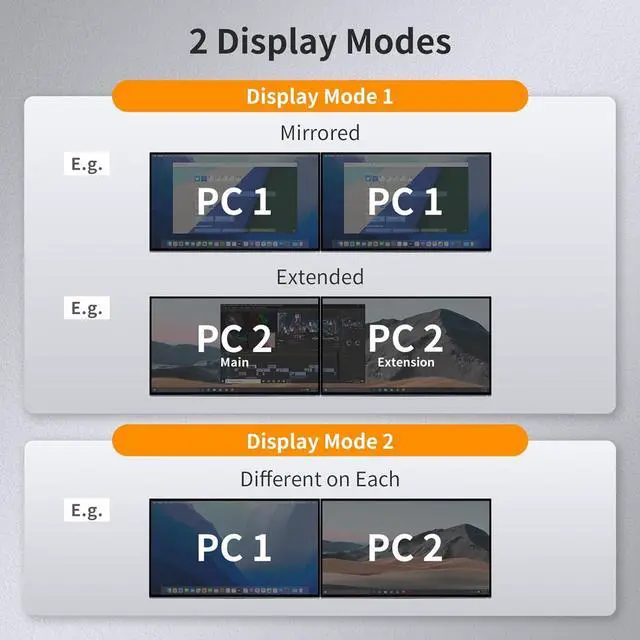
1Display Modes2Switching with Ease3EDID Emulator4K&M Pass Through Mode1No Delay of K&M Switching2Sharing Headset3Custom Hotkeys4Lock-in Connectivity1What's in the box?2How to connect?3Connectable Peripherals How do I reach out for support?
If you get into any troubles or issues, it's recommanded to check the user manual and troubleshooting at the bottom of the page, which will help you find the way to reach out for support, Our service team will help you within 24 hours.
How can I get the sound from L/R?
After connect the audio devices, please switch to the PC in which the audio turned on, then select the correct audio output channel. (Right-click the speaker, open the sound settings, select the correct HDMI output device, and set it as default.)
How can I switch the extension display and mirror display?
Hold down the combination key:Win key + P key on your keyboard,then select the display mode you want in the popup window.
What are the differences between this dual monitor model (HKS0202A10) with another dual monitor model (HKS0202A2U)?
HKS0202A2U supports up to 4K@60Hz and is upgraded to USB3.0 port and built-in charging module, which can charge your phone, tablet, etc. This model only supports up to 4K@30Hz, but it has a thumbnail mode that allows you to see 2 PCs on 1 screen.
How do I reach out for support?
How can I get the sound from L/R?
How can I switch the extension display and mirror display?
What are the differences between this dual monitor model (HKS0202A10) with another dual monitor model (HKS0202A2U)?