Switching out of S mode in Windows 11
Windows 11 in S mode is designed for security and performance, exclusively running apps from the Microsoft Store. If you want to install an app that isn't available in the Microsoft Store, you'll need to switch out of S mode
1. On your PC running Windows 11 in S mode, open Settings > System > Activation.
2. In the Switch to Windows 11 Pro section, select Go to the Store. (If you also see an "Upgrade your edition of Windows" section, be careful not to click the "Go to the Store" link that appears there. )
3. On the Switch out of S mode (or similar) page that appears in the Microsoft Store, select the Get button. After you see a confirmation message on the page, you'll be able to install apps from outside of the Microsoft Store.
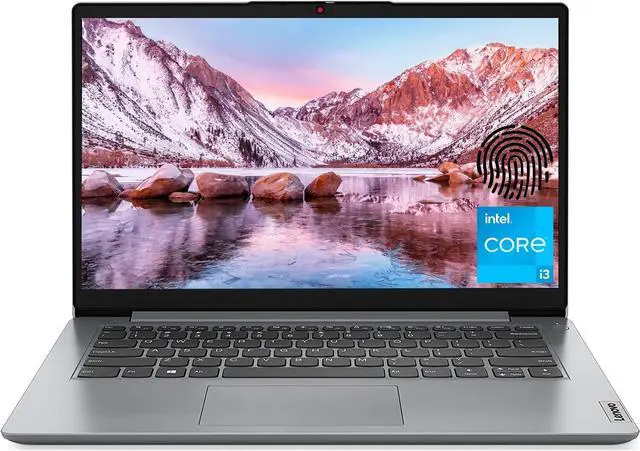
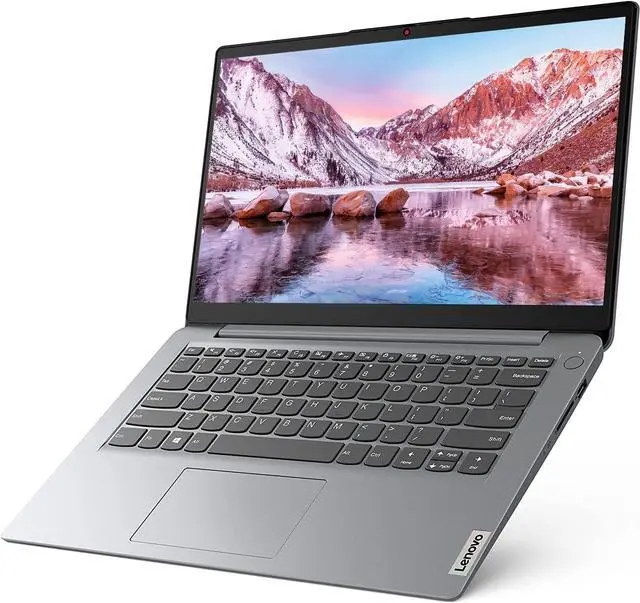
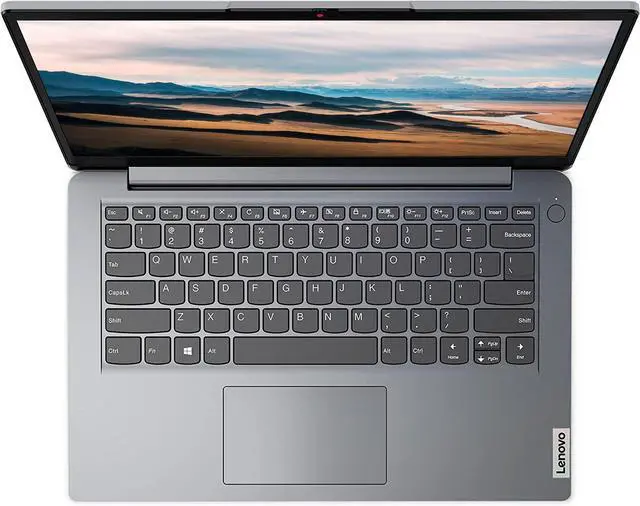
Lenovo 14" Browse Laptop for Students and Business
Processor:
Intel Core i3-1215U, 6C (2P + 4E) / 8T, P-core 1.2 / 4.4GH z, E-core 0.9 / 3.3GH z, 10MB
Display:
14" HD (1366x768) TN 220nits Anti-glare
Graphics:
Integrated Intel UHD Graphics
Memory:
Upgraded to 20GB DDR4-3200
Storage:
Upgraded to 1TB PCIe SSD
Speakers:
Stereo speakers, 1.5W x2, Dolby Audio
Camera:
HD 720p with Privacy Shutter
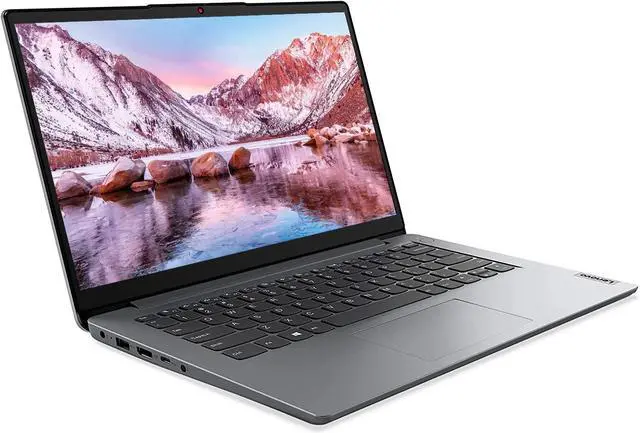
I/O Ports:
1 x USB 2.0
1 x USB 3.2 Gen 1
1 x USB-C 3.2 Gen 1 (support data transfer only)
1 x HDMI 1.4 b
1 x Card reader
1 x Headphone / microphone combo jack ( 3.5 mm)
1 x Power connector
Wireless:
Wi-Fi 6 11ax, 2x2 + BT 5.0
Dimensions (WxDxH):
12.8 x 8.52 x 0.70 inches
Weight:
3.02 lbs



 All Categories