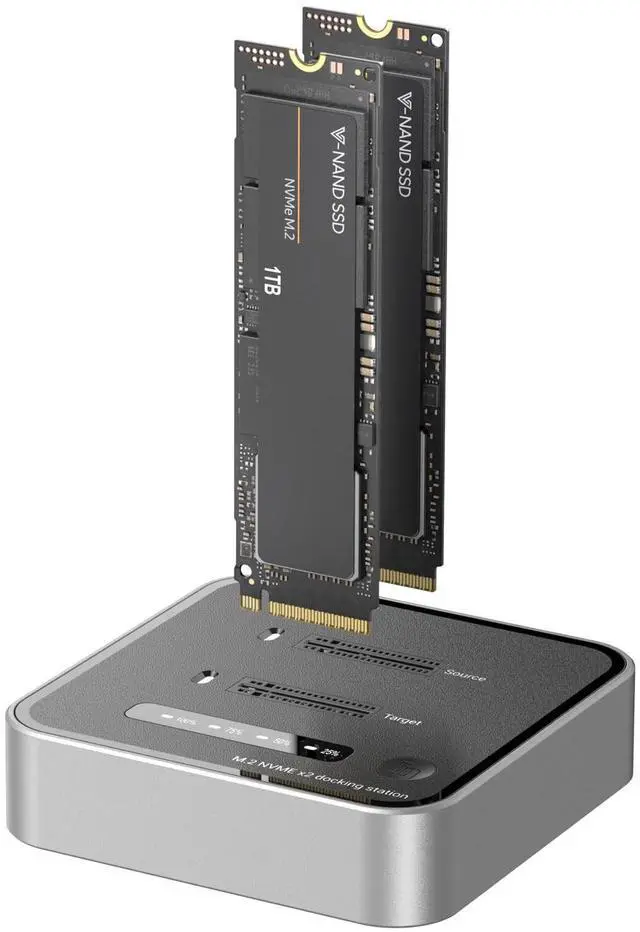
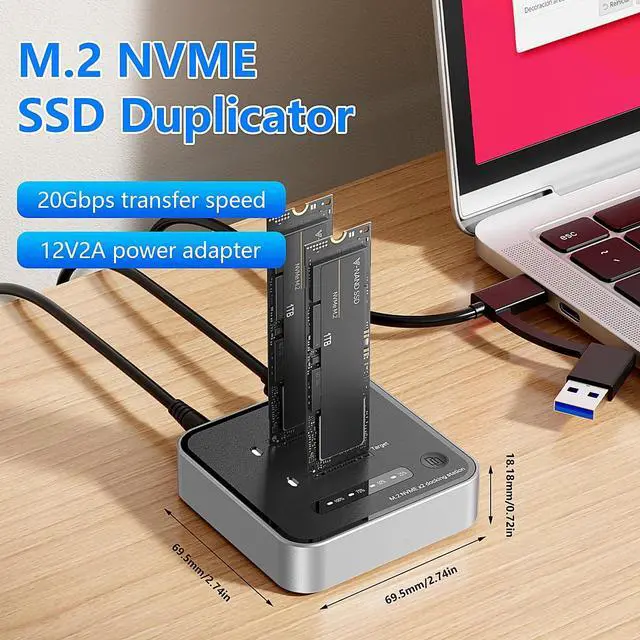
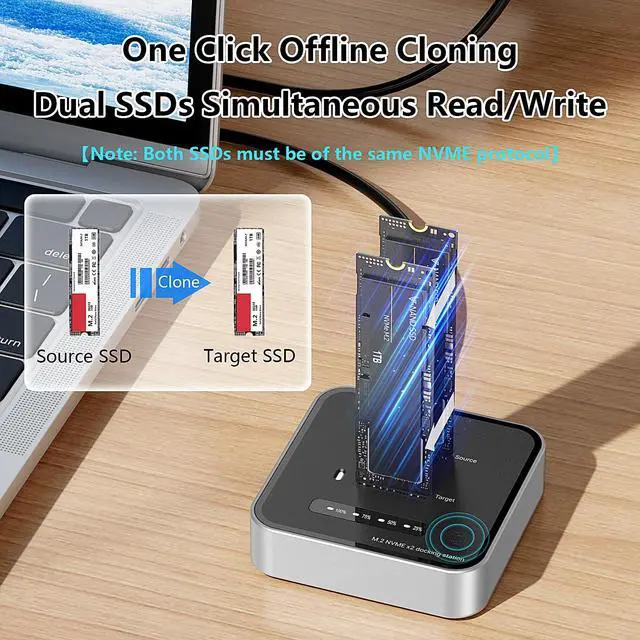
One Click Offline Cloning: This M. 2 NVME SSD cloner can copy the data from the source ssd to the target ssd by just pressing the clone button, no need to connect to the computer, it is more convenient to clone data/files.
^^ Clone Function Notes:
1. Both SSDs must be of the same NVME protocol (only NVME protocol is supported);
2. Please operate without connecting to the computer, the total capacity of the source ssd should be smaller than the target ssd;
3. When cloning, all the data in the target ssd will be deleted, please pay attention to backup the data in the target ssd!!! ^^ 20Gbps
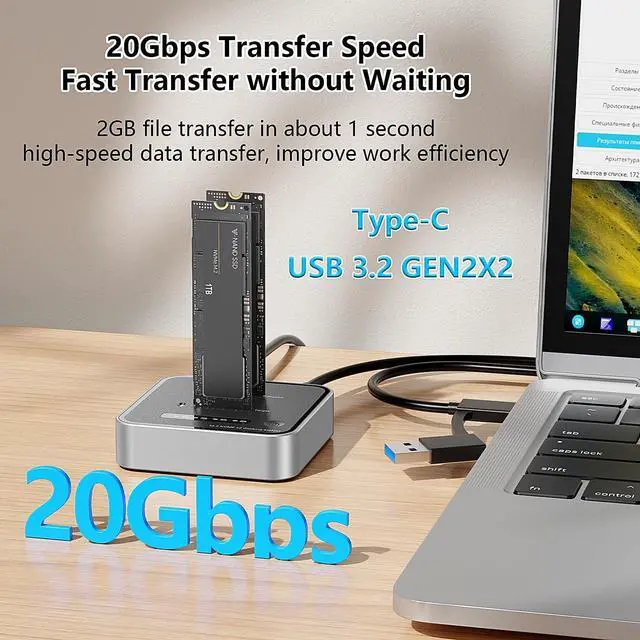
Fast Transfer Rate: This NVMe SSD enclosure is equipped with USB 3.2 Gen 2x2 interface, 20Gbps fast read/write hard disk data, 2GB file transfer in about 1 second, save time and work more efficiently.
^^ Universal Compatibility: This dual-bay M. 2 NVMe SSD cloner is compatible with M Key and B+M Key for
NVMe protocol (Note: The SSD cloner only supports NVMe protocol), supports 2230/2242/2260/2280/22110mm size SSDs, supports Windows/Mac OS/Linux/Android system, connects to laptop/computer/tablet/phone/monitor and other devices with type c interface. ^^ Heat Dissipation and
Non-slip Design: This dual bay M. 2 SSD docking station adopts vertical direct insertion design, easy to install and uninstall the
SSD (Note: the SSD will get hot during operation, it is recommended to let the SSD cool down before uninstalling it), 360 without blocking the effective heat dissipation; the bottom is a silicone foot pad design, fits the desktop, wear-resistant and non-slip. ^^
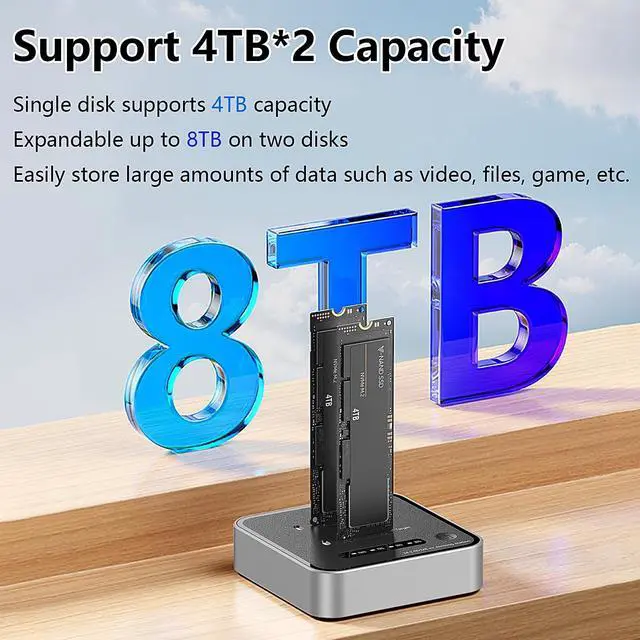
Dual SSDs Read Simultaneously: A single SSD supports 4TB of capacity, and dual SSDs can be expanded up to 8TB, making it easy to store massive amounts of data such as videos, files, games, and more.
(Notes: For unused new SSDs, please first initialize the disk in Disk Utility and partition it as an exFAT format disk to ensure it can be directly read and used on other systems. )
^^ Post-Cloning Notes: After offline cloning, the target SSD will appear offline. Connect the target SSD to the computer and use the Disk Management tool to switch the target SSD to online status. If the target SSD's capacity exceeds the source SSD, the excess portion will be initialized as unallocated space. Therefore, you must manually create a new partition in this area using the Disk Management tool.



 All Categories