


| Internal Interface | PCI-Express X4 (X4/X8/X16 lane installation) |
|---|---|
| External Interface | Key M |
| Max Bandwidth | 64Gbps for PCIe 4.0/ 32Gbps for PCIe 3.0 |
| PCI-E Compatibility | PCI-Express 4.0/3.0/2.0 |
| M.2 Compatibility | PCI-E NVMe SSD and PCI-E AHCI SSD |
| Form Factor | 2230/2242/2260/2280 |
| Profile Bracket | Without Bracket for Compact Case or 2U high Case Installation |
| OS Compatibility | Windows/Linux/Mac OS (Not support Windows 7) |
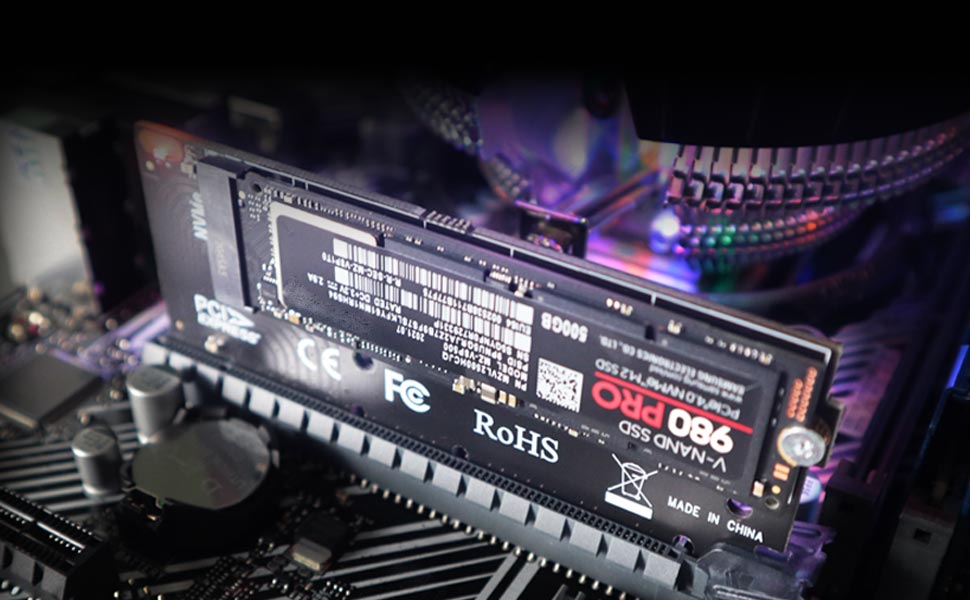
NVMe drive as boot drive or storage drive?
For NVMe boot drive, you need to reinstall the OS (windows 10 64bit/Windows 11 is recommended).
- First you need to prepare a bootable usb drive and OS (windows 10 64bit/Windows 11).
- When reinstalling the system, please select GUID Partition Table (GPT).
- OS will reboot after completing installation, remove the bootable usb drive, enter BIOS to setup UEFI boot mode
For NVMe storage drive, Plug and play in Windows 11/10/8/Linux/Mac OS
- Windows 7 can not support nvme drive
- Brand new NVMe drive need to be Initialized and formated before OS recognize it.
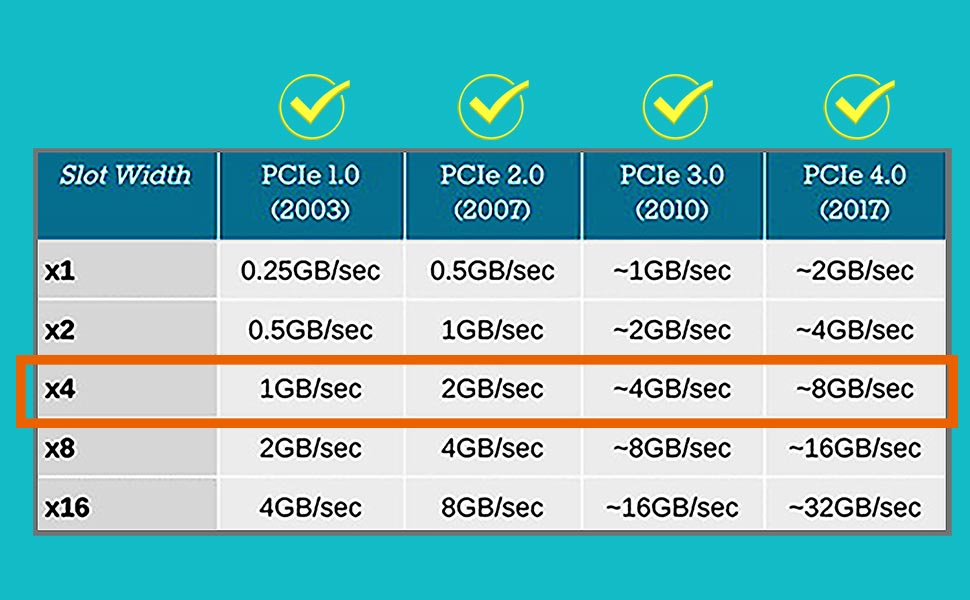
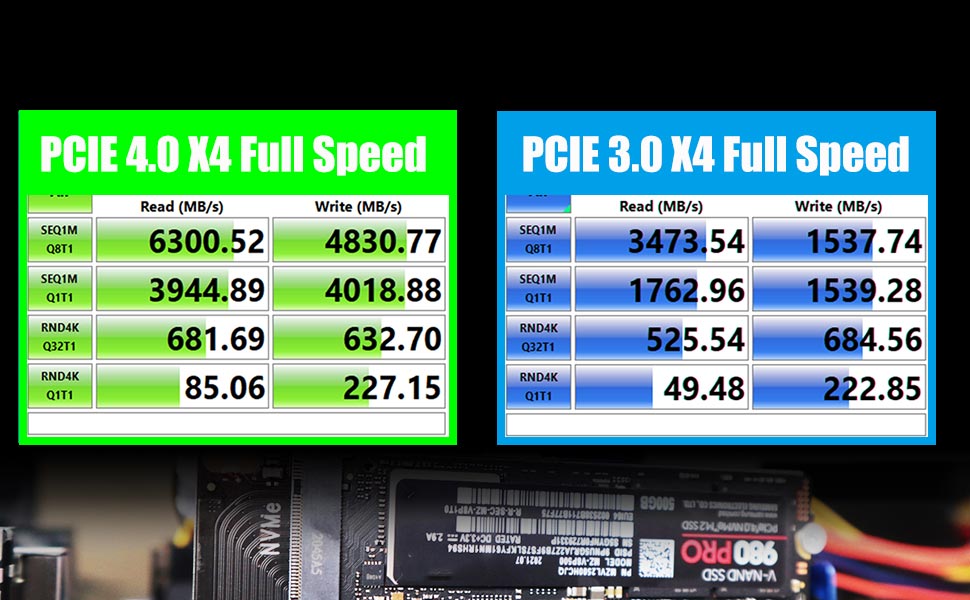
PCI-Express X4 Full Speed
- M.2 PCIe adapter supports PCIe X4 full speed and is PCIe 4.0/3.0/2.0/1.0 compliant.
- To reach PCIe 4.0 X4 full speed, your motherboard and CPU, and M.2 PCIe SSD should all support PCIe 4.0, otherwise can not reach PCIe 4.0 X4 full speed
- Intel CPU 11th generation and above support PCIe 4.0 feature
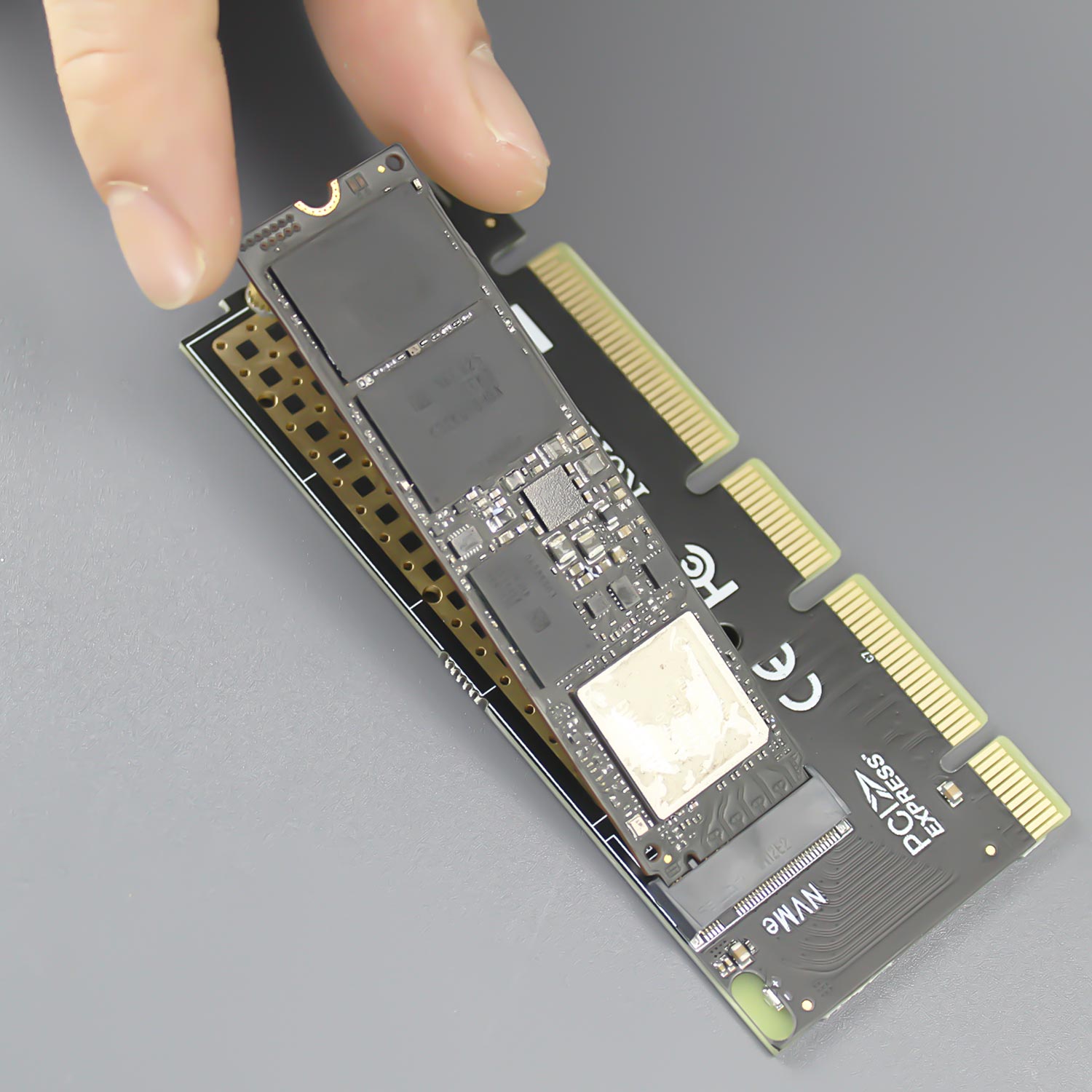
Step 1
M.2 NVMe SSD is inserted at a 30 degree angle into the Key M Slot
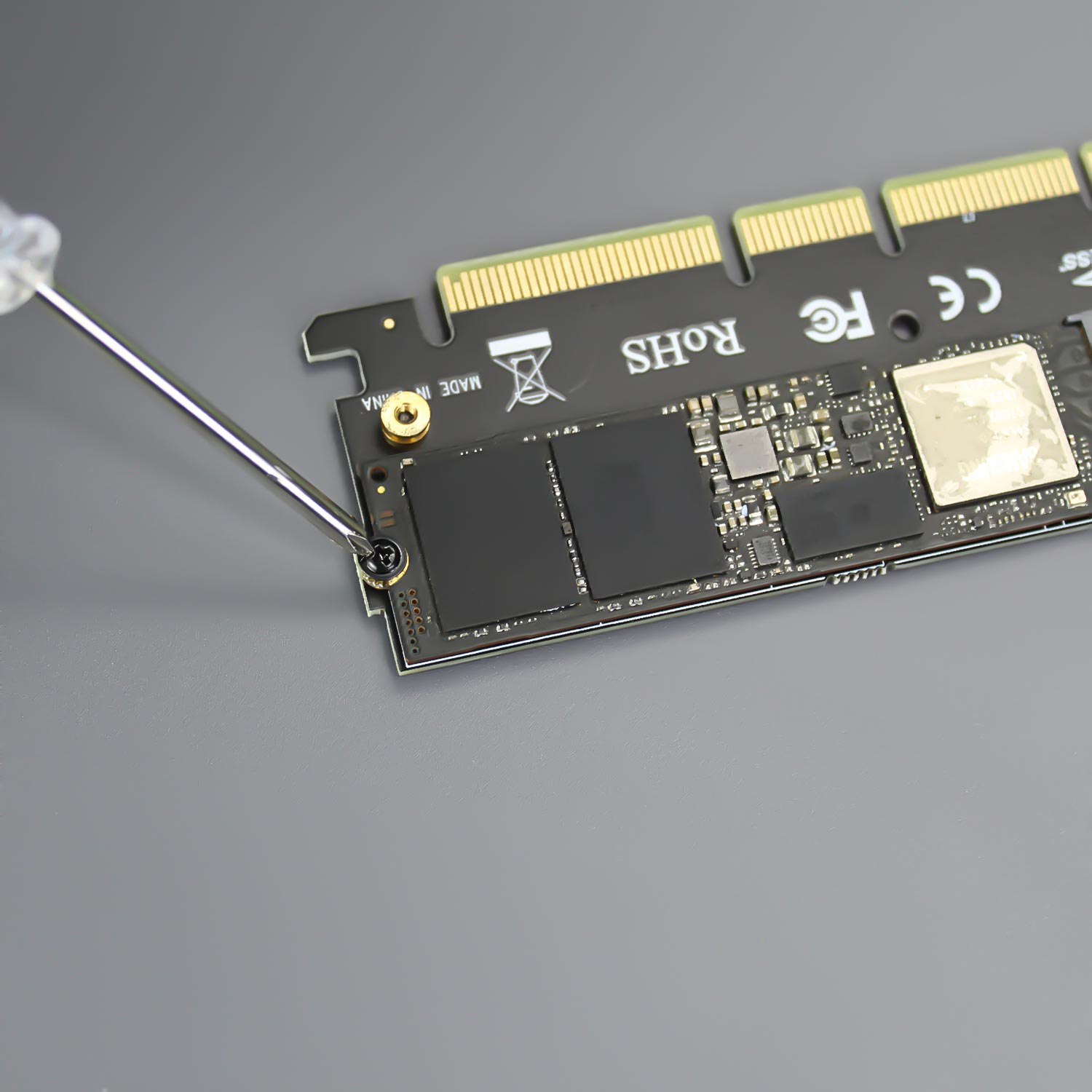
Step 2
Screw M.2 SSD to the PCIe adapter
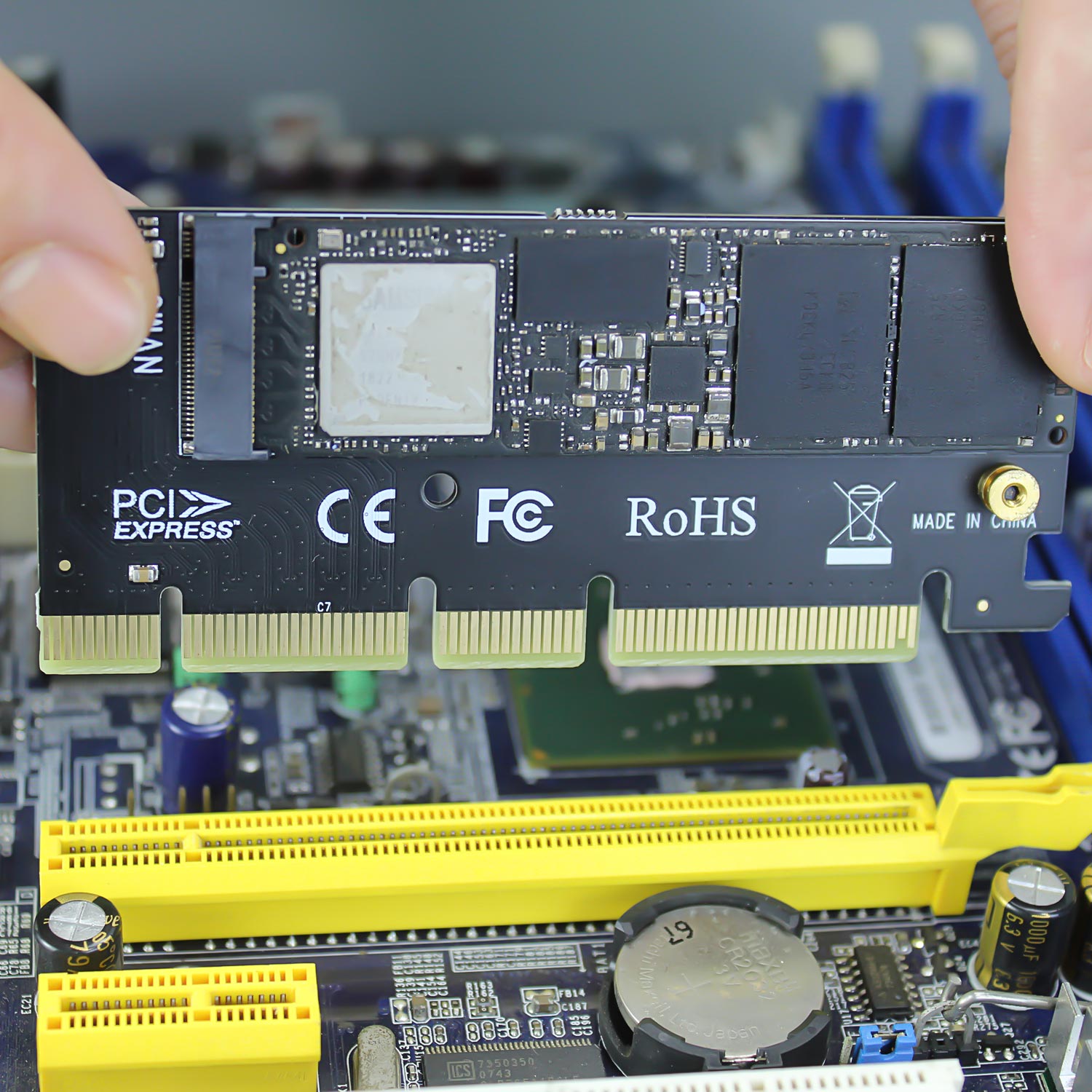
Step 3
M.2 PCIe adapter plugged into PCIe slot
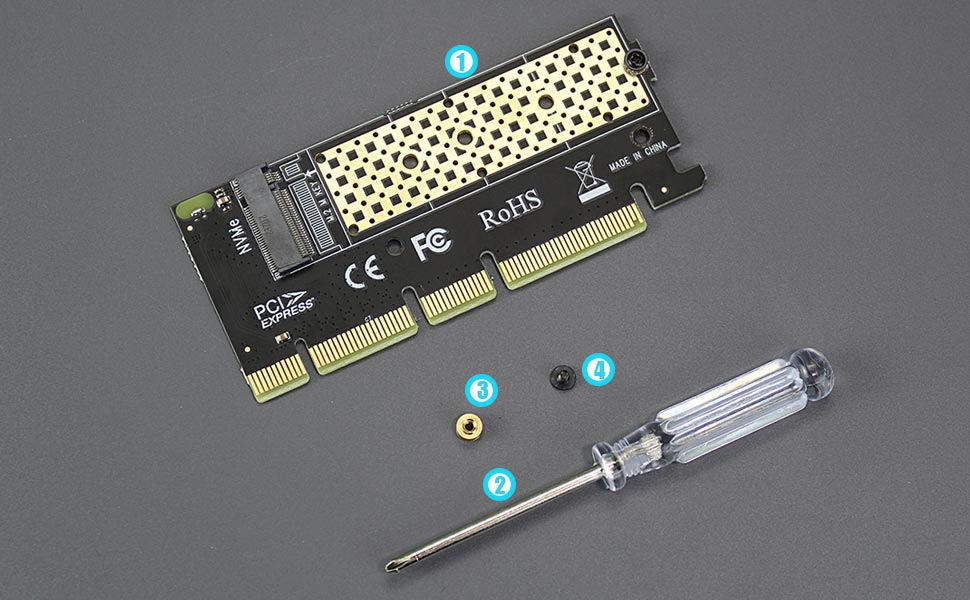
Package Including
- M.2 PCIe X4 Adapter
- Scew Driver
- Copper Standoff for 2230/2242/2260 position installation
- M.2 Screw







