



Experience the Future-Proof Speed of Data Transfer


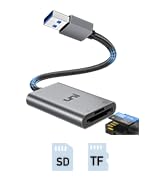
![uni USB C to HDMI Cable, [4K, High-Speed] USB Type C to HDMI Cable for Home Office, [Thunderbolt ...](http://c1.neweggimages.com/sellingpilot/modules/product/a-plus/59465c6bf3f3f5ba2a14811a0289855166295abd29b7ce8a49f194fd1498cc93.jpg)
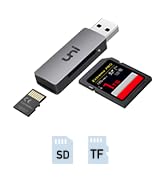
![uni USB C to Ethernet Adapter, Driver Free RJ45 to USB C [Thunderbolt 3/4 Compatible], 1Gbps Type...](http://c1.neweggimages.com/sellingpilot/modules/product/a-plus/a50b7b7d5a54c192654f8a2ef02ff9d8437e2e607d2ff38f075de1e0e777eaa3.jpg)

Experience the Future-Proof Speed of Data Transfer

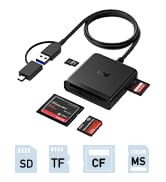
Efficient & Simultaneous Readout
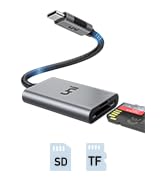
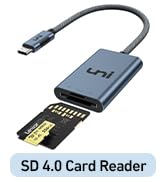
Both SD&TF slots support the latest SD 4.0. Effortlessly back up your camera cards to other cards.
Eliminate the Hassle of Drivers
Just plug it in and Share your photos instantly.


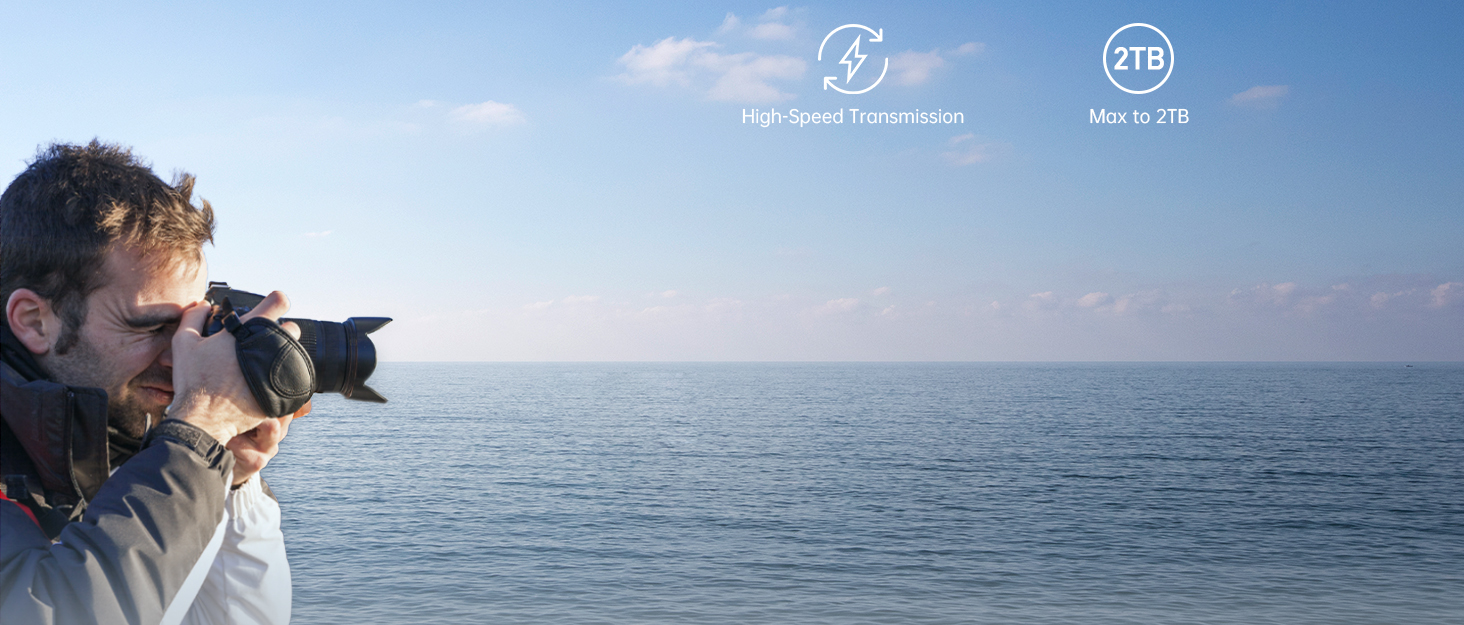
Capture the Magnificent Landscape
Reading UHD videos from Camera/Gropro is a breeze.
Anytime, Anywhere Access to Dashcam Videos


| ?SD Cards | USH-II, USH-I, SD Card, SDHC, SDXC, RS-MMC |
|---|---|
| ?MicroSD / TF Cards | USH-II, USH-I, MicroSD, MicroSDHC, MicroSDXC |
| ?Laptops | MacBook Pro (2016 or later); MacBook Air 2023/2020/2019/2018; iMac Pro; iMac (2017 or later); Lenovo Air14; HP GamingLaptop, etc |
| ?Tablets | iPad Pro (2020 or later); iPad Air (4th or later); Galaxy Tab A 10.5(2018), Tab A 8.0 (2017), Galaxy Book Pro/12, etc |
| ?Phones | iPhone 15/15 Pro/Pro Max; Samsung Galaxy S24 Ultra/S23/S21/S20/S20+/S20 Ultra/S10e/S10/S10+/10, etc |
| ?Incompatible | Sim Card, CFexpress Card |
| - | - |
| Tip 1 | Devices with USB 2.0 port would only run at 480Mbps; Can not read UHS-I cards at UHS-II cards speed. |
| Tip 2 | Dual cards reading at the same time will have speed reduction. |
| Tip 3 | Data transfer rates are subject to the speed of the memory card itself and your device's USB C ports. |
| Q: | Could you find the SD card via "FILES"? |
| A: | 1. Insert the SD card into the reader > Plug the device card reader into the iPhone |
| * | 2. Click on the “FILES” app > Click on iCloud Drive’s “Browse” |
| * | 3. Click on Browse’s “Your SD card name” |
| * | 4. Now you can view your files from your SD card on “Your SD card name” |
uni SD Card Reader
![uni USB C to HDMI Cable, [4K, High-Speed] USB Type C to HDMI Cable for Home Office, [Thunderbolt ...](//c1.neweggimages.com/sellingpilot/modules/product/a-plus/59465c6bf3f3f5ba2a14811a0289855166295abd29b7ce8a49f194fd1498cc93.jpg)
![uni USB C to Ethernet Adapter, Driver Free RJ45 to USB C [Thunderbolt 3/4 Compatible], 1Gbps Type...](//c1.neweggimages.com/sellingpilot/modules/product/a-plus/a50b7b7d5a54c192654f8a2ef02ff9d8437e2e607d2ff38f075de1e0e777eaa3.jpg)
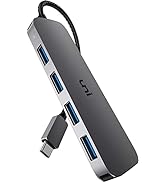
More Choices for you





