


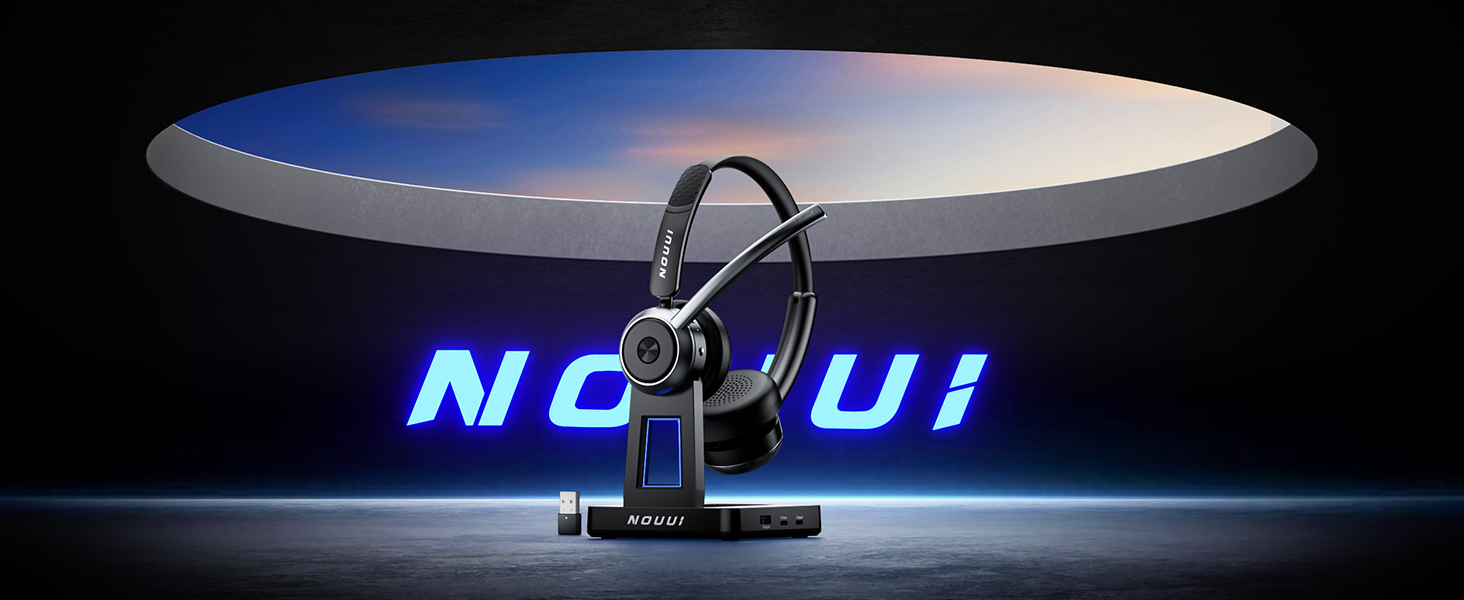
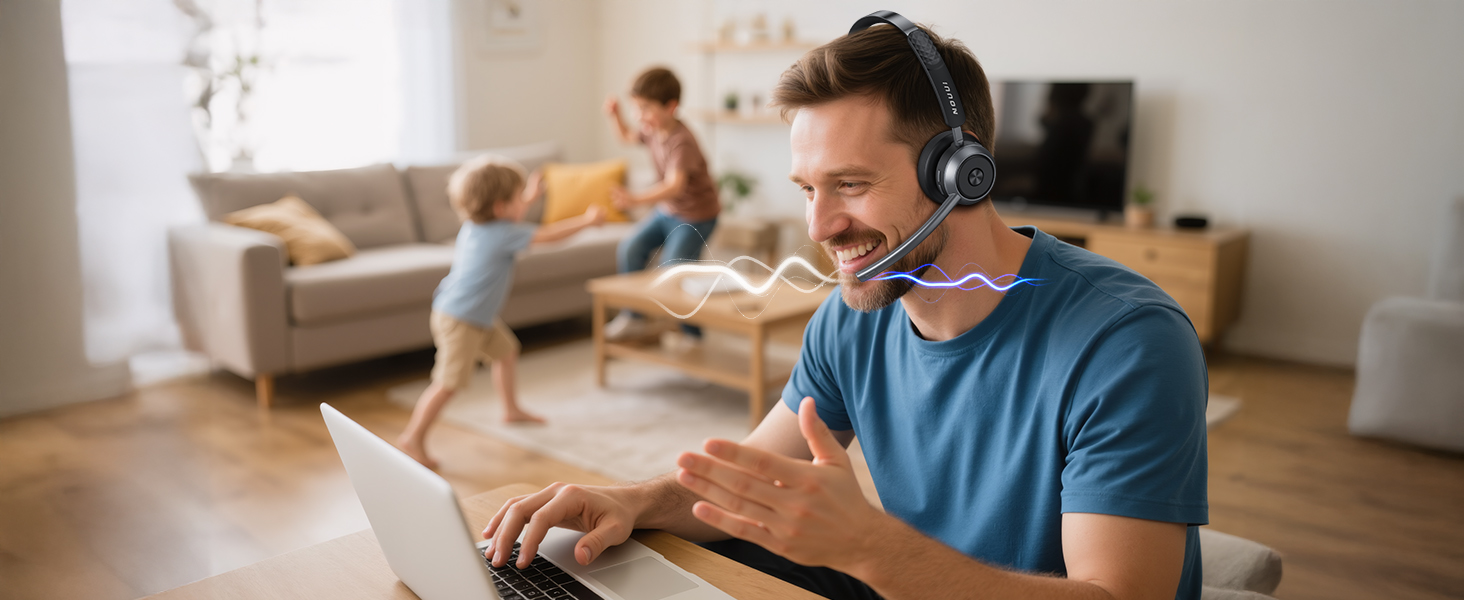
Crystal-Clear Calls Anywhere
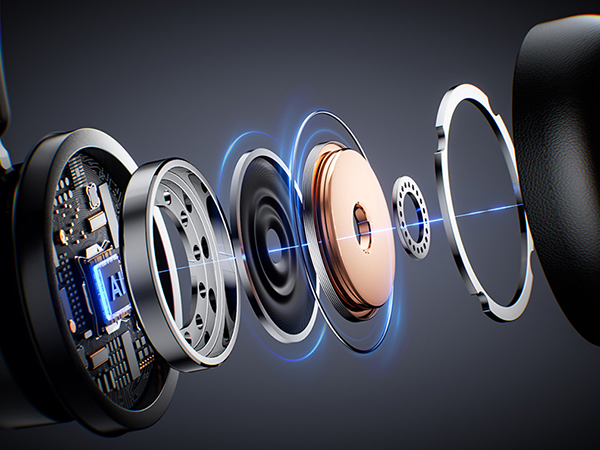
AI noise cancellation blocks up to 99.99% of background noise for clear, professional calls
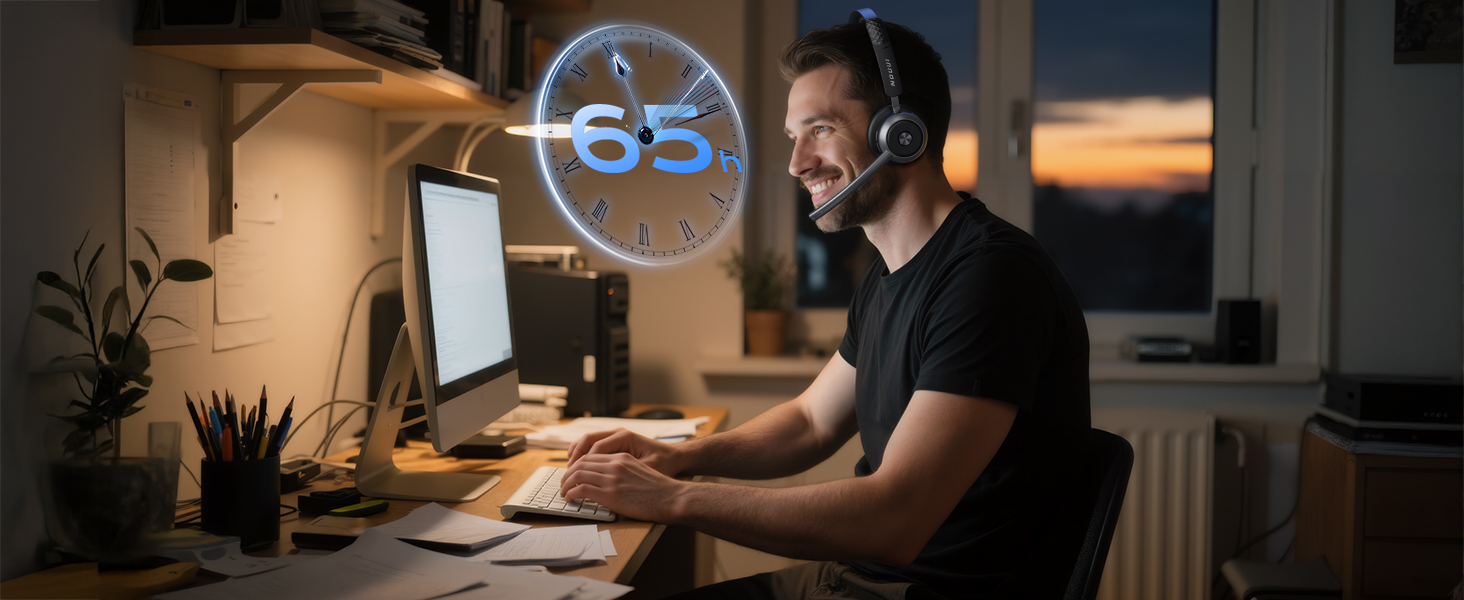
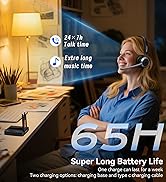
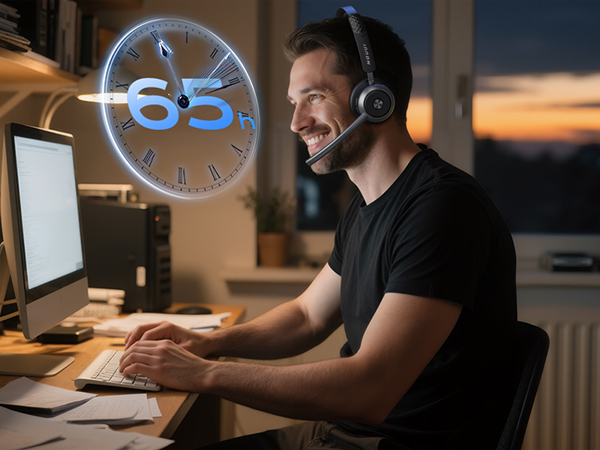
65-Hour Battery Life for a Full Week of Work
Up to 65 hours on 2H charge—enough for a full week of meetings, remote work without battery anxiety
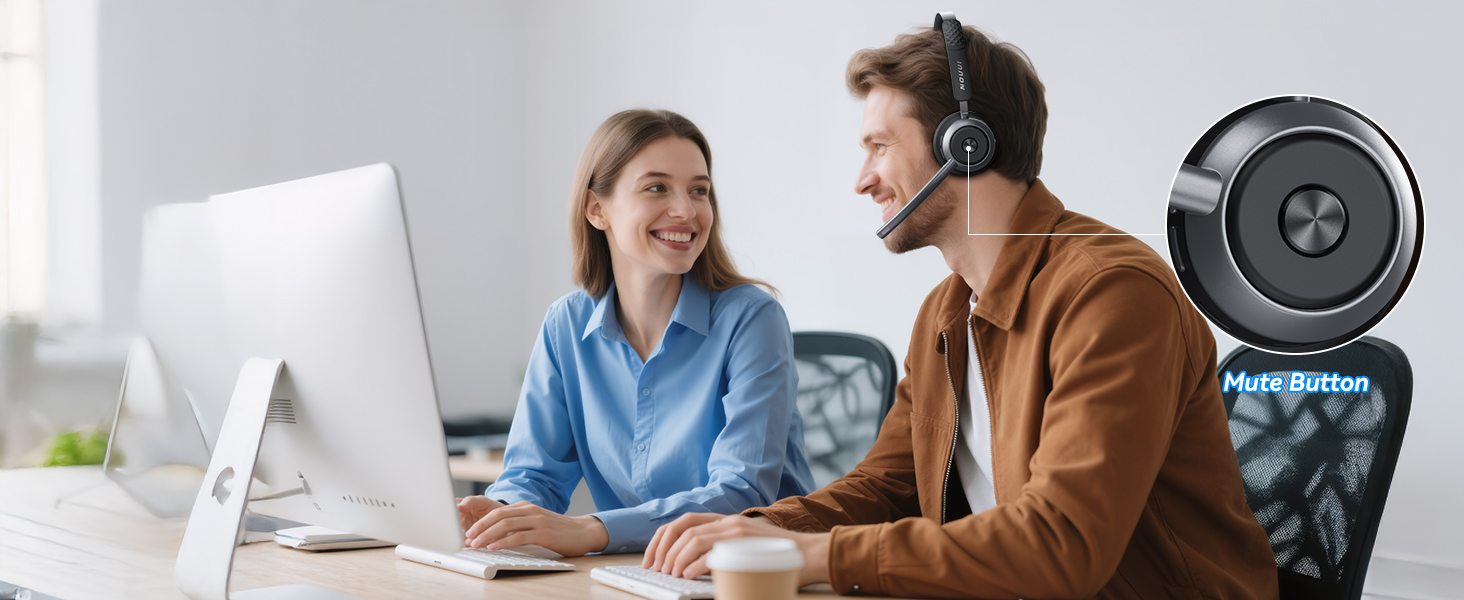
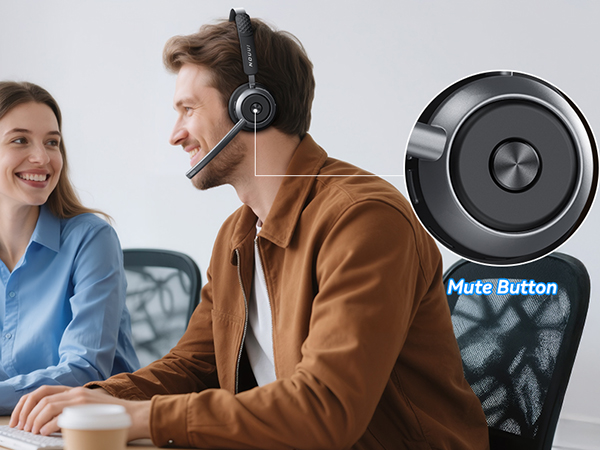
One-Touch Mute for Instant Privacy
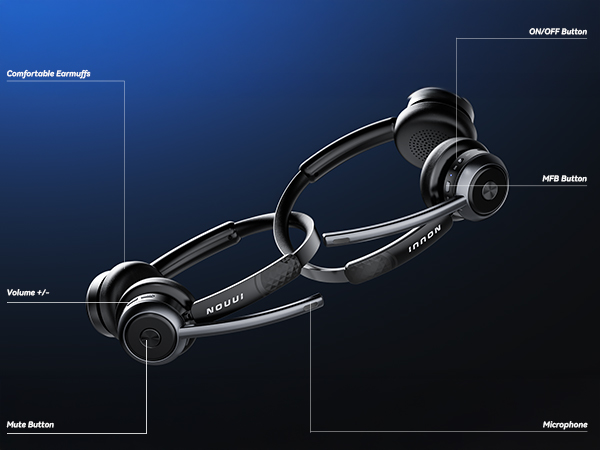
Instant one-touch mute lets you turn the mic on or off for quick privacy control
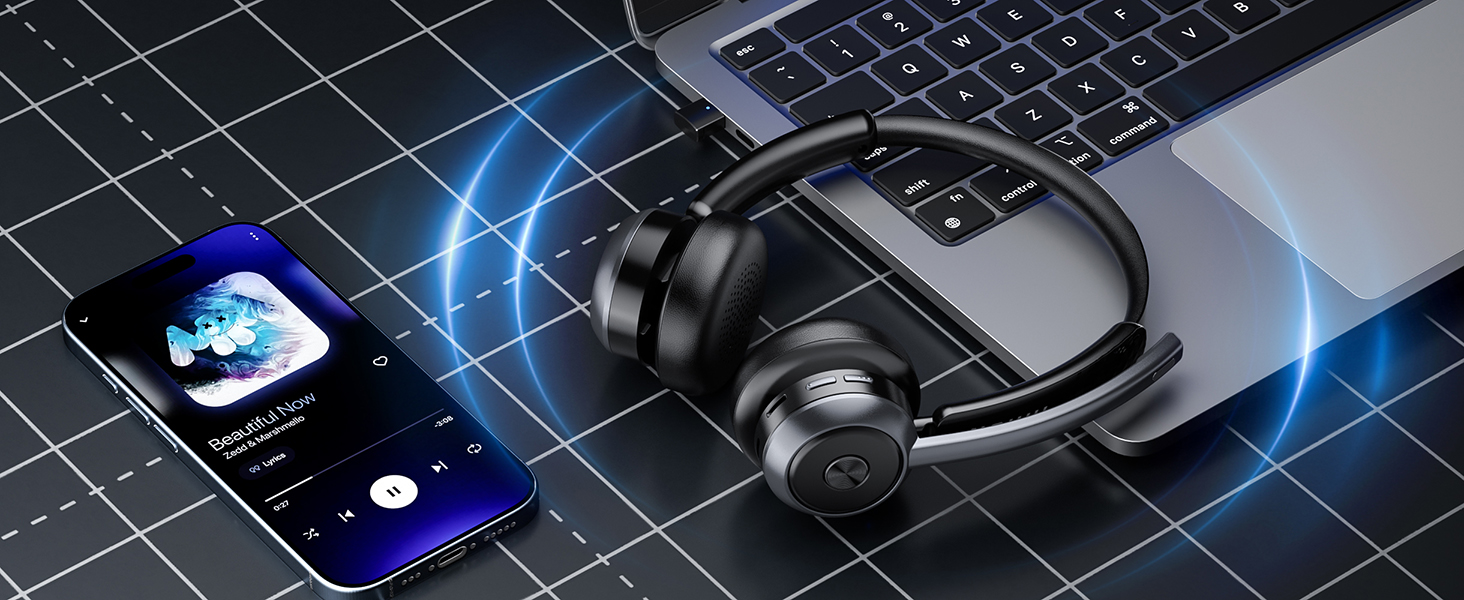
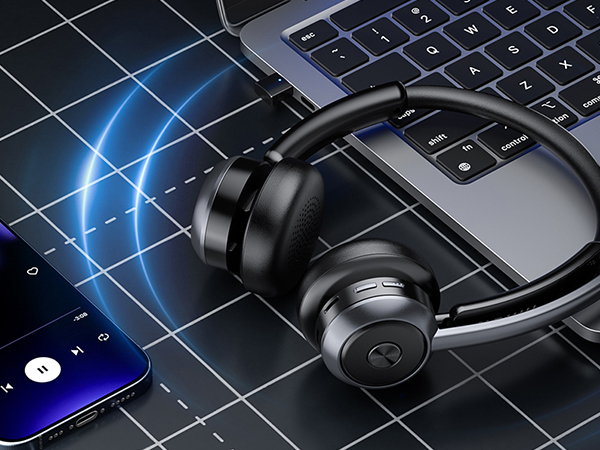
Bluetooth 5.4 & 2.4G Dongle for Instant Connection
Fast pairing with two flexible connection options for stable, low-latency performance
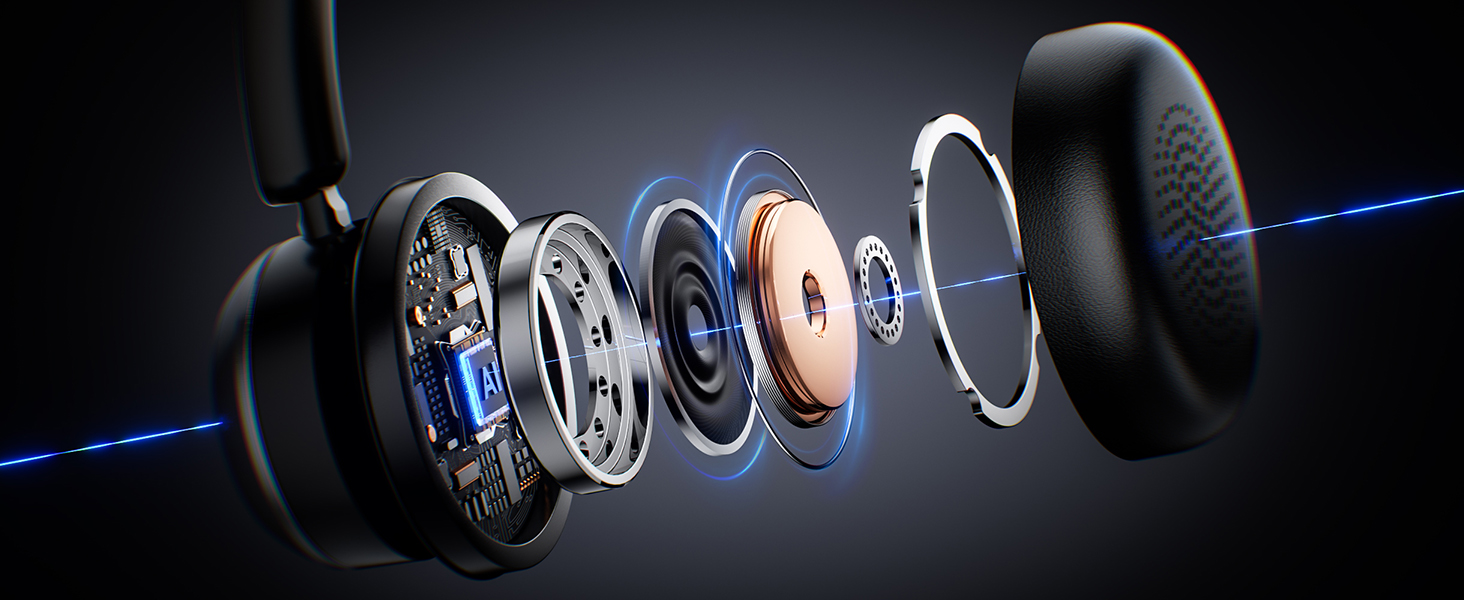
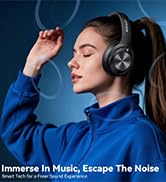
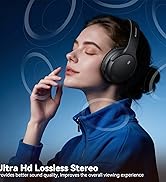
Immersive Stereo Sound for Work & Play
Rich, balanced stereo sound with low distortion for clear calls, music, and movies
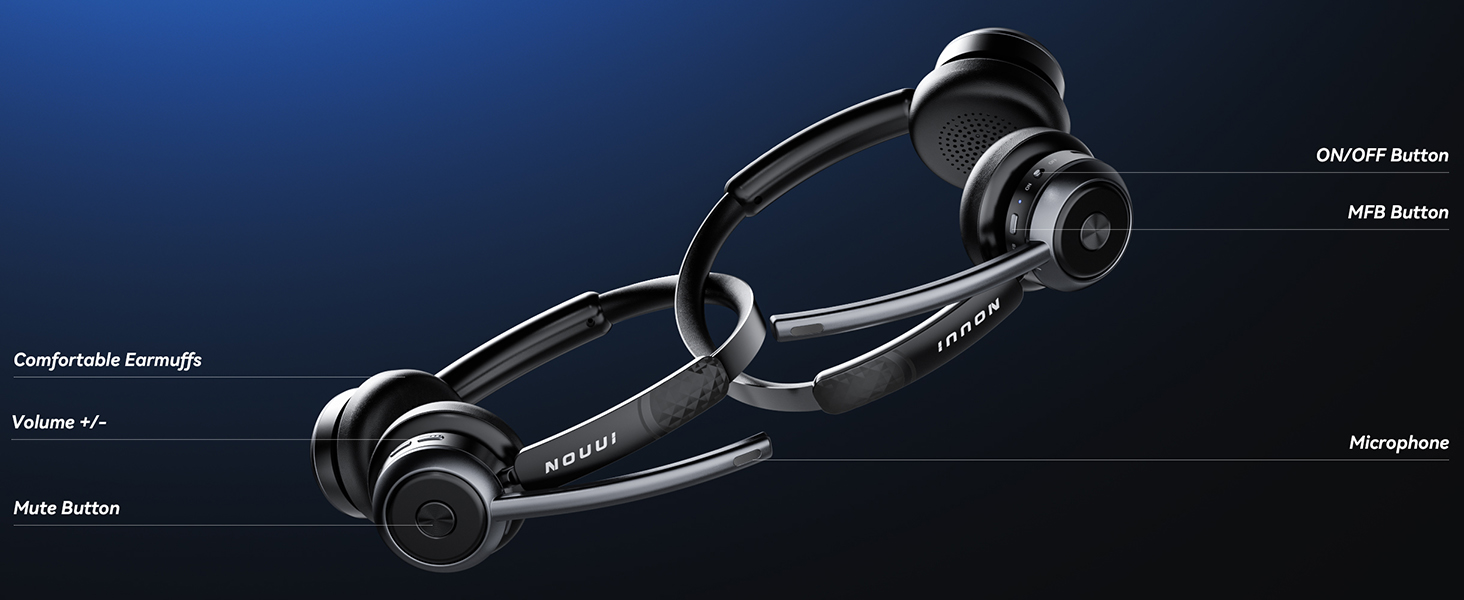
One-Button Control with MFB
Answer calls, mute, adjust volume, and control music with MFB button,no need reach your phone
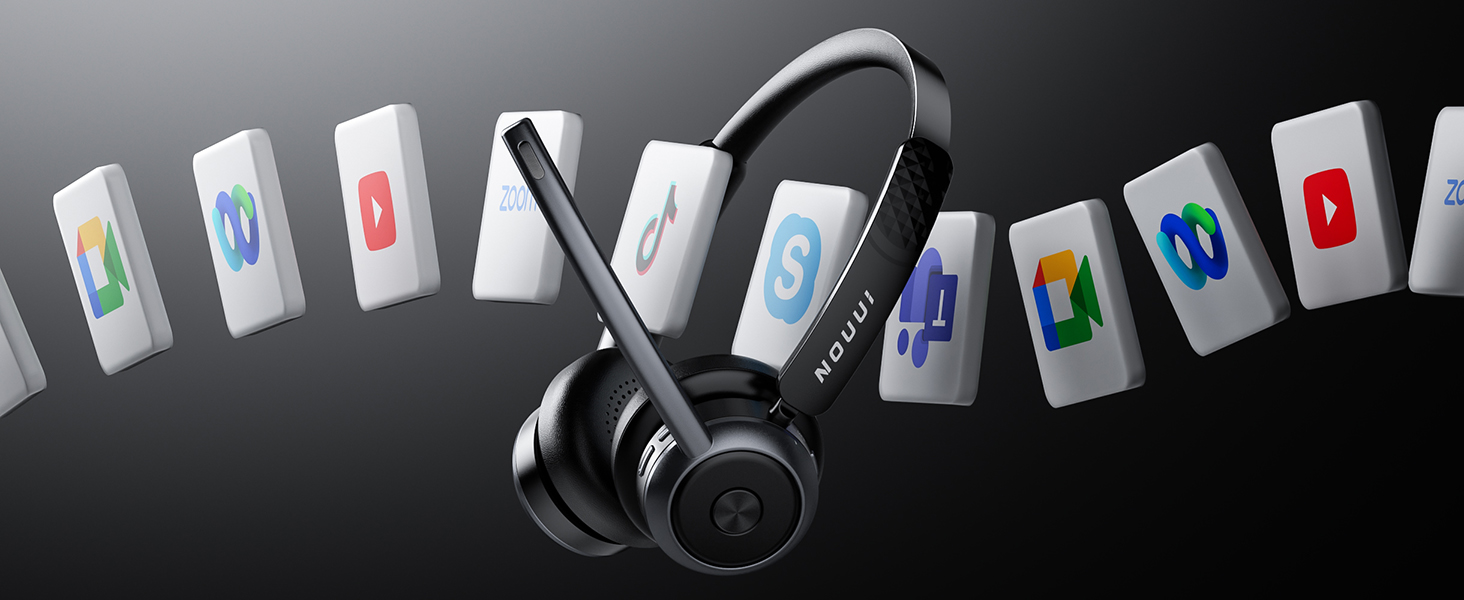
Effortless Multi-Device Connectivity
Stable connection to phones, computers, fully optimized for Zoom and Teams—no delays, no interruptions, just smooth communication
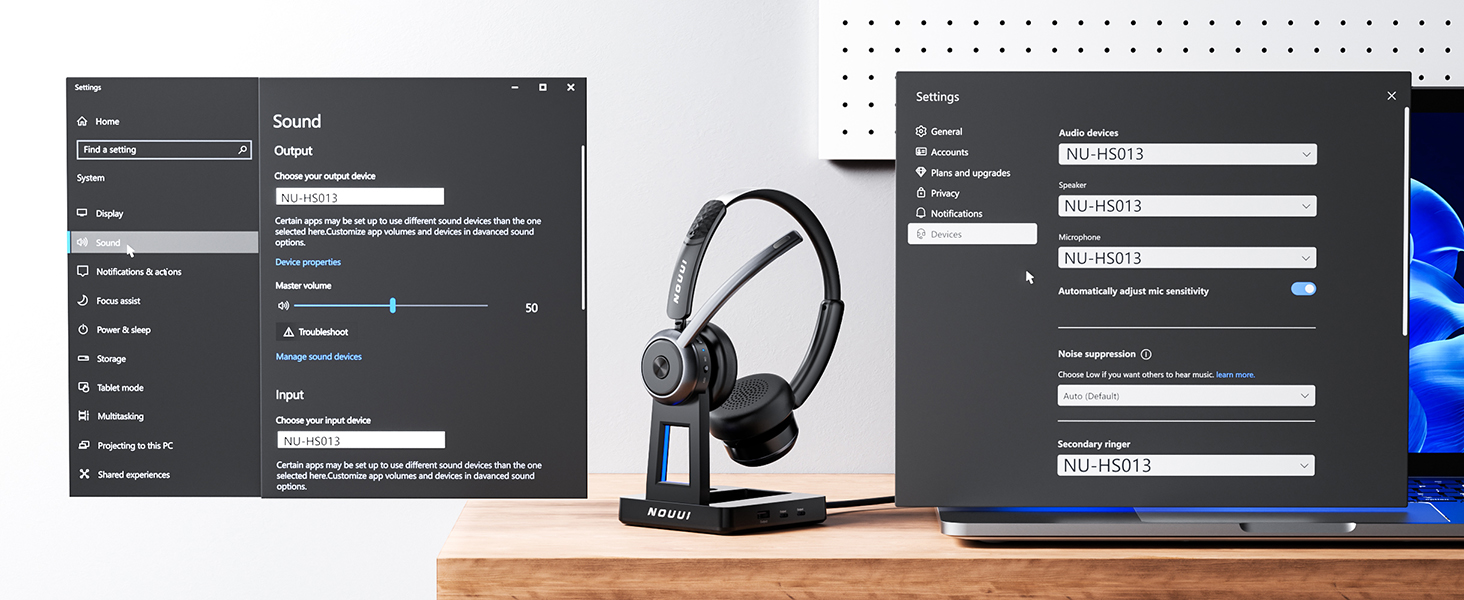
How to Pair to Computer via USB Dongle?
Plug the USB dongle into your computer’s USB port. Wait until the blue LED flashes, indicating recognition.Switch the headset to "ON". When you hear "Paired. Your headset is connected" and solid blue confirm the headset is connected.
Note: Disable Bluetooth on other devices if previously paired.
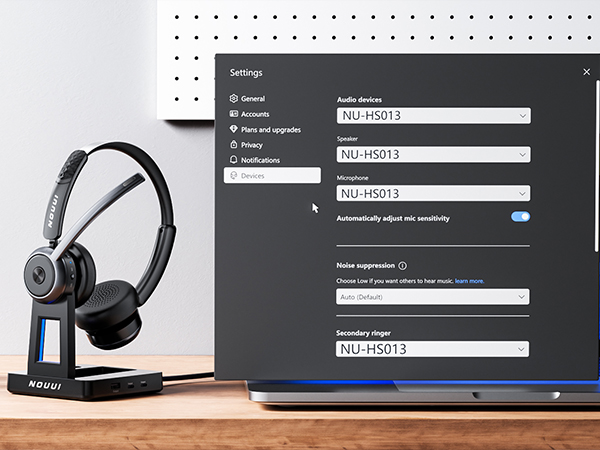
Why there is no sound or others can’t hear me when using Zoom even though the headset is connected?
When using Zoom or similar conferencing software, check both the computer’s system sound settings and the app’s audio settings. Make sure [NU-HS013] is selected as the default speaker/microphone. Restart the app after changing the settings if needed.
Can I answer or end calls using the headset?
Yes. When the wireless headset is connected to a mobile phone, you can press the MFB on the headset to answer or end calls. When connected to a computer, calls are controlled through the computer or conferencing software.
How do I charge the wireless headset?
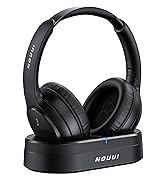
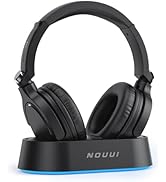
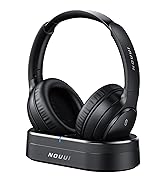
You can charge the wireless headset using the USB-C cable or simply place it on the charging base. The base also includes a built-in slot to securely store the USB dongle, keeping your desk organized and everything within reach.
What should I do if the device connection fails?
Press and hold Volume “–” + MFB together for 5 seconds to clear the pairing history. A solid purple light for 1 second confirms it’s cleared. Then press and hold the MFB for 10 seconds to reset and restart the headset.
Why is there no sound when the headset is connected to my computer?
Make sure turn off Bluetooth on other devices that were previously paired. When using Zoom or other conferencing software, check both your computer and app audio settings and make sure [ NU-HS013] is selected as the default speaker and microphone.



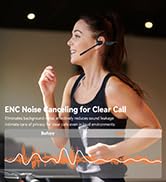

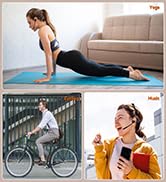
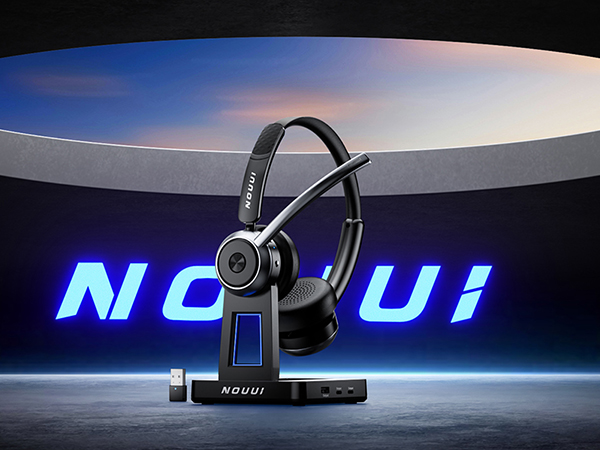
Crystal-Clear Calls Anywhere
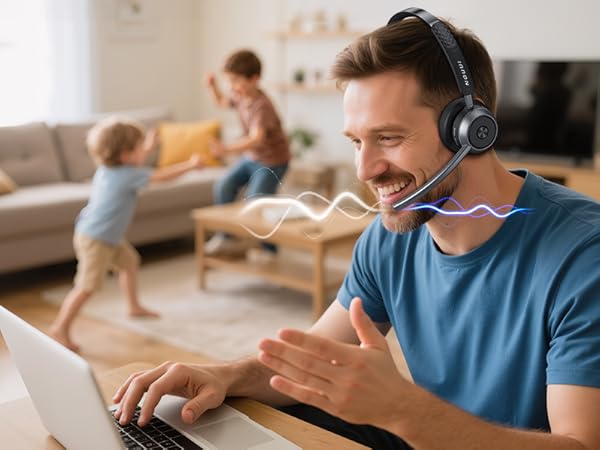
AI noise cancellation blocks up to 99.99% of background noise for clear, professional calls
65-Hour Battery Life for a Full Week of Work
Up to 65 hours on 2H charge—enough for a full week of meetings, remote work without battery anxiety
One-Touch Mute for Instant Privacy
Instant one-touch mute lets you turn the mic on or off for quick privacy control
Bluetooth 5.4 & 2.4G Dongle for Instant Connection
Fast pairing with two flexible connection options for stable, low-latency performance
Immersive Stereo Sound for Work & Play
Rich, balanced stereo sound with low distortion for clear calls, music, and movies
One-Button Control with MFB
Answer calls, mute, adjust volume, and control music with MFB button,no need reach your phone
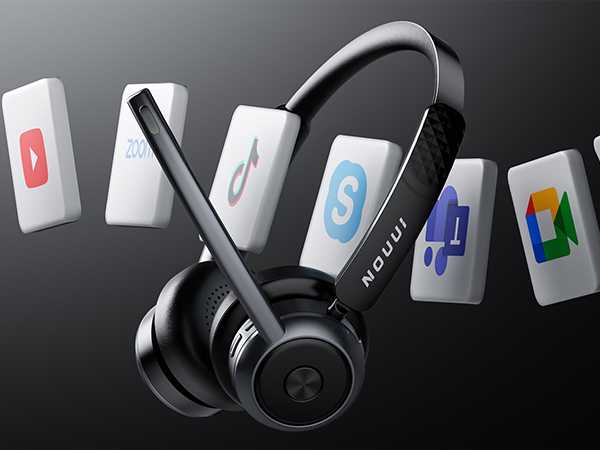
Stable connection to phones, computers, fully optimized for Zoom and Teams—no delays, no interruptions, just smooth communication
How to Pair to Computer via USB Dongle?
Plug the USB dongle into your computer’s USB port. Wait until the blue LED flashes, indicating recognition.Switch the headset to "ON". When you hear "Paired. Your headset is connected" and solid blue confirm the headset is connected.
Note: Disable Bluetooth on other devices if previously paired.
Why there is no sound or others can’t hear me when using Zoom even though the headset is connected?
When using Zoom or similar conferencing software, check both the computer’s system sound settings and the app’s audio settings. Make sure [NU-HS013] is selected as the default speaker/microphone. Restart the app after changing the settings if needed.
Can I answer or end calls using the headset?
Yes. When the wireless headset is connected to a mobile phone, you can press the MFB on the headset to answer or end calls. When connected to a computer, calls are controlled through the computer or conferencing software.
How do I charge the wireless headset?
You can charge the wireless headset using the USB-C cable or simply place it on the charging base. The base also includes a built-in slot to securely store the USB dongle, keeping your desk organized and everything within reach.
What should I do if the device connection fails?
Press and hold Volume “–” + MFB together for 5 seconds to clear the pairing history. A solid purple light for 1 second confirms it’s cleared. Then press and hold the MFB for 10 seconds to reset and restart the headset.
Why is there no sound when the headset is connected to my computer?
Make sure turn off Bluetooth on other devices that were previously paired. When using Zoom or other conferencing software, check both your computer and app audio settings and make sure [ NU-HS013] is selected as the default speaker and microphone.
Wireless Headset with Mic
ANC Bluetooth Headphones
Wireless Headphones for TV
TV headphones
TV wireless headphones
Open ear headphones





