How should the controller be connected to the PS5 console for the first time? (Step 1)
Step 1: Connect the PS5 console and the controller with a USB-C data cable that comes with the package(OR PS5 original data cable ). Please note that there must be a USB-A interface at the rear of the general PS5 console.
How should the controller be connected to the PS5 console for the first time? (Step 2)
Step 2: After the connection is completed, press the Home button on the gamepad. If you see the light flashing slowly, it means the pairing is successful, and you can use a wireless connection to the PS5 console subsequently.
What hosts can the controller be compatible with?
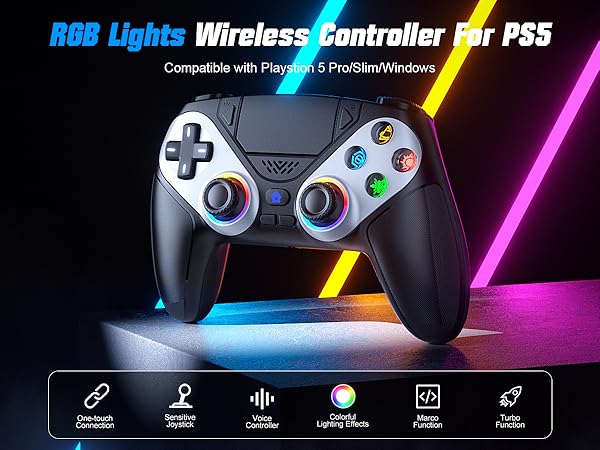
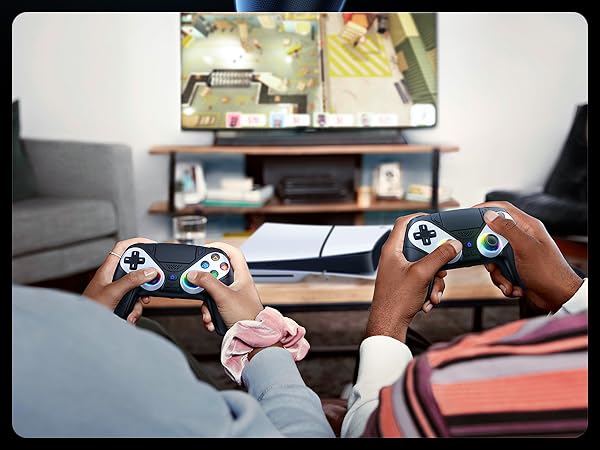
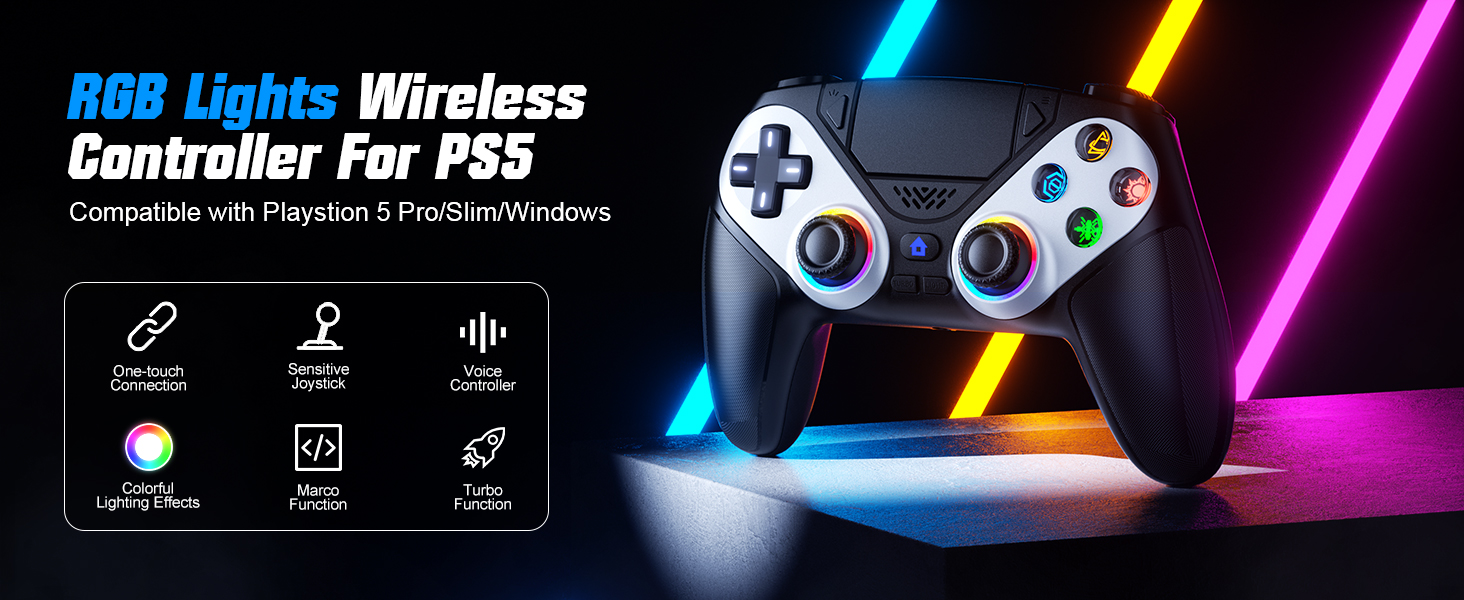
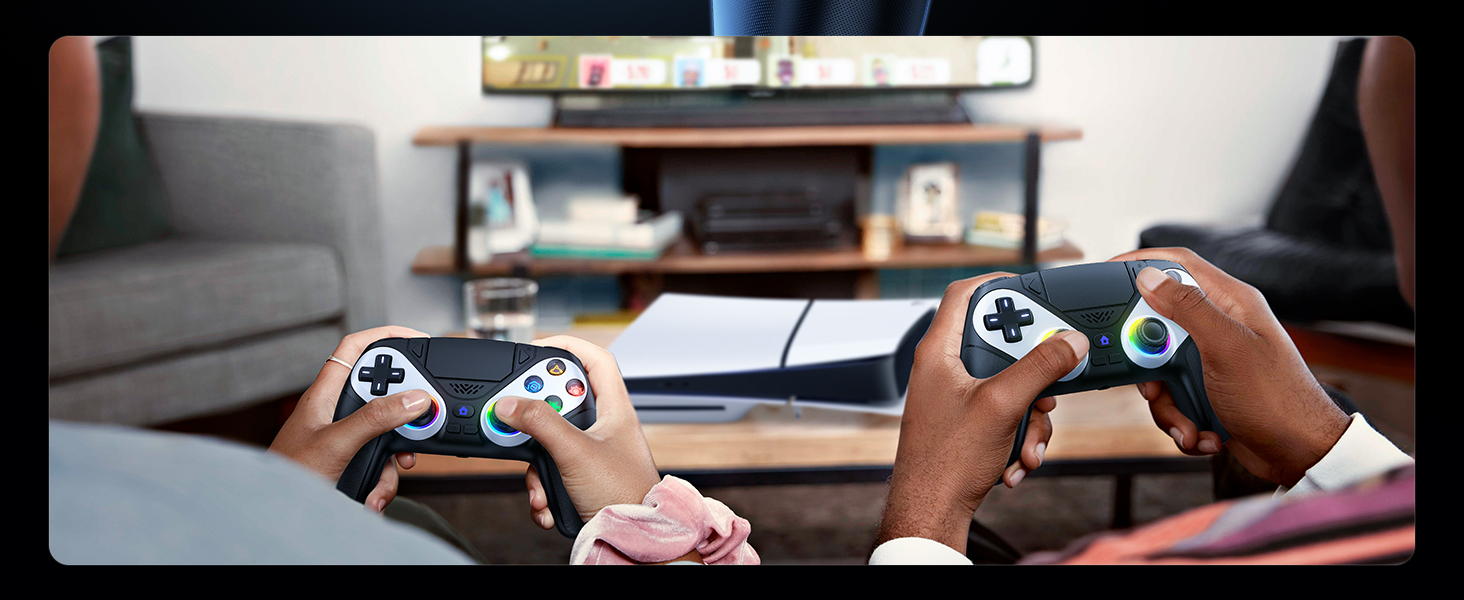
It can compatible with PS5/PS5 Pro/PS5 Slim and Windows PC, NOT For Mac, PS4 and Phone.
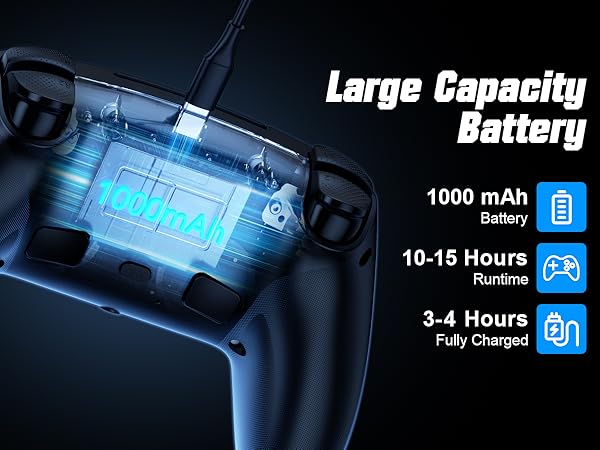
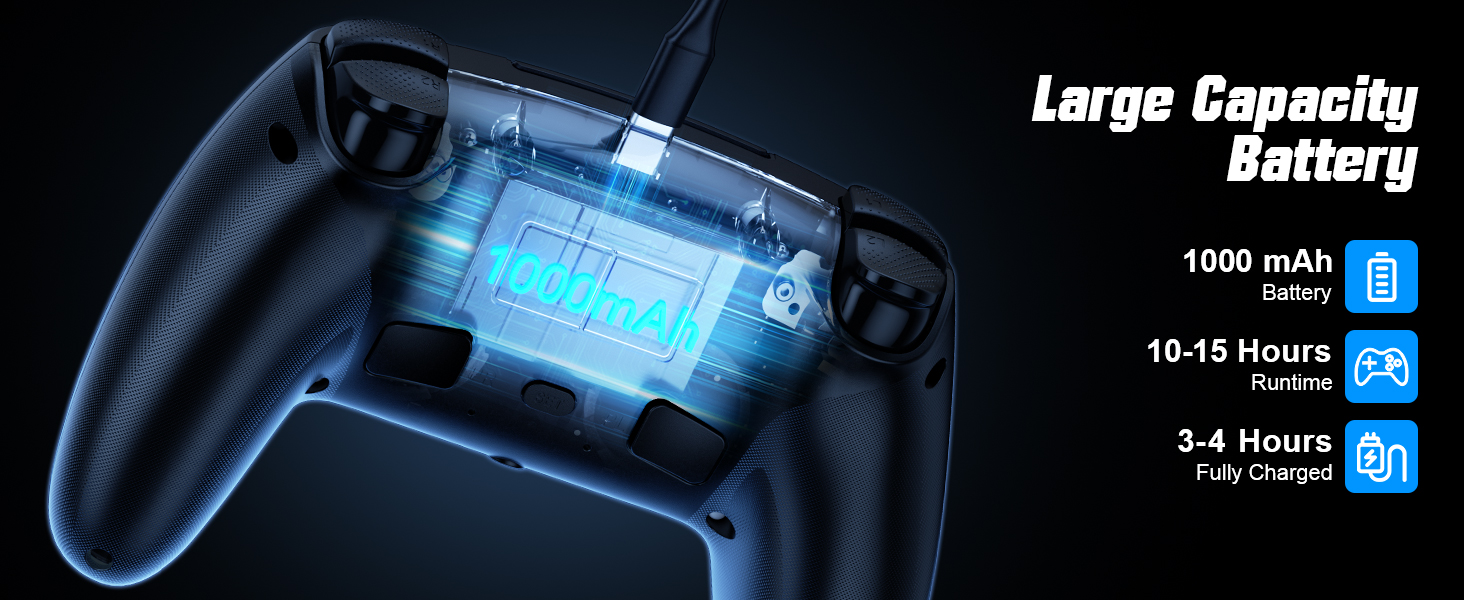
Cannot charge at charging stations
The controller does not work with the charging station and only supports USB-C charging
How to calibrate the triggers and joysticks -for joystick drift and trigger problems
1. Enter Calibration Mode: Power off the controller(after connecting to PS5), hold Share + Menu, press Home. Wait for rapid Home button flashing.
2. Calibrate: Press triggers 3-5 times, rotate joysticks 3-5 circles, confirm with X. Done.
How should the controller be connected to the PS5 console for the first time? (Step 1)
Step 1: Connect the PS5 console and the controller with a USB-C data cable that comes with the package(OR PS5 original data cable ). Please note that there must be a USB-A interface at the rear of the general PS5 console.
How should the controller be connected to the PS5 console for the first time? (Step 2)
Step 2: After the connection is completed, press the Home button on the gamepad. If you see the light flashing slowly, it means the pairing is successful, and you can use a wireless connection to the PS5 console subsequently.
What hosts can the controller be compatible with?
It can compatible with PS5/PS5 Pro/PS5 Slim and Windows PC, NOT For Mac, PS4 and Phone.
Cannot charge at charging stations
The controller does not work with the charging station and only supports USB-C charging
How to calibrate the triggers and joysticks -for joystick drift and trigger problems
1. Enter Calibration Mode: Power off the controller(after connecting to PS5), hold Share + Menu, press Home. Wait for rapid Home button flashing.
2. Calibrate: Press triggers 3-5 times, rotate joysticks 3-5 circles, confirm with X. Done.