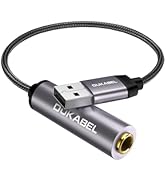
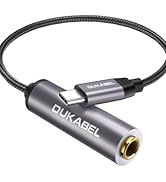
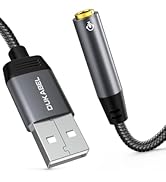
DUKABEL USB to 3.5mm Adapter
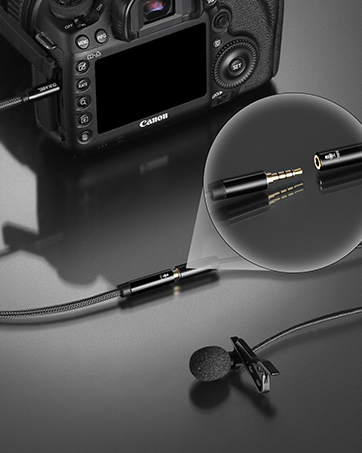
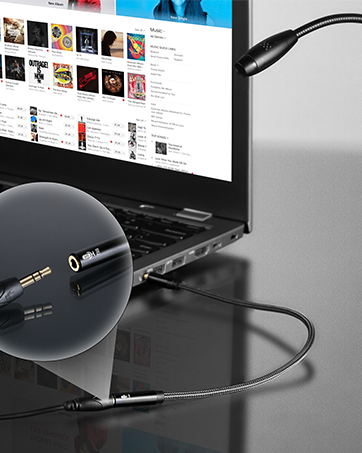
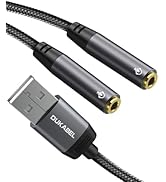
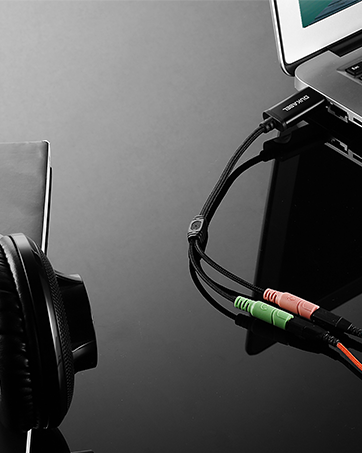
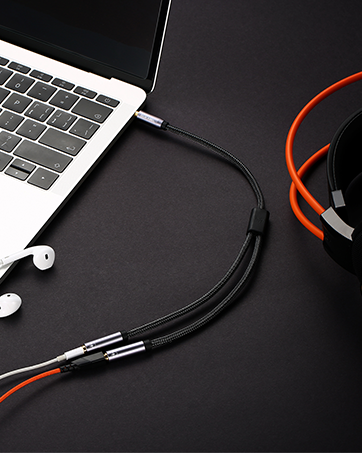
Enables you to connect your gaming headset or TRRS microphones (integrated audio out & mic in) to your pc, ps4, PS5, Laptop through a usb interface.


Product Specifications:
Configuration Instructions
Windows:
- * Right-click on the sound icon in the taskbar;
- * Select Playback or Recording devices;
- * Adjust the volume on the computer and in the application.
Mac:
- * Go to System Preferences > Sound > C-Media USB Headset > Output or Input > Volume
To turn off microphone monitoring/sidechannel:
- Go to the [Mixer] tab.
- Under Playback -> Speakers -> Monitoring -> Microphone, either move the slider to 0, or click the mute button on the right of the volume slider.



Notifications about DUKABEL USB Audio Adapter


About DUKABEL
- Established in 2000, DUKABEL has evolved from a small audio startup into a globally respected, award-winning brand.
- We specialize in AUX cables, extension cables, adapters, and high-performance digital audio accessories—each designed for reliable performance and long-lasting quality.
- DUKABEL — bringing clarity, connection, and confidence to every sound.

1/4 inch headphone adapter
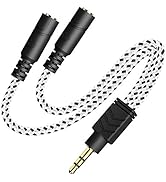
headphone splitter adapter
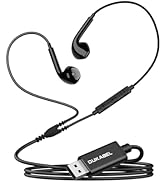
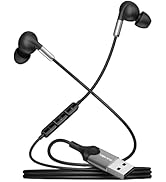
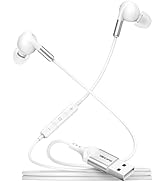
USB headphone

DUKABEL USB to 3.5mm Adapter
Enables you to connect your gaming headset or TRRS microphones (integrated audio out & mic in) to your pc, ps4, PS5, Laptop through a usb interface.


Product Specifications:
Configuration Instructions
Windows:
- * Right-click on the sound icon in the taskbar;
- * Select Playback or Recording devices;
- * Adjust the volume on the computer and in the application.
Mac:
- * Go to System Preferences > Sound > C-Media USB Headset > Output or Input > Volume
To turn off microphone monitoring/sidechannel:
- Go to the [Mixer] tab.
- Under Playback -> Speakers -> Monitoring -> Microphone, either move the slider to 0, or click the mute button on the right of the volume slider.
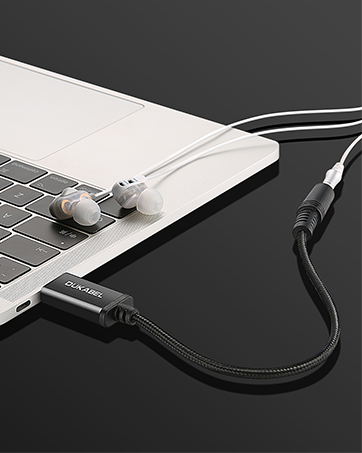
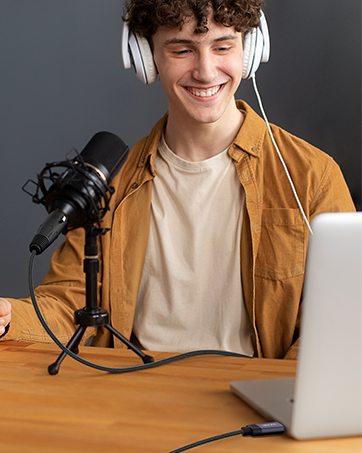
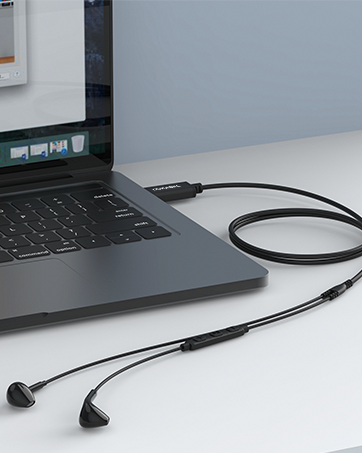
DUKABEL usb audio adapter, connect your Headphones to PC through the USB interface for audio output.
Simply connect it with your speakers and devices to instantly boost your listening experience.
Connect your PS4 or PS5 with headphones or microphones for better gaming experience.


Only 1.8cm width for more space and meanwhile adds enough room for your flexible daily use.
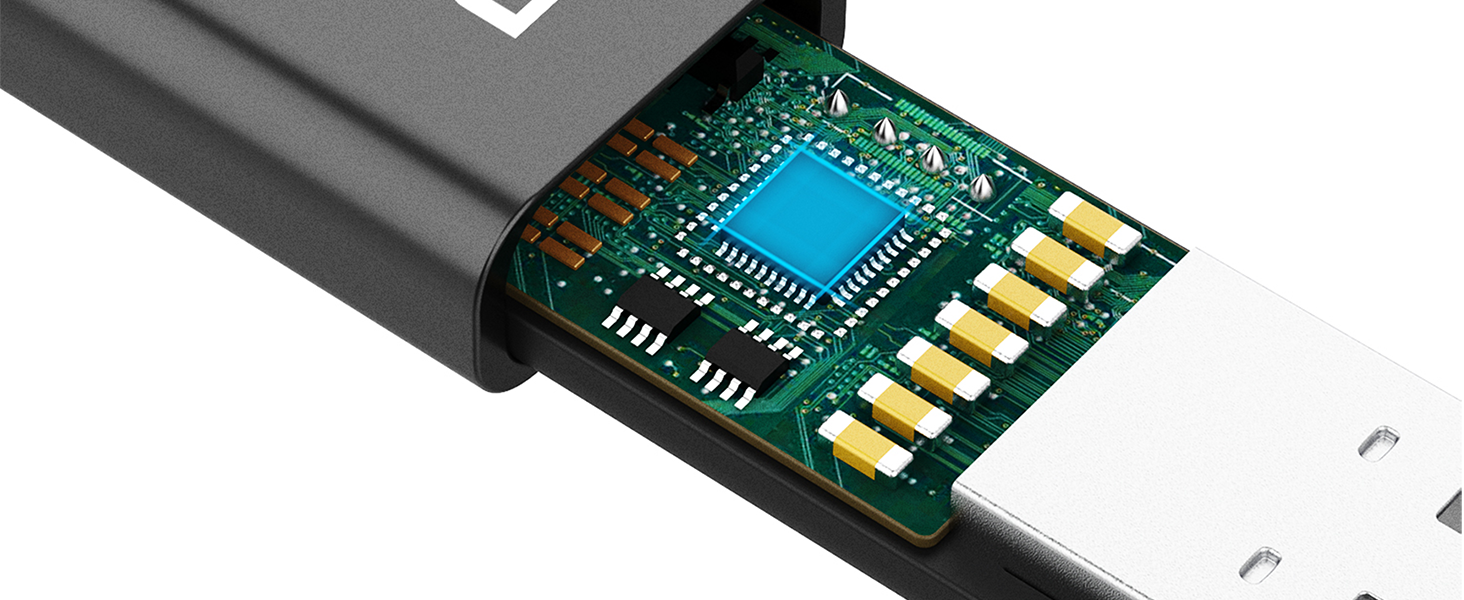
Smart Chip support 16bit/48KHz, offers full and rich sound, presenting more details in sound.
Its portable size make it become your essential everyday-use components for your smart devices.
Notifications about DUKABEL USB Audio Adapter
| Note 1 | Does not work with PS3, TV, Amplifier, CD, Car, Truck, Xbox, or Audacity. (The USB interface on those devices do not carry audio signal) |
|---|---|
| Note 2 | No Microphone input when connecting with Apple/Beats/Bose Headphones. |
| Note 3 | Do not work with work with headset with separated headphone and microphone 3.5mm audio port. |
| Note 4 | No in-line control, Do Not support Pause/Play/Volume - /Volume + etc.. |
| Note 5 | Do not work with TS or TRS microphones |
| Note 6 | For using with PS4, the output sound for Left and Right channel might be Reversed. |
| Note 7 | For IOS System, the output sound for Left and Right chanel will possibly be Reversed |
About DUKABEL
- Established in 2000, DUKABEL has evolved from a small audio startup into a globally respected, award-winning brand.
- We specialize in AUX cables, extension cables, adapters, and high-performance digital audio accessories—each designed for reliable performance and long-lasting quality.
- DUKABEL — bringing clarity, connection, and confidence to every sound.
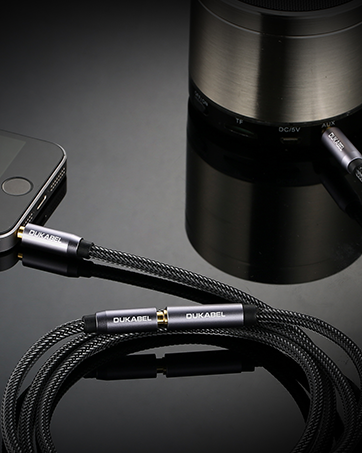
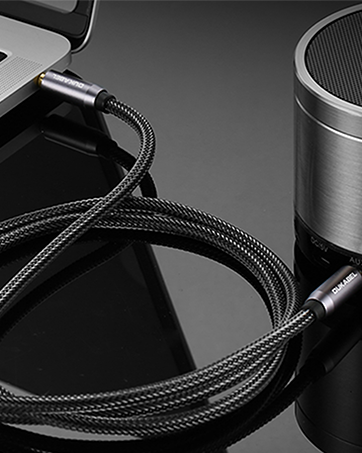
1/4 inch headphone adapter
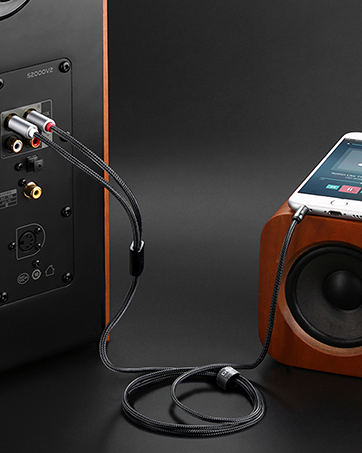
headphone splitter adapter
USB headphone