


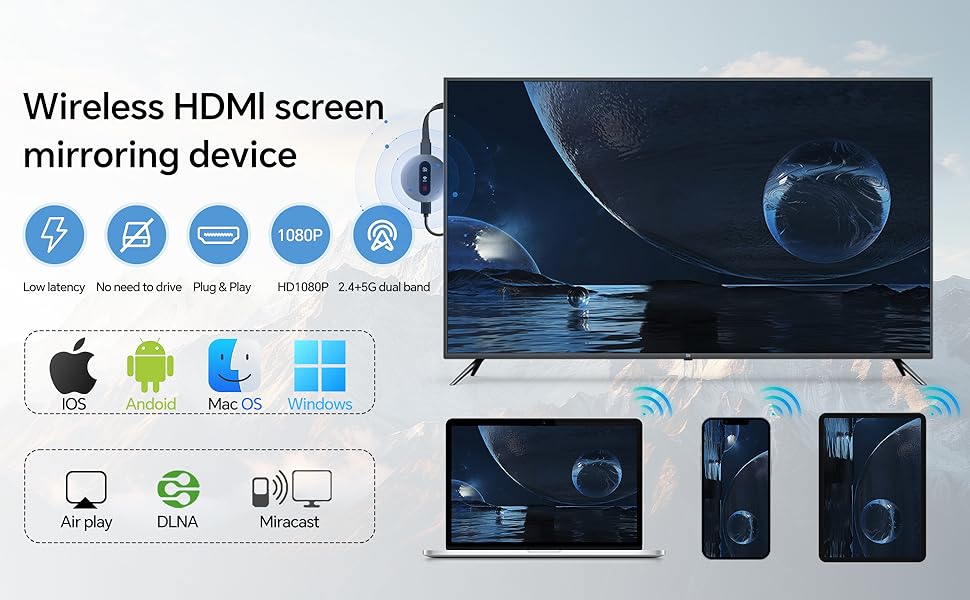
Miracast | AirPlay | DLNA Wireless HDMI Adapter
Activating DLNA Mode
1. Switch to DLNA Mode
Use the front button to set the device to start in DLNA mode.
2. Connect to the Device Hotspot
On your smartphone, go to Settings > Wi-Fi.
Find and connect to the hotspot named "MirascreenPro-XXXX".
Enter the password shown on the screen.
3. Connect to Your Router
After connecting, go back to the home screen and open your web browser.
Enter the URL: 192.168.203.1 and press Enter.
Select SCAN to search for available Wi-Fi networks.
Choose your router’s network, enter the router password, and wait a moment for the connection to complete.
Note:
- The initial network setup is only needed once. After that, the device will automatically reconnect to your Wi-Fi.
- For the best experience, connect the device to a 5GHz Wi-Fi network.
.
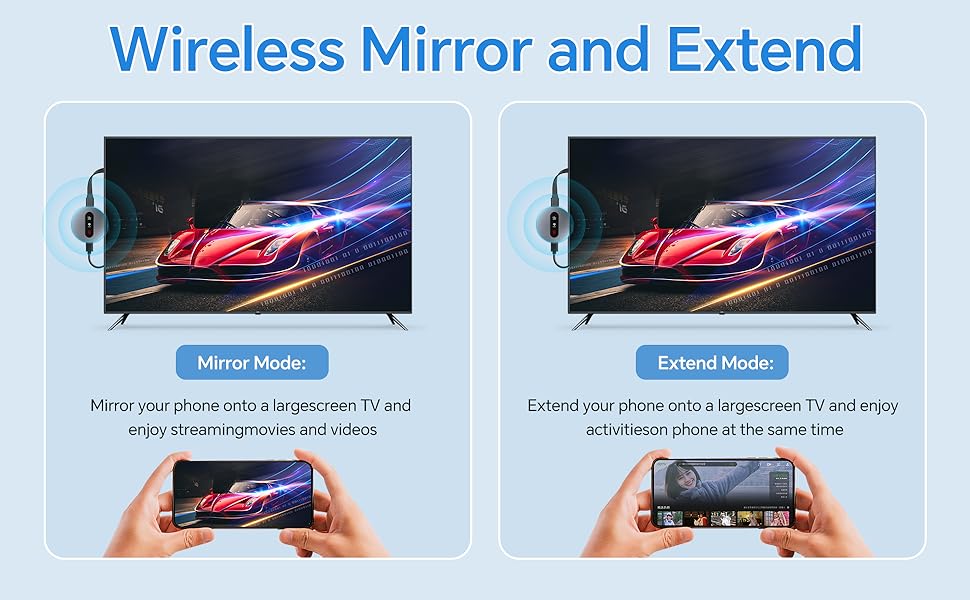
Using DLNA on Android & iOS
1. Start Playback
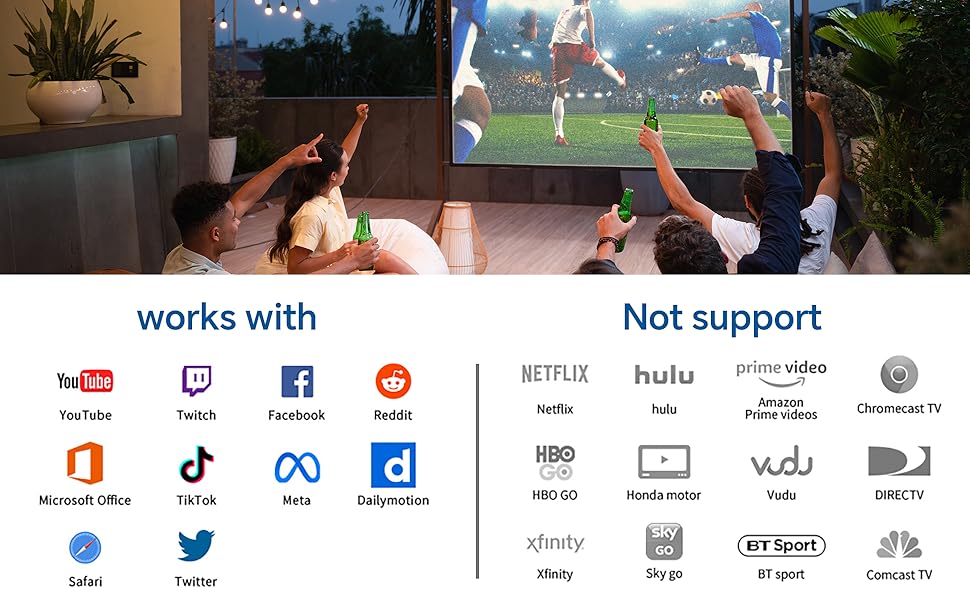
Open your preferred video or music app (e.g., YouTube or TikTok) and start playing your content.
2. Activate Streaming
Tap the DLNA/AirPlay icon (usually found in the upper right corner).
Find and select "MirascreenPro-XXXX" to begin DLNA/AirPlay streaming.
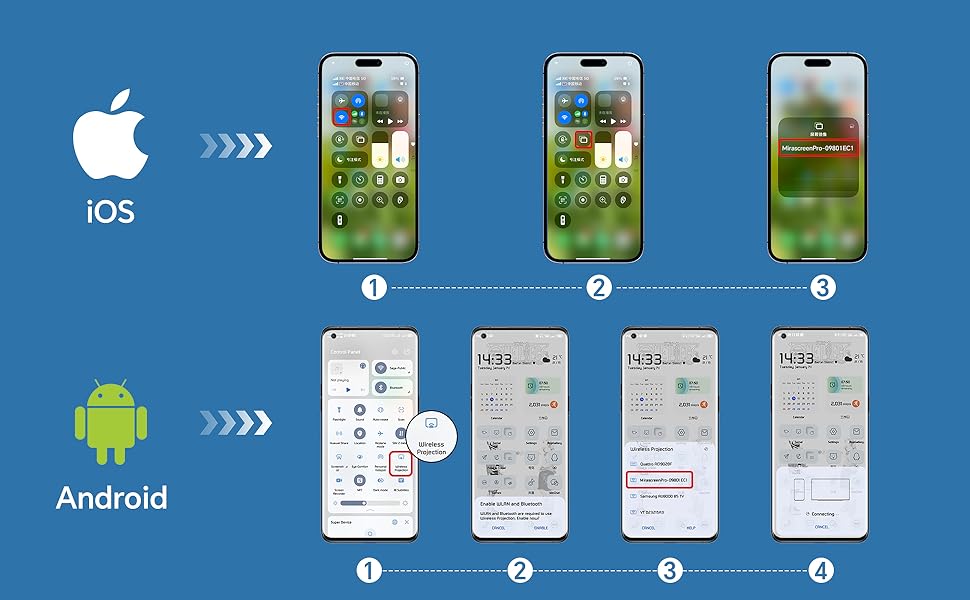
For iOS Devices (AirPlay)
- Ensure P2P Mode: The device should be in P2P mode (default startup mode).
- Open Control Center on your iPhone/iPad.
- Tap Screen Mirroring and select "MirascreenPro-XXXX".
- Enter the password shown on your screen (required only for the first connection) to start mirroring.
For Android Devices (Miracast)
- Ensure P2P Mode: Use the front button to switch the device to P2P mode.
- On your Android device (Android 4.4 or later with Miracast support), enable screen mirroring: Open Settings ? Connected devices ? Connection preferences ? Cast (path may vary by device). Alternatively, swipe down to open the quick panel and tap Smart View, Cast, or Wireless Display.
- Select "MirascreenPro-XXXX" from the list to start mirroring.
.
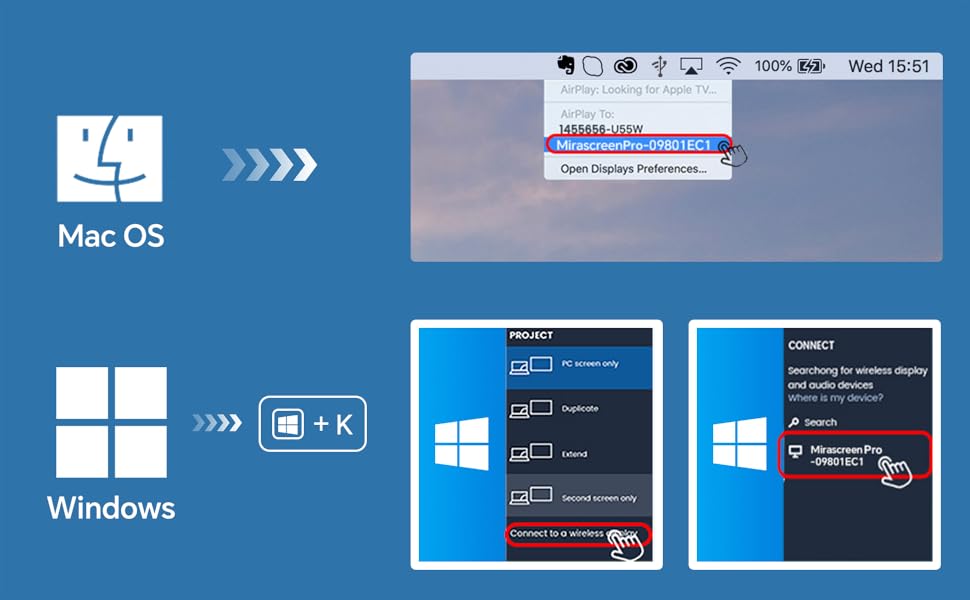
For Mac Devices (AirPlay)
- Ensure P2P Mode: Confirm the device is in P2P mode.
- Click the AirPlay icon in the menu bar of your Mac.
- Select "MirascreenPro-XXXX" to begin mirroring.
For Windows Devices (Miracast)
- Ensure P2P Mode: Verify the device is in P2P mode.
- (For Windows 8.1 and later, ensure your system supports Miracast.)
- Press Windows + K to open the Connect panel (or Windows + P for projection options).
- Select "MirascreenPro-XXXX" from the list of available wireless displays.
- Wait a few seconds for the connection to complete and your screen to appear.
Friendly Reminder:
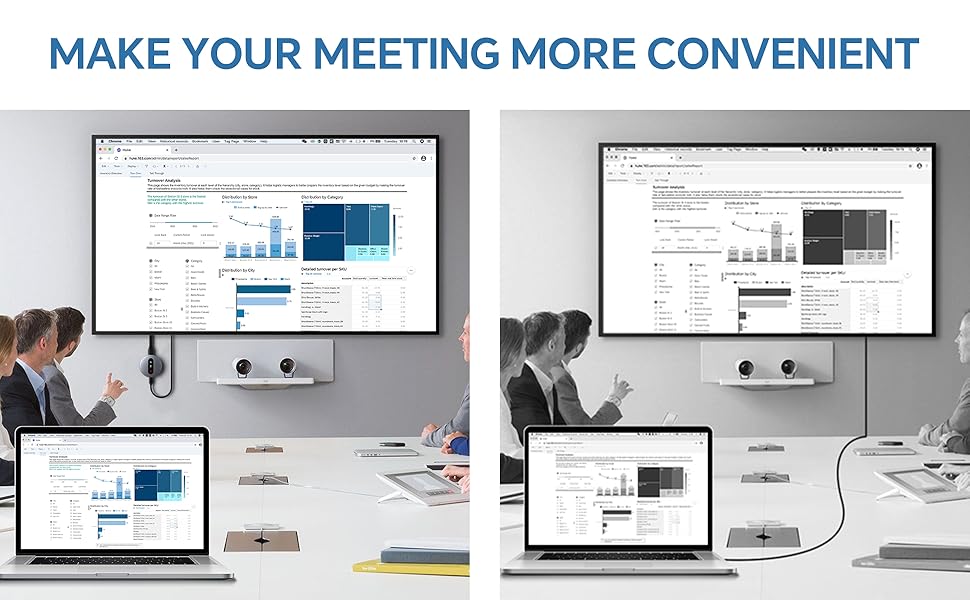
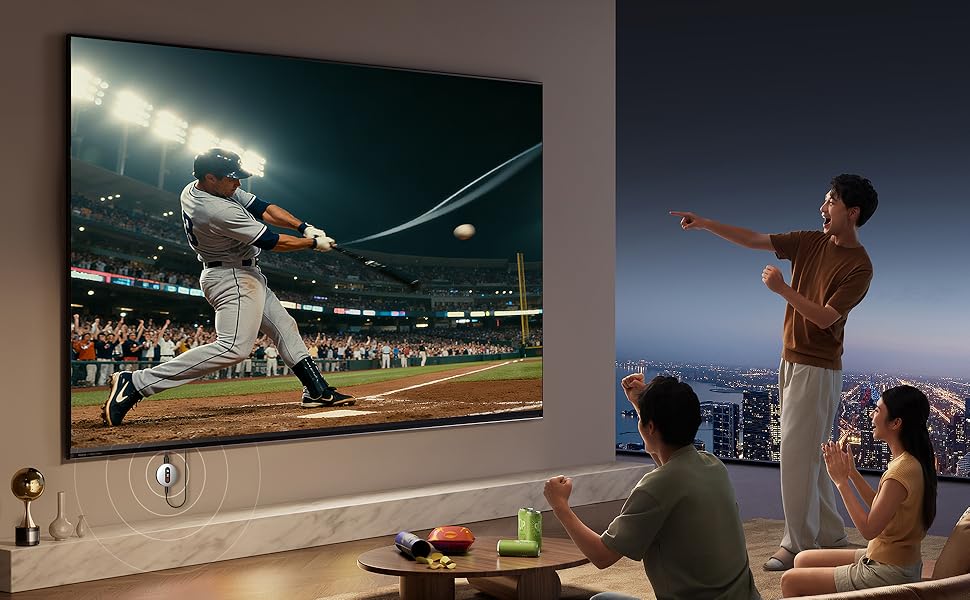
Before connecting, use the toggle button to select the correct mode for your system. This device supports a stable transmission range of up to 13–15 feet, ideal for home entertainment, business meetings, presentations, and group gatherings.
Miracast | AirPlay | DLNA Wireless HDMI Adapter
Activating DLNA Mode
1. Switch to DLNA Mode
Use the front button to set the device to start in DLNA mode.
2. Connect to the Device Hotspot
On your smartphone, go to Settings > Wi-Fi.
Find and connect to the hotspot named "MirascreenPro-XXXX".
Enter the password shown on the screen.
3. Connect to Your Router
After connecting, go back to the home screen and open your web browser.
Enter the URL: 192.168.203.1 and press Enter.
Select SCAN to search for available Wi-Fi networks.
Choose your router’s network, enter the router password, and wait a moment for the connection to complete.
Note:
- The initial network setup is only needed once. After that, the device will automatically reconnect to your Wi-Fi.
- For the best experience, connect the device to a 5GHz Wi-Fi network.
.
Using DLNA on Android & iOS
1. Start Playback
Open your preferred video or music app (e.g., YouTube or TikTok) and start playing your content.
2. Activate Streaming
Tap the DLNA/AirPlay icon (usually found in the upper right corner).
Find and select "MirascreenPro-XXXX" to begin DLNA/AirPlay streaming.
For iOS Devices (AirPlay)
- Ensure P2P Mode: The device should be in P2P mode (default startup mode).
- Open Control Center on your iPhone/iPad.
- Tap Screen Mirroring and select "MirascreenPro-XXXX".
- Enter the password shown on your screen (required only for the first connection) to start mirroring.
For Android Devices (Miracast)
- Ensure P2P Mode: Use the front button to switch the device to P2P mode.
- On your Android device (Android 4.4 or later with Miracast support), enable screen mirroring: Open Settings ? Connected devices ? Connection preferences ? Cast (path may vary by device). Alternatively, swipe down to open the quick panel and tap Smart View, Cast, or Wireless Display.
- Select "MirascreenPro-XXXX" from the list to start mirroring.
.
For Mac Devices (AirPlay)
- Ensure P2P Mode: Confirm the device is in P2P mode.
- Click the AirPlay icon in the menu bar of your Mac.
- Select "MirascreenPro-XXXX" to begin mirroring.
For Windows Devices (Miracast)
- Ensure P2P Mode: Verify the device is in P2P mode.
- (For Windows 8.1 and later, ensure your system supports Miracast.)
- Press Windows + K to open the Connect panel (or Windows + P for projection options).
- Select "MirascreenPro-XXXX" from the list of available wireless displays.
- Wait a few seconds for the connection to complete and your screen to appear.
Friendly Reminder:
Before connecting, use the toggle button to select the correct mode for your system. This device supports a stable transmission range of up to 13–15 feet, ideal for home entertainment, business meetings, presentations, and group gatherings.





