




FAQ's

Data Entry Solutions
 BTNUMKEY |  RFCNUMKEY |  BTNUMKEY22 |  NUMKEY22 |  BTNUMKEYPRO |  NUMKEY | |
|---|---|---|---|---|---|---|
Customer Reviews | — | — | — | — | — | — |
Price | — | — | — | — | — | — |
Description | Bluetooth Number Pad | Wireless Numeric Keypad | Bluetooth Number Pad | USB Number Pad | Bluetooth Number Pad | Wired USB Number |
Type of Connection | Bluetooth | 2.4Ghz RF | Bluetooth | Bluetooth | Bluetooth | USB-A Wired |
Compatibility | Mac/PC | Mac/PC/iOS/Android | Mac | Mac/PC | Mac/PC/iOS/Android | Mac/PC |
Plug & Play (No Drivers) | ? | ? | ? | ? | ? | ? |
Batteries | Rechargeable | Rechargeable | "AAA" Batteries (Included) | Rechargeable | Rechargeable | Wired |


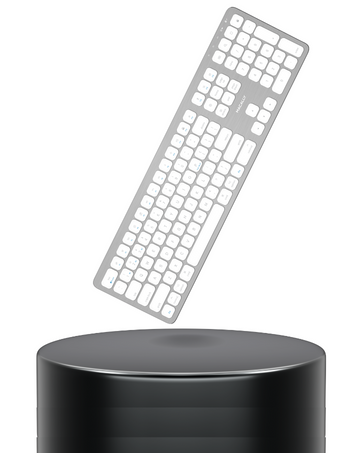
Pair Up to 3 Devices.
Enjoy seamless bluetooth connectivity between 3 of your favorite Apple devices.
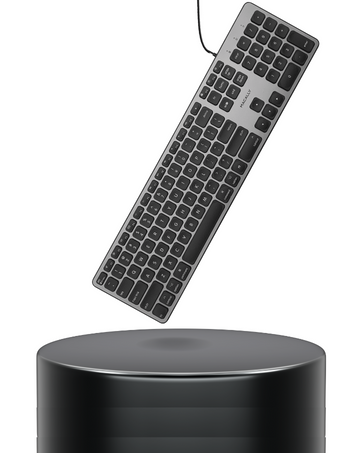
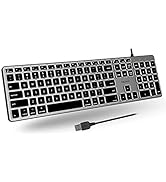
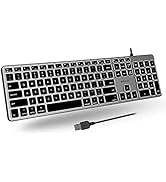
Simple Wired Connection.
Equipped with crisp backlit keys, you can enjoy a simple plug and play solution.
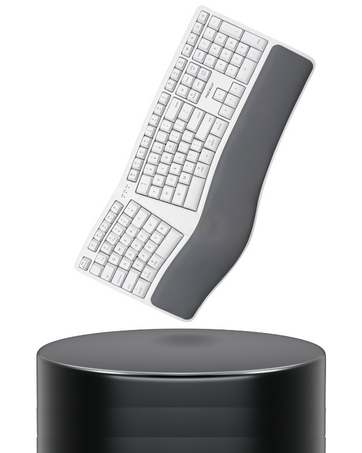
A Natural Typing Experience.
Split into 2 zones, you will be able to work comfortably with less wrist strain.
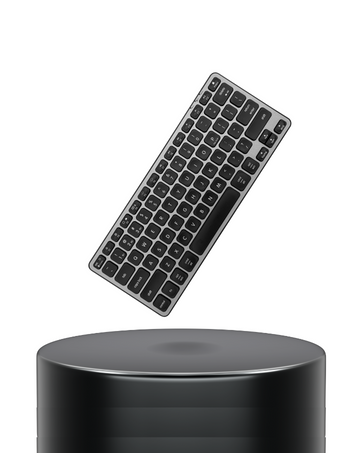
Small, Backlt, and Bluetooth.
This compact keyboard is perfect for on the go! Backlit, rechargeable, and wireless.
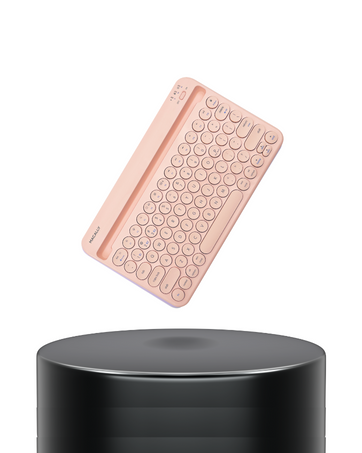
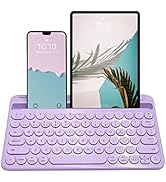
Take Your Work On the Go.
Set up your mobile workstation in seconds. Integrated stand for your iPhone or iPad.
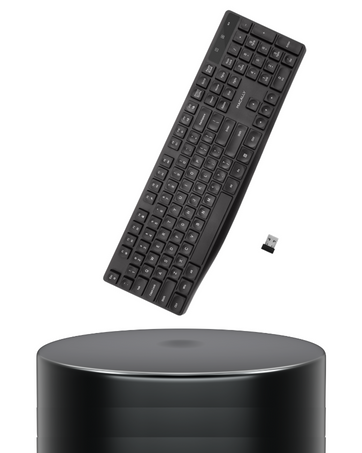
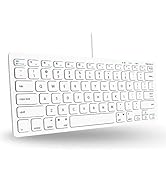
Keeping it Simple for PC.
Looking for a basic, reliable, and easy to use keyboard for your PC? Here it is.
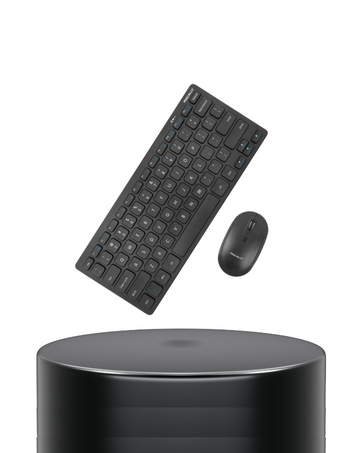
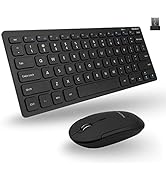
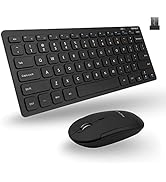
Reclaim Desk Space.
A space saving wireless combo designed specifically for PC.
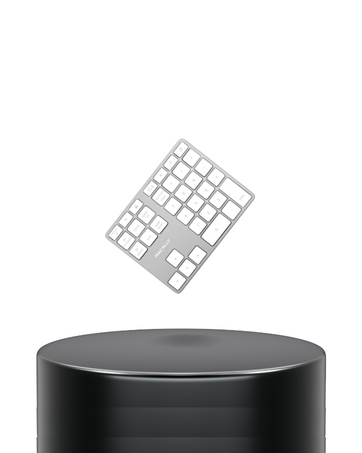
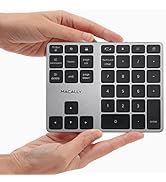
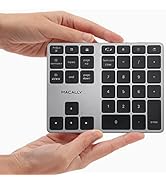
Macbook Missing a Keypad?
Boost your workflow and tackle spreadsheets and input data with ease.
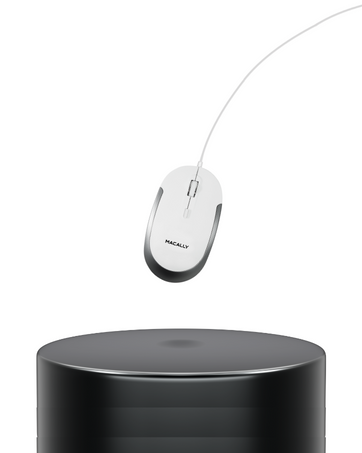
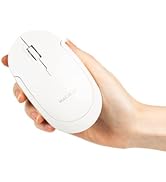
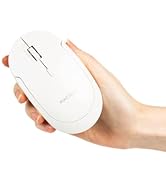
Simple Point and Click.
Enjoy a reliable mouse for your everyday tasks and ditch the wireless connectivity issues.


-

-

-


FAQ's
How to Power On.
- Flip the on/off switch located on the top
- Red led indicator will appear then disappear
- The keypad is now on
How to Pair to Bluetooth Device.
- Press the "enter" and "up arrow" key
- Blue light will start flashing
- Connect the keypad from your computer
- Blue light will disappear when paired successfully
How to Charge the Keypad.
- Open the charge port cover on the top left corner
- Insert the included charging cable
- Red LED light will appear when charging

Data Entry Solutions
BTNUMKEY | RFCNUMKEY | BTNUMKEY22 | NUMKEY22 | BTNUMKEYPRO | NUMKEY |
|---|---|---|---|---|---|
| Customer Reviews | |||||
| — | — | — | — | — | — |
| Price | |||||
| — | — | — | — | — | — |
| Description | |||||
| Bluetooth Number Pad | Wireless Numeric Keypad | Bluetooth Number Pad | USB Number Pad | Bluetooth Number Pad | Wired USB Number |
| Type of Connection | |||||
| Bluetooth | 2.4Ghz RF | Bluetooth | Bluetooth | Bluetooth | USB-A Wired |
| Compatibility | |||||
| Mac/PC | Mac/PC/iOS/Android | Mac | Mac/PC | Mac/PC/iOS/Android | Mac/PC |
| Plug & Play (No Drivers) | |||||
| ? | ? | ? | ? | ? | ? |
| Batteries | |||||
| Rechargeable | Rechargeable | "AAA" Batteries (Included) | Rechargeable | Rechargeable | Wired |
Pair Up to 3 Devices.
Enjoy seamless bluetooth connectivity between 3 of your favorite Apple devices.
Simple Wired Connection.
Equipped with crisp backlit keys, you can enjoy a simple plug and play solution.
A Natural Typing Experience.
Split into 2 zones, you will be able to work comfortably with less wrist strain.
Small, Backlt, and Bluetooth.
This compact keyboard is perfect for on the go! Backlit, rechargeable, and wireless.
Take Your Work On the Go.
Set up your mobile workstation in seconds. Integrated stand for your iPhone or iPad.
Keeping it Simple for PC.
Looking for a basic, reliable, and easy to use keyboard for your PC? Here it is.
Reclaim Desk Space.
A space saving wireless combo designed specifically for PC.
Macbook Missing a Keypad?
Boost your workflow and tackle spreadsheets and input data with ease.
Simple Point and Click.
Enjoy a reliable mouse for your everyday tasks and ditch the wireless connectivity issues.
-
-
-





