




In the age of digital innovation, Aibilangose stands as a beacon of simplicity and efficiency. Our mission is to provide innovative solutions that simplify digital lives.
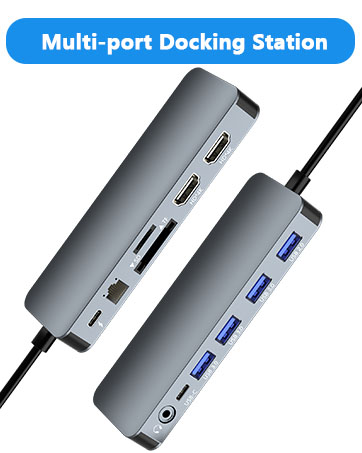
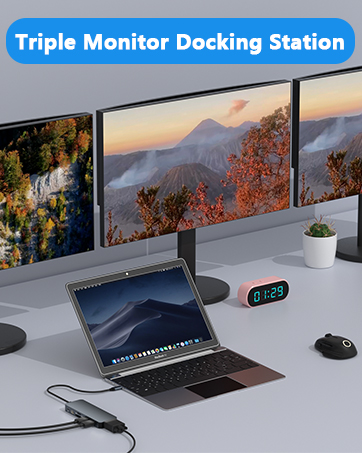
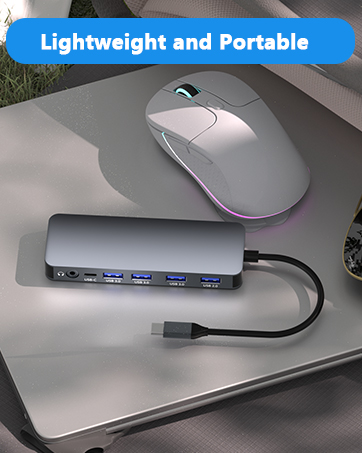
Our flagship product the docking station offers numerous ports and connectivity options, allowing seamless connection of laptops, monitors, and peripherals, and storage devices.
We believe a well-organized workspace significantly boosts efficiency and creativity.
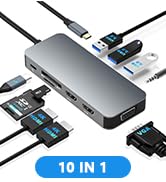
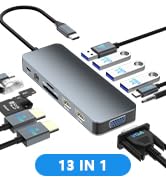
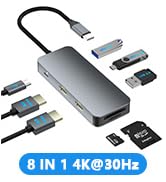
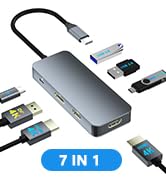
USB C Docking Station
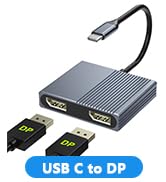
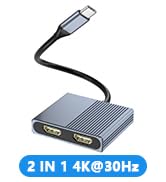
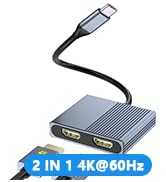
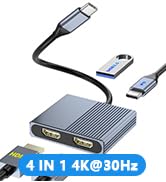
USB C to Dual DP/Dual HDMI
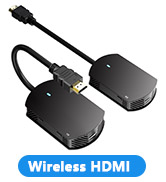
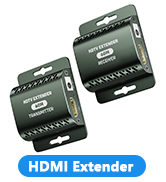
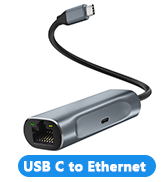
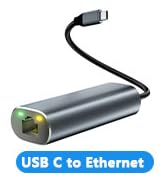
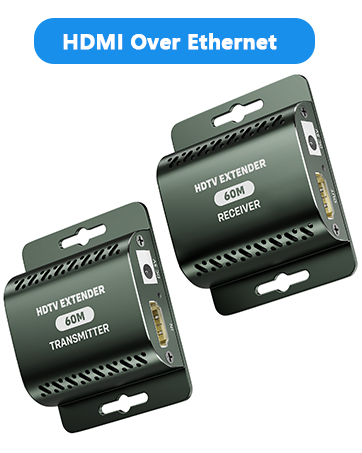
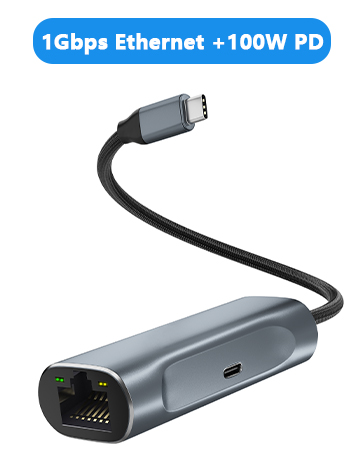
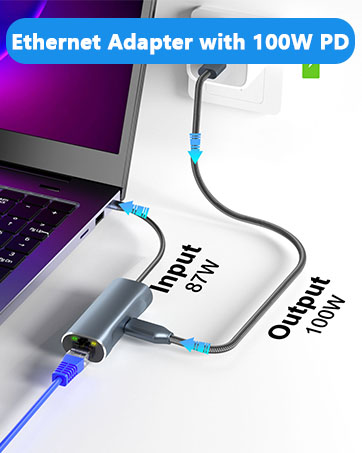
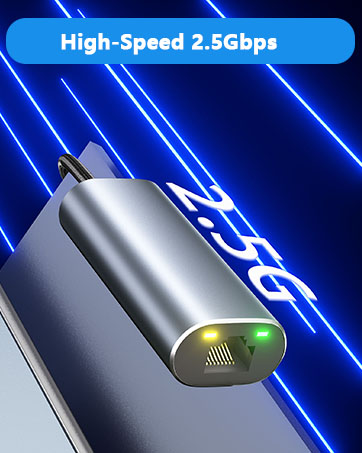
HDMI Extender/USB to Ethernet
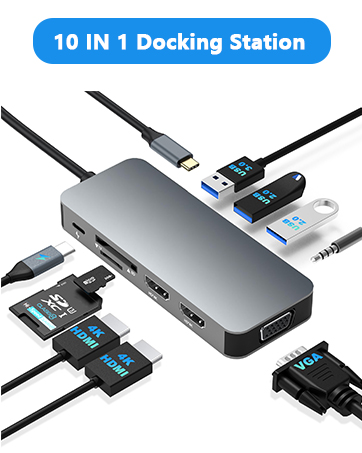
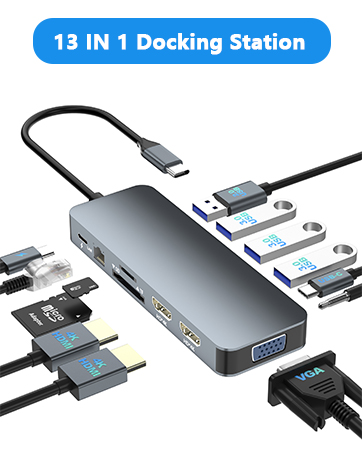
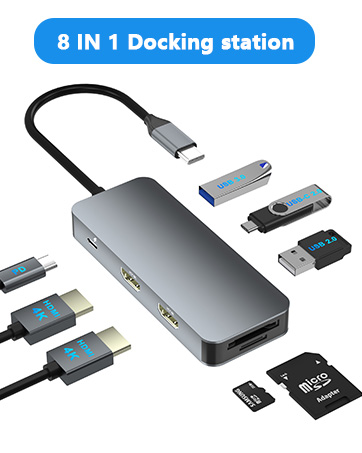
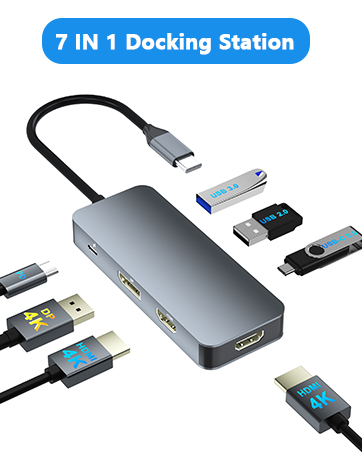
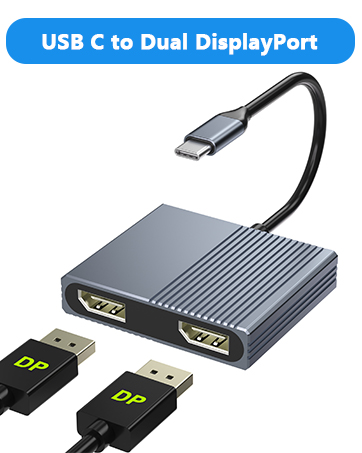
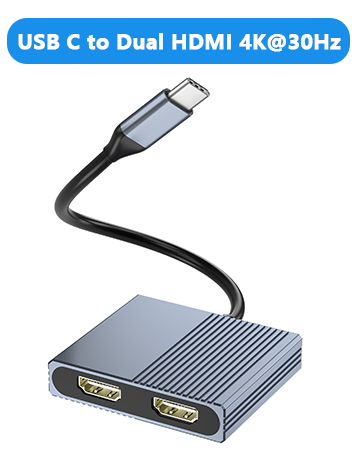
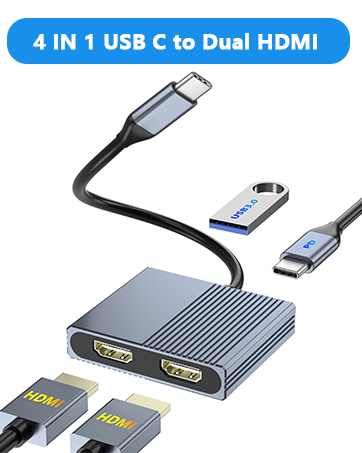
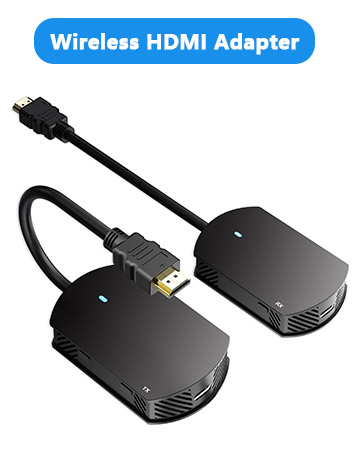

Note: NOT for all USB-C port laptops, Make sure your laptop or PC supports ” Thunderbolt 3” ” Thunderbolt 4”or “displayport output mode(DP ALT mode).
Simple 4-Step Check--How do I know if my device supports DisplayPort over USB-C?
1.Check Your Computer’s Specifications:
Refer to your computer’s user manual or the manufacturer’s website for detailed information about your USB-C ports. Look for mentions of "DisplayPort Alt Mode" or "USB-C with video output."
2.Look for Symbols:
Some laptops and devices have symbols next to the USB-C port. A symbol that looks like a small monitor or a "DP" (for DisplayPort) indicates that the port supports video transmission.
3.Test with a Monitor (If Possible)
If you have a USB-C to HDMI or USB-C to DisplayPort adapter, you can test it by connecting it to your computer and an external display. If the display works, your USB-C port supports video transmission.
4.Contact the Manufacturer:
If you are still unsure, contact the manufacturer for confirmation. They can provide specific information about your device’s capabilities. Basically, Thunderbolt 3, Thunderbolt 4, and USB C 3.1 Gen 2 (or above) support video output. If you are not sure, you are welcome to ask us for a device compatibility check before purchase.


For Windows Setup: Right-click desktop?Intel display Settings ?pop-up Settings screen select display?select multi-screen display?expand the desktop
For MacOS Setup: Setting ?Display ?check mirror display box to switch to Extend mode ?Drag the window to the right edge to move it to the other monitor.


Insufficient power supply may cause unstable video output. This adapter does not provide additional power to your computer. To ensure normal and stable image output, you should use a separate power adapter to charge your computer.


Note: NOT for all USB-C port laptops, Make sure your laptop or PC supports ” Thunderbolt 3” ” Thunderbolt 4”or “displayport output mode(DP ALT mode).
Simple 4-Step Check--How do I know if my device supports DisplayPort over USB-C?
1.Check Your Computer’s Specifications:
Refer to your computer’s user manual or the manufacturer’s website for detailed information about your USB-C ports. Look for mentions of "DisplayPort Alt Mode" or "USB-C with video output."
2.Look for Symbols:
Some laptops and devices have symbols next to the USB-C port. A symbol that looks like a small monitor or a "DP" (for DisplayPort) indicates that the port supports video transmission.
3.Test with a Monitor (If Possible)
If you have a USB-C to HDMI or USB-C to DisplayPort adapter, you can test it by connecting it to your computer and an external display. If the display works, your USB-C port supports video transmission.
4.Contact the Manufacturer:
If you are still unsure, contact the manufacturer for confirmation. They can provide specific information about your device’s capabilities. Basically, Thunderbolt 3, Thunderbolt 4, and USB C 3.1 Gen 2 (or above) support video output. If you are not sure, you are welcome to ask us for a device compatibility check before purchase.


For Windows Setup: Right-click desktop?Intel display Settings ?pop-up Settings screen select display?select multi-screen display?expand the desktop
For MacOS Setup: Setting ?Display ?check mirror display box to switch to Extend mode ?Drag the window to the right edge to move it to the other monitor.


Insufficient power supply may cause unstable video output. This adapter does not provide additional power to your computer. To ensure normal and stable image output, you should use a separate power adapter to charge your computer.

In the age of digital innovation, Aibilangose stands as a beacon of simplicity and efficiency. Our mission is to provide innovative solutions that simplify digital lives.
Our flagship product the docking station offers numerous ports and connectivity options, allowing seamless connection of laptops, monitors, and peripherals, and storage devices.
We believe a well-organized workspace significantly boosts efficiency and creativity.
USB C Docking Station
USB C to Dual DP/Dual HDMI
HDMI Extender/USB to Ethernet





