






Very good dash cam

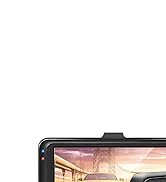
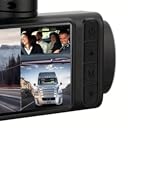
Three-inch high-definition large-screen dashboard video recorder

Car Logger G Sensor

Recorder cycle recording function

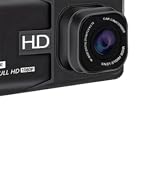
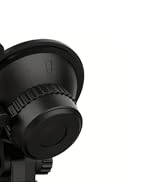
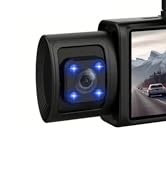
Car Recorder Lens

Operating Guidelines
- Power On/Off button, long press to turn on/long press to turn off
- File Lock Button: When you want this video file not to be overwritten, you can use the file lock button to lock, after locking the screen will show the key icon, the file unless manually deleted, otherwise it will be permanently stored in the file, close the file lock need to be pressed again to lock the button can be
- Camera Button: Use the camera button to take pictures, short press once to enter the photo mode, and short press once on the photo button to record the beautiful moments you want to record!
- Video Recording Button: short press once to start recording, short press once to pause recording, and this button is also the confirmation button in the menu.
- Power cord socket: use the configured power cord link to use, the power cord only supports 12-24V car cigarette lighter socket, note! This dashboard camera needs to be connected to the power supply to use, the built-in battery is only for the camera time to update use!
- Rear camera interface: the dashboard camera can be connected to the rear camera to use, but in the purchase of the camera, please note that the camera is adapted to this machine, not adapted to not be used!
- Memory card slot: the dashboard camera presents a high-speed 32G memory card for daily use, the memory card will be damaged by prolonged use, please replace the same type of memory card in a timely manner
- Up key: the key used within the menu to provide page up
- Menu button: before entering the menu you need to pause the video, and then short press once to enter the menu, select the menu options to use the video recording button to confirm the options, exit the menu short press once the menu button to exit the menu
- Down key: This key is used to page down in the menu.
Very good dash cam
Three-inch high-definition large-screen dashboard video recorder
Car Logger G Sensor
Recorder cycle recording function
Car Recorder Lens
Operating Guidelines
- Power On/Off button, long press to turn on/long press to turn off
- File Lock Button: When you want this video file not to be overwritten, you can use the file lock button to lock, after locking the screen will show the key icon, the file unless manually deleted, otherwise it will be permanently stored in the file, close the file lock need to be pressed again to lock the button can be
- Camera Button: Use the camera button to take pictures, short press once to enter the photo mode, and short press once on the photo button to record the beautiful moments you want to record!
- Video Recording Button: short press once to start recording, short press once to pause recording, and this button is also the confirmation button in the menu.
- Power cord socket: use the configured power cord link to use, the power cord only supports 12-24V car cigarette lighter socket, note! This dashboard camera needs to be connected to the power supply to use, the built-in battery is only for the camera time to update use!
- Rear camera interface: the dashboard camera can be connected to the rear camera to use, but in the purchase of the camera, please note that the camera is adapted to this machine, not adapted to not be used!
- Memory card slot: the dashboard camera presents a high-speed 32G memory card for daily use, the memory card will be damaged by prolonged use, please replace the same type of memory card in a timely manner
- Up key: the key used within the menu to provide page up
- Menu button: before entering the menu you need to pause the video, and then short press once to enter the menu, select the menu options to use the video recording button to confirm the options, exit the menu short press once the menu button to exit the menu
- Down key: This key is used to page down in the menu.
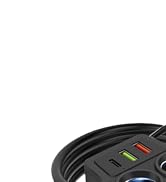
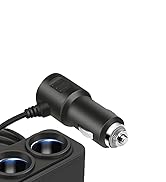
Car Charger Recommendation
Single Lens Recommendations
Triple Lens Recommendation
Triple Lens Recommendation





