Surface Pro Bluetooth Keyboard
Merchant Video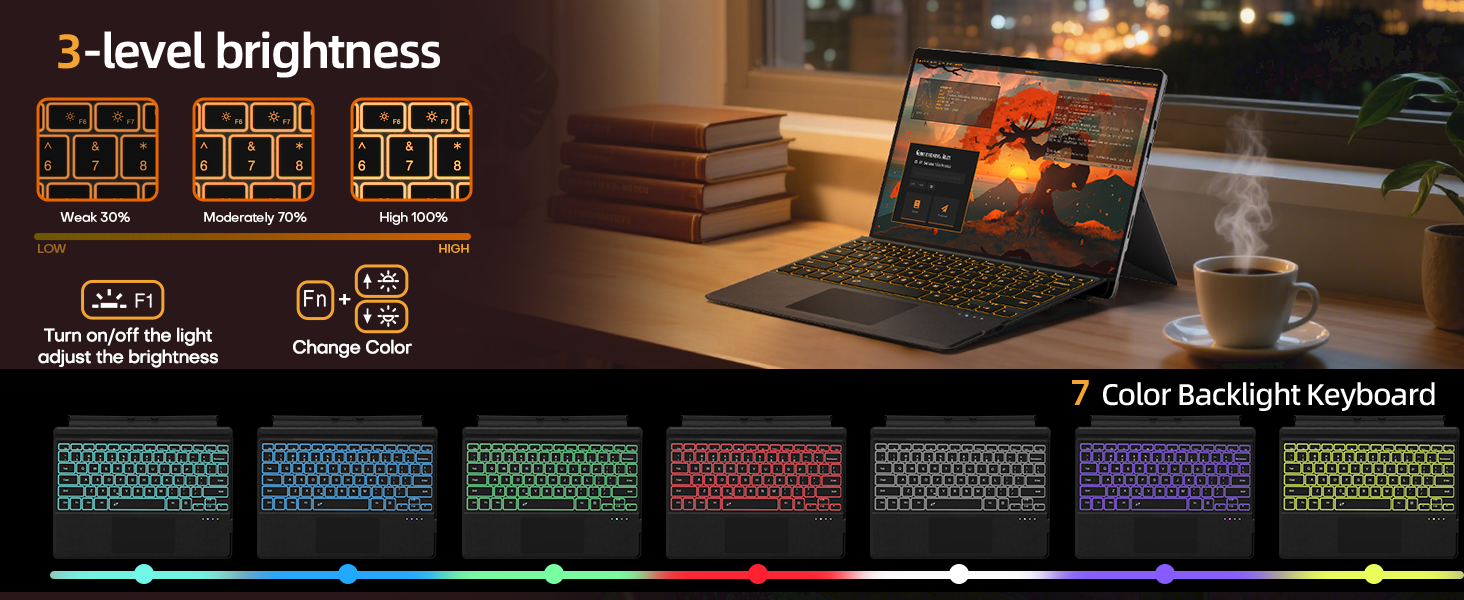


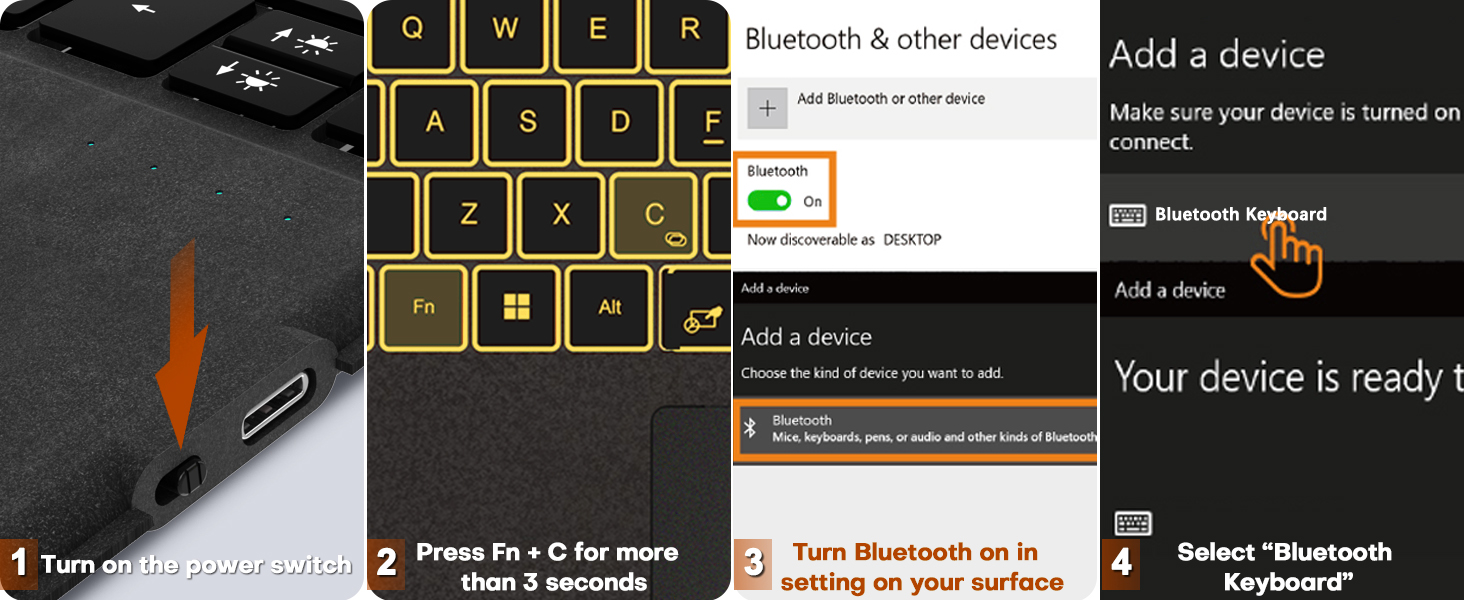

What should I do if I can't type?
Open Surface Settings ----> Accessibility ----> Keyboard ----> Turn off "Sticky keys" ----> Turn off "Filter keys"
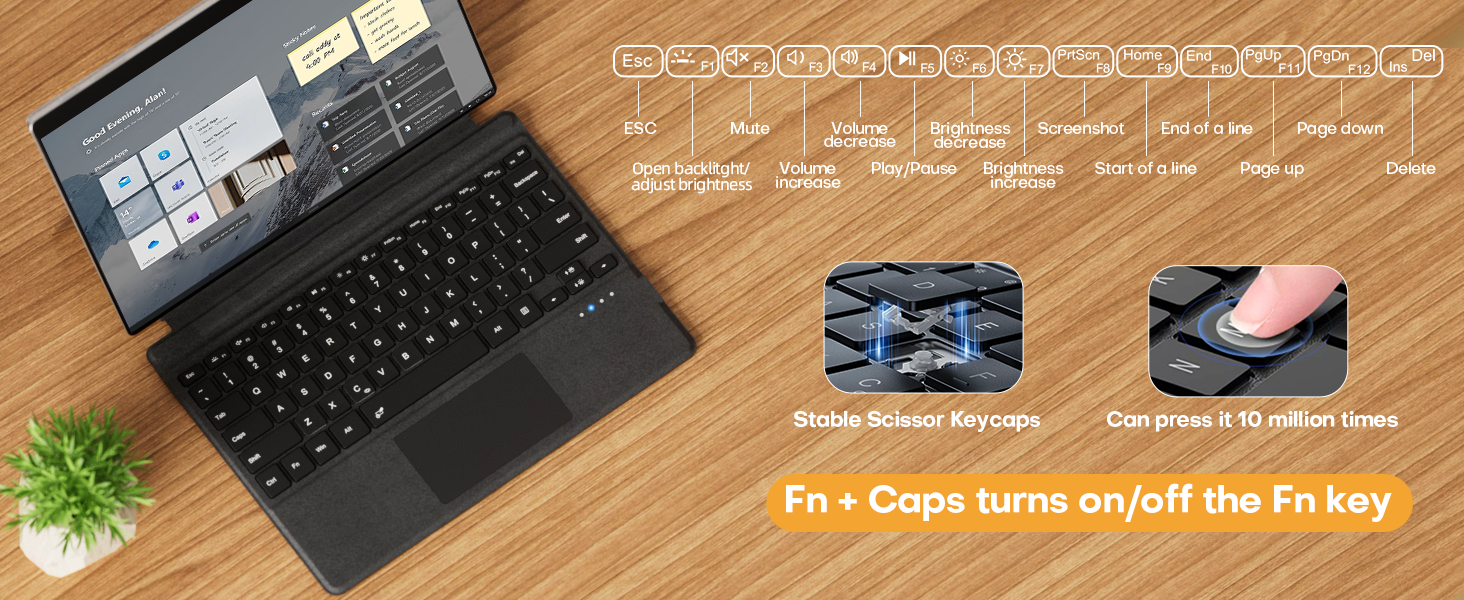
How to lock/unlock the "Fn" ?
Fn + Caps
How to turn on/off touchpad and adjust touchpad sensitivity?
1?Fn + Space (If the touchpad still does not work, turn on the touchpad in Surface settings.)2?Settings->Devices->Touchpad->Touchpad Sensitivity->Related Settings->Other Settings(mouse button/pointer options)
Still can not Connect?
Delet Bluetooth icons and unpair of all the Surface Bluetooth and restart, restore the keyboard to factory settings: press and hold "Fn+F+J" for more than 5 seconds, and the three lights flash at the same time and then reconnect the Surface Pro.
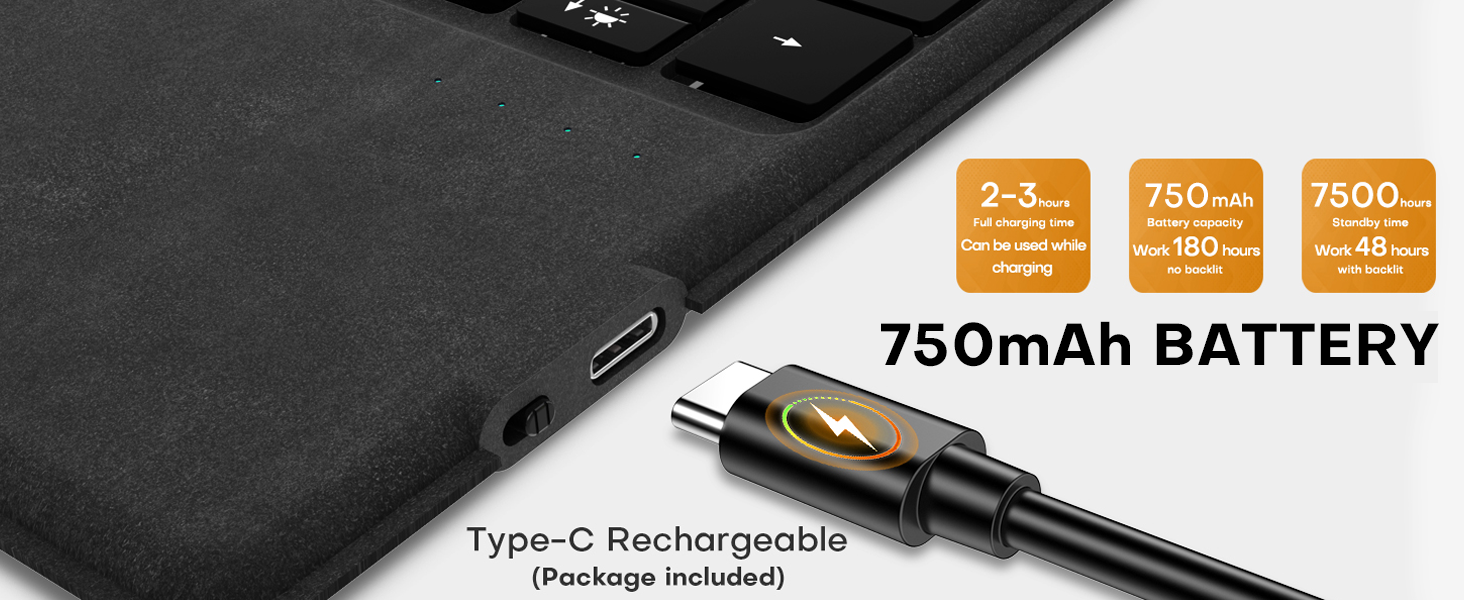
Can it be charged wirelessly via a Surface computer?
No.It can only be charged via a Type-C cable (included in the package).You can charge while typing (connect to computer or charger via USB-C)














Surface Pro Bluetooth Keyboard
Merchant Video



What should I do if I can't type?
Open Surface Settings ----> Accessibility ----> Keyboard ----> Turn off "Sticky keys" ----> Turn off "Filter keys"
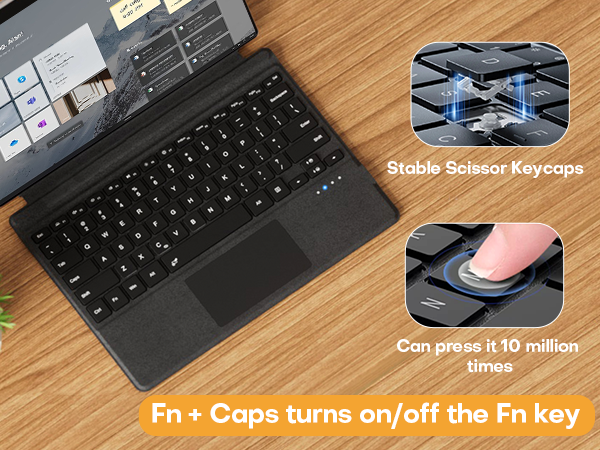
How to lock/unlock the "Fn" ?
Fn + Caps
How to turn on/off touchpad and adjust touchpad sensitivity?
1?Fn + Space (If the touchpad still does not work, turn on the touchpad in Surface settings.)2?Settings->Devices->Touchpad->Touchpad Sensitivity->Related Settings->Other Settings(mouse button/pointer options)
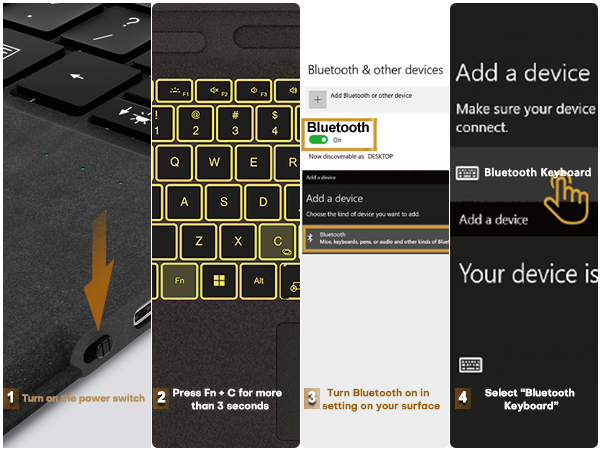
Still can not Connect?
Delet Bluetooth icons and unpair of all the Surface Bluetooth and restart, restore the keyboard to factory settings: press and hold "Fn+F+J" for more than 5 seconds, and the three lights flash at the same time and then reconnect the Surface Pro.
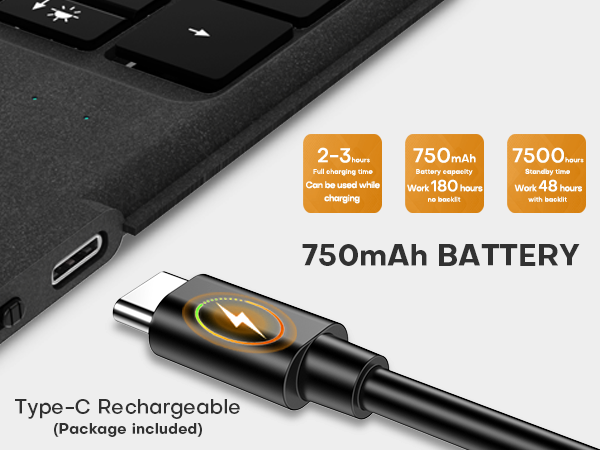
Can it be charged wirelessly via a Surface computer?
No.It can only be charged via a Type-C cable (included in the package).You can charge while typing (connect to computer or charger via USB-C)
Surface Pro 12" Keyboard 2025
Surface Pro 8/9/X/10/11 13"
Surface Pro 7+/7/6/5/4/3 12.3"