


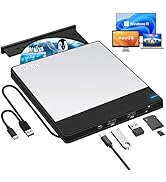
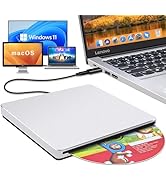
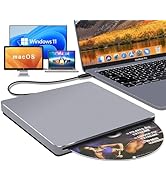
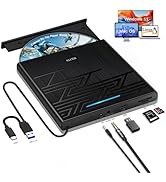
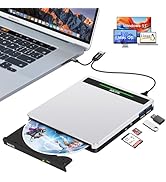
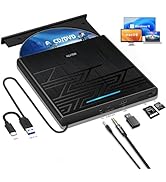

NOLYTH External CD/DVD Drive for Laptop
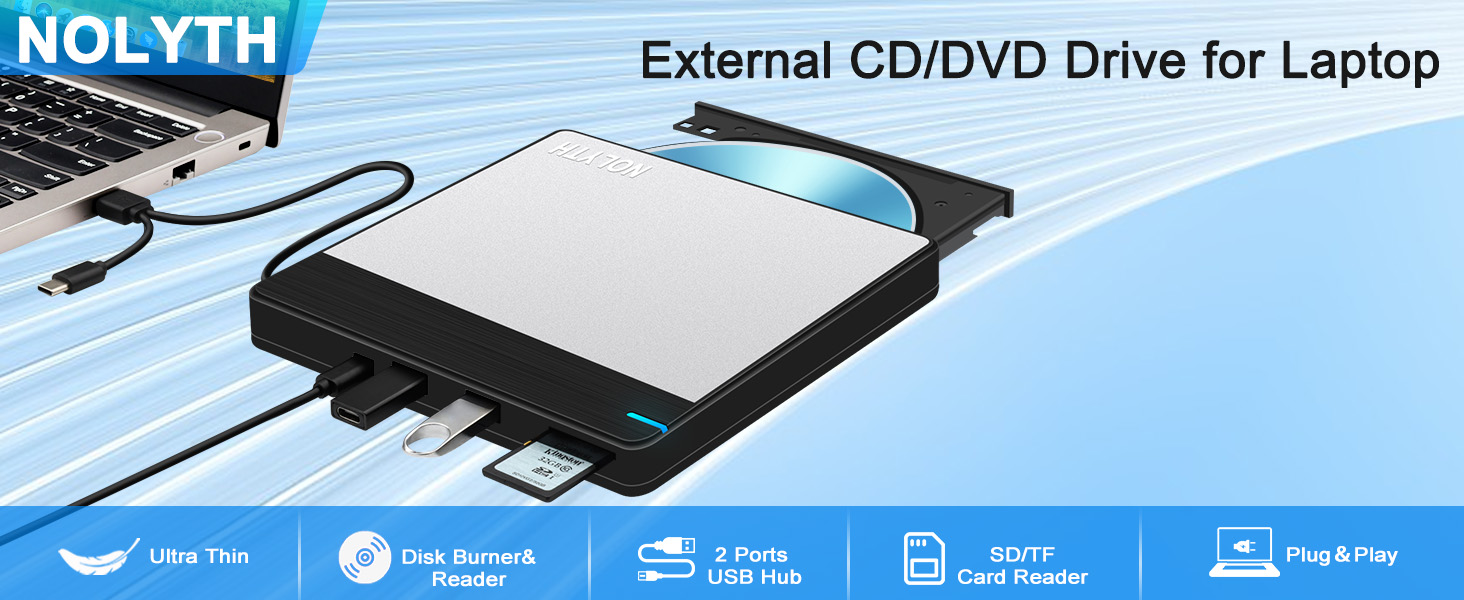
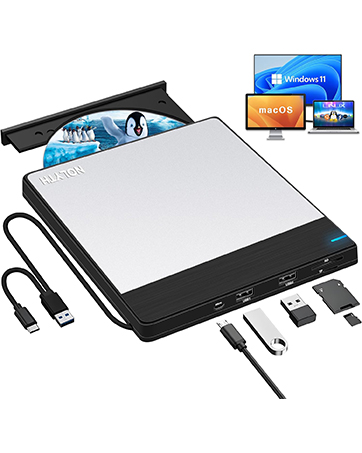
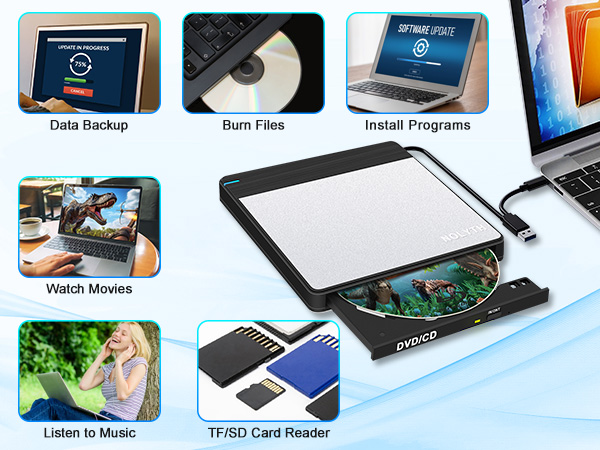
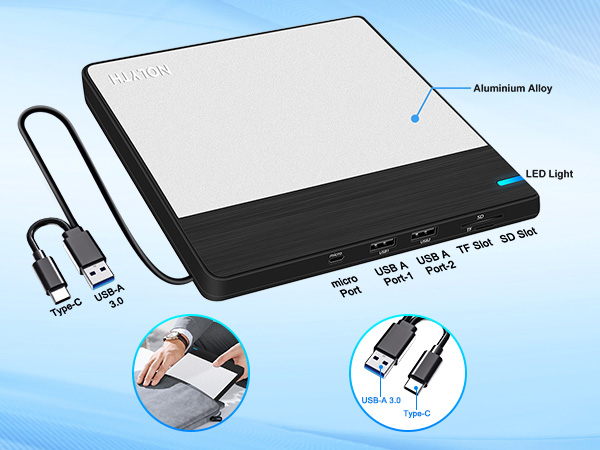
NOLYTH DVD player for laptop has a special design, this external CD drive for laptop is equipped with multiple connectors and slots not only to read DVDs, but also with 1 SD card slot, 1 TF card slot and 2 USB ports, providing more expansion avenues for your laptop.
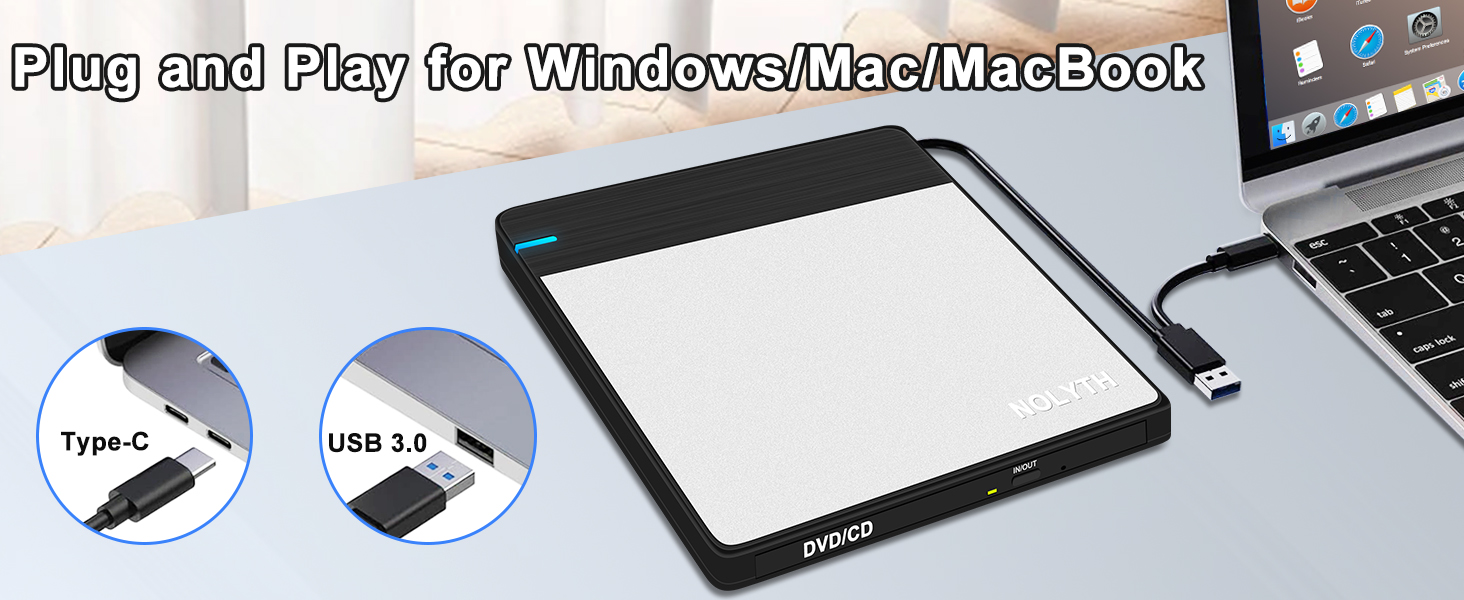
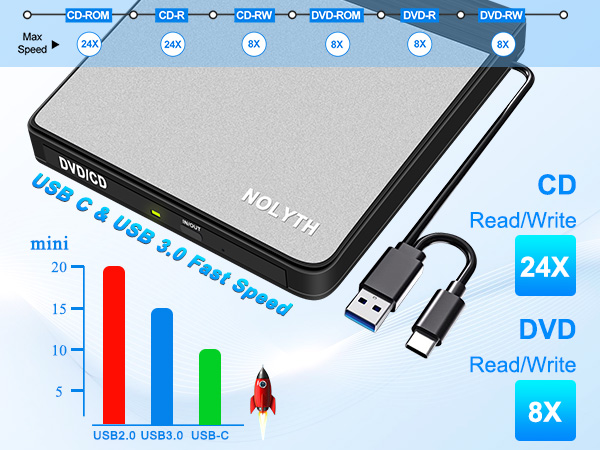
Faster USB 3.0 and USB Type-C 2-in-1 Connector
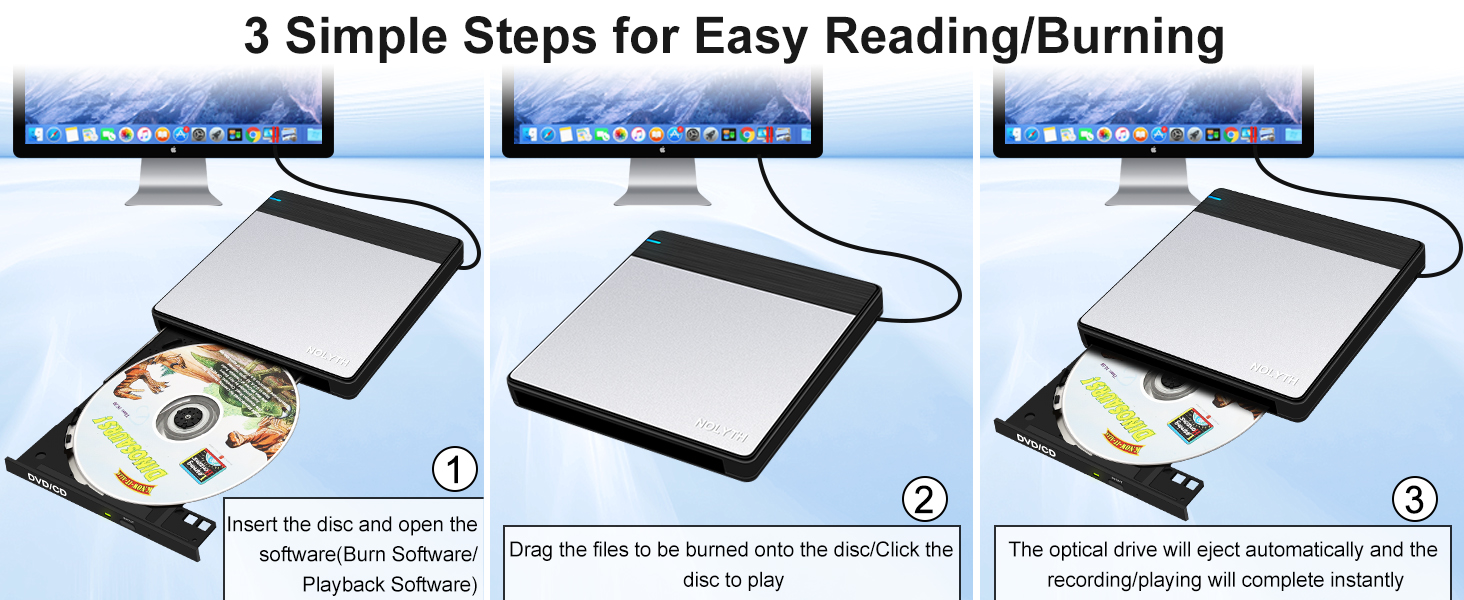
Easy Reading/Burning on Mac/Windows
Just 3 simple steps to finish burning or playing a disc on your Mac/MacBook Air/Pro/iMac/Laptop etc.
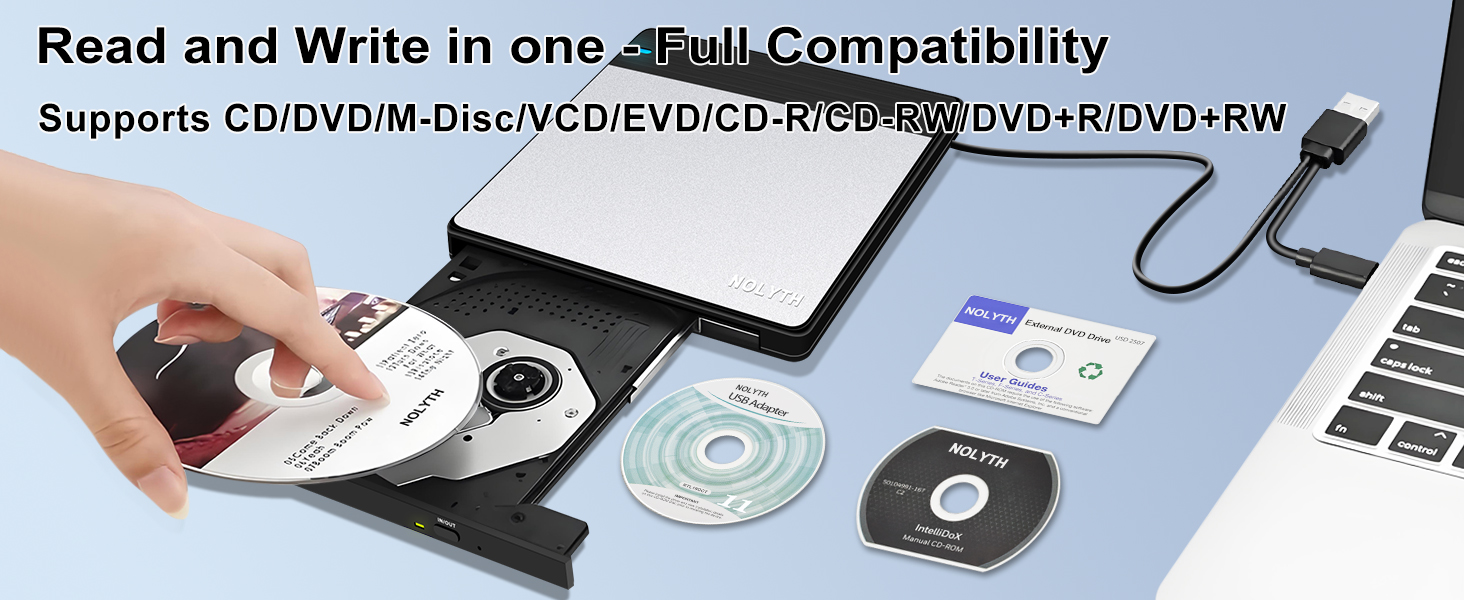
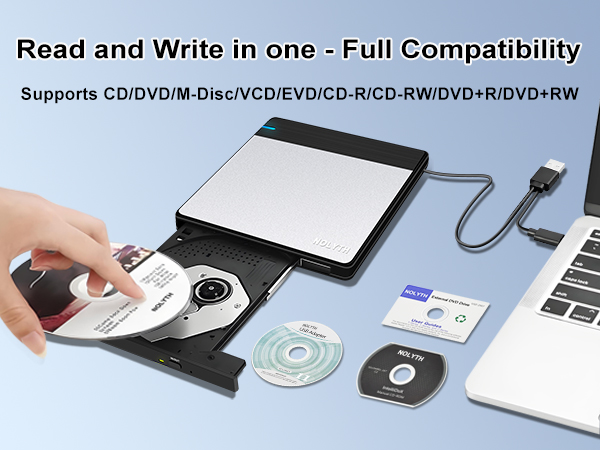
Read and Write in one - Full Compatibility
The tray DVD drive supports various M-discs, CD-ROM, CD±R/RW, DVD-ROM, DVD-RAM, DVD±R/RW, VCD, SVCD.
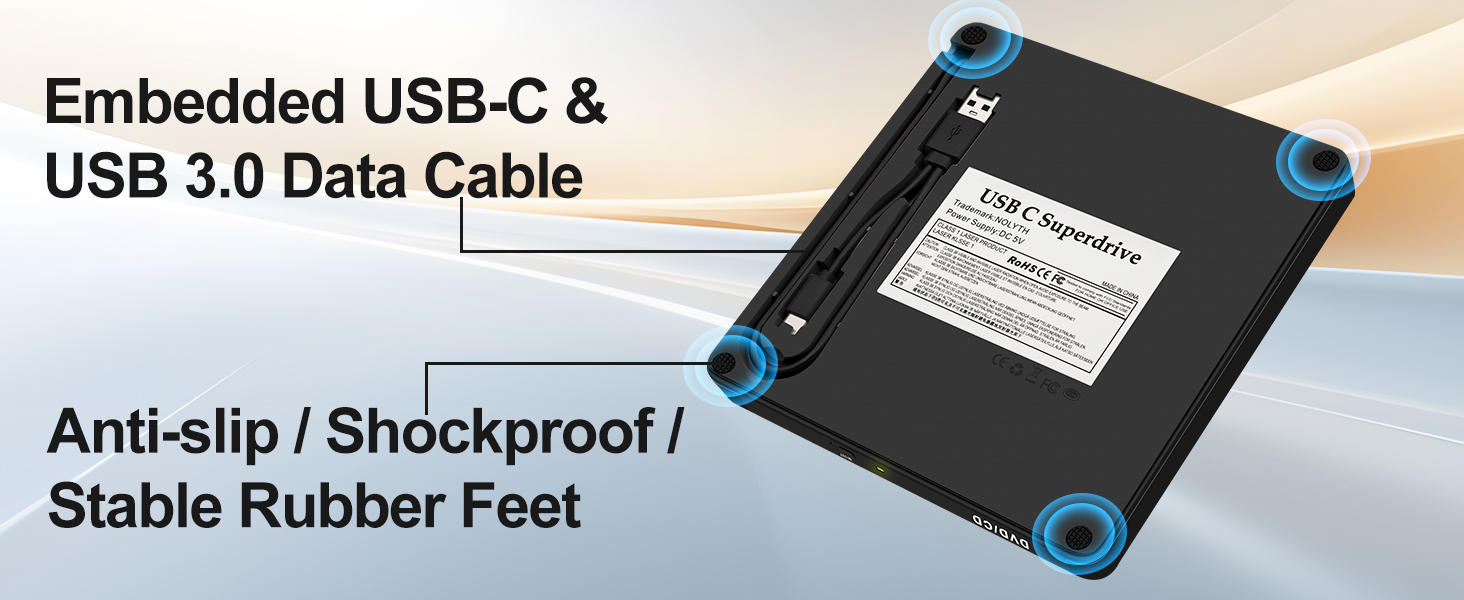
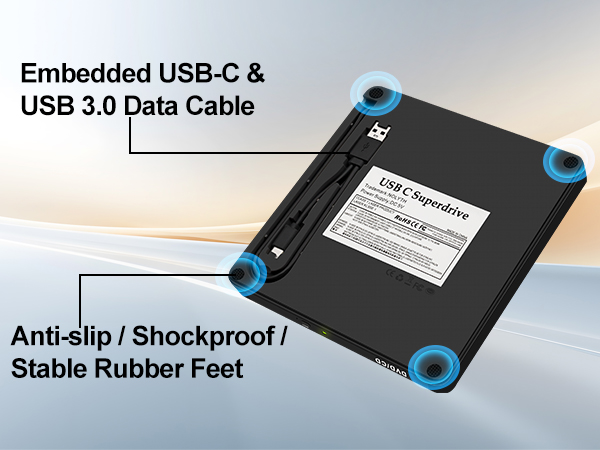
USB-C & USB 3.0 Connector for Different Mac/Laptop
The CD player for computer has high-quality materials and anti-slip, shockproof, stable rubber feet.
NOLYTH USB CD/DVD External Drive
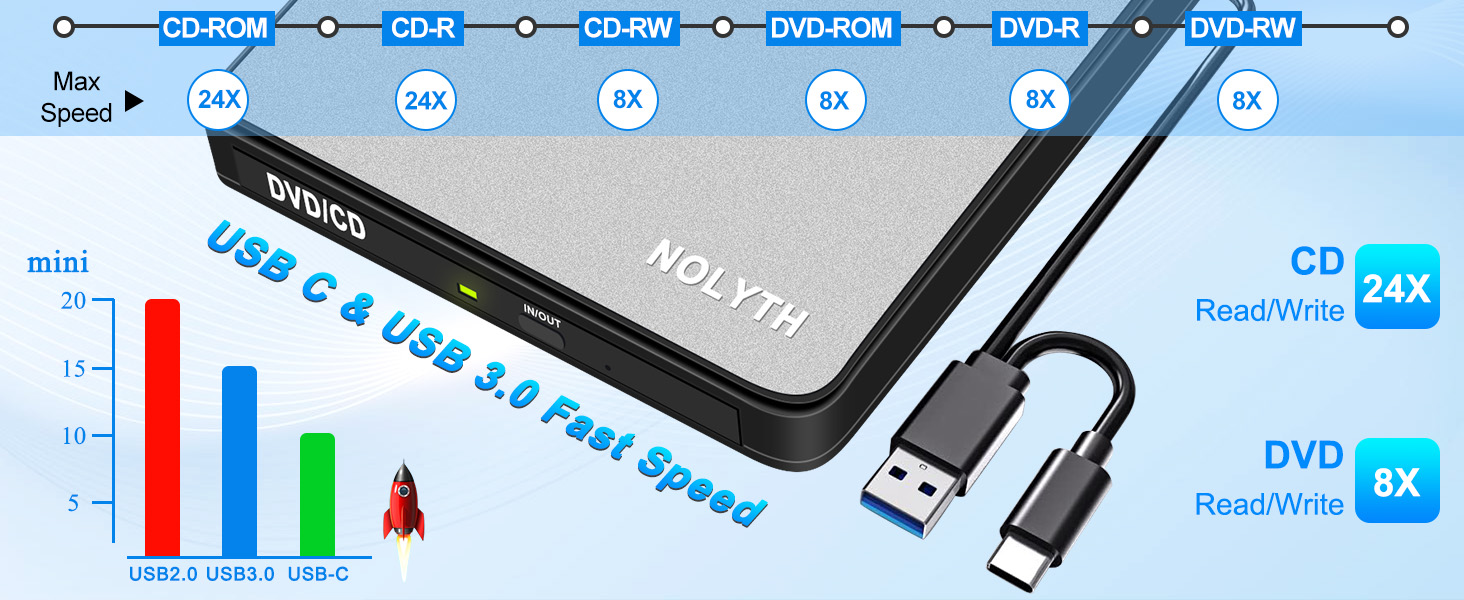
High Speed External DVD Drive
Read Speed: 24x (CD) / 8x (DVD)
Write Speed: 24x (CD) / 8x (DVD±R) / 6x (DVD±R DL)
Rewrite Speed: 16x (CD) / 6x (DVD-RW) / 8x (DVD+RW)
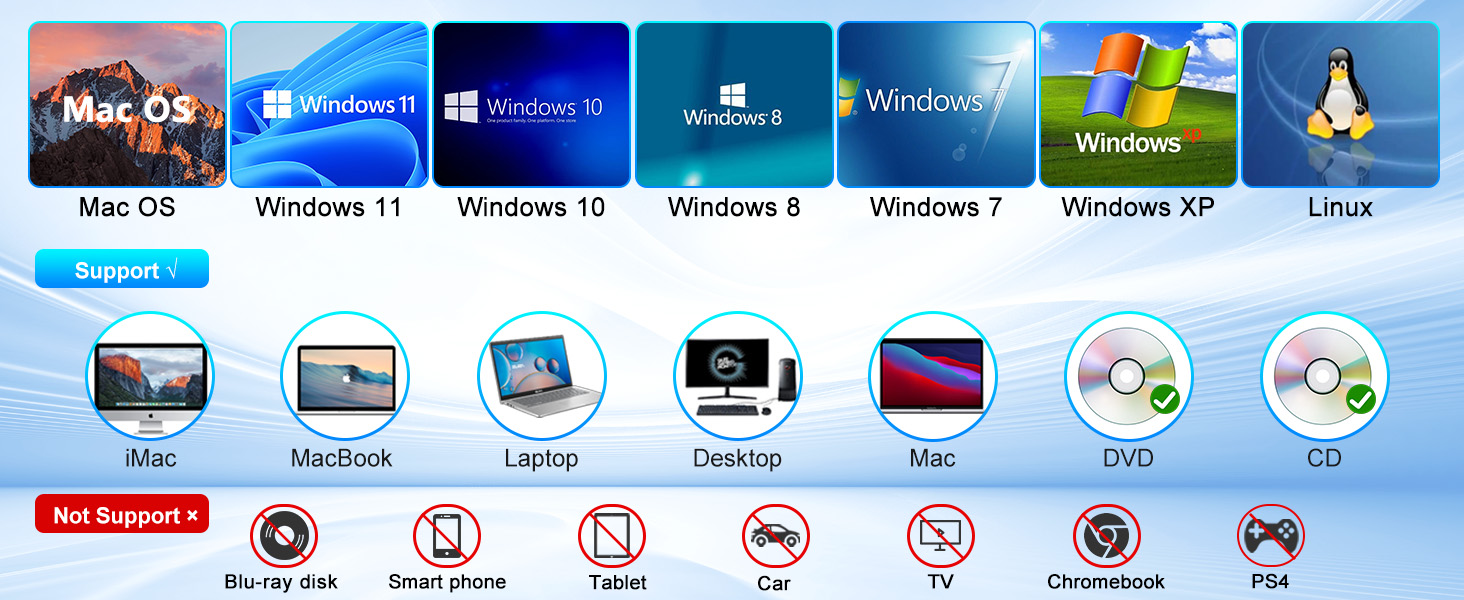
Strong Compatible External CD Drive
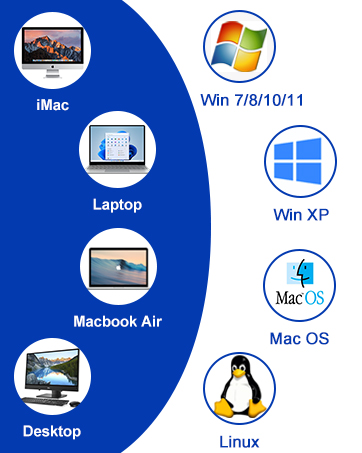
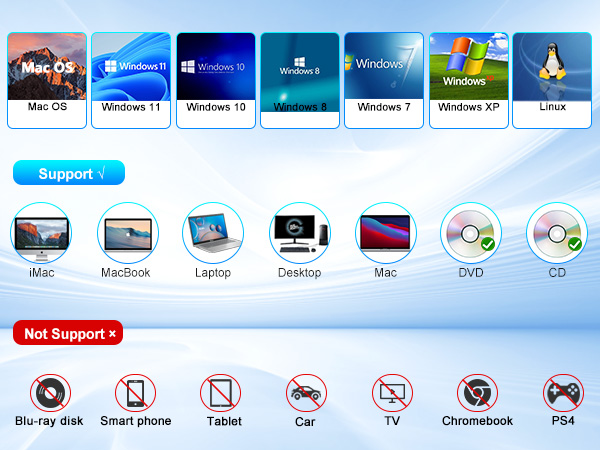
The NOLYTH external disc drive is compatible with Windows 11/10/8.1/7/XP/2000, Linux, and Mac OS. It is perfect for laptops, PCs, desktops, Macs, iMacs, MacBook Air/Pro, and all-in-one computers.
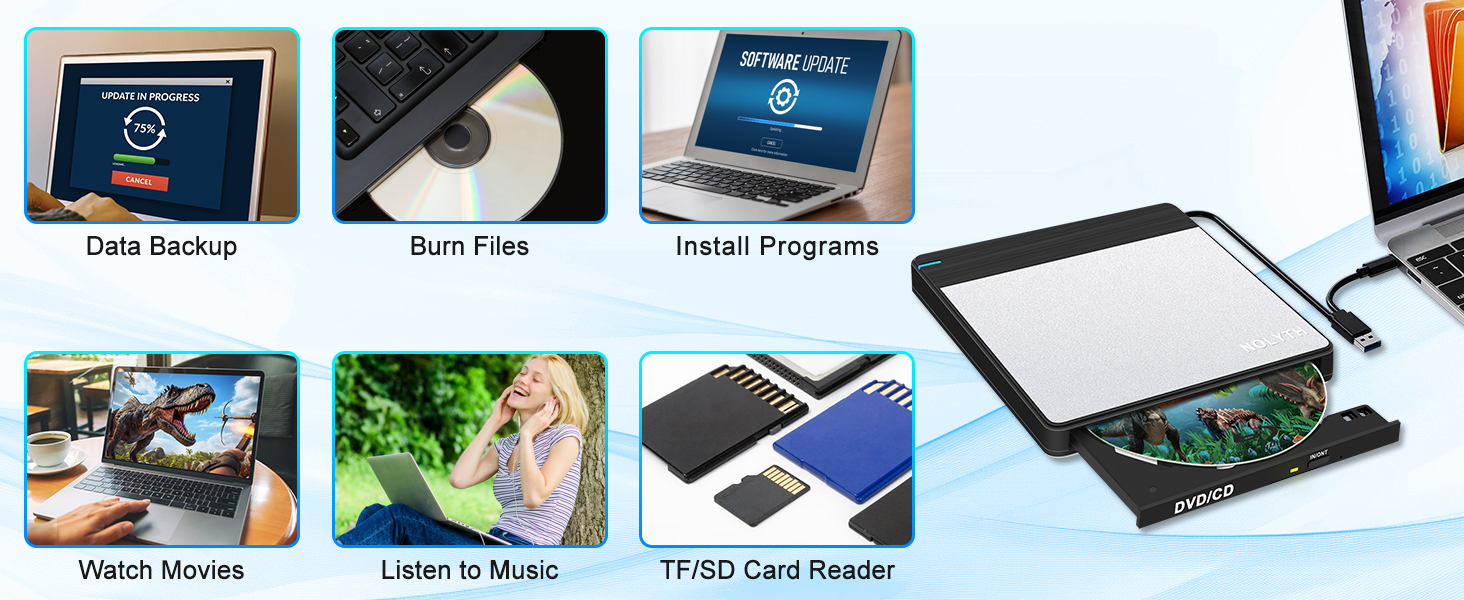
Multifunctional External DVD Player
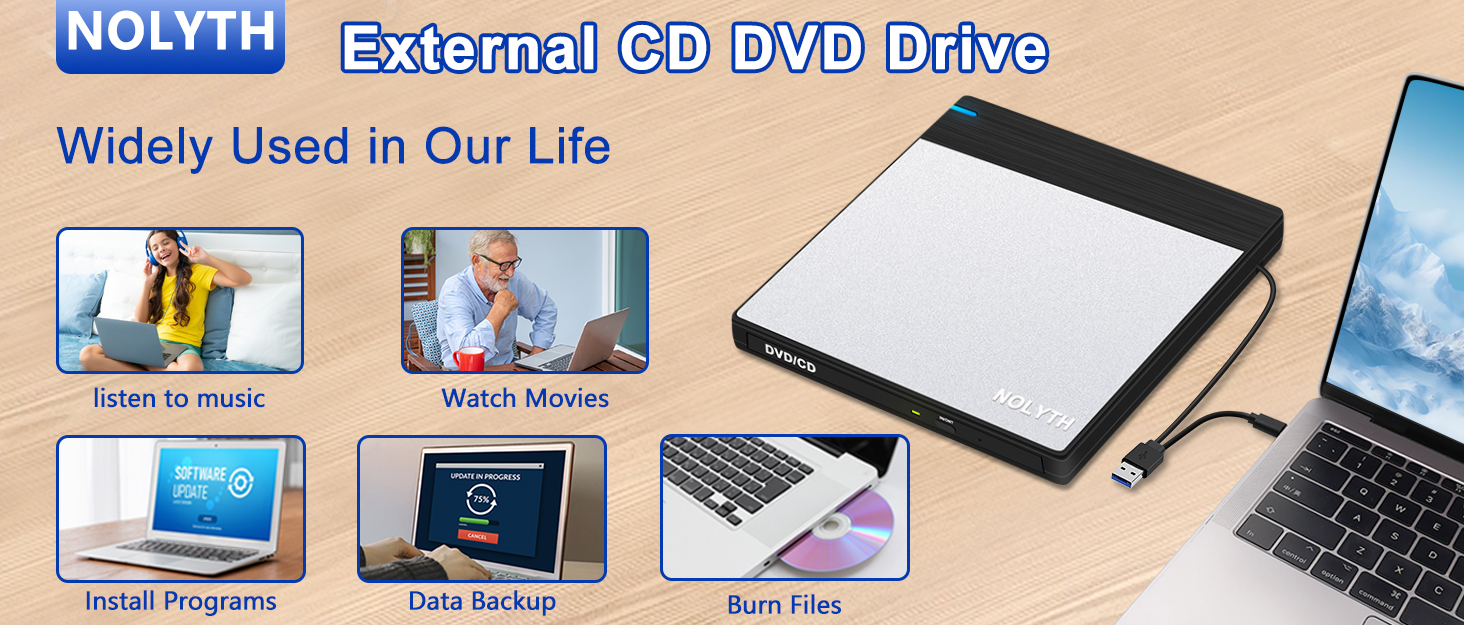
With this USB CD drive, you can use a playback software, burning software and ripping software to watch movies, burn/rip CDs & DVDs, install software/system/games, back up data, anytime, anywhere.

After-sales Service
NOLYTH has professional CD DVD external drive manufacturing experience,ensuring reliable quality and professional support.
This external CD/DVD drive for PC supports reading and burning for a wide range of disc formats including CD-ROM, CD±R/RW, DVD-ROM, DVD-RAM, DVD±R/RW, VCD and SVCD.
This external disc drive is not compatible with Chromebook, TV, Car, Blu-ray disk, PS4, Tablet, iPad, etc.
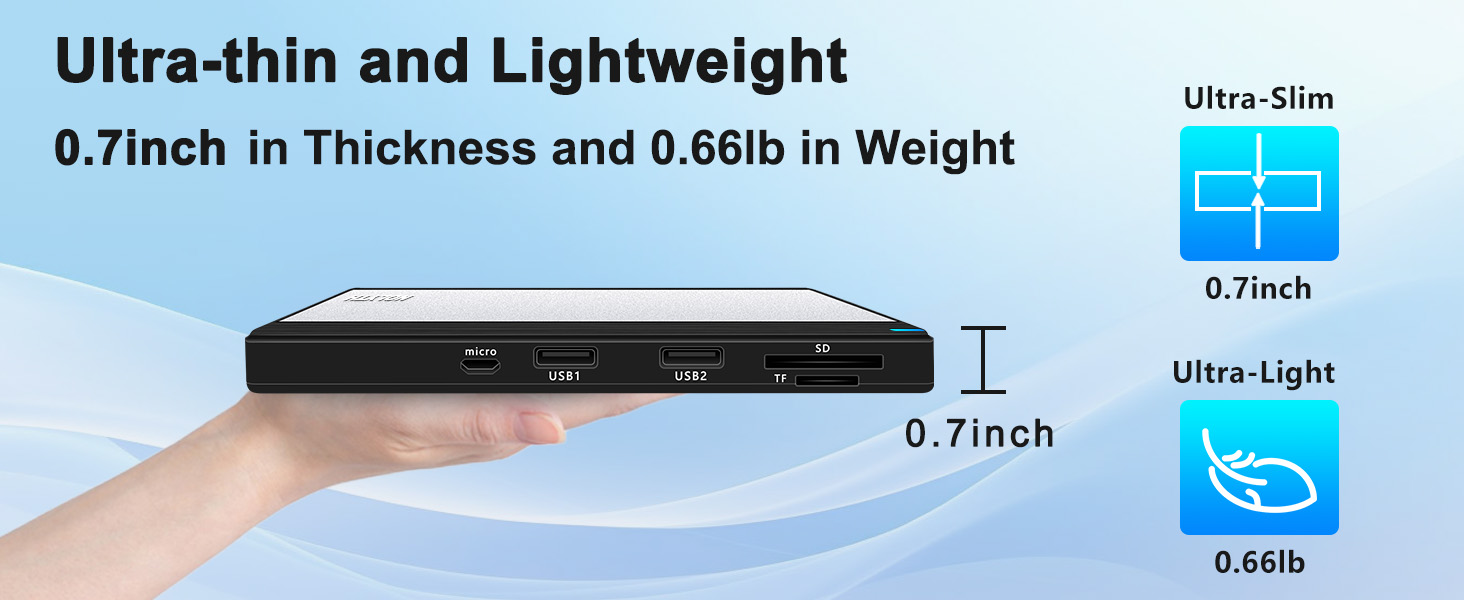
Portable Slim External CD Drive for Mac
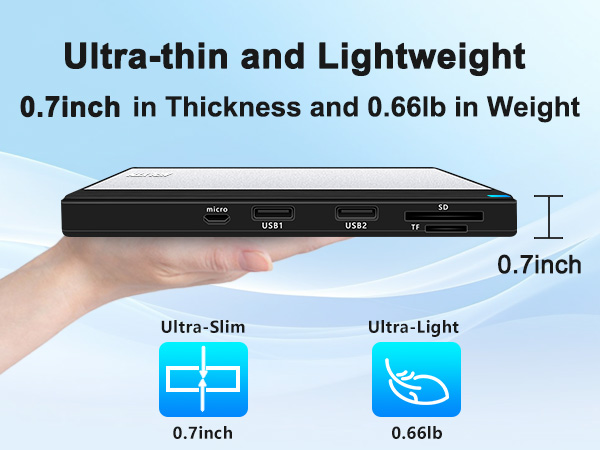
NOLYTH external DVD player for laptop is ultra slim, only 0.7inch thick and 0.66lb in weight.
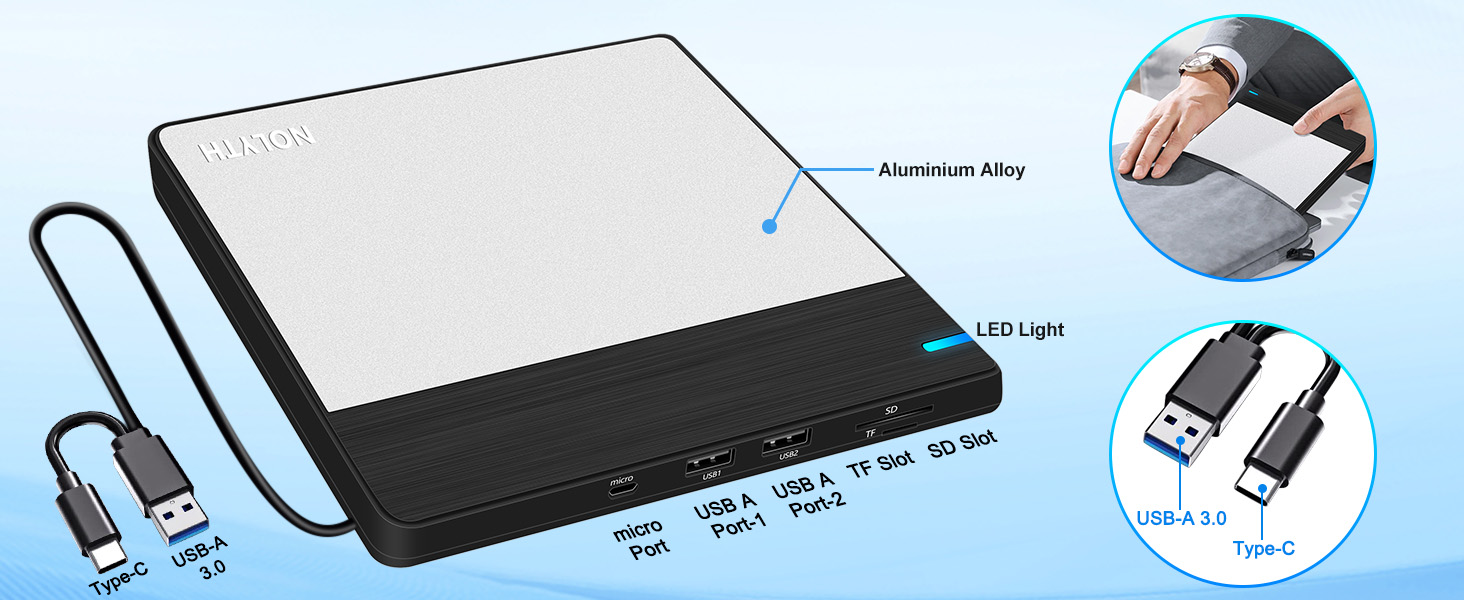
Built-in SD/TF/2 USB Ports
The stylish brushed black case with silver aluminium top plate gives a premium feel and great looks.
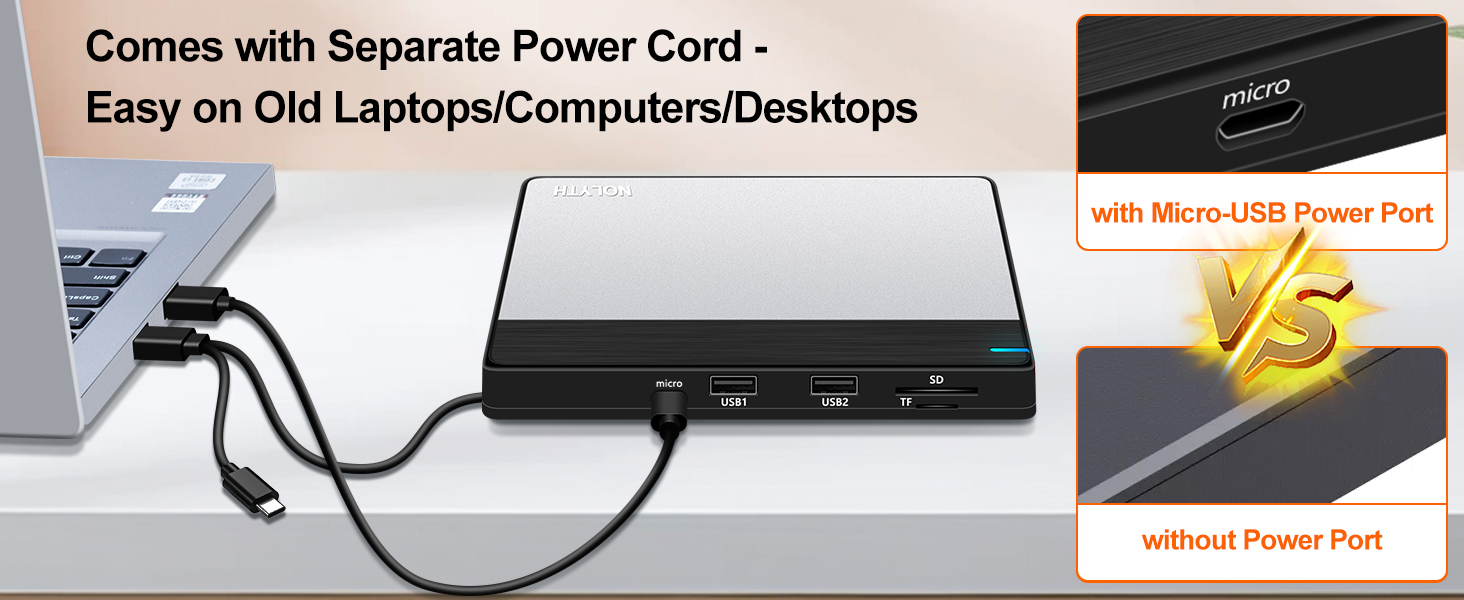
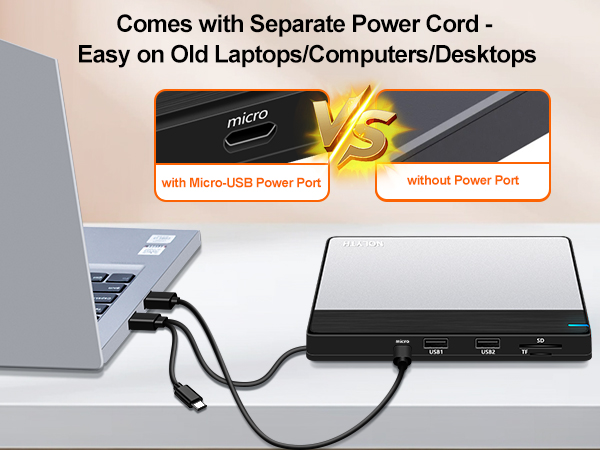
Comes with Separate Power Cord
To get extra power from a USB port on your PC or a USB power adapter/bank for NOLYTH CD/DVD drive.

Enjoying Classic Films and Working At Home
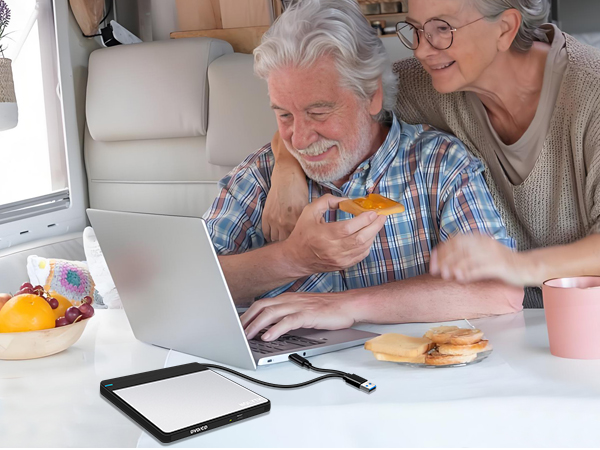
This external CD/DVD drive for Macbook is idea for adults enjoying classic CDs and DVDs.

No complex settings, easy to use.
This CD DVD external drive for Mac makes it easier for photography to import old photo play DVDs.
More External CD & DVD Drives Available
 External CD Drive |  External CD Drive for Mac |  CD Drive External for Mac |  USB C SuperDrive for Mac |  External CD Drive |  External Blu Ray Player | 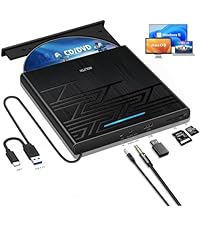 External DVD Drive | |
|---|---|---|---|---|---|---|---|
Customer Reviews | — | — | — | — | — | — | — |
Price | — | — | — | — | — | — | — |
Compatible Operating System | Windows, Mac OS, Linux | Windows, Mac OS, Linux | Windows, Mac OS, Linux | Windows, Mac OS, Linux | Windows, Mac OS, Linux | Windows, Mac OS, Linux | Windows, Mac OS, Linux |
Hardware Platform | Laptop, PC, Mac, Desktop, iMac | Laptop, PC, Mac, Desktop, iMac | Laptop, PC, Mac, Desktop, iMac | Laptop, PC, Mac, Desktop, iMac | Laptop, PC, Mac, Desktop, iMac | Laptop, PC, Mac, Desktop, iMac | Laptop, PC, Mac, Desktop, iMac |
Optical Storage Read Speed | Max 24xCD / 8xDVD | Max 24xCD / 8xDVD | Max 24xCD / 8xDVD | Max 24xCD / 8xDVD | Max 24xCD / 8xDVD | Max 24xCD / 8xDVD | Max 24xCD / 8xDVD |
CD/DVD Reader | Yes | Yes | Yes | Yes | Yes | Yes | Yes |
CD/DVD Burner | Yes | Yes | Yes | Yes | Yes | Yes | Yes |
SD/TF Card Reader | Yes | Yes | No | No | Yes | Yes | Yes |
USB Conector | USB C and USB A | USB C and USB A | USB C and USB Adapter | USB C and USB Adapter | USB C and USB A | USB C and USB Adapter | USB C and USB Adapter |
USB HUB Port | 2 | 2 | 0 | 0 | 2 | 2 | 2 |
What You Need to Know Before You Buy
Knowledge of Using the External CD Drive for Macs:
Playing CDs & DVDs :
on Windows OS:You can use Windows Media Player software to play audio CDs and data DVDs (Windows 11 requires a network). If you want to play video/movie DVDs, download the free VideoLAN VLC player from the official VLC website, launch the VLC media player, click on "Media" in the top menu, select "Open Disc...", make sure "DVD" is selected, then click on "Play". If you want to use another media player to play video DVDs, please set the right region before playing, and check the region code instructions. on Mac OS: After you insert the audio CD into your external CD drive, the Apple Music app should open automatically and begin playing the CD. If not, you can open the Music app manually and select the CD in the Devices sidebar. If you prefer, you can use VLC Media Player. For video DVDs, open VLC Media Player by going to File > Open Disc... or simply drag the DVD icon into the VLC window. VLC can handle most DVD formats and regions.
Best CD & DVD Burning/Ripping Software
for Windows OS:Free audio CD burning software (Windows Media Player, CDBurnerXP and ImgBurn); Free audio CD ripping software (Windows Media Player, iTunes, CDex, Exact Audio Copy [EAC]); Free video DVD burning software (ImgBurn, BurnAware Free, CDBurnerXP, Freemake Video Converter, or HandBrake software); Free video DVD ripping software (HandBrake, MakeMKV, VLC Media Player, Freemake Video Converter). on Mac OS: Free audio CD burning software (Apple Music, old iTunes, Burn, Express Burn); Free audio CD ripping software (Apple Music, old iTunes, X Lossless Decoder, HandBrake, Audacity); Free video DVD burning software (Burn, HandBrake, iDVD (Legacy), DVDStyler, iDVD [for old Mac]); Free video DVD ripping software (MakeMKV, HandBrake with VLC - use VLC to read the DVD, and HandBrake to convert and rip it to the format you want).
Mac OS has a Built-in Burning Function: Plug the external CD/DVD drive, insert a blank disc, then click 'File' in the top menu and select 'New Burn Folder. Drag the files you want to burn into this folder, click 'Burn to Disc,' and eject the disc when finished. Note that Mac OS only supports burning to blank discs, and each disc can only be burned once.
For troubleshooting stepsPlease check if your computer recognises to the DVD player for computer (if your computer recognises the DVD burner external USB 3.0, you can see the icon of "DVD RW Drive" icon in "My Computer" on your computer. The Mac OS computer will not display the device icon until the disc is inserted into in the optical drive and the disc is successfully read).
If the optical drive is not recognised by the PC, the following solutions are suggested. *Method 1:Check the external plug. 1. plug the data cables on the back of the unit to connect the laptop. (The cable supplied is for power only, not data). 2. Connect the machine to other USB ports. *Method 2:Update or reinstall the driver. The driver for your CD DVD drive is included in the operating system, so you do not need to install a specific driver. Uninstalling the driver and restarting the computer will reinstall the driver and resolve most device driver issues. *Method 3: Run the Hardware and Devices troubleshooter (Windows 7, Windows 8, Windows 8.1, and Windows 10) You can run the Windows Hardware and Devices Troubleshooter, which is built into Microsoft Windows. The Hardware and Devices troubleshooter is only available in Microsoft Windows 7, Windows 8/8.1, and Windows 10.
If the DVD burner external is recognised by the computer, the product problem you are experiencing may be caused by one of two things:
1. The power supply of the product is insufficient - please use a 5V charger / power bank supply to supplement it. (Note: For Apple computers, you must first connect the disc drive for laptop to the computer and then connect the additional power supply to the external DVD drive for laptop, otherwise the Apple computer will not recognise the external disk drive for laptop).
2. WINDOWS 11 requires a media player (e.g. VLC) and a network connection.
NOLYTH External CD/DVD Drive for Laptop
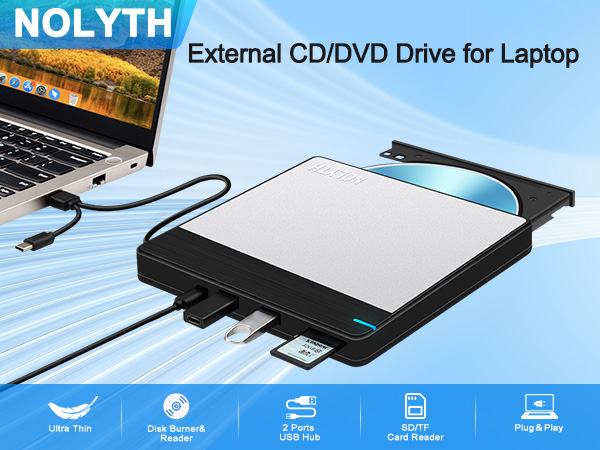
NOLYTH DVD player for laptop has a special design, this external CD drive for laptop is equipped with multiple connectors and slots not only to read DVDs, but also with 1 SD card slot, 1 TF card slot and 2 USB ports, providing more expansion avenues for your laptop.
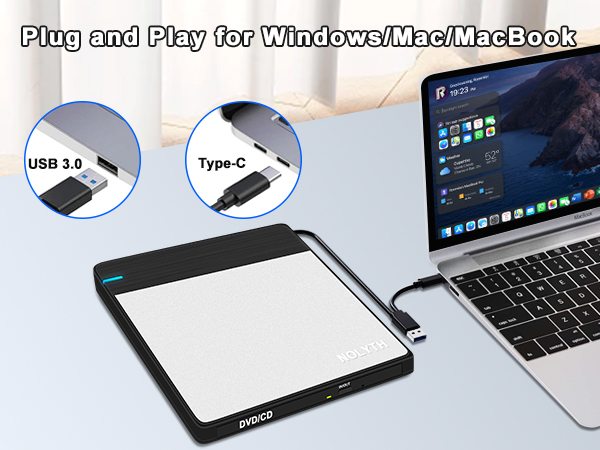
Faster USB 3.0 and USB Type-C 2-in-1 Connector
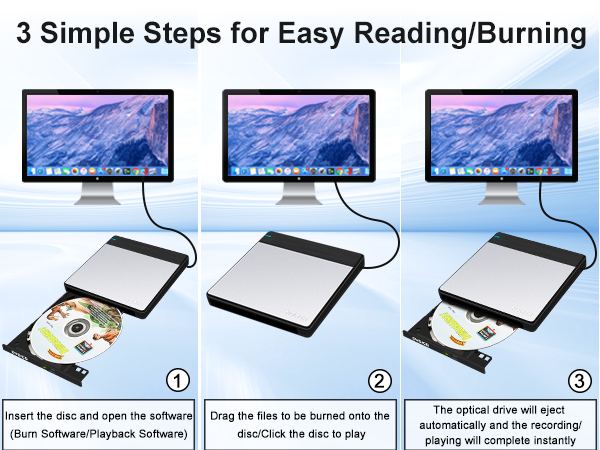
Easy Reading/Burning on Mac/Windows
Just 3 simple steps to finish burning or playing a disc on your Mac/MacBook Air/Pro/iMac/Laptop etc.
Read and Write in one - Full Compatibility
The tray DVD drive supports various M-discs, CD-ROM, CD±R/RW, DVD-ROM, DVD-RAM, DVD±R/RW, VCD, SVCD.
USB-C & USB 3.0 Connector for Different Mac/Laptop
The CD player for computer has high-quality materials and anti-slip, shockproof, stable rubber feet.
NOLYTH USB CD/DVD External Drive
High Speed External DVD Drive
Strong Compatible External CD Drive
Multifunctional External DVD Player
After-sales Service

Read Speed: 24x (CD) / 8x (DVD)
Write Speed: 24x (CD) / 8x (DVD±R) / 6x (DVD±R DL)
Rewrite Speed: 16x (CD) / 6x (DVD-RW) / 8x (DVD+RW)
The NOLYTH external disc drive is compatible with Windows 11/10/8.1/7/XP/2000, Linux, and Mac OS. It is perfect for laptops, PCs, desktops, Macs, iMacs, MacBook Air/Pro, and all-in-one computers.
With this USB CD drive, you can use a playback software, burning software and ripping software to watch movies, burn/rip CDs & DVDs, install software/system/games, back up data, anytime, anywhere.
NOLYTH has professional CD DVD external drive manufacturing experience,ensuring reliable quality and professional support.
This external CD/DVD drive for PC supports reading and burning for a wide range of disc formats including CD-ROM, CD±R/RW, DVD-ROM, DVD-RAM, DVD±R/RW, VCD and SVCD.
This external disc drive is not compatible with Chromebook, TV, Car, Blu-ray disk, PS4, Tablet, iPad, etc.
Portable Slim External CD Drive for Mac
NOLYTH external DVD player for laptop is ultra slim, only 0.7inch thick and 0.66lb in weight.
Built-in SD/TF/2 USB Ports
The stylish brushed black case with silver aluminium top plate gives a premium feel and great looks.
Comes with Separate Power Cord
To get extra power from a USB port on your PC or a USB power adapter/bank for NOLYTH CD/DVD drive.
Enjoying Classic Films and Working At Home
This external CD/DVD drive for Macbook is idea for adults enjoying classic CDs and DVDs.
No complex settings, easy to use.
This CD DVD external drive for Mac makes it easier for photography to import old photo play DVDs.

More External CD & DVD Drives Available
External CD Drive | External CD Drive for Mac | CD Drive External for Mac | USB C SuperDrive for Mac | External CD Drive | External Blu Ray Player | External DVD Drive |
|---|---|---|---|---|---|---|
| Customer Reviews | ||||||
| — | — | — | — | — | — | — |
| Price | ||||||
| — | — | — | — | — | — | — |
| Compatible Operating System | ||||||
| Windows, Mac OS, Linux | Windows, Mac OS, Linux | Windows, Mac OS, Linux | Windows, Mac OS, Linux | Windows, Mac OS, Linux | Windows, Mac OS, Linux | Windows, Mac OS, Linux |
| Hardware Platform | ||||||
| Laptop, PC, Mac, Desktop, iMac | Laptop, PC, Mac, Desktop, iMac | Laptop, PC, Mac, Desktop, iMac | Laptop, PC, Mac, Desktop, iMac | Laptop, PC, Mac, Desktop, iMac | Laptop, PC, Mac, Desktop, iMac | Laptop, PC, Mac, Desktop, iMac |
| Optical Storage Read Speed | ||||||
| Max 24xCD / 8xDVD | Max 24xCD / 8xDVD | Max 24xCD / 8xDVD | Max 24xCD / 8xDVD | Max 24xCD / 8xDVD | Max 24xCD / 8xDVD | Max 24xCD / 8xDVD |
| CD/DVD Reader | ||||||
| Yes | Yes | Yes | Yes | Yes | Yes | Yes |
| CD/DVD Burner | ||||||
| Yes | Yes | Yes | Yes | Yes | Yes | Yes |
| SD/TF Card Reader | ||||||
| Yes | Yes | No | No | Yes | Yes | Yes |
| USB Conector | ||||||
| USB C and USB A | USB C and USB A | USB C and USB Adapter | USB C and USB Adapter | USB C and USB A | USB C and USB Adapter | USB C and USB Adapter |
| USB HUB Port | ||||||
| 2 | 2 | 0 | 0 | 2 | 2 | 2 |
What You Need to Know Before You Buy
| Incompatible Devices and Discs | This DVD player for Mac can't play Blu-ray discs. And it is not compatible with cars, trucks, TVs, projectors, smartphones, iPhones, tablets, iPads, PS4/5, Nintendo Switch, Xbox, Surface (some models), Chromebooks and Ubuntu OS. |
|---|---|
| Open the Tray After Playing | For Windows, simply press the button on the front of the DVD drive to eject the tray. For Mac OS, this CD drive button is restricted by Mac OS and can't open the tray, right click on the optical drive icon on the desktop and select 'Eject', or select 'File' - 'Eject'. If this DVD drive fails and can't be opened, don't worry, just let us know and we'll fix the problem or resend you a new drive for free. |
| Setting Region Code in Windows | To play video DVDs with a media player other than VLC Player, pleae check on the 'DVD-RW Drive' icon and select 'Properties'. 2. Go to the 'Hardware' tab and select your USB CD drive. 3. Click 'Properties' at the bottom. 4. Open the 'DVD Region' tab. 5. Select the fit region and click 'OK'. (Note: You can only change the region code 4-5 times). |
| Use This Drive on Windows | 1. Remove the USB A/USB C data cable built into the back of this external DVD burner. 2. Plug the USB A or USB C connector into the USB port on your computer (not through a USB hub). 3. Your computer will recognise the external CD burner. 4. Insert your CD or DVD. 5. Use a media player (such as Windows Media Player, VLC Player, etc.) or burning/ripping software to read/write the disc. |
| Using DVD Reader on Mac OS | 1. Click 'Finder', select 'Preferences' and make sure 'CDs, DVDs, and iPods' is selected. 2. Remove the USB A/USB C data cable from the back of the drive. 3. Plug the USB A or USB C connector into the USB port on your Mac/MacBook/iMac (not via a USB hub). 4. Insert your CD or DVD. 5. Your Mac will recognise this drive, read the disc and an icon will appear on the desktop. 6. Use a media player (such as Apple Music, iTunes, DVD Player, etc.) or burning/ripping software to read/write the disc. |
| Make Sure Computer Recognises | Connect the external optical drive to the computer. After the Windows system recognises the external disk drive, the 'DVD RW Drive' icon will appear. The Mac OS computer will not display the device icon until the disc is inserted into the external DVD drive for Mac and the disc is successfully read. If the computer doesn't recognise the external disc drive for laptop, the computer's driver may be missing or the output power may be insufficient. |
| Adding Power to the DVD Drive | If your computer doesn't have enough power to support the external CD/DVD drive, it's better to use the 5V charger/power bank to boost power. Note: For Apple computers, you must first connect the external CD/DVD drive to the Mac/Macbook/iMac via the USB A/C data cable, and then connect the 5V charger/power bank to the external DVD drive via the charging cable, otherwise the Apple computer will not recognise the external CD drive. |
| Update/Reinstall the PC Driver | 1.Press the Windows logo key + R to open the Run dialogue box. 2.In the Run dialog box, type devmgmt.msc, and then press Enter. 3.In Device Manager, expand DVD/CD-ROM Drives, right-click on the CD and DVD devices and select Uninstall. 4. Restart your computer. After the computer restarts, the drivers will be installed automatically. |
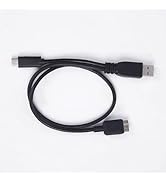
| Data Cable and Charging Cable | The USB A/USB C data cable is built into the bottom of the disc drive, and the charging cable is a separate USB cable supplied. The charging cable can't be used as a data cable by itself, it must be used together with the USB A/USB C data cable built into the back of this CD burner. |
| Windows 11 Requirements | Windows 11 requires a media player (such as VLC ) and a network connection. |
| Read and Write speed | This external DVD drive for PC supports USB 3.0/USB C and can provide data transfer speeds of up to 5Gbps. Max read and write speed(CD: 24X/DVD: 8X). Recommended speeds(CD: Read Speed: 24X or less/Write Speed: 8X to 16X; DVD: Read Speed: 8X or less/Write Speed: 4X to 8X). For DVDs, slower write speeds like 4X or 8X are often ideal to ensure data integrity, especially for high-capacity or dual-layer discs. These speeds allow for more precise data encoding, reducing the risk of future read errors. |
Knowledge of Using the External CD Drive for Macs:
Playing CDs & DVDs :
on Windows OS:You can use Windows Media Player software to play audio CDs and data DVDs (Windows 11 requires a network). If you want to play video/movie DVDs, download the free VideoLAN VLC player from the official VLC website, launch the VLC media player, click on "Media" in the top menu, select "Open Disc...", make sure "DVD" is selected, then click on "Play". If you want to use another media player to play video DVDs, please set the right region before playing, and check the region code instructions. on Mac OS: After you insert the audio CD into your external CD drive, the Apple Music app should open automatically and begin playing the CD. If not, you can open the Music app manually and select the CD in the Devices sidebar. If you prefer, you can use VLC Media Player. For video DVDs, open VLC Media Player by going to File > Open Disc... or simply drag the DVD icon into the VLC window. VLC can handle most DVD formats and regions.
Best CD & DVD Burning/Ripping Software
for Windows OS:Free audio CD burning software (Windows Media Player, CDBurnerXP and ImgBurn); Free audio CD ripping software (Windows Media Player, iTunes, CDex, Exact Audio Copy [EAC]); Free video DVD burning software (ImgBurn, BurnAware Free, CDBurnerXP, Freemake Video Converter, or HandBrake software); Free video DVD ripping software (HandBrake, MakeMKV, VLC Media Player, Freemake Video Converter). on Mac OS: Free audio CD burning software (Apple Music, old iTunes, Burn, Express Burn); Free audio CD ripping software (Apple Music, old iTunes, X Lossless Decoder, HandBrake, Audacity); Free video DVD burning software (Burn, HandBrake, iDVD (Legacy), DVDStyler, iDVD [for old Mac]); Free video DVD ripping software (MakeMKV, HandBrake with VLC - use VLC to read the DVD, and HandBrake to convert and rip it to the format you want).
Mac OS has a Built-in Burning Function: Plug the external CD/DVD drive, insert a blank disc, then click 'File' in the top menu and select 'New Burn Folder. Drag the files you want to burn into this folder, click 'Burn to Disc,' and eject the disc when finished. Note that Mac OS only supports burning to blank discs, and each disc can only be burned once.
For troubleshooting stepsPlease check if your computer recognises to the DVD player for computer (if your computer recognises the DVD burner external USB 3.0, you can see the icon of "DVD RW Drive" icon in "My Computer" on your computer. The Mac OS computer will not display the device icon until the disc is inserted into in the optical drive and the disc is successfully read).
If the optical drive is not recognised by the PC, the following solutions are suggested. *Method 1:Check the external plug. 1. plug the data cables on the back of the unit to connect the laptop. (The cable supplied is for power only, not data). 2. Connect the machine to other USB ports. *Method 2:Update or reinstall the driver. The driver for your CD DVD drive is included in the operating system, so you do not need to install a specific driver. Uninstalling the driver and restarting the computer will reinstall the driver and resolve most device driver issues. *Method 3: Run the Hardware and Devices troubleshooter (Windows 7, Windows 8, Windows 8.1, and Windows 10) You can run the Windows Hardware and Devices Troubleshooter, which is built into Microsoft Windows. The Hardware and Devices troubleshooter is only available in Microsoft Windows 7, Windows 8/8.1, and Windows 10.
If the DVD burner external is recognised by the computer, the product problem you are experiencing may be caused by one of two things:
1. The power supply of the product is insufficient - please use a 5V charger / power bank supply to supplement it. (Note: For Apple computers, you must first connect the disc drive for laptop to the computer and then connect the additional power supply to the external DVD drive for laptop, otherwise the Apple computer will not recognise the external disk drive for laptop).
2. WINDOWS 11 requires a media player (e.g. VLC) and a network connection.
External CD/DVD Drive
External CD/DVD Drive
NOLYTH, a reliable leader and innovator of external CD/DVD drive for laptop integrating R & D, production and sales.
NOLYTH, loyal to our customers, is committed to providing high quality products and reliable service.





