



Versatile Optical Drive
With its multi-functional capabilities, it ensures smooth and efficient performance for all types of users.

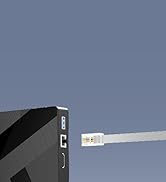

External Bluray Drive
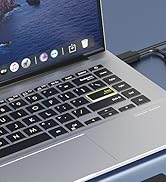

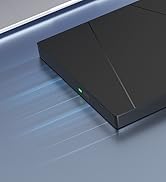
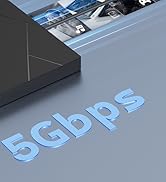
External Bluray Drive
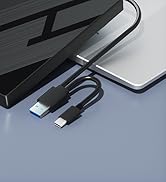
External Bluray Drive
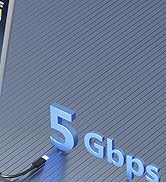
External DVD/CD Drive
External DVD/CD Drive
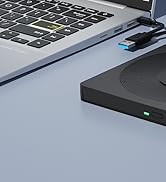
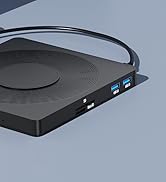
Lightscribe External DVD Drive

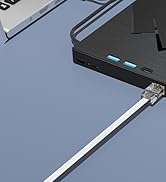
External DVD/CD Drive
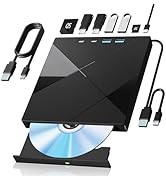
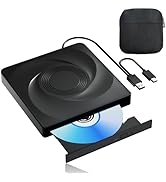
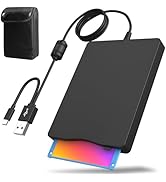
More Options
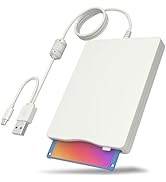
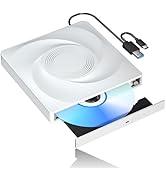
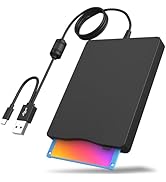
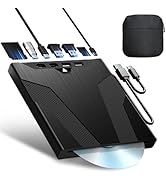
More Options

The optical drive is designed to meet a wide range of needs, whether you're tackling professional tasks, enjoying your favorite media, or storing important data.
With its multi-functional capabilities, it ensures smooth and efficient performance for all types of users.


Explore a New Choice for You!
 External BluRay Drive |  External BluRay Drive |  External BluRay Drive |  External BluRay Drive |  External BluRay Drive |  External BluRay Drive |  External BluRay Drive-4K | |
|---|---|---|---|---|---|---|---|
Customer Reviews | — | — | — | — | — | — | — |
Price | — | — | — | — | — | — | — |
Support Bluray Writing | ? | ? | ? | ? | ? | ? | ? |
Support Bluray Reading | ? | ? | ? | ? | ? | ? | ? |
Max. Bluray Reading Speed | 6X | 6X | 6X | 16X | 6X | 6X | 6X |
Maximum Throughput | 5Gpbs | 40Gpbs | 5Gpbs | 5Gpbs | 5Gpbs | 5Gpbs | 5Gpbs |
USB 3.0+Type-C Ports | ? | ? | ? | ? | ? | ? | ? |
SD/TF Slot | ? | ? | ? | ? | ? | ? | ? |
SATA Interface | ? | ? | ? | ? | ? | ? | ? |
HDMI/LAN Port | ? | ? | ? | ? | ? | ? | ? |
How to Change Region Code?(For Windows System)
1. Open "Device Manager" ( "This PC" > "Manage" > "Device Manager");
2. Locate the optical drive, right-click, and select "Properties";
3. Under the "Settings" tab, adjust the "Start Drive Letter" and "End Drive Letter" to the desired drive letter.
How to Change Region Code?(For MacOS System)
1. Insert the DVD;
2. Insert the DVD into your Mac's optical drive;
3. If the DVD's region code does not match the current drive settings, a dialog box will prompt you to change the region code.
Why the optical drive did not function, or stopped working after received?
1. Check for Systems Updates, Sometimes a system update may resolve compatibility issues;
2. Ensure it's connected properly;
3. Check the Cable and Connection;
4. Ensure the disc is clean and free from scratches.
Customers complained that the optical drive don't work in Macbook and Windows, old technology.
For Windows: Check for Windows Updates, Sometimes a system update may resolve compatibility issues;
For MacBook: Ensure macOS is Updated, Ensure it's connected properly, and check for any necessary drivers or software that might come with the device;
Customers complained that optical drive did not function as expected--unable to read/burn BD disc.
Check whether your computer is compatible with the Blu-ray disc to play and burn, It's recommended to play the BD disc via the BD player 'Powerdvd10-19’. Burn the BD disc via the 'Nero’ burning software.


Explore a New Choice for You!
External BluRay Drive | External BluRay Drive | External BluRay Drive | External BluRay Drive | External BluRay Drive | External BluRay Drive | External BluRay Drive-4K |
|---|---|---|---|---|---|---|
| Customer Reviews | ||||||
| — | — | — | — | — | — | — |
| Price | ||||||
| — | — | — | — | — | — | — |
| Support Bluray Writing | ||||||
| ? | ? | ? | ? | ? | ? | ? |
| Support Bluray Reading | ||||||
| ? | ? | ? | ? | ? | ? | ? |
| Max. Bluray Reading Speed | ||||||
| 6X | 6X | 6X | 16X | 6X | 6X | 6X |
| Maximum Throughput | ||||||
| 5Gpbs | 40Gpbs | 5Gpbs | 5Gpbs | 5Gpbs | 5Gpbs | 5Gpbs |
| USB 3.0+Type-C Ports | ||||||
| ? | ? | ? | ? | ? | ? | ? |
| SD/TF Slot | ||||||
| ? | ? | ? | ? | ? | ? | ? |
| SATA Interface | ||||||
| ? | ? | ? | ? | ? | ? | ? |
| HDMI/LAN Port | ||||||
| ? | ? | ? | ? | ? | ? | ? |
How to Change Region Code?(For Windows System)
1. Open "Device Manager" ( "This PC" > "Manage" > "Device Manager");
2. Locate the optical drive, right-click, and select "Properties";
3. Under the "Settings" tab, adjust the "Start Drive Letter" and "End Drive Letter" to the desired drive letter.
How to Change Region Code?(For MacOS System)
1. Insert the DVD;
2. Insert the DVD into your Mac's optical drive;
3. If the DVD's region code does not match the current drive settings, a dialog box will prompt you to change the region code.
Why the optical drive did not function, or stopped working after received?
1. Check for Systems Updates, Sometimes a system update may resolve compatibility issues;
2. Ensure it's connected properly;
3. Check the Cable and Connection;
4. Ensure the disc is clean and free from scratches.
Customers complained that the optical drive don't work in Macbook and Windows, old technology.
For Windows: Check for Windows Updates, Sometimes a system update may resolve compatibility issues;
For MacBook: Ensure macOS is Updated, Ensure it's connected properly, and check for any necessary drivers or software that might come with the device;
Customers complained that optical drive did not function as expected--unable to read/burn BD disc.
Check whether your computer is compatible with the Blu-ray disc to play and burn, It's recommended to play the BD disc via the BD player 'Powerdvd10-19’. Burn the BD disc via the 'Nero’ burning software.
Versatile Optical Drive
With its multi-functional capabilities, it ensures smooth and efficient performance for all types of users.
External Bluray Drive
External Bluray Drive
External Bluray Drive
External DVD/CD Drive
External DVD/CD Drive
Lightscribe External DVD Drive
External DVD/CD Drive
More Options
More Options
The optical drive is designed to meet a wide range of needs, whether you're tackling professional tasks, enjoying your favorite media, or storing important data.
With its multi-functional capabilities, it ensures smooth and efficient performance for all types of users.





