


 QIACHIP Remote Control Light Socket E26 E27 Bulb Socket Adapter, ZigBee Smart... |  QIACHIP Ewelink 2.4G Wireless Remote Control Light Socket E26 E27 Bulb Socket... |  QIACHIP Ewelink Wi-Fi Smart Light Socket E26 E27 Bulb Socket Adapter, APP Rem... |  QIACHIP Smart WiFi Light Bulb Socket Adapter E26 Lamp Holder,Compatible with ... |  QIACHIP Smart WiFi Bulb Socket E26 E27 Light Bulb Adapter,Wireless Smart 2.4G... |  Ewelink 16A Zigbee Mini Smart Wireless Light Switch Controller Module with Ti... | |
|---|---|---|---|---|---|---|
| Customer Reviews | — | — | — | — | — | — |
| Price | — | — | — | — | — | — |
| Style | Zigbee Lamp Socket | Bluetooth Lamp Socket | Wi-Fi Lamp Socket | (TUYA)Wi-Fi Lamp Socket | (Ewelink)Wi-Fi Lamp Socket | Zigbee Smart Switch |

Product Parameters
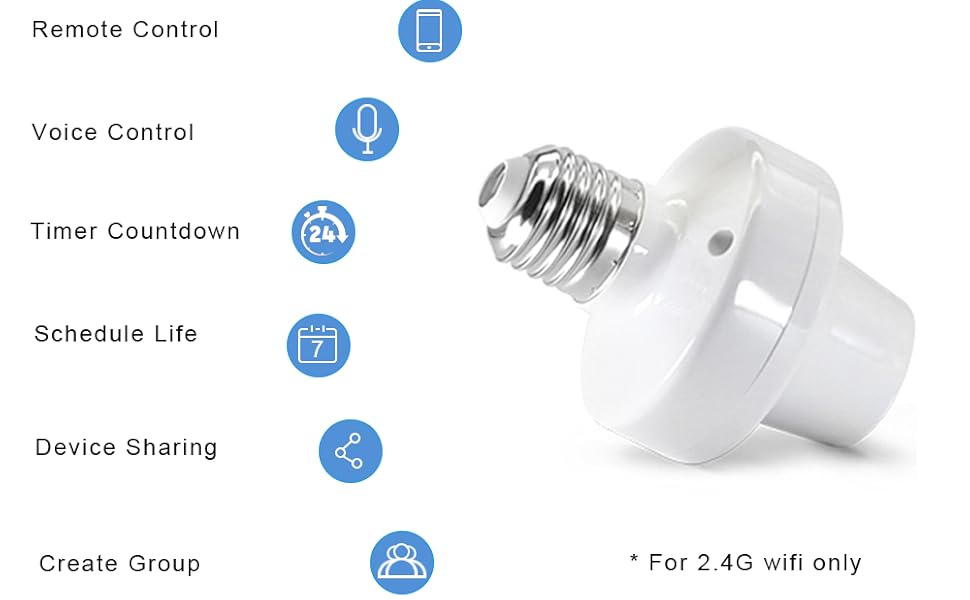
This is an eWeLink series Wi-Fi+2.4GHz lamp holder, with functions such as timing, scene setting and intelligent linkage, compatible with Alexa, Google home.
Product Name : eWeLink Wi-Fi Smart Lamp Holder
Input Voltage : AC 90~250 V 50/60HZ
Output Voltage : AC 90~250 V 50/60HZ
Support Platform : Android 5.0 & IOS 10 or higher
Communication Frequency : Wi-Fi (802.11 b/g/n 2.4GHz)
Screw Port Type : E26/E27
Material : PC V0
Size : 66*92 mm
Maximum output:500 watts
Various control methods

eWeLink APP Remote Control
The mobile phone and the lamp head will exchange information with the router (or anywhere with 2.4GHz Wi-Fi) through the cloud server. Therefore, please ensure that the lamp head is installed near the router (or anywhere with 2.4GHz Wi-Fi), so as not to affect the eWeLink APP control information transmission

2.4Ghz Transmitter Control
1. For the remote control, please add pairing through the eWeLink APP. One lamp head can accommodate up to 32 sets of remote controls.
2. Full on/off function of the remote control: you can turn on/off all paired lamp heads with one button.

Apple Siri//Google Voice Control
Switch electrical appliances, voice can be
Product Features
Unsupported Bulbs & Warnings
- Not compatible with any type of dimmable bulb.
- Does not feature dimming functionality.
- To avoid potential hazards, do not exceed the bulb's 500W power rating.
CRUCIAL SETUP NOTE: This device requires a 2.4GHz WiFi network. 5GHz networks are NOT supported.
How to split your dual-band router:
- Log into your router admin page .
- Disable "Dual-Band Merge".
- Set a unique SSID for 2.4GHz (e.g., "YourWiFi-2.4G") and 5GHz (e.g., "YourWiFi-5G").
- Connect your phone to the 2.4GHz SSID before pairing the device.
Steps to Link eWeLink to Alexa Third-Party Skill(Method A: Link via the Alexa app)

Prerequisites: Ensure the eWeLink device is successfully connected to 2.4ghz WiFi.
Step 1: Link eWeLink Skill in Alexa
Open the Alexa app, go to More ? Skills & Games.
Tap the search icon and enter eWeLink Smart Home.
Select the official skill and tap ENABLE TO USE.
Log in with your eWeLink account and password to authorize the link.

Step 2: Discover Smart Device
After successful authorization, tap DISCOVER DEVICES.
Wait 20–30 seconds; your smart lampholder will appear in the device list.
Step 3: Rename & Control (Important)
Rename your lampholder with simple English names (e.g., lamp).
Avoid special symbols or spaces for best voice recognition.
Step 4: Voice Commands for Alexa
Alexa, turn on/OFF the [device name].
Alexa, switch on/off the lamp.
Troubleshooting
- Alexa cannot find the device:
-Make sure the lampholder is online in eWeLink app.
- Voice control not responding:
-Use short English names only.
-Check that the eWeLink skill is still linked.
Steps to Link eWeLink to Alexa Third-Party Skill(Method B: One-Click Link via eWeLink App)

1.Open eWeLink App, tap on “Profile” , choose Alexa icon.

2.Link eWeLink Smart Home with Alexa

3. Click “Link”.

4.Tap on “Devices” to discover devices to connect.
QIACHIP Remote Control Light Socket E26 E27 Bulb Socket Adapter, ZigBee Smart... | QIACHIP Ewelink 2.4G Wireless Remote Control Light Socket E26 E27 Bulb Socket... | QIACHIP Ewelink Wi-Fi Smart Light Socket E26 E27 Bulb Socket Adapter, APP Rem... | QIACHIP Smart WiFi Light Bulb Socket Adapter E26 Lamp Holder,Compatible with ... | QIACHIP Smart WiFi Bulb Socket E26 E27 Light Bulb Adapter,Wireless Smart 2.4G... | Ewelink 16A Zigbee Mini Smart Wireless Light Switch Controller Module with Ti... | |
|---|---|---|---|---|---|---|
| Customer Reviews | — | — | — | — | — | — |
| Price | — | — | — | — | — | — |
| Style | Zigbee Lamp Socket | Bluetooth Lamp Socket | Wi-Fi Lamp Socket | (TUYA)Wi-Fi Lamp Socket | (Ewelink)Wi-Fi Lamp Socket | Zigbee Smart Switch |
Product Parameters
This is an eWeLink series Wi-Fi+2.4GHz lamp holder, with functions such as timing, scene setting and intelligent linkage, compatible with Alexa, Google home.
Product Name : eWeLink Wi-Fi Smart Lamp Holder
Input Voltage : AC 90~250 V 50/60HZ
Output Voltage : AC 90~250 V 50/60HZ
Support Platform : Android 5.0 & IOS 10 or higher
Communication Frequency : Wi-Fi (802.11 b/g/n 2.4GHz)
Screw Port Type : E26/E27
Material : PC V0
Size : 66*92 mm
Maximum output:500 watts
Various control methods
eWeLink APP Remote Control
The mobile phone and the lamp head will exchange information with the router (or anywhere with 2.4GHz Wi-Fi) through the cloud server. Therefore, please ensure that the lamp head is installed near the router (or anywhere with 2.4GHz Wi-Fi), so as not to affect the eWeLink APP control information transmission
2.4Ghz Transmitter Control
1. For the remote control, please add pairing through the eWeLink APP. One lamp head can accommodate up to 32 sets of remote controls.
2. Full on/off function of the remote control: you can turn on/off all paired lamp heads with one button.
Apple Siri//Google Voice Control
Switch electrical appliances, voice can be
Product Features
Unsupported Bulbs & Warnings
- Not compatible with any type of dimmable bulb.
- Does not feature dimming functionality.
- To avoid potential hazards, do not exceed the bulb's 500W power rating.
CRUCIAL SETUP NOTE: This device requires a 2.4GHz WiFi network. 5GHz networks are NOT supported.
How to split your dual-band router:
- Log into your router admin page .
- Disable "Dual-Band Merge".
- Set a unique SSID for 2.4GHz (e.g., "YourWiFi-2.4G") and 5GHz (e.g., "YourWiFi-5G").
- Connect your phone to the 2.4GHz SSID before pairing the device.
Steps to Link eWeLink to Alexa Third-Party Skill(Method A: Link via the Alexa app)
Prerequisites: Ensure the eWeLink device is successfully connected to 2.4ghz WiFi.
Step 1: Link eWeLink Skill in Alexa
Open the Alexa app, go to More ? Skills & Games.
Tap the search icon and enter eWeLink Smart Home.
Select the official skill and tap ENABLE TO USE.
Log in with your eWeLink account and password to authorize the link.
Step 2: Discover Smart Device
After successful authorization, tap DISCOVER DEVICES.
Wait 20–30 seconds; your smart lampholder will appear in the device list.
Step 3: Rename & Control (Important)
Rename your lampholder with simple English names (e.g., lamp).
Avoid special symbols or spaces for best voice recognition.
Step 4: Voice Commands for Alexa
Alexa, turn on/OFF the [device name].
Alexa, switch on/off the lamp.
Troubleshooting
- Alexa cannot find the device:
-Make sure the lampholder is online in eWeLink app.
- Voice control not responding:
-Use short English names only.
-Check that the eWeLink skill is still linked.
Steps to Link eWeLink to Alexa Third-Party Skill(Method B: One-Click Link via eWeLink App)
1.Open eWeLink App, tap on “Profile” , choose Alexa icon.
2.Link eWeLink Smart Home with Alexa
3. Click “Link”.





