




Independent physical button
This dual smart plug can be turned on and off using only its own physical buttons, without relying on a smartphone or internet connection for independent control.

Independent app control
This smart plug can also be fully controlled via the app, with individual and master controls, separate timers, and customizable scenes — extremely convenient to use.


User Guide to Start Your Smart Journey

Would not connect to Google home?
Please try to confirm the network environment and the stability of the device first.
Tell us the code of the problem product through the backend.
Our technical staff and technicians are online 24 hours a day to solve the problem for you.
Why cannot connect to the Internet?-A
Make sure that the router has the 2.4G band turned on and connect the device to the network in that band. If the management password is incorrect, check whether the entered number contains special symbols.
Why cannot connect to the Internet? -B
Confirm that the router supports the 2.4G frequency band, adjust the AP location away from interference sources (such as operator antennas), and optimize the RF power settings.
Why cannot connect to the Internet? -C
The wireless bandwidth of a single wireless router is limited. For example, a common 300M wireless router cannot connect 50 wireless terminals at the same time. In this case, please restart the router.
Why does the Internet often disconnect?
Some devices may be taking up too much network resources. You can consider blacklisting them to free up network bandwidth for other devices. In addition, upgrading your router may be an effective solution.


At GHome Smart, we believe that sustainability is a way of life. From implementing energy-efficient processes to manufacturing low-carbon products, we aim to reduce our environmental impact. We make sustainability accessible to everyone by providing simple, low-cost solutions that help save energy and reduce carbon footprint. At GHome Smart, we believe that smart technology and sustainable development go hand-in-hand.
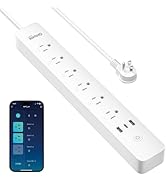
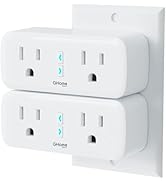
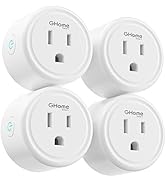
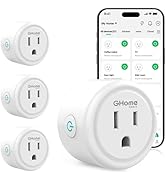
Popular GHome Smart Plugs
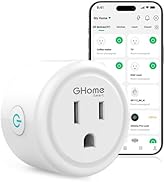
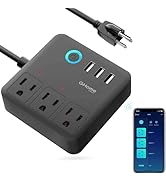
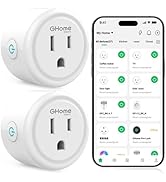
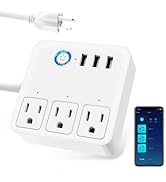
GHome Smart Power Strip

Independent physical button
This dual smart plug can be turned on and off using only its own physical buttons, without relying on a smartphone or internet connection for independent control.
Independent app control
This smart plug can also be fully controlled via the app, with individual and master controls, separate timers, and customizable scenes — extremely convenient to use.
An essential part of a smart home: just speak then hands free.
Control and check your devices anytime and anywhere you'd like.
Tap the plug on the home page, then tap the edit icon in the upper-right corner to create a group.


Timers, Schedules, and Scenes
Creat Scene
The devices automatically turn on and off based on weather temperature, sunrise and sunset times.
Random Timer
Random timer, turns lights on and off randomly to make it look like someone is home.
Surge Protection
Compact Design


The built-in surge protector can conduct and divert current in a short period of time to prevent surges from damaging equipment.
Space-saving design with two smart plugs for each outlet.
User Guide to Start Your Smart Journey

Would not connect to Google home?
Please try to confirm the network environment and the stability of the device first.
Tell us the code of the problem product through the backend.
Our technical staff and technicians are online 24 hours a day to solve the problem for you.
Why cannot connect to the Internet?-A
Make sure that the router has the 2.4G band turned on and connect the device to the network in that band. If the management password is incorrect, check whether the entered number contains special symbols.
Why cannot connect to the Internet? -B
Confirm that the router supports the 2.4G frequency band, adjust the AP location away from interference sources (such as operator antennas), and optimize the RF power settings.
Why cannot connect to the Internet? -C
The wireless bandwidth of a single wireless router is limited. For example, a common 300M wireless router cannot connect 50 wireless terminals at the same time. In this case, please restart the router.
Why does the Internet often disconnect?
Some devices may be taking up too much network resources. You can consider blacklisting them to free up network bandwidth for other devices. In addition, upgrading your router may be an effective solution.
At GHome Smart, we believe that sustainability is a way of life. From implementing energy-efficient processes to manufacturing low-carbon products, we aim to reduce our environmental impact. We make sustainability accessible to everyone by providing simple, low-cost solutions that help save energy and reduce carbon footprint. At GHome Smart, we believe that smart technology and sustainable development go hand-in-hand.
Popular GHome Smart Plugs
GHome Smart Power Strip





