


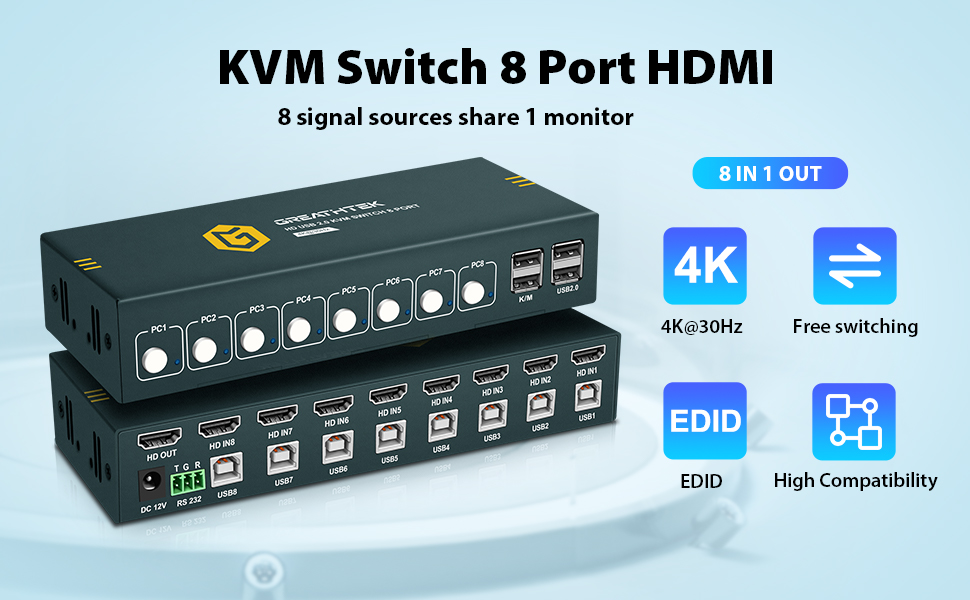
8-Port HDMI KVM Switch
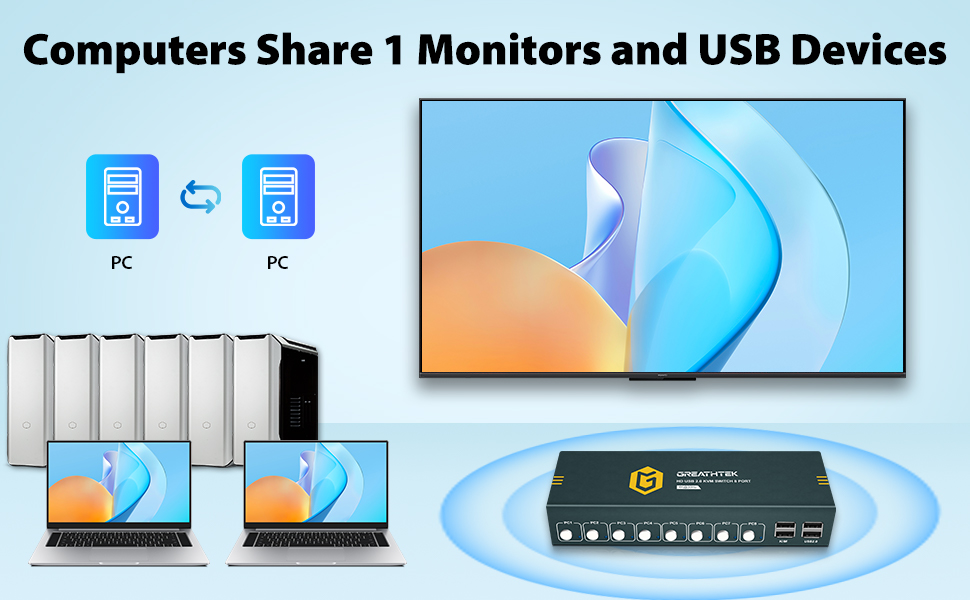
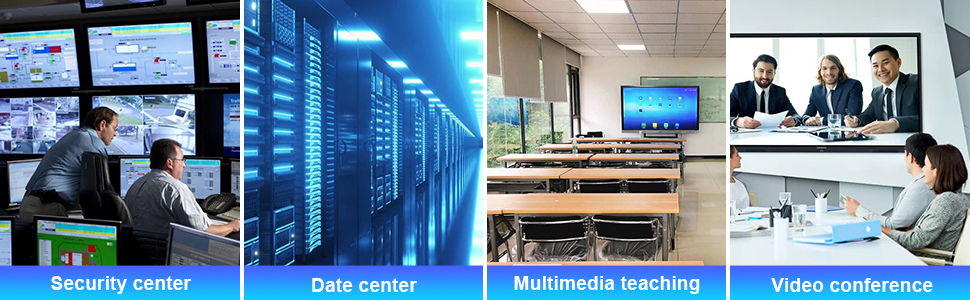
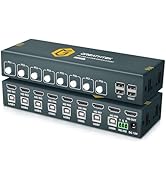
This 8-Port KVM Switch allows up to eight computers or servers to share one monitor, keyboard, mouse, and USB peripherals with ease. Say goodbye to constant cable swapping and messy desktops. With a simple press, you can instantly switch between your work and personal computers, boosting your productivity and efficiency. Perfect for offices, classrooms, and security monitoring setups, this KVM switch is the ideal solution for managing multiple devices efficiently.
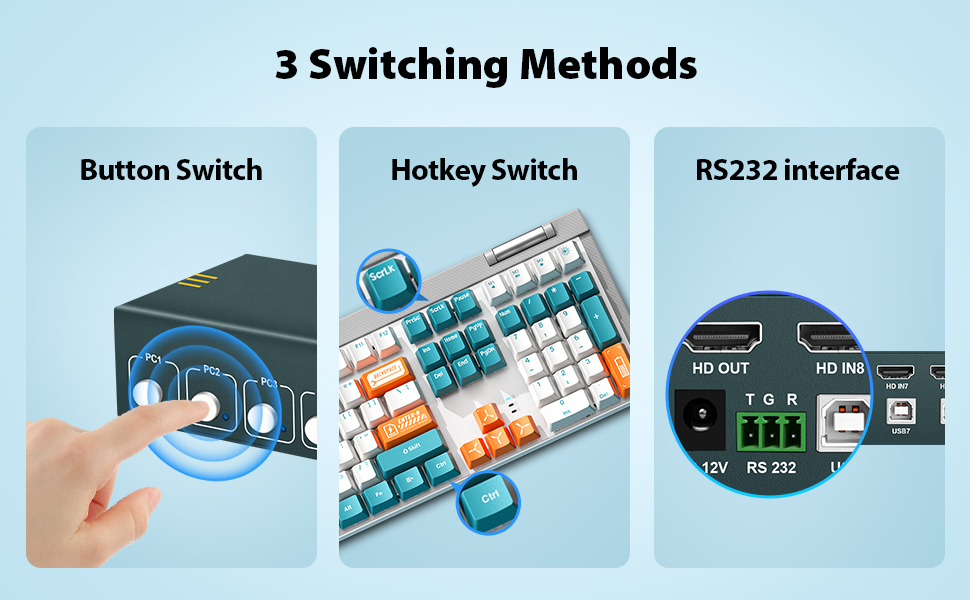
- Button switching
The 8 port KVM Switch supports button switching, allowing you to easily switch between 8 computers, fast and convenient.
- Hotkey switching
Hotkey commands: Ctrl+Ctrl+1/2 or Scrlk+Scrlk+1/2
- R232 interface
Supports R232 interface instructions.
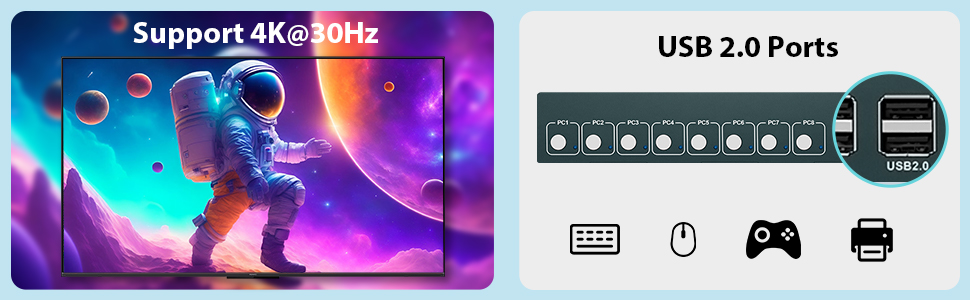
KVM Switch 8 computers HDMI maximum support 4K@30Hz. Downward compatibility 1080p, etc.
The HDMI KVM Switch 8 port comes with USB2.0 ports, supports 8 computers sharing multiple USB devices, such as keyboard, mouse, USB drives, microphones, etc.
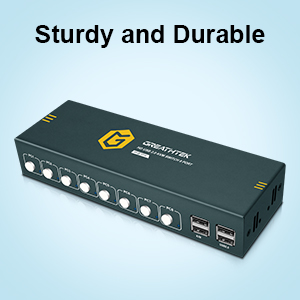
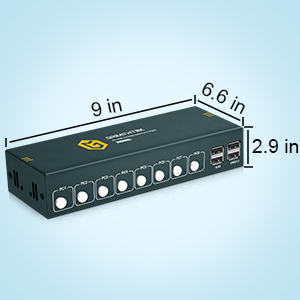
Sturdy and Durable
The shell is made of iron, sturdy and durable. At the same time, there are ventilation holes on both sides for heat dissipation and to extend the product's lifespan.
Widely Compatible
The kvm switch is compatible with multiple systems, such as Windows, Linux, Mac, etc.
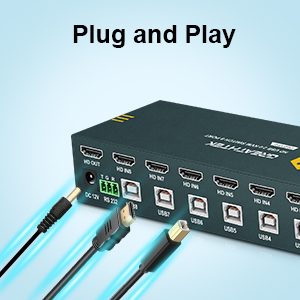
Plug and Play
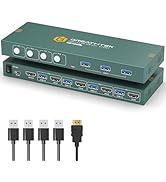
Packaging list:
HDMI KVM Switch 8 Port *1
USB-B Cables *8
Power adapter *1
R232 terminal * 1
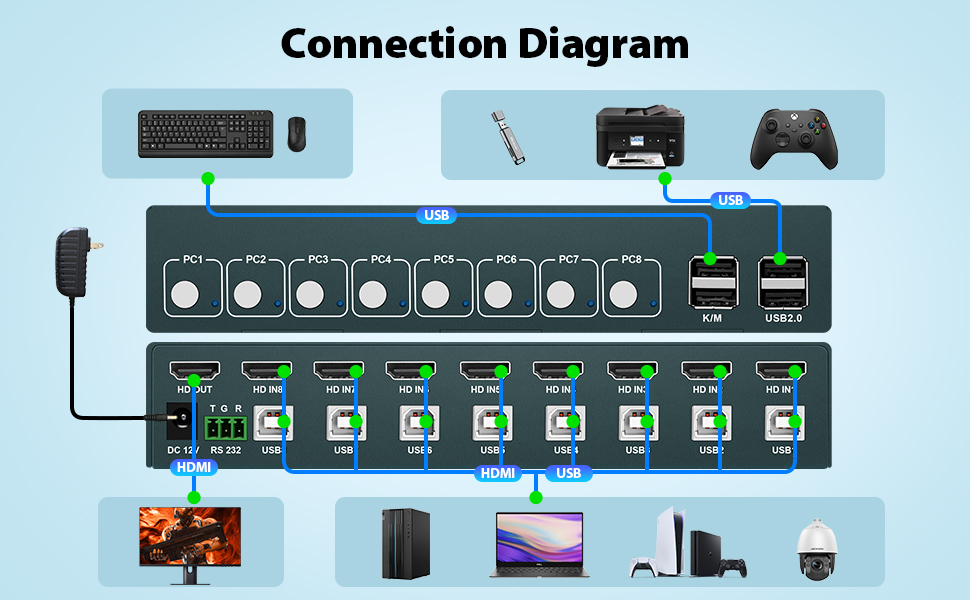
Connection Steps
1. Connect the power adapter to the switch..
2. Connect 1 HDMI 1.4 cables and 1 USB-B cable from PC1 to the input port of the switch PC1.
3. Connect 1 HDMI 1.4 cables and 1 USB-B cable from PC2 to the input port of the switch PC2.
4. Connect 1 HDMI 1.4 cables and 1 USB-B cable from PC3 to the input port of the switch PC3.
5. Connect 1 HDMI 1.4 cables and 1 USB-B cable from PC4 to the input port of the switch PC4.
6. Connect 1 HDMI 1.4 cables and 1 USB-B cable from PC5 to the input port of the switch PC5.
7. Connect 1 HDMI 1.4 cables and 1 USB-B cable from PC6 to the input port of the switch PC6.
8. Connect 1 HDMI 1.4 cables and 1 USB-B cable from PC7 to the input port of the switch PC7.
9. Connect 1 HDMI 1.4 cables and 1 USB-B cable from PC8 to the input port of the switch PC8.
10. Connect 1 HDMI 1.4 cables between the monitor and switch output ports.
11. Connect the keyboard and mouse to the K/M ports.


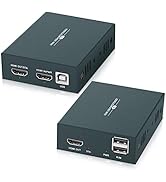
8-Port HDMI KVM Switch
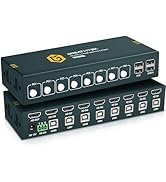
This 8-Port KVM Switch allows up to eight computers or servers to share one monitor, keyboard, mouse, and USB peripherals with ease. Say goodbye to constant cable swapping and messy desktops. With a simple press, you can instantly switch between your work and personal computers, boosting your productivity and efficiency. Perfect for offices, classrooms, and security monitoring setups, this KVM switch is the ideal solution for managing multiple devices efficiently.
- Button switching
The 8 port KVM Switch supports button switching, allowing you to easily switch between 8 computers, fast and convenient.
- Hotkey switching
Hotkey commands: Ctrl+Ctrl+1/2 or Scrlk+Scrlk+1/2
- R232 interface
Supports R232 interface instructions.
KVM Switch 8 computers HDMI maximum support 4K@30Hz. Downward compatibility 1080p, etc.
The HDMI KVM Switch 8 port comes with USB2.0 ports, supports 8 computers sharing multiple USB devices, such as keyboard, mouse, USB drives, microphones, etc.
Sturdy and Durable
The shell is made of iron, sturdy and durable. At the same time, there are ventilation holes on both sides for heat dissipation and to extend the product's lifespan.
Widely Compatible
The kvm switch is compatible with multiple systems, such as Windows, Linux, Mac, etc.
Plug and Play
Packaging list:
HDMI KVM Switch 8 Port *1
USB-B Cables *8
Power adapter *1
R232 terminal * 1
Connection Steps
1. Connect the power adapter to the switch..
2. Connect 1 HDMI 1.4 cables and 1 USB-B cable from PC1 to the input port of the switch PC1.
3. Connect 1 HDMI 1.4 cables and 1 USB-B cable from PC2 to the input port of the switch PC2.
4. Connect 1 HDMI 1.4 cables and 1 USB-B cable from PC3 to the input port of the switch PC3.
5. Connect 1 HDMI 1.4 cables and 1 USB-B cable from PC4 to the input port of the switch PC4.
6. Connect 1 HDMI 1.4 cables and 1 USB-B cable from PC5 to the input port of the switch PC5.
7. Connect 1 HDMI 1.4 cables and 1 USB-B cable from PC6 to the input port of the switch PC6.
8. Connect 1 HDMI 1.4 cables and 1 USB-B cable from PC7 to the input port of the switch PC7.
9. Connect 1 HDMI 1.4 cables and 1 USB-B cable from PC8 to the input port of the switch PC8.
10. Connect 1 HDMI 1.4 cables between the monitor and switch output ports.
11. Connect the keyboard and mouse to the K/M ports.
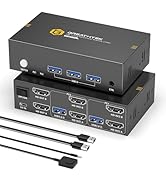
HDMI KVM Switch 2x1/4x1/8x1
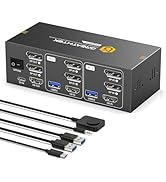
HDMI KVM Switch 2x2/4x2
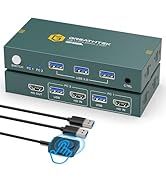
HDMI/USB Extender





