




MEETION is a play on the concept of "meeting". All the products we develop revolve around this theme.
In terms of investment in the scientific research of new products, we never hold back. We have dedicated quality control for every single product, every detail in the production process is precise and controlled. Our product and intellectual property rights are top priorities.

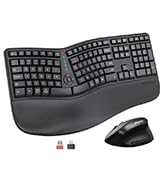
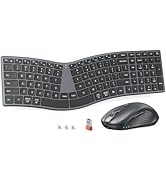
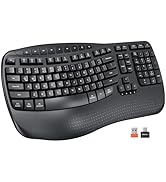
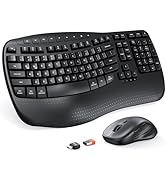
Ergonomic Hot Series
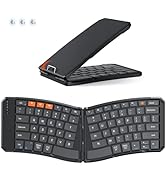
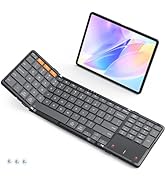
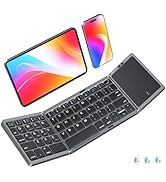
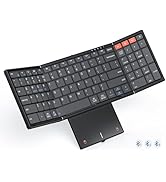
Foldbale Hot Series
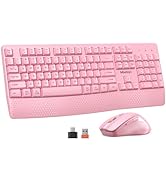
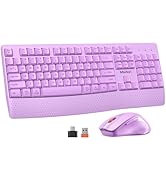
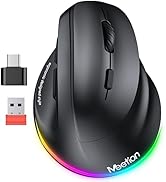
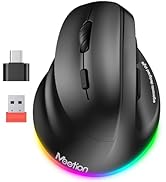
Wireless Hot Series
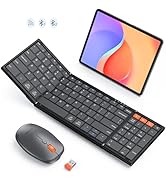
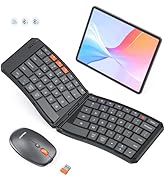
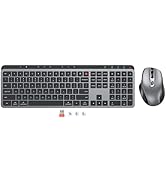
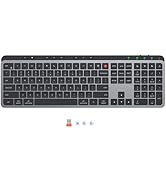
New Products Hot Series
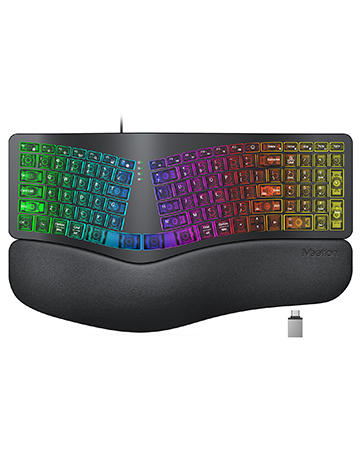
Backlit Ergonomic Keyboard

Experience the Shape of Day-Long Comfort


Indicator Light
Indicator lights provide clear visual cues so you can easily keep track of your keyboard's operation at a glance.

Long Lasting Battery Life
The keypad runs entirely on battery power (2 AA batteries required) and will auto-sleep after 20 minutes of idle time to save power.

USB-C Compatible
The orange USB-A receiver is stored in the keyboard’s battery compartment, while the black USB-C adapter is packed in the transparent accessory bag.

Packaging Includes
1* Keyboard, 1* User Manual, 1* USB-A, 1* USB-C adapter.
Please carefully check all the accessories upon receiving the product.


How to troubleshoot if the keyboard keys are unresponsive?
Replace with new batteries, turn off the keyboard and restart it.
Check if the receiver is loose, then pull it out and reinsert it.
Keep the receiver and keyboard within a straight-line distance of 33
What should I do if there’s latency with the keyboard or mouse?
Move keyboard/mouse within 3ft/1m of the USB receiver to boost signal.
Replace keyboard/mouse batteries with new ones (low power causes delays).
Turn off or move nearby wireless devices (e.g., Bluetooth speakers, routers) to reduce interference.
How do I connect the keyboard?
1. Insert 2 AAA batteries.
2. Remove the USB receiver from the storage at the bottom of the keyboard.
3. Plug the receiver into a USB port on your computer (use a USB-C adapter if necessary).
4. Turn on the keyboard via the keyboard power switch.
The keyboard won’t connect—how to troubleshoot?
1. Check if your system version is compatible.
2. Replace the 2 AAA batteries with new ones.
3. Reconnect the USB receiver. If using a USB-C adapter, try a different adapter to rule out adapter failure.
4. Make sure the power switch is on.
Is the wrist rest soft padding? What operating systems is this keyboard compatible with?
The wrist rest uses the same hard material as the keyboard body (not a soft pad). Compatible with Windows 10/11 and macOS 10.12+. Not supported: Windows 8.1, macOS below 10.13, lightweight Linux, and custom Linux distributions.

Experience the Shape of Day-Long Comfort

Indicator Light
Indicator lights provide clear visual cues so you can easily keep track of your keyboard's operation at a glance.
Long Lasting Battery Life
The keypad runs entirely on battery power (2 AA batteries required) and will auto-sleep after 20 minutes of idle time to save power.
USB-C Compatible
The orange USB-A receiver is stored in the keyboard’s battery compartment, while the black USB-C adapter is packed in the transparent accessory bag.
Packaging Includes
1* Keyboard, 1* User Manual, 1* USB-A, 1* USB-C adapter.
Please carefully check all the accessories upon receiving the product.


Love at First Typing


How to troubleshoot if the keyboard keys are unresponsive?
Replace with new batteries, turn off the keyboard and restart it.
Check if the receiver is loose, then pull it out and reinsert it.
Keep the receiver and keyboard within a straight-line distance of 33
What should I do if there’s latency with the keyboard or mouse?
Move keyboard/mouse within 3ft/1m of the USB receiver to boost signal.
Replace keyboard/mouse batteries with new ones (low power causes delays).
Turn off or move nearby wireless devices (e.g., Bluetooth speakers, routers) to reduce interference.
How do I connect the keyboard?
1. Insert 2 AAA batteries.
2. Remove the USB receiver from the storage at the bottom of the keyboard.
3. Plug the receiver into a USB port on your computer (use a USB-C adapter if necessary).
4. Turn on the keyboard via the keyboard power switch.
The keyboard won’t connect—how to troubleshoot?
1. Check if your system version is compatible.
2. Replace the 2 AAA batteries with new ones.
3. Reconnect the USB receiver. If using a USB-C adapter, try a different adapter to rule out adapter failure.
4. Make sure the power switch is on.
Is the wrist rest soft padding? What operating systems is this keyboard compatible with?
The wrist rest uses the same hard material as the keyboard body (not a soft pad). Compatible with Windows 10/11 and macOS 10.12+. Not supported: Windows 8.1, macOS below 10.13, lightweight Linux, and custom Linux distributions.
MEETION is a play on the concept of "meeting". All the products we develop revolve around this theme.
In terms of investment in the scientific research of new products, we never hold back. We have dedicated quality control for every single product, every detail in the production process is precise and controlled. Our product and intellectual property rights are top priorities.
Ergonomic Hot Series
Foldbale Hot Series
Wireless Hot Series
New Products Hot Series
Backlit Ergonomic Keyboard





