Desktop Internal Hard Drives - Showing 985 - 1008 of 3892 Products


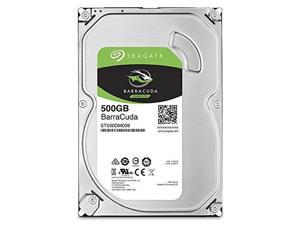

Seagate BarraCuda ST500DM009-25PK 500GB 7200 RPM 16MB Cache SATA 6.0Gb/s 3.5" ...
- Brand: Seagate
- Series: BarraCuda
- Capacity: 500GB
- RPM: 7200 RPM
- Interface: SATA 6.0Gb/s
- Form Factor: 3.5"
- Cache: 16MB
- Height (maximum): 19.99mm
- Model #: ST500DM009-25PK
- Item #: 9SIV253KGH7708
- Return Policy: TechnoDeals USA Return Policy
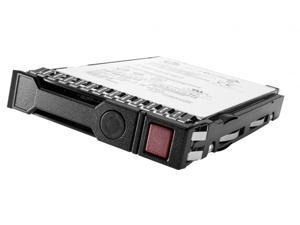

HPE 900 GB Hard Drive - SAS (12Gb/s SAS) - 2.5" Drive - Internal
- Model #: N9X06A
- Item #: 9SIV2GP9TU2170
- Return Policy: ITS Distribution Return Policy
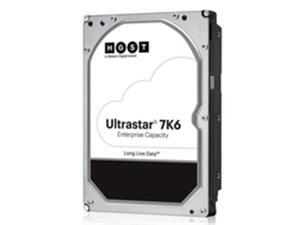
HGST 0B35948 4Tb 3.5 Inch 256Mb 7200Rpm Sata Ultra 4Kn Secure Erase 7K6 Bare
- Brand: HGST
- Capacity: 4TB
- RPM: 7200 RPM
- Interface: SATA 6.0Gb/s
- Form Factor: 3.5"
- Packaging: Bare Drive
- Average Latency: 6Gb/s
- Model #: 0B35948
- Item #: 9SIV2GEF1W3302
- Return Policy: TechSavers Return Policy
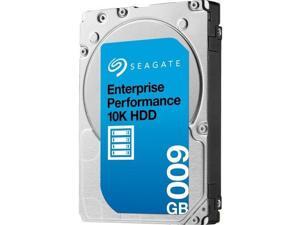
SEAGATE ST600MM0009 SEAGATE 600GB EXOS 10E2400 HDD 512N SAS 2.5 10000 128MB
- NAND Flash Memory Type: Hard Drive
- Model #: ST600MM0009
- Item #: 9SIV253KGJ1549
- Return Policy: TechnoDeals USA Return Policy
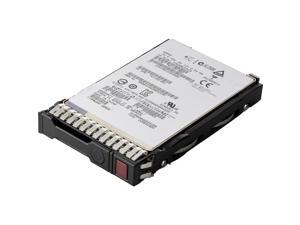
HPE P19913-B21 800 GB Solid State Drive - 2.5" Internal - SAS (12Gb/s SAS) - Mixed Use
- NAND Flash Memory Type: Solid State Drive
- Model #: P19913-B21
- Item #: 9SIV2GPHXS5173
- Return Policy: ITS Distribution Return Policy
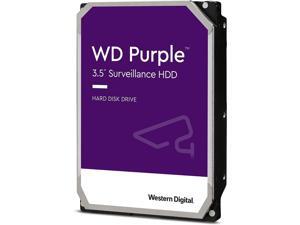

WD Purple 3TB Surveillance SATA 256 MB Cache 3.5" Internal HDD - WD33PURZ
- Model #: WD33PURZdp
- Item #: 9SIV253KVB9431
- Return Policy: TechnoDeals USA Return Policy
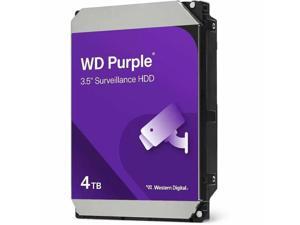
WD PURPLE 4TB SATA
- Brand: Western Digital
- Capacity: 4TB
- RPM: 5400 RPM
- Interface: SATA 6.0Gb/s
- Form Factor: 3.5"
- Packaging: Retail
- Cache: 256MB
- Model #:
- Item #: 9SIV253KVB9414
- Return Policy: TechnoDeals USA Return Policy
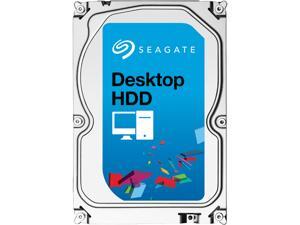
Seagate BarraCuda ST3250312AS 250GB 7200 RPM 8MB Cache SATA 6.0Gb/s 3.5" Internal ...
- NAND Flash Memory Type: Hard Drive
- Parts: 2 years limited
- Labor: 2 years limited
- Model #: ST3250312AS
- Item #: 9SIV253JZY6862
- Return Policy: TechnoDeals USA Return Policy
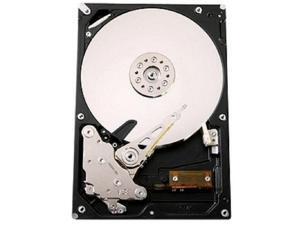
Hitachi Ultrastar A7K1000 HUA721010KLA330 1 TB 3.5' Internal Hard Drive
- Average Seek Time: 8.2ms
- Average Latency: 4.17ms
- Parts: 3 years limited
- Labor: 3 years limited
- Model #: 0A35772
- Item #: 9SIV253JZY7002
- Return Policy: TechnoDeals USA Return Policy
Western Digital 0B36050 Ultrastar DC HC310 6TB SAS-12Gbps 3.5-Inch Hard Drive
- Model #: 0B36050 .
- Item #: 9SIV2GEK4P7381
- Return Policy: TechSavers Return Policy
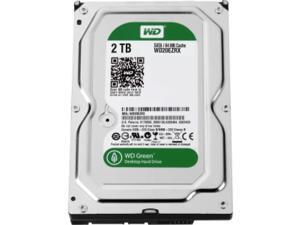
Western Digital WD20EZRX Caviar Green 2TB IntelliPower SATA 6Gbps 64MB Internal HDD
- Model #: WD20EZRX-OEM
- Item #: 9SIV253JN75247
- Return Policy: TechnoDeals USA Return Policy
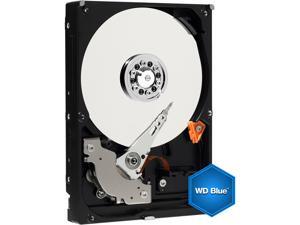
Western Digital Caviar SE WD800AAJB 80GB 7200 RPM 8MB Cache IDE Ultra ATA100 / ATA-6 ...
- Average Seek Time: 8.9ms
- Parts: 2 years limited
- Labor: 2 years limited
- Model #: WD800AAJB
- Item #: 9SIV2GEJNB5617
- Return Policy: TechSavers Return Policy
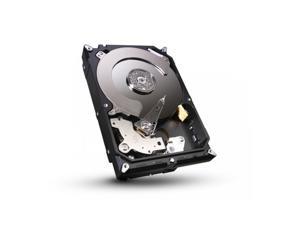
Hitachi Travelstar C4K60 Slim 40GB 4200RPM 2MB ATA-7 ZIF 1.8 INCH HARD DRIVE BARE ...
- Model #: HTC426040G8CE00
- Item #: 9SIV2GEBAT1984
- Return Policy: TechSavers Return Policy
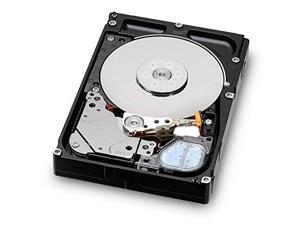
HGST HUC156030CSS200 2.5" 300GB SAS 12Gb/s 15K RPM 128M 512N 0B28955
- Model #: S1VBA-00-B00K9-1
- Item #: 9SIV2GEBAT2267
- Return Policy: TechSavers Return Policy
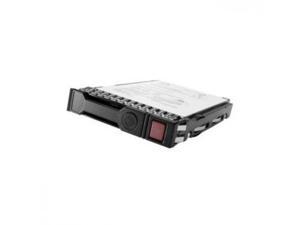
HPE 10TB 3.5" SAS 7200rpm Internal Hard Drive 857644B21
- NAND Flash Memory Type: Hard Drive
- Parts: 1 Year
- Model #: 857644-B21
- Item #: 9SIV173KEC9150
- Return Policy: Digitzy Return Policy
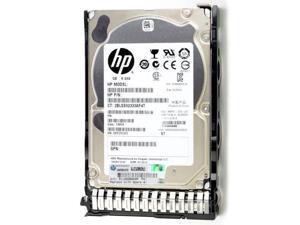
600 GB 3.5" Internal Hard Drive
- Model #: 765424-B21
- Item #: 9SIV7KVK605676
- Return Policy: Micron Tech Return Policy
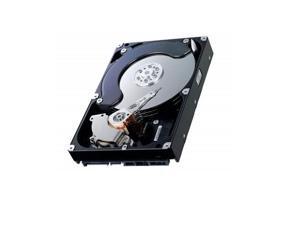
Fujitsu M2954ESP 4.35Gb 7200RPM Ultra Wide SCSI 80-Pin 512KB Cache 3.5-Inch Internal ...
- Model #: M2954ESP
- Item #: 9SIV2GE9XZ5362
- Return Policy: TechSavers Return Policy
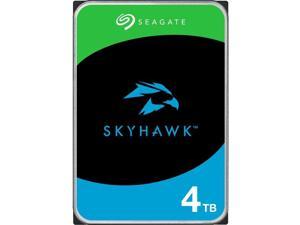
Seagate SkyHawk 4TB Internal SATA 3.5" Hard Drive, CMR Method ST4000VX016
- Brand: Seagate
- Model #: ST4000VX016
- Item #: 9SIV253KE73990
- Return Policy: TechnoDeals USA Return Policy
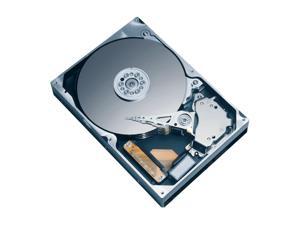
Western Digital Caviar SE WD3000JB 300GB 7200 RPM 8MB Cache IDE Ultra ATA100 / ATA-6 ...
- Average Seek Time: 8.9ms
- Average Write Time: 10.9ms
- Average Latency: 4.2ms
- Parts: 3 years limited
- Labor: 3 years limited
- Model #: WD3000JB
- Item #: 9SIV2GE9XZ6903
- Return Policy: TechSavers Return Policy
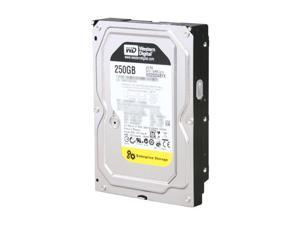
Western Digital WD RE4 WD2503ABYX 250GB 7200 RPM 64MB Cache SATA 3.0Gb/s 3.5" ...
- Brand: Western Digital
- Series: WD RE4
- Capacity: 250GB
- RPM: 7200 RPM
- Interface: SATA 3.0Gb/s
- Form Factor: 3.5"
- Packaging: Bare Drive
- Cache: 64MB
- Model #: WD2503ABYX
- Item #: 9SIV2A9JH52374
- Return Policy: Anand International Return Policy
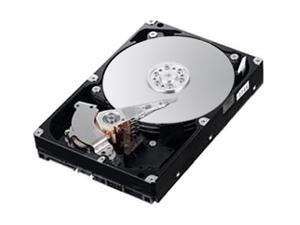
IBM 81Y9786 500GB 7200 RPM SATA 6.0Gb/s 3.5" Internal Hard Drive
- Parts: 1 Year Limited
- Model #: 81Y9786
- Item #: 9SIV7KVK621594
- Return Policy: Micron Tech Return Policy
Seagate ST20000NM007D Hard Drive 20TB SATA3 6Gb/S 7200 RPM 3.5in, 512e/4Kn - Exos ...
- Model #: Cpt-hhd-050
- Item #: 9SIV253JNW7957
- Return Policy: TechnoDeals USA Return Policy
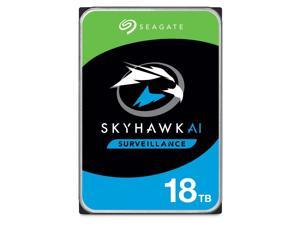
Seagate SkyHawk AI ST18000VE002 18 TB Hard Drive 3.5" Internal SATA SATA/600
- Brand: Seagate
- Series: SkyHawk AI
- Capacity: 18TB
- RPM: 7200 RPM
- Interface: SATA 6.0Gb/s
- Form Factor: 3.5"
- Packaging: Bare Drive
- Cache: 256MB
- Model #: ST18000VE002
- Item #: 9SIV253K6K4649
- Return Policy: TechnoDeals USA Return Policy
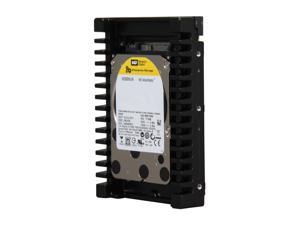
WD WD VelociRaptor WD3000HLHX 300GB 10000 RPM 32MB Cache SATA 6.0Gb/s 3.5" ...
- Brand: WD
- Series: WD VelociRaptor
- Capacity: 300GB
- RPM: 10000 RPM
- Interface: SATA 6.0Gb/s
- Form Factor: 3.5"
- Packaging: Bare Drive
- Cache: 32MB
- Model #: WD3000HLHX
- Item #: 9SIV253KEZ8522
- Return Policy: TechnoDeals USA Return Policy
What You Need to Know About Desktop Hard Disk Drives
Introduction
Though SSDs are becoming increasingly more popular, hard disk drives (HDD) are still essential internal data storage solutions for users that prioritize storage capacity over speed. Compared to hard disk drives, SSDs cost more per gigabyte and have smaller storage capacities. A commonly used configuration is to have a solid state drive as the primary drive and a desktop hard disk drive as the secondary drive. Below, NeweggBusiness answers several common questions about desktop hard disk drives.
What does interface type mean?
A hard disk drive must be connected to a motherboard via data cable in order to function as a system drive. The type of data cable that a hard drive supports can affect both system compatibility and data transfer speeds. This is often referred to as connection or interface type, and it is an important factor when shopping for a HDD.
For desktop hard disk drives, one of the most commonly used interface types is SATA. There have been several revisions for the SATA standard and the two most recent are SATA 3 Gbps and SATA 6 Gbps. They are often stylized as SATA II and SATA III respectively.
What is seek time?
In order for data to be retrieved or written onto the hard disk, a read/write head must move to the correct position on the disk. This is not an instantaneous process and the time required for the head to move into position is referred to as seek time, which is rated in milliseconds.
Is it possible to use a desktop hard disk drive as an external HDD?
Adapting a desktop hard disk drive for external use is possible, though additional hard drive accessories are usually required. Three commonly used methods include, using an SATA to External SATA (eSATA™) cable, hard drive enclosure, or a hard disk drive dock.
What is the purpose of a hard disk drive’s S.M.A.R.T. feature?
Short for Self-mentoring, Analysis, and Reporting Technology, S.M.A.R.T. is a feature that allows hard disk drives to monitor and report on reliability indicators. This is done so that potential problems can be anticipated. To view the S.M.A.R.T. status of a hard disk drive, you will need to use a reporting tool.