


Desktop Internal Hard Drives - Showing 1009 - 1032 of 3832 Products


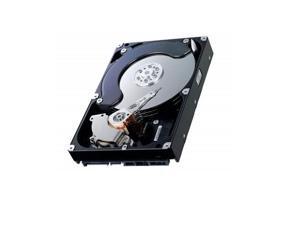
Fujitsu M2954ESP 4.35Gb 7200RPM Ultra Wide SCSI 80-Pin 512KB Cache 3.5-Inch Internal ...
- Model #: M2954ESP
- Item #: 9SIV2GE9XZ5362
- Return Policy: TechSavers Return Policy
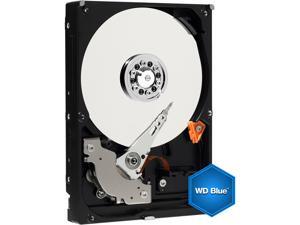

Western Digital Caviar SE WD800AAJB 80GB 7200 RPM 8MB Cache IDE Ultra ATA100 / ATA-6 ...
- Average Seek Time: 8.9ms
- Parts: 2 years limited
- Labor: 2 years limited
- Model #: WD800AAJB
- Item #: 9SIV2GEJNB5617
- Return Policy: TechSavers Return Policy
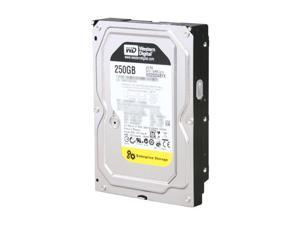
Western Digital WD RE4 WD2503ABYX 250GB 7200 RPM 64MB Cache SATA 3.0Gb/s 3.5" ...
- Brand: Western Digital
- Series: WD RE4
- Capacity: 250GB
- RPM: 7200 RPM
- Interface: SATA 3.0Gb/s
- Form Factor: 3.5"
- Packaging: Bare Drive
- Cache: 64MB
- Model #: WD2503ABYX
- Item #: 9SIV2A9JH52374
- Return Policy: Anand International Return Policy
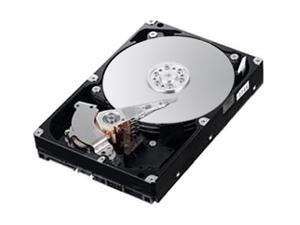
IBM 81Y9786 500GB 7200 RPM SATA 6.0Gb/s 3.5" Internal Hard Drive
- Parts: 1 Year Limited
- Model #: 81Y9786
- Item #: 9SIV7KVK621594
- Return Policy: Micron Tech Return Policy
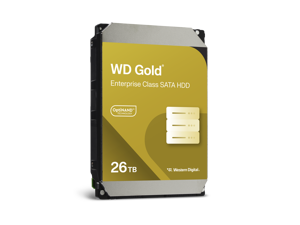
WD Gold 26TB Enterprise Class Hard Disk Drive - 7200 RPM Class SATA 6Gb/s 512MB Cache 3.5 ...
- Brand: WD
- Series: Gold
- Capacity: 26TB
- RPM: 7200 RPM
- Interface: SATA 6.0Gb/s
- Form Factor: 3.5"
- Cache: 512MB
- Features: Built For Demanding Use Cases Customize your business’s storage mix to fit your specific needs with hard drives in capacities of up to 26TB1, engineered for demanding applications with a read-write workload rating of up to 550TB2 per year. Enhanced Reliability With a five-year limited warranty3 supporting up to 2.5M hours MTBF4, WD Gold hard drives deliver enhanced levels of dependability and durability. Protection and Performance Boost ArmorCache™ technology (available in 22TB and above) is a Western Digital-only feature that provides enterprise power loss protection of your data in write-cache enabled (WCE) mode while increasing performance in write-cache disabled (WCD) mode....
- Model #: WD261KRYZ
- Item #: 9SIV253KZ98697
- Return Policy: TechnoDeals USA Return Policy
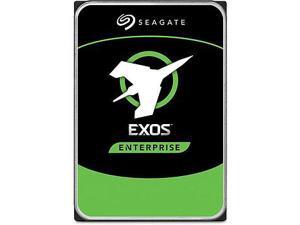

Seagate ST20000NM007D Hard Drive 20TB SATA3 6Gb/S 7200 RPM 3.5in, 512e/4Kn - Exos ...
- Model #: Cpt-hhd-050
- Item #: 9SIV253JNW7957
- Return Policy: TechnoDeals USA Return Policy

Seagate SkyHawk AI ST10000VE001 10TB 7200 RPM 256MB Cache SATA 6.0Gb/s 3.5" ...
- Brand: Seagate
- Series: SkyHawk AI
- Capacity: 10TB
- RPM: 7200 RPM
- Interface: SATA 6.0Gb/s
- Form Factor: 3.5"
- Packaging: Bare Drive
- Cache: 256MB
- Model #: ST10000VE001
- Item #: 9SIV253K9R8916
- Return Policy: TechnoDeals USA Return Policy
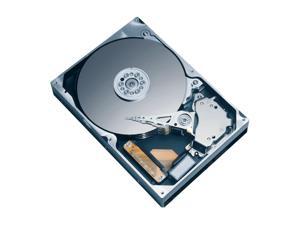
Western Digital Caviar SE WD3000JB 300GB 7200 RPM 8MB Cache IDE Ultra ATA100 / ATA-6 ...
- Average Seek Time: 8.9ms
- Average Write Time: 10.9ms
- Average Latency: 4.2ms
- Parts: 3 years limited
- Labor: 3 years limited
- Model #: WD3000JB
- Item #: 9SIV2GE9XZ6903
- Return Policy: TechSavers Return Policy
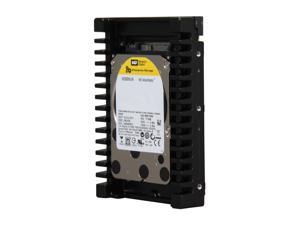
WD WD VelociRaptor WD3000HLHX 300GB 10000 RPM 32MB Cache SATA 6.0Gb/s 3.5" ...
- Brand: WD
- Series: WD VelociRaptor
- Capacity: 300GB
- RPM: 10000 RPM
- Interface: SATA 6.0Gb/s
- Form Factor: 3.5"
- Packaging: Bare Drive
- Cache: 32MB
- Model #: WD3000HLHX
- Item #: 9SIV253KEZ8522
- Return Policy: TechnoDeals USA Return Policy
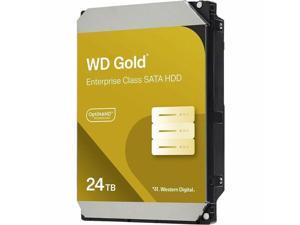
WD Gold 24TB Enterprise Class Hard Disk Drive - 7200 RPM Class SATA 6Gb/s 512MB Cache 3.5 ...
- Brand: WD
- Series: Gold
- Capacity: 24TB
- RPM: 7200 RPM
- Interface: SATA 6.0Gb/s
- Form Factor: 3.5"
- Cache: 512MB
- Features: Built For Demanding Use Cases Customize your business’s storage mix to fit your specific needs with hard drives in capacities of up to 26TB1, engineered for demanding applications with a read-write workload rating of up to 550TB2 per year. Enhanced Reliability With a five-year limited warranty3 supporting up to 2.5M hours MTBF4, WD Gold hard drives deliver enhanced levels of dependability and durability. Protection and Performance Boost ArmorCache™ technology (available in 22TB and above) is a Western Digital-only feature that provides enterprise power loss protection of your data in write-cache enabled (WCE) mode while increasing performance in write-cache disabled (WCD) mode....
- Model #: WD242KRYZ
- Item #: 9SIV253KZR0185
- Return Policy: TechnoDeals USA Return Policy
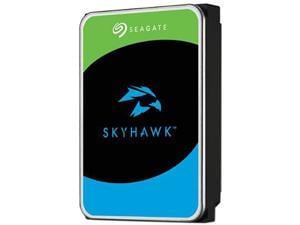
Seagate SkyHawk ST4000VX016 4TB 5400 RPM 256MB Cache SATA 6.0Gb/s 3.5" Internal ...
- Brand: Seagate
- Series: SkyHawk
- Capacity: 4TB
- RPM: 5400 RPM
- Interface: SATA 6.0Gb/s
- Form Factor: 3.5"
- Cache: 256MB
- Recording Technology: CMR
- Model #: ST4000VX016
- Item #: 9SIV253KE73989
- Return Policy: TechnoDeals USA Return Policy
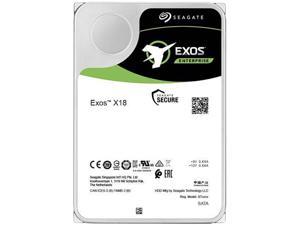
Seagate Exos X18 ST12000NM004J 12TB 7200 RPM 256MB Cache SAS 12Gb/s 3.5" Hard ...
- Brand: Seagate
- Series: Exos X18
- Capacity: 12TB
- RPM: 7200 RPM
- Interface: SAS 12Gb/s
- Form Factor: 3.5"
- Cache: 256MB
- Average Latency: 4.16ms
- Model #: ST12000NM004J
- Item #: 9SIV18PKVR1631
- Return Policy: Neworld Return Policy
HGST Ultrastar 15K147 HUS151473VL3800 73 GB 3.5" Internal Hard Drive - SCSI
- Parts: 5 Years
- Labor: 5 Years
- Model #: 0B21253
- Item #: 9SIV2GEB094115
- Return Policy: TechSavers Return Policy
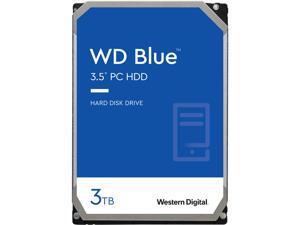
WD Blue WD30EZRZ 3TB 5400 RPM 64MB Cache SATA 6.0Gb/s 3.5" Internal Hard Drive Bare ...
- Brand: WD
- Series: Blue
- Capacity: 3TB
- RPM: 5400 RPM
- Interface: SATA 6.0Gb/s
- Form Factor: 3.5"
- Packaging: Bare Drive
- Cache: 64MB
- Model #: WD30EZRZ
- Item #: 9SIV18PKJV3598
- Return Policy: Neworld Return Policy
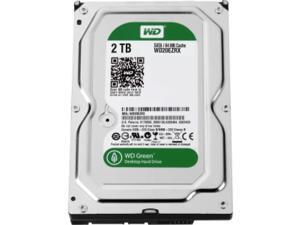
Western Digital WD20EZRX Caviar Green 2TB IntelliPower SATA 6Gbps 64MB Internal HDD
- Model #: WD20EZRX-OEM
- Item #: 9SIV253JN75247
- Return Policy: TechnoDeals USA Return Policy
Western Digital 0B36050 Ultrastar DC HC310 6TB SAS-12Gbps 3.5-Inch Hard Drive
- Model #: 0B36050 .
- Item #: 9SIV2GEK4P7381
- Return Policy: TechSavers Return Policy
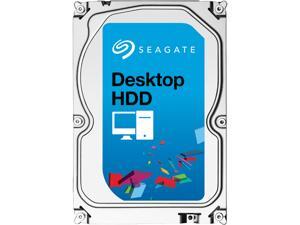
Seagate BarraCuda ST3250312AS 250GB 7200 RPM 8MB Cache SATA 6.0Gb/s 3.5" Internal ...
- NAND Flash Memory Type: Hard Drive
- Parts: 2 years limited
- Labor: 2 years limited
- Model #: ST3250312AS
- Item #: 9SIV253JZY6862
- Return Policy: TechnoDeals USA Return Policy
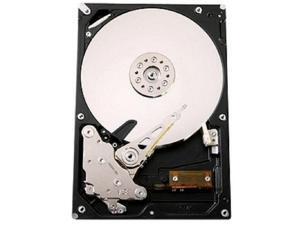
Hitachi Ultrastar A7K1000 HUA721010KLA330 1 TB 3.5' Internal Hard Drive
- Average Seek Time: 8.2ms
- Average Latency: 4.17ms
- Parts: 3 years limited
- Labor: 3 years limited
- Model #: 0A35772
- Item #: 9SIV253JZY7002
- Return Policy: TechnoDeals USA Return Policy
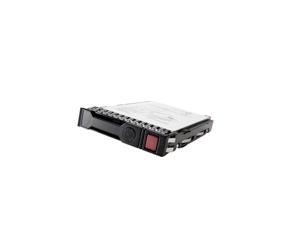

Hewlett Packard Enterprise P19913-B21 internal solid state drive 2.5" 800 GB SAS MLC
- Model #: HEW_P19913-B21
- Item #: 9SIV2GPHXS5175
- Return Policy: ITS Distribution Return Policy
FUJITSU Mbb2073Rc 73Gb 10000Rpm 16Mb Buffer Sas3Gbits 2.5Inch Hard Drive
- Model #: MBB2073RC
- Item #: 9SIV2GE9XZ5067
- Return Policy: TechSavers Return Policy
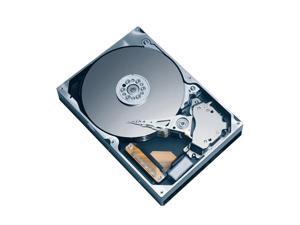
Western Digital RE2 WD4000ABYS 400GB 7200 RPM 16MB Cache SATA 3.0Gb/s 3.5" Hard ...
- Average Seek Time: 8.9ms
- Average Latency: 4.2ms
- Parts: 3 years limited
- Labor: 3 years limited
- Model #: WD4000ABYS
- Item #: 9SIV2GE9XZ6557
- Return Policy: TechSavers Return Policy
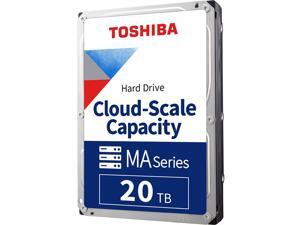
Toshiba MG10 Series MG10SCA20TE - Hard drive - Enterprise - 20 TB - internal - 3.5" - SAS ...
- Model #: MG10SCA20TE
- Item #: 9SIV253KZP9253
- Return Policy: TechnoDeals USA Return Policy
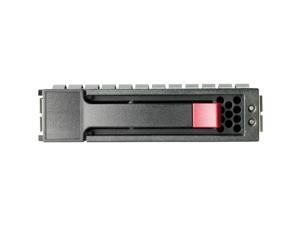
HPE 6 TB Hard Drive 3.5" Internal SAS 12Gb/s SAS R0Q58A
- Model #: R0Q58A
- Item #: 9SIV2GPJNU3613
- Return Policy: ITS Distribution Return Policy
HP 900 GB 2.5" Internal Hard Drive
- Brand: HPE - BUSINESS CLASS STORAGE
- Capacity: 900GB
- RPM: 10000 RPM
- Interface: SAS 6Gb/s
- Form Factor: 2.5"
- Packaging: Bare Drive
- Average Latency: 6Gb/s
- NAND Flash Memory Type: SLC
- Model #: N9X06A
- Item #: 9SIV2GP9TU2175
- Return Policy: ITS Distribution Return Policy
What You Need to Know About Desktop Hard Disk Drives
Introduction
Though SSDs are becoming increasingly more popular, hard disk drives (HDD) are still essential internal data storage solutions for users that prioritize storage capacity over speed. Compared to hard disk drives, SSDs cost more per gigabyte and have smaller storage capacities. A commonly used configuration is to have a solid state drive as the primary drive and a desktop hard disk drive as the secondary drive. Below, NeweggBusiness answers several common questions about desktop hard disk drives.
What does interface type mean?
A hard disk drive must be connected to a motherboard via data cable in order to function as a system drive. The type of data cable that a hard drive supports can affect both system compatibility and data transfer speeds. This is often referred to as connection or interface type, and it is an important factor when shopping for a HDD.
For desktop hard disk drives, one of the most commonly used interface types is SATA. There have been several revisions for the SATA standard and the two most recent are SATA 3 Gbps and SATA 6 Gbps. They are often stylized as SATA II and SATA III respectively.
What is seek time?
In order for data to be retrieved or written onto the hard disk, a read/write head must move to the correct position on the disk. This is not an instantaneous process and the time required for the head to move into position is referred to as seek time, which is rated in milliseconds.
Is it possible to use a desktop hard disk drive as an external HDD?
Adapting a desktop hard disk drive for external use is possible, though additional hard drive accessories are usually required. Three commonly used methods include, using an SATA to External SATA (eSATA™) cable, hard drive enclosure, or a hard disk drive dock.
What is the purpose of a hard disk drive’s S.M.A.R.T. feature?
Short for Self-mentoring, Analysis, and Reporting Technology, S.M.A.R.T. is a feature that allows hard disk drives to monitor and report on reliability indicators. This is done so that potential problems can be anticipated. To view the S.M.A.R.T. status of a hard disk drive, you will need to use a reporting tool.

