


Desktop Internal Hard Drives - Showing 1969 - 1992 of 3935 Products


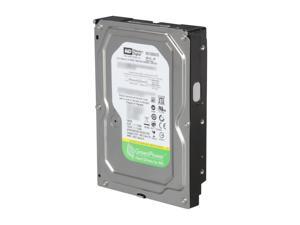

Refurbished: WD AV-GP WD1600AVVS 160GB 8MB Cache SATA 3.0Gb/s 3.5" Internal Hard ...
- Parts: 90 days limited
- Labor: 90 days limited
- Model #: WD1600AVVS
- Item #: 9SIV0AHBYM7341
- Return Policy: Best Hdd Inc Return Policy
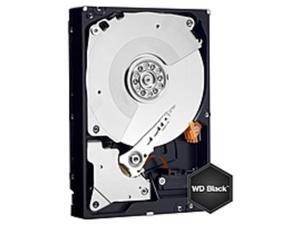
Refurbished: WD WD4003FZEX Black WD4003FZEX 4 TB Hard Drive - 3.5" Internal - SATA ...
- NAND Flash Memory Type: Hard Drive
- Model #: WD4003FZEX
- Item #: 9SIV0AHBYR2777
- Return Policy: Best Hdd Inc Return Policy
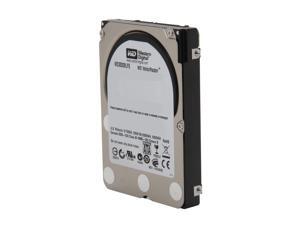
Refurbished: 2.5’’ 300GB VelociRaptor WD3000BLFS 10000 RPM 16MB Cache 2.5" SATA ...
- Average Write Time: 4.7ms
- Parts: 1 Year Warranty from Reseller
- Labor: 1 Year Warranty from Reseller
- Model #: WD3000BLFS
- Item #: 9SIV0AHBYP5109
- Return Policy: Best Hdd Inc Return Policy
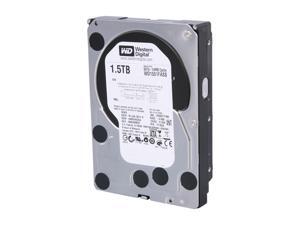
Refurbished: WD Black WD1501FASS 1.5TB 7200 RPM 64MB Cache SATA 3.0Gb/s 3.5" ...
- Model #: WD1501FASS
- Item #: 9SIV0AHBYR2842
- Return Policy: Best Hdd Inc Return Policy
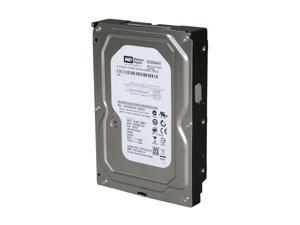
Refurbished: Western Digital Blue WD3200AAKS 320GB 7200 RPM 16MB Cache SATA ...
- Average Seek Time: 8.9ms
- Average Write Time: 10.9ms
- Average Latency: 4.2ms
- Model #: WD3200AAKS
- Item #: 9SIV0AHBYR2178
- Return Policy: Best Hdd Inc Return Policy
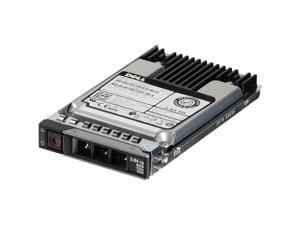

Refurbished: Dell 3.84TB 12Gbps SAS MU Mix Use MLC 2.5 SSD PX05SVB384Y ...
- Model #: 011110682321
- Item #: 9SIV0AHJK51652
- Return Policy: Best Hdd Inc Return Policy
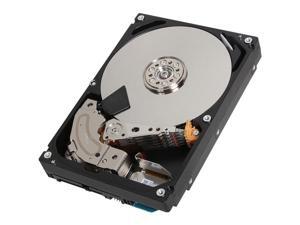
Refurbished: Toshiba MC04ACA400E MC04ACA MC04ACA400E 4 TB Hard Drive - 3.5" ...
- Model #: MC04ACA400E
- Item #: 9SIV0AHJPE4123
- Return Policy: Best Hdd Inc Return Policy
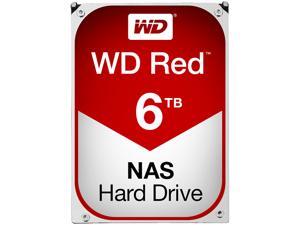
Refurbished: WD Red WD60EFRX 6TB IntelliPower 64MB Cache SATA 6.0Gb/s 3.5" NAS Hard ...
- Height (maximum): 26.10mm
- Width (maximum): 101.60mm
- Length (maximum): 1470.00mm
- Model #: WD60EFRX
- Item #: 9SIV0AHCKE1753
- Return Policy: Best Hdd Inc Return Policy
Refurbished: Dell FY4Y0 2 TB Hard Drive - 3.5" Internal - Near Line SAS (NL-SAS) (6Gb/s SAS)
- Model #: FY4Y0
- Item #: 9SIV0AHJJF4552
- Return Policy: Best Hdd Inc Return Policy
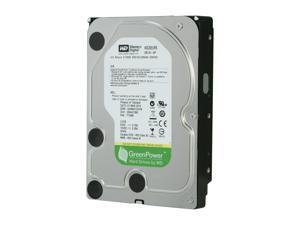
Refurbished: WD AV WD20EURS 2TB 64MB Cache SATA 3.0Gb/s 3.5" Internal Hard Drive - ...
- Height (maximum): 26.10mm
- Width (maximum): 101.60mm
- Length (maximum): 147.00mm
- Model #: WD20EURS
- Item #: 9SIV0AHBYP5870
- Return Policy: Best Hdd Inc Return Policy
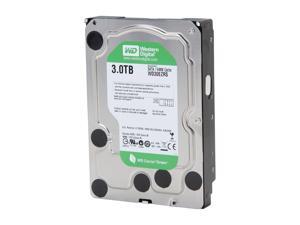
Refurbished: Western Digital WD Green WD30EZRS 3TB 64MB Cache SATA 3.0Gb/s 3.5" ...
- Parts: 90 days limited
- Labor: 90 days limited
- Model #: WD30EZRS
- Item #: 9SIV0AHBYP5440
- Return Policy: Best Hdd Inc Return Policy
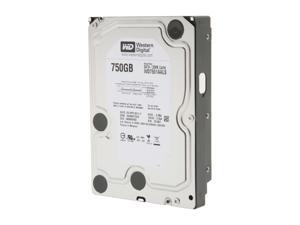
Refurbished: WD Black WD7501AALS 750GB 7200 RPM 32MB Cache SATA 3.0Gb/s 3.5" Hard ...
- Parts: 90 days limited
- Labor: 90 days limited
- Model #: WD7501AALS
- Item #: 9SIV0AHBYP5650
- Return Policy: Best Hdd Inc Return Policy

Refurbished: 08Jyxk Dell 1Tb Sata 7.2K 6Gbps 3.5 Hard Drive
- Model #: e19a8da4-f5fc-4
- Item #: 9SIV0AHJJ92948
- Return Policy: Best Hdd Inc Return Policy
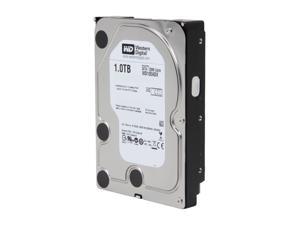
Refurbished: WD WD Green WD10EADX 1TB 32MB Cache SATA 6.0Gb/s 3.5" Internal Hard ...
- Model #: WD10EADX
- Item #: 9SIV0AHBYN3886
- Return Policy: Best Hdd Inc Return Policy
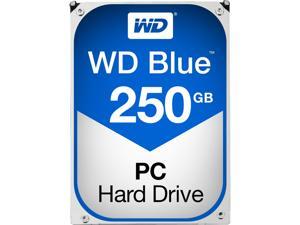
Refurbished: Western Digital Blue WD2500AAKX 250 GB 3.5-inch Internal Hard Drive - SATA - ...
- Height (maximum): 25.40mm
- Width (maximum): 101.60mm
- Length (maximum): 147.00mm
- Model #: WD2500AAKX
- Item #: 9SIV0AHFK58072
- Return Policy: Best Hdd Inc Return Policy
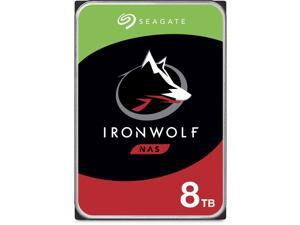

Refurbished: Seagate IronWolf ST8000VN0022 8TB 7200 RPM 256MB Cache SATA 6.0Gb/s ...
- Height (maximum): 26.11mm
- Width (maximum): 101.60mm
- Length (maximum): 146.99mm
- Model #: ST8000VN0022
- Item #: 9SIV0AHKEM9664
- Return Policy: Best Hdd Inc Return Policy
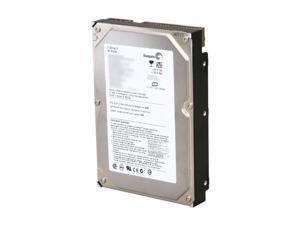
Refurbished: Seagate U Series 9 ST380012ACE 80GB 1MB Cache IDE Ultra ATA100 / ATA-6 ...
- Average Seek Time: 8.5ms
- Average Write Time: 9.5ms
- Average Latency: 4.16ms
- Parts: 90 days limited
- Labor: 90 days limited
- Model #: ST380012ACE
- Item #: 9SIV0AHJPC6761
- Return Policy: Best Hdd Inc Return Policy
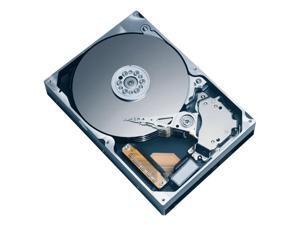
Refurbished: Western Digital Caviar SE16 WD2500KS 250GB 7200 RPM 16MB Cache SATA ...
- Average Seek Time: 8.9ms
- Average Write Time: 10.9ms
- Average Latency: 4.2ms
- Parts: 90 days limited
- Labor: 90 days limited
- Model #: WD2500KS
- Item #: 9SIV0AHBYR2371
- Return Policy: Best Hdd Inc Return Policy
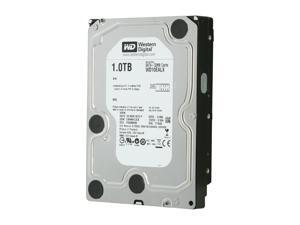
Refurbished: WD Blue WD10EALX 1TB 7200 RPM 32MB Cache SATA 6.0Gb/s 3.5" Internal ...
- Model #: WD10EALX
- Item #: 9SIV0AHBYP5358
- Return Policy: Best Hdd Inc Return Policy
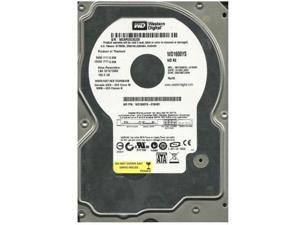
Refurbished: WD1600YS-01SHB1 WESTERN DIGITAL 160GB 7200RPM SATA BUFFER 16MB ...
- Model #: WD1600YS-01SHB1
- Item #: 9SIV0AHJW42819
- Return Policy: Best Hdd Inc Return Policy
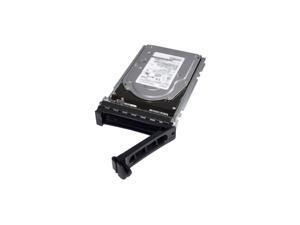
Refurbished: Dell GC828 146 GB Hard Drive - 3.5" Internal - SCSI (Ultra320 SCSI)
- NAND Flash Memory Type: Hard Drive
- Model #: GC828
- Item #: 9SIV0AHJNC0657
- Return Policy: Best Hdd Inc Return Policy
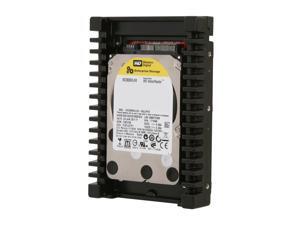
Refurbished: WD WD VelociRaptor WD3000HLHX 300GB 10000 RPM 32MB Cache SATA ...
- Model #: WD3000HLHX
- Item #: 9SIV0AHBYM5853
- Return Policy: Best Hdd Inc Return Policy
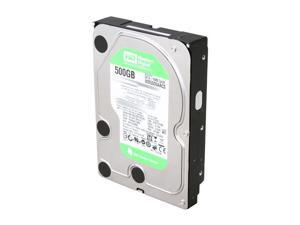
Refurbished: Western Digital Caviar GP WD5000AACS 500GB 5400 to 7200 RPM 16MB Cache ...
- Average Seek Time: 8.9ms
- Average Latency: 5.6ms
- Parts: 90 days limited
- Labor: 90 days limited
- Model #: WD5000AACS
- Item #: 9SIV0AHBYM7577
- Return Policy: Best Hdd Inc Return Policy
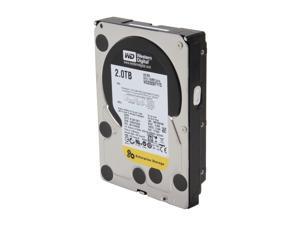
Refurbished: WD WD RE4 WD2003FYYS 2TB 7200 RPM 64MB Cache SATA 3.0Gb/s 3.5" ...
- Parts: 1 Year Warranty from Reseller
- Labor: 1 Year Warranty from Reseller
- Model #: WD2003FYYS
- Item #: 9SIV16GAPC3651
- Return Policy: ATP Warehouse Return Policy
What You Need to Know About Desktop Hard Disk Drives
Introduction
Though SSDs are becoming increasingly more popular, hard disk drives (HDD) are still essential internal data storage solutions for users that prioritize storage capacity over speed. Compared to hard disk drives, SSDs cost more per gigabyte and have smaller storage capacities. A commonly used configuration is to have a solid state drive as the primary drive and a desktop hard disk drive as the secondary drive. Below, NeweggBusiness answers several common questions about desktop hard disk drives.
What does interface type mean?
A hard disk drive must be connected to a motherboard via data cable in order to function as a system drive. The type of data cable that a hard drive supports can affect both system compatibility and data transfer speeds. This is often referred to as connection or interface type, and it is an important factor when shopping for a HDD.
For desktop hard disk drives, one of the most commonly used interface types is SATA. There have been several revisions for the SATA standard and the two most recent are SATA 3 Gbps and SATA 6 Gbps. They are often stylized as SATA II and SATA III respectively.
What is seek time?
In order for data to be retrieved or written onto the hard disk, a read/write head must move to the correct position on the disk. This is not an instantaneous process and the time required for the head to move into position is referred to as seek time, which is rated in milliseconds.
Is it possible to use a desktop hard disk drive as an external HDD?
Adapting a desktop hard disk drive for external use is possible, though additional hard drive accessories are usually required. Three commonly used methods include, using an SATA to External SATA (eSATA™) cable, hard drive enclosure, or a hard disk drive dock.
What is the purpose of a hard disk drive’s S.M.A.R.T. feature?
Short for Self-mentoring, Analysis, and Reporting Technology, S.M.A.R.T. is a feature that allows hard disk drives to monitor and report on reliability indicators. This is done so that potential problems can be anticipated. To view the S.M.A.R.T. status of a hard disk drive, you will need to use a reporting tool.

